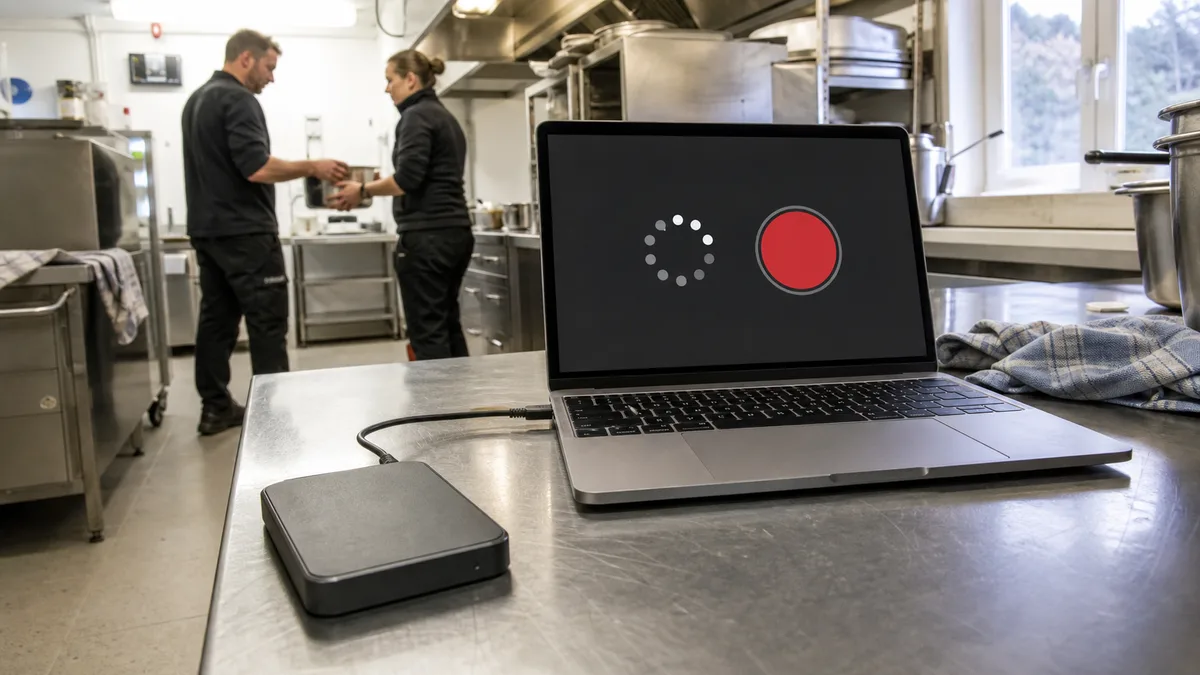
The short answer: When Time Machine fails to complete a backup, start by distinguishing between three different issues: a slow backup (large, frequently modified files, a network connection, or the first backup), a full or incompatible destination (Apple recommends a disk with at least twice the Mac’s storage capacity and APFS on macOS Big Sur 11 or later), and a damaged destination drive. The distinction is crucial: the first two can be resolved through configuration, while the third means your only copy of older data is stored on failing media. As soon as macOS offers to create a new backup, retrieve your data from the old backup first—confirming the new backup will erase the existing one.
From the user’s perspective, Time Machine is simple: connect a disk, configure it once, and forget about it. That is precisely why failures are often discovered late—frequently only when the backup is actually needed. By then, it is too late to find out that the last successful write occurred eight months ago.
This article is about backups that fail. We cover the separate situation in which a Mac will not turn on and data must be recovered from its internal storage in MacBook data recovery: Time Machine, FileVault, and soldered SSDs.
Three different problems that look the same
They all look identical in the menu bar—the backup simply never finishes. Behind the scenes, however, there are three distinct scenarios:
- The backup is running, but it takes an extremely long time. Nothing is broken; more data than expected is being transferred, or the connection to the disk is slow.
- The backup does not start or ends with an error. The destination is full, unavailable, incorrectly formatted, or something is preventing data from being written to it.
- macOS reports that the existing backup cannot be used and offers to create a new one. This is where your next decision can determine whether your data survives.
The correct sequence of steps differs in each case. The worst approach is to begin with what appears to be the quickest solution: erasing the disk and letting Time Machine start over.
When the backup spends hours „Preparing"
Apple lists specific causes of slow backups, all of which can be checked without additional tools:
- Large, frequently modified files. Some applications store data in unusually large files that they update frequently—and Time Machine backs up such a file in full every time it detects a change. Typical examples include virtual machine disk images, large databases, and video-editing projects.
- Applications that keep the disk busy. Antivirus software or a similar utility that continuously scans the destination will slow down the backup. Apple recommends using the Time Machine backup disk exclusively for Time Machine.
- Network connectivity. With a network backup, speed is determined by the network rather than the disk. A direct connection to the Mac is faster.
- Destination format. If you are backing up to a disk that was already in use before you upgraded to macOS Big Sur 11, Apple recommends checking the Format field in Finder (File → Get Info). If the format is not APFS, consider erasing the disk and reformatting it as APFS. Be careful: this permanently deletes all existing backups.
The first backup also takes considerably longer than subsequent ones, as Time Machine only transfers changed files after that.
The disk is full—and why that usually is not an error
According to Apple, Time Machine creates hourly backups for the past 24 hours, daily backups for the past month, and weekly backups for all previous months. When the destination disk fills up, the oldest backups are deleted. A full disk is therefore not a malfunction in itself; it is part of the design.
A problem arises when the disk is too small to hold even a single complete copy. Apple recommends a backup disk with at least twice the storage capacity of the Mac—for a Mac with 1 TB of storage, that ideally means a backup disk of at least 2 TB.
There is also a less obvious trap: you need to check the free space on the Mac itself. If the system disk is almost full, Time Machine may have nowhere to store the temporary data it needs to complete the backup.
When macOS says a new backup must be created
This is the point at which people make an irreversible mistake. Apple explains it plainly: if you need to create a new backup, a problem is preventing the existing Time Machine backup from being used. The prompt offers two buttons, and the more tempting one is the wrong choice.
Follow this order:
- Select Back Up Later—do not create a new backup.
- Open the Time Machine menu in the menu bar, select Browse Time Machine Backups, and move through the backup timeline to find the files you need to retrieve.
- Copy the data to another storage device.
- Only then allow Time Machine to create a new backup.
The reason is simple: once the new backup begins, the existing backup will be deleted, and you will not have a complete copy of your data until the new backup finishes. In the meantime, the disk contains no backup you can rely on.
For prevention, Apple mentions three measures that match the most common cases we encounter: keep the external backup drive’s firmware up to date, choose SMB rather than AFP for network backups when both are available, and protect the external drive with an uninterruptible power supply (UPS) against unexpected power failures.
What to check when backups fail completely
Apple has its own procedure for this situation. In brief, and in an order that makes sense:
- Verify that Time Machine supports your backup disk.
- Check the available space on both the destination and the Mac.
- Connect the disk directly to a port on the Mac, rather than through a USB hub or another device.
- For a network backup, verify that the Mac is on the same network and that the connection is stable. You can check an existing network backup by holding down the Option key and selecting Verify Backups from the Time Machine menu.
- If you also use cloud synchronization, Time Machine may report that some files cannot be backed up until synchronization finishes.
- If Time Machine reports that the backup was delayed or could not be completed because files were unavailable, start a manual backup while the Mac is unlocked.
- Try repairing the destination disk with Disk Utility.
- Check with the manufacturer whether the backup disk’s firmware is up to date.
Only at the very end should you „start over" by erasing the backup disk or using another one. Once you take that step, there is no going back.
When the backup disk itself is failing
This is where the troubleshooting guide ends and our work begins. The destination is an ordinary external drive, and it ages like any other—the difference is that nobody checks it because „it’s the backup."
Signs that the problem lies with the storage medium rather than the settings include:
- the backup fails at approximately the same stage or after the same amount of data every time,
- Disk Utility reports errors that it cannot repair, or the repair process itself never finishes,
- the disk disconnects and reconnects during the backup,
- copying data from the backup freezes on specific files,
- the disk clicks, makes a brief squealing sound at startup, or repeatedly spins up,
- the system begins offering to initialize or format the destination.
At that point, the same rule applies as with any other drive: stop trying. Every additional backup attempt means more writes and tens of additional minutes of operation for a failing mechanism. We explain how to recognize failing media earlier in how to tell if an HDD or SSD is dying, while external drive not loading or not detected covers what to do when a disk disappears from the system.
The worst-case combination is when the data is no longer on the Mac—after reinstalling the system, selling the computer, or replacing it—and the only copy is on the failing backup disk. There is then nowhere else to copy from, and recovering the Time Machine backup is the only route to the data.
The model and system version matter more than expected
Time Machine behaves differently depending on which version of macOS the Mac supports—and that is determined by the model. Apple lists each model’s identifier and the latest compatible system:
| Model | Model identifier | Latest macOS according to Apple | Why it matters for backups |
|---|---|---|---|
| MacBook Air (M1, 2020) | MacBookAir10,1 | macOS Tahoe 26 | Meets the „Big Sur 11 or later" recovery requirement; an APFS destination is appropriate |
| MacBook Air (M2, 2022) | Mac14,2 | macOS Tahoe 26 | The same applies; prefer SMB over AFP for network backups |
| MacBook Pro (13″, M1, 2020) | MacBookPro17,1 | macOS Tahoe 26 | The system does not limit recovery; destination capacity is usually the bottleneck |
| MacBook Pro (14″, 2021) | MacBookPro18,3, MacBookPro18,4 | macOS Tahoe 26 | Large internal SSD—pay particular attention to the rule of using twice the capacity |
| MacBook Air (Retina, 13″, 2019) | MacBookAir8,2 | macOS Sonoma | The system cannot be upgraded beyond this version; account for that when planning recovery |
| MacBook Air (Retina, 13″, 2018) | MacBookAir8,1 | macOS Sonoma | The same situation as with the 2019 model |
One specific limitation is worth remembering: if you are attempting to restore from a backup created on macOS Monterey 12 or later, the destination Mac must be running macOS Big Sur 11 or later. You can identify your Mac model by opening the Apple menu and selecting About This Mac; how to identify the exact model of an Apple device explains the process in more detail.
One backup is not a backup
Time Machine is convenient, but it is still a single copy on a single disk stored next to the Mac. If someone steals it along with the laptop, if the property floods, or if ransomware strikes, both copies can be lost at once. We explain why one external disk is not enough and what a sensible minimum looks like in using an external HDD as your only backup.
A practical minimum is a second copy stored off-site or in the cloud, plus an occasional test restore—not merely checking whether the icon appears green, but actually retrieving a specific file from the backup.
When to call us
Keep both the Mac and the backup disk switched off and contact us if:
- Time Machine reports that the existing backup cannot be used and you need data from it,
- the backup disk makes unusual noises or disappears while being read,
- Disk Utility cannot repair the destination,
- the disk asks to be formatted or initialized,
- the backup disk holds the only existing copy of the data.
We diagnose and recover external drives in our own laboratory in Brno. Send us a message through the contact page or call 775 556 063. We separately explain when it makes sense to bring the disk in person and when sending it is sufficient, and you can find an overview of the service on our data recovery page. How much disk data recovery costs summarizes the factors that determine the price for different types of failure—but nobody can provide an exact figure before diagnosis.
Include a list of your priority data with your enquiry: accounting records, photographs from a specific period, projects, or your email archive. Success does not mean finding arbitrary old files; it means recovering what you actually need.
Frequently asked questions
Time Machine on my MacBook Air M1 says it must create a new backup. Can I confirm it?
Not until you have retrieved the data from the old backup. Select Back Up Later, open Browse Time Machine Backups from the Time Machine menu, and copy the required files elsewhere. Confirming the new backup will erase the existing one, and you will not have a complete copy until the new backup finishes.
Why does the backup get stuck on „Preparing"?
The most common reason is that a large file has changed and Time Machine must transfer it in full—for example, a virtual machine image, a large database, or a video-editing project. A slow network connection to the destination and applications that continuously scan the backup disk can also contribute. The first backup always takes the longest.
How large should a backup disk be for a 2021 14″ MacBook Pro?
Apple recommends at least twice the Mac’s storage capacity. For a 1 TB configuration, that ideally means 2 TB or more. The backup disk should not be used for other files.
Should I reformat my backup disk as APFS?
If the disk was already in use before you upgraded to macOS Big Sur 11 and you want better performance, Apple considers this an option—but erasing the disk will permanently delete all existing backups. Secure another copy of your data first, and only then reformat the disk.
Why does my network backup to a NAS keep failing?
The quality and stability of the connection determine the reliability of a network backup, and the Mac must be on the same network as the destination. If you can choose between SMB and AFP, Apple recommends SMB. You can check an existing network backup by holding down the Option key and selecting Verify Backups from the Time Machine menu.
Can anything be recovered from a backup disk with bad sectors?
It depends on the extent of the damage and is handled in the same way as any other failing disk: first create a sector-by-sector copy on another storage device, then read the backup from that copy. Do not run repair tools on the disk or allow Time Machine to continue writing to it.
Sources
- Apple: If you can’t back up or restore your Mac using Time Machine
- Apple: If a Time Machine backup takes longer than expected
- Apple: Back up your Mac with Time Machine
- Apple: If you need to create a new Mac backup
- Apple: Identify your MacBook Air model
- Apple: Identify your MacBook Pro model
Where to find us
ITHOPE is a company based in Brno, Czechia: we do data recovery from disks, RAID and NAS, PC and laptop service and IT for business, all in our own lab at Viniční 3587/216, 615 00 Brno.
Phone +420 775 556 063 (24/7 line). You can bring the device in person, or send it by courier (Zásilkovna, PPL).