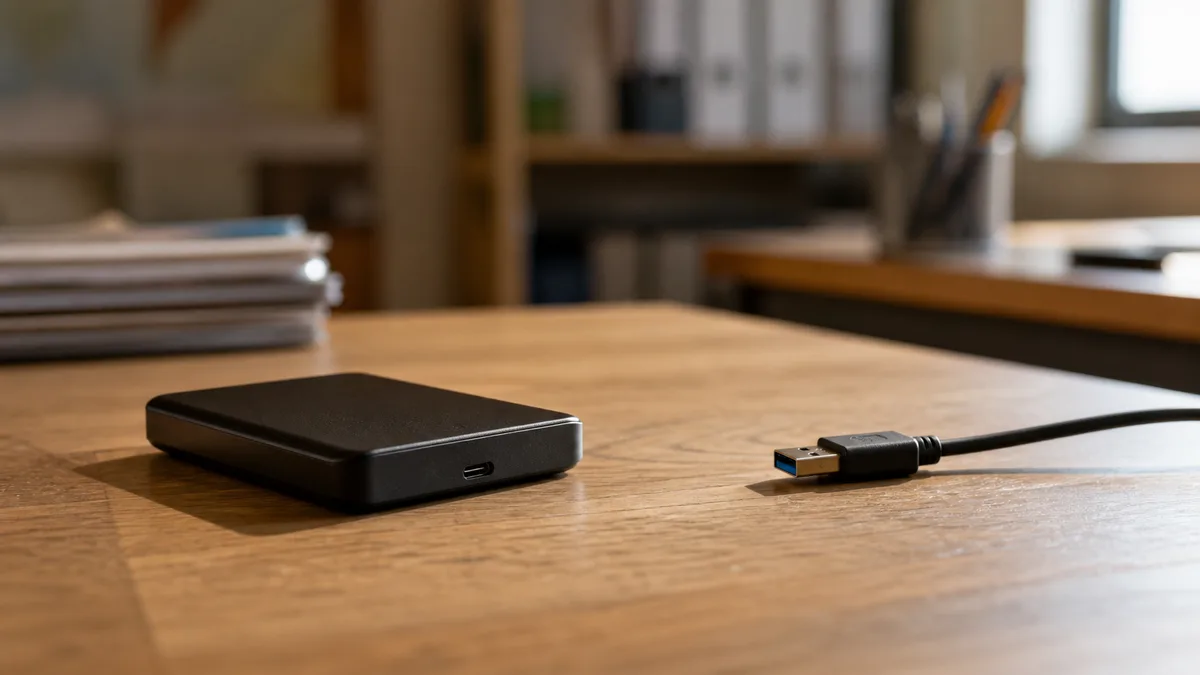
The short answer: If the drive will not load or is not detected, do not format or initialize it, and do not run CHKDSK—these operations write to the storage device and reduce the chances of recovery. If the drive has not been dropped, makes no unusual noises, and your data is backed up elsewhere, you can perform a single check using a known-good cable and power source and see whether it appears in Disk Management. If the drive clicks, reports the wrong capacity, repeatedly disconnects, or contains the only copy of company data, stop trying and have the device professionally diagnosed.
This is not a guide to making a drive work again at any cost. It is a decision-making process: what to do first, what to avoid so that the condition of the data does not deteriorate, and when to stop experimenting and hand the device over to a specialist. There is a substantial difference between „the computer cannot see the drive„ and „the drive is dead"—and the wrong response can easily turn the former into the latter. If the drive contains data with no backup, professional data recovery in a laboratory is the safer option; the process for portable and desktop USB drives is described on the external drive data recovery page.
External drive not detected: what to do first
If an external HDD will not load, do not keep reconnecting it in the hope that it will work next time. First, clarify one thing: do you need to recover the data, or do you simply want to get the drive working again? If it holds the only copy of your accounts, jobs, photographs, or project documentation, protecting the data takes priority over repairing the device.
Safe first steps:
- Cancel any prompt to initialize or format the drive.
- If the drive clicks, squeals, fails to spin up, or makes unusual noises after being dropped, disconnect it and do not power it on again.
- Make a note of what happened before the failure—a fall, power outage, unplugging without safe removal, an update, or connection to another device.
- If you have a current backup elsewhere, you may perform a limited check of the cable and power supply and see whether the drive appears in the system at all.
- If you have no backup and the data is important to your business, it is better to stop making further attempts.
The goal is not to „repair" the drive at any cost. The goal is to avoid worsening its condition before diagnosis and possible data recovery.
Where exactly is the drive „not detected"?
The statement „the computer cannot see the drive" can describe several different conditions, each requiring a different response. In Windows, check File Explorer, Disk Management, and Device Manager. On macOS, open Disk Utility and enable the option to show all devices. On Linux, use lsblk for an overview of devices and dmesg for system messages. Use these tools only to determine whether the device is present—do not use them to repair the file system or perform any write operation.
| What you see | Probable source of the problem | Safe response |
|---|---|---|
| The drive does not appear even in Disk Management | cable, power supply, USB bridge, drive electronics, or mechanical components | perform one controlled connection test, then arrange diagnosis |
| The drive appears with the correct capacity but no drive letter | partition assignment, damaged partition table, or file system | do not initialize or format |
| The system reports RAW | damaged file system, sometimes accompanied by bad sectors | do not run CHKDSK |
| The capacity is 0 B or clearly incorrect | communication with the firmware, electronics, or read/write heads | do not place the drive under further load |
| The drive repeatedly connects and disconnects | power supply, cable, connector, USB bridge, or physical fault | do not continue copying files by trial and error |
| The drive appears, but folders open very slowly | bad sectors, unstable reads, or a damaged file system | do not browse the files; create a disk image first |
A correctly displayed model name and capacity do not mean that the drive is healthy. They merely mean that the computer was able to retrieve its basic identification data—nothing more.
What you can safely check on an external HDD
Perform the following checks only if the drive has not been dropped, makes no unusual noises, and does not contain the sole copy of the data.
Start with the USB cable. Use a short, known-good data cable and connect the drive directly to the computer—not through a monitor, docking station, or passive USB hub. With USB-C, also make sure that the cable actually supports data transfer; some cables are designed primarily for charging and do not carry data.
Portable 2.5-inch drives (WD Elements Portable, WD My Passport, Seagate Basic, Seagate Expansion Portable) are usually powered directly by the USB port. A weak or unstable port can therefore cause the drive to spin up repeatedly and disconnect. Desktop 3.5-inch external drives, by contrast, require their own power adapter. Do not use a random power supply merely because it has the same connector—the voltage, polarity, and current must match the specifications of the original adapter. An unsuitable adapter can damage both the drive electronics and the USB bridge.
It is reasonable to perform no more than one test with another known-good cable and one direct port. If the behavior does not change, further reconnection attempts will usually provide no new information and will merely place unnecessary strain on the device.
Why you should not automatically dismantle an external drive
An external enclosure often contains a standard SATA drive and a USB-to-SATA bridge, but this is not universally true. Many Western Digital portable drives—particularly the My Passport family—have the USB interface integrated directly into the drive’s circuit board and often use hardware encryption tied to that controller. Moving the platters or drive into another enclosure will therefore not make the data accessible—it will remain encrypted without the original electronics. Inexpert disassembly can also easily damage the connector, circuit board, or drive casing.
A failed connector on the external enclosure and a mechanical failure within the drive itself are two different situations. Only proper diagnosis can reliably determine which one you are dealing with. The article how to tell whether an HDD or SSD is dying explains what the final stages of mechanical failure may look like.
When an internal drive is not detected
For an internal HDD, first check whether it is identified by the BIOS/UEFI—simply checking the model name and capacity does not write any data. However, do not restart the computer repeatedly if it freezes while detecting the drive or if the drive makes mechanical noises. Every additional startup creates another risk for a damaged mechanism.
Check the SATA data and power cables only when the computer is switched off and disconnected from the mains. On a company server, an encrypted workstation using BitLocker, or a drive in a RAID array, do not swap cables without documenting the original connections. With a RAID array, an incorrect intervention can endanger the entire volume. If the system offers to initialize a newly detected drive, cancel the operation: initialization is not diagnosis—it is a write operation.
Why you should not run CHKDSK, format the drive, or use „volume repair"
Windows may display the message „You need to format the disk before you can use it." Formatting does not address the cause of the failure—it merely overwrites file-system structures, making the data harder to access.
Similarly, CHKDSK, macOS First Aid, and fsck are not data-recovery tools. They repair file-system structures by writing to the drive. On a healthy storage device, they may correct logical inconsistencies, but on a drive with bad sectors they add further stress and may overwrite metadata needed for later recovery.
Tools such as CrystalDiskInfo and smartmontools read SMART values, but some USB bridges do not expose all of the data—and a „green" health status does not rule out an emerging mechanical fault. Specialist tools such as GNU ddrescue and HDDSuperClone are used to create sector-by-sector copies of unstable media, but this is not the same as ordinary file copying. Selecting the wrong source or destination drive will overwrite data. If you are dealing with the sole copy of company data, a live failure is not the right time to learn how to use these tools.
When to disconnect the drive immediately
Stop all further attempts and disconnect the device if:
- after being dropped, the drive clicks, scratches, squeals, or repeatedly spins up,
- the system freezes as soon as the drive is connected,
- the drive reports different capacities at different times,
- transfers stop, the speed drops to zero, and the drive disappears,
- the device or adapter smells burnt or becomes unusually hot,
- the data exists only on this device, and losing it would disrupt company operations.
The article what to do when a hard drive clicks explains these sounds and their causes; bad sectors on a drive and what to do about them covers both the logical and physical aspects of surface degradation. We therefore do not repeat those procedures here.
How to recognize a high-quality diagnosis
A reputable service provider will ask in advance about the drive model, symptoms, circumstances of the failure, the value of the data, and whether a backup exists. After diagnosis, the customer should receive a clear explanation of where the problem lies: an enclosure fault, logical damage, bad sectors, electronics, or the drive’s mechanical components.
Before paid recovery begins, clarify:
- the price or how it will be calculated,
- whether the work will be performed on a copy or directly on the source drive,
- how the successfully recovered data will be verified,
- which storage device will be used to return the recovered data,
- how the service provider handles confidential company data,
- what you will pay if the requested files cannot be recovered.
Be wary of a „diagnosis„ based solely on running CHKDSK or an offer to „repair the drive" that fails to distinguish between repairing the device and recovering its contents. These are two different things.
How much data recovery can cost
The price cannot be estimated from the drive’s capacity alone. It depends on the type of failure, read stability, whether work on the electronics or mechanical components is required, the availability of compatible parts, and the requested turnaround time. Logical recovery from readable media is usually less demanding than working with damaged heads or platter surfaces. A more detailed breakdown is provided in how much hard drive data recovery costs and what determines the price.
For a business, it makes sense to compare the recovery price with the cost of reconstructing accounts, projects, or customer records from other sources. The value of the empty drive is irrelevant to this decision—you are paying for the contents, not the hardware.
What to prepare before handing over the drive
Label the drive and include its original cable and power adapter. Tell the service provider the model, operating system, last known working state, and every recovery attempt already made—including unsuccessful ones. Also list your priorities, such as the accounting database, specific project folders, or the email archive. The diagnosis can then focus on what truly matters instead of working from a vague request to „recover everything."
How to prevent a similar problem in the future
Do not consider an external HDD a backup if it contains the only copy of your data. Keep several independent copies of business documents and regularly verify that the data can actually be restored from them. The external HDD backup and the 3-2-1 rule article explains this principle in more detail.
Always eject the drive safely, do not move it while it is running, and do not position the cable where it could pull the device off a desk. For backups, record the responsible person, the backup interval, and the date of the last successful restore test—a backup that nobody has ever tried to restore is not a backup, but a hope.
Frequently asked questions
Why does the external drive appear in Disk Management but not in File Explorer?
It most likely has no drive letter, or its partition or file system is damaged. If the drive contains data you need, do not assign a partition, initialize the drive, or confirm formatting before someone has assessed its condition.
Can I try another USB cable?
Yes—provided that the drive has not been dropped, makes no unusual noises, and you either have a backup or the data is not critical. Use a known-good data cable and a direct computer port. Do not repeat the test with numerous adapters and hubs; one controlled attempt is enough.
Will CHKDSK help if the drive is marked as RAW?
CHKDSK is not a safe first step. It writes changes to the file system and may make matters worse on a physically unstable drive. The condition of the storage device must be assessed first and a sector-by-sector copy created if appropriate. Logical repairs should then be performed on that copy.
Can I remove an external HDD from its enclosure and connect it via SATA?
Sometimes, but not with every model. Some portable drives—typically WD My Passport models—have the USB interface integrated directly into the electronics and depend on its encryption. Once removed, the data may remain unreadable. Do not dismantle the drive without understanding the specific model.
Is data recovery worthwhile when a new drive is inexpensive?
The price of a new drive says nothing about the value of the data stored on the old one. Base your decision on the cost of reconstructing accounts, projects, and operational records from other sources. After recovery, a failed drive should generally no longer be used as reliable storage.
Where to find us
ITHOPE is a company based in Brno, Czechia: we do data recovery from disks, RAID and NAS, PC and laptop service and IT for business, all in our own lab at Viniční 3587/216, 615 00 Brno.
Phone +420 775 556 063 (24/7 line). You can bring the device in person, or send it by courier (Zásilkovna, PPL).