The answer up front: Your drive is in trouble when SMART reports non-zero Pending Sectors, the drive clicks or grinds, ordinary operations take many times longer than a month ago, or the system log shows I/O error, parity error, bad block. One of these signs = back up within 24 hours. Two or more = the drive is on its way out, do not try to „repair" anything. Below is how to measure the signs yourself, which SMART attributes to watch and when it actually makes sense to call the lab.
In May 2024 a laptop with a 2.5” Seagate 750 GB came to us through a partner workshop. The client noticed that once a day during work he heard „drive disconnected", and within the hour he brought the laptop in. Diagnostics showed Reallocated Sector Count 134, Current Pending 7, Hardware ECC Recovered growing exponentially. The drive was still fully readable — we made a sector-level clone via a hardware imager before head 0 failed completely. Diagnosis: a weak head 0 (head-stack replacement required), corrupted firmware, incipient mechanical surface damage. A timely response = 100 % of data recovered, price 11 500 Kč. Had the client waited another week, the chance drops below 70 % and the price goes up by ~5 000 Kč for extended head retry.
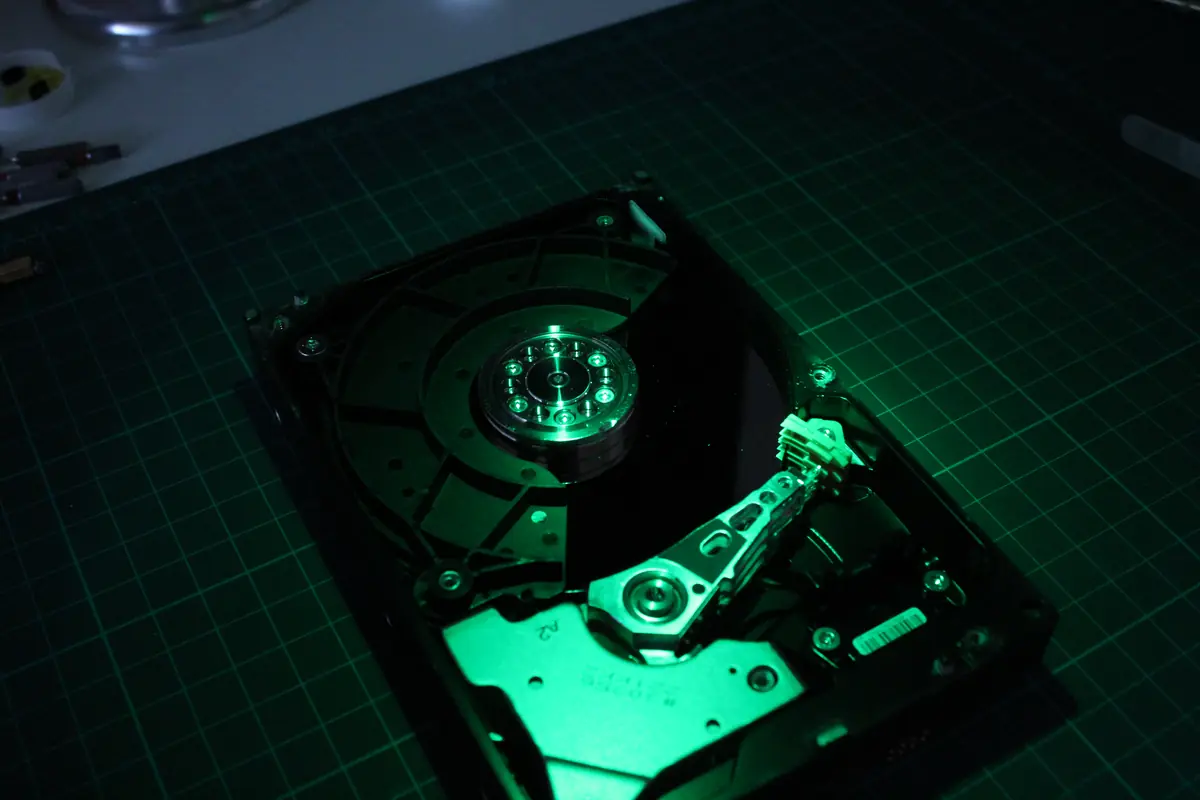
In 18 years in the lab I have seen two types of people: those who brought the drive in an hour after the first click or the first ‘drive disconnected’, and those who brought it after three weeks of futile attempts. The first group took their data back in 94 % of cases. The second paid double for work with a damaged platter and lost some of the files anyway. The difference between them was not expert vs. layman, but attention to four simple signs.
In 1 345 tickets from our database, HDDs are the dominant segment (61.4 % of all recoveries 2019–2026). For more than half of them the failure could have been predicted at least a month ahead — if only someone had been measuring. Below is how to measure, what to take away from the numbers and when to stop.
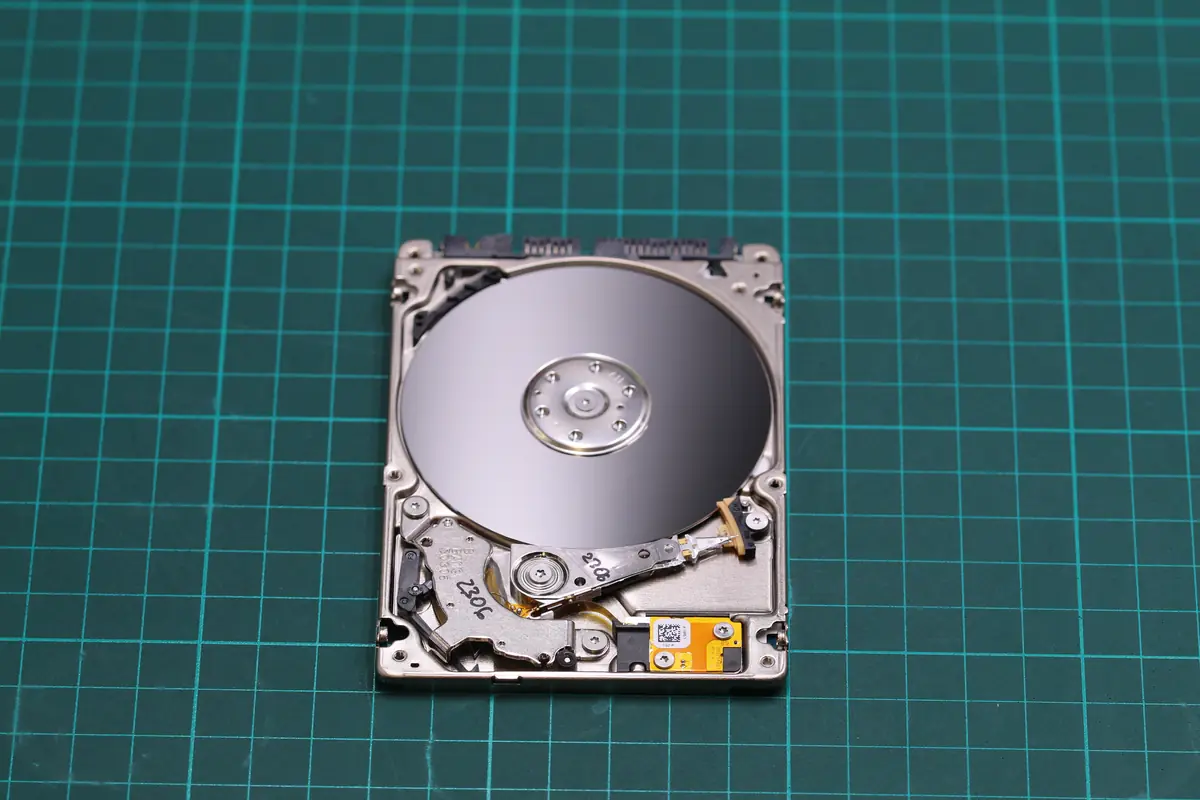
1. What SMART is and why so few people still check it
S.M.A.R.T. (Self-Monitoring, Analysis and Reporting Technology) is built-in diagnostics that every HDD since 1994 and every SSD has. The drive measures its own behaviour — the number of starts, the temperature, the number of read errors, how many reserve sectors it has already used, how fast the memory cells are degrading. And it stores all this in a table that anyone can read.
The problem is that Windows and macOS do not display it by default. Without a special tool you do not know about a critical attribute until a blue screen appears, „drive disconnected" shows in the log, or the drive vanishes from the BIOS. That is why the first step towards prevention is simple and free: install a SMART reader and take a look.
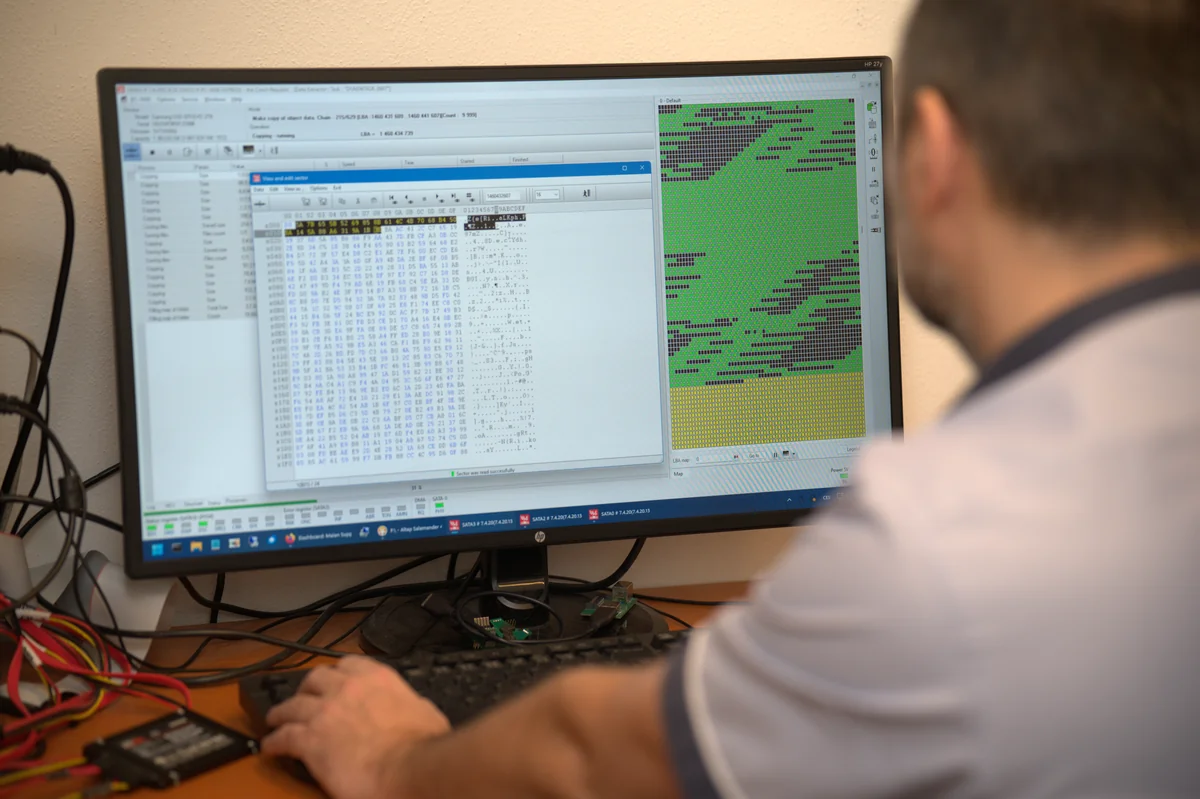
Which tool to use
- Windows: CrystalDiskInfo — freeware by Hiyohiyo, Czech localisation, from 2008 and still actively developed.
- macOS: DriveDx (paid, but it can handle external USB-C drives over the SAT protocol — that exact combination saved the drive from the story above) or
smartctlfromsmartmontoolsvia Homebrew. - Linux:
smartctl -a /dev/sdXfrom thesmartmontoolspackage — the console standard, the output is the same across all distributions. - NAS (Synology, QNAP): built into Control Panel → Storage Manager → HDD/SSD → Health Info.
Watch out with USB-C external drives — some cheaper enclosures (mainly from 2018–2020) do not pass SMART packets over the USB bridge. Then you have to remove the drive from the enclosure and connect it via SATA to a desktop PC. If that is not possible, bring it to us — we have benches with a direct SATA connection for exactly this.
PRO TIP: Download CrystalDiskInfo and run it tonight. On every PC in the household. It takes three minutes. If you see „Good„ (blue) on all of them, you can rest easy. If you see „Caution" (yellow) or „Bad" (red) on any machine, read on — the next few paragraphs will decide whether you lose your data or not.
2. The four SMART attributes that decide it
A SMART table has 30–60 rows and 90 % of them do not concern the ordinary user. The key ones are four.
2a. Reallocated Sectors Count (attribute 05)
What it is: how many defective sectors the drive has already remapped to the reserve area. Every modern HDD has several thousand reserve sectors precisely because the magnetic surface occasionally fails and the drive has to move the data.
How to read it:
- A value of 0 = perfect, fresh drive
- 1–10 = the occasional defect, the drive coped, but it is a warning
- > 50 = the surface is degrading; back up, plan a replacement within 30 days
- > 500 = the drive is on the brink; back up today and stop using it for active data
From the lab: A classic scenario we see twice a month — a 3.5” WD Blue 1 TB from a Brno office. Reallocated Count up, Pending sectors growing, the client complains that „Excel occasionally freezes on a large file". The last backup was a year ago. Coming in time means cloning the drive and saving 99 % of the data. Three months later it is no longer rescue but excavation.
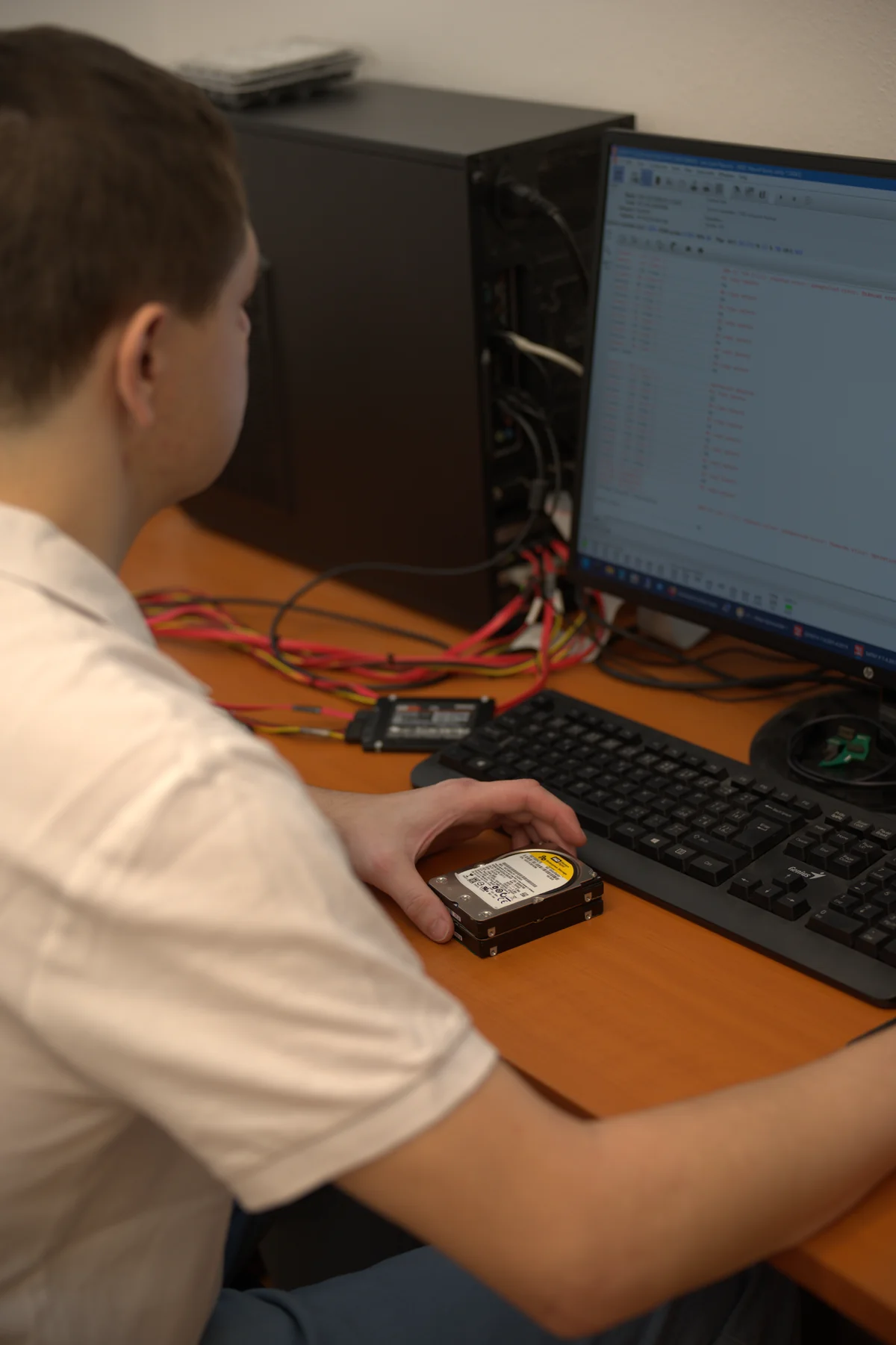
2b. Current Pending Sector Count (attribute C5)
What it is: the number of sectors the drive currently cannot read but has not yet remapped. The drive is waiting to see whether the data can be stored on the next write. If yes, the sector is remapped (incrementing Reallocated). If not, it is added to Uncorrectable.
How to read it:
- Every non-zero value = a reason to check. Not hysteria, but a check.
- > 10 = a serious warning; the data on that sector is in danger
- Rapid growth (0 today, 40 in a week) = real-time failure
Caution — pending sectors do not by themselves lose data immediately. But every attempt to write to them without remapping risks corruption. Copy the important files elsewhere, and only then try chkdsk / fsck / badblocks, which triggers remapping.
2c. Uncorrectable Sector Count (attribute C6)
What it is: sectors the drive will never read again — not after the hundredth attempt, not even via ECC. Dead surface.
How to read it:
- 0 = OK
- > 0 = part of the file contents is missing from the drive. Copying via the OS fails with errors,
chkdskreports „unrecovered file record". If there is important data there, any further write may make the situation worse. Clone viaddrescueor bring it in.
2d. SSD-specific: Percentage Used / Wear Levelling
With SSDs you watch entirely different attributes. HDD defects are mechanical, SSD defects are electrochemical — flash cells have a limited number of write cycles (typically 1 000 P/E for TLC, 300 P/E for QLC).
- Percentage Used (Intel/Samsung) or Media Wearout Indicator (others): 0 % = new drive, 100 % = the specified lifetime is exhausted (it does not mean an immediate end, but the warranty is over)
- Total Host Writes (TBW): the total volume of data written. A typical consumer 1 TB SSD lasts 300–600 TBW. On a work laptop = 5–10 years, on a streaming server = 6 months.
- Reallocated Sectors Count (SSD): on an SSD this is the number of bad blocks the controller has taken out of use. It behaves differently from an HDD — single-digit bad blocks are normal, dozens mean impending failure.
3. Four warning signs beyond SMART (what you hear, what you see)
SMART is the first layer of diagnostics. The second is your own attention — signs the drive sends out so clearly that anyone can catch them.
3a. Sign 1 — clicking, ticking, grinding
What it means: a mechanical fault of the read or write head. Either the head is damaged (the most common), or the parking ramp has lost its elasticity (on 2.5” 7 mm drives, typically WD10SDZW and similar). In the vast majority of cases this is irreversible without opening in a clean room.
What to do: switch off immediately. Detailed procedure in the first 5 steps. Out of 287 clicking HDDs that reached us in 2024–2025, data could be recovered in 94 % of cases with triage within 24 hours. After 72 hours of repeated power-ups the chance drops below 60 %.
What NOT to do: power it up again „to see if it catches„, tap on the drive, put it in the freezer. In 2024 a client’s drive came to us after he had followed the forum advice „put the drive in the freezer overnight". Moisture from condensation shorted the PCB, but above all — after thawing the heads touched the platter again and carved a circular track across the entire surface. We recover 12 % of the data, 88 % was irreversibly destroyed. Before the freezer it would have been 93 % recovered.
3b. Sign 2 — dramatic drive slowdown
What it means: the drive is repeatedly retrying — trying to read a sector multiple times because it did not succeed the first time. On an HDD you hear this as a pause in rotation or longer head whirring. On an SSD it shows up as a random browser freeze for 5–30 seconds while the rest of the system keeps running.
How to verify it: open Task Manager (Ctrl + Shift + Esc) → Performance → Disk. Watch the Average response time (ms):
- < 20 ms = a healthy drive
- 50–200 ms = occasional retries, the drive has a problem
- > 500 ms = serious problems, the drive cannot keep up
Likewise you can use Get-PhysicalDisk | Format-List in PowerShell (Windows) or iostat -x 2 on Linux.
3c. Sign 3 — I/O errors in the system log
What it means: the operating system recorded that the drive failed when reading or writing a specific block. Every I/O error is proof that something physically does not work.
Where to find it:
- Windows: Event Viewer → Windows Logs → System → filter Source =
disk. Look forEvent ID 7, 11, 51, 153 - Linux:
dmesg | grep -i "error\|I/O\|fail"orjournalctl -k | grep -i sda - macOS: Console.app → System log → filter „I/O" (this is exactly where, on the drive from the intro, we saw the first sign an hour before SMART jumped into yellow)
A few I/O errors a year = within tolerance (cosmic radiation, an unstable cable, nothing dramatic). Ten errors a week = the drive is dying.
3d. Sign 4 — files that won’t open or are corrupted
What it means: data on a specific part of the drive cannot be read. A JPG with banding, a video that skips halfway through, an Excel with „File corrupted". This is not a program error — it is a drive error, because the operating system got bad bytes from the drive.
What to do: Copy the file elsewhere. If the copy stops with an error, you have a defective sector right inside that file. A further write to the drive may make the situation worse (the drive tries to replace the data with a new version on the same physical surface).
CAUTION: Do not try to „repair" a defective file with tools like HDD Regenerator if the drive is mechanically suspect. HDD Regenerator rewrites the sector with a low-level operation that works on a magnetically degraded drive, but on a mechanically damaged drive it adds tens of minutes of further head damage. In detail in the article Bad sectors — what to really do.
4. The 4-step diagnostic protocol we use
This is a simplified version of the ITHOPE 4-step HDD diagnostic protocol, which we have honed in the lab on an extensive database of real cases. A layman can handle the first three at home.
Step 1 — acoustic test (30 seconds)
Switch off all surrounding noise sources (fans, music, air conditioning). Power up the drive. Listen for 20–30 seconds. A normal HDD makes a quiet, uniform hum (5 400 or 7 200 revolutions per minute). Abnormalities:
- Regular clicking (click-click-click every 1–3 seconds) = a broken head → switch off
- Crunching / scraping = the platter has been scratched, the head is running over the grooves → switch off
- Spin-up, then silence, then spin-up again = the drive cannot manage spin-up, either the PCB or the motor → switch off
- Beeping = the power supply is insufficient, replace the USB-to-SATA bridge or cable
Step 2 — SMART extract (2 minutes)
Install CrystalDiskInfo. Look at Reallocated (05), Pending (C5), Uncorrectable (C6). If the drive is external and SMART will not read, remove it from the enclosure and connect it via SATA. If you cannot connect it directly, write down the model and serial number (from the label) — that will be needed in the lab.
Step 3 — sector map (30–60 minutes)
If the pending sectors are low and the drive seems fine, run a non-destructive sector read test:
- Windows: HD Tune Pro (paid) or Victoria (free); Error Scan in Read-only mode
- Linux:
sudo badblocks -sv /dev/sdX > /tmp/badblocks.log— read only, no writing - macOS: Disk Utility → First Aid (not entirely non-destructive, but it is the closest macOS offers)
The result will tell you where the defective areas are (typically towards the end of the drive, or concentrated in a single band — the latter means a mechanical scratch).
Step 4 — clean room vs. software decision
This one is for the lab. Based on the acoustics, SMART and the sector map we decide:
- Mechanical damage (clicking, heads) → opening in a clean room, replacing the head-stack assembly from a donor drive
- Electronics (the drive does not spin) → replacing the PCB with adaptive data from ROM
- Logic / magnetic degradation → hardware imager (PC-3000, DeepSpar), sector-level clone
- Combination → mechanics first, then a clone (this is exactly the route that saved the drive from the intro — a clone before head 0 went completely)
For a layman this means: do not do step 4 at home. Every drive opened outside a clean room loses 60–80 % of its recovery chance (dust in the labyrinth, particles on the platter, irreversible damage).
5. Why ignoring the signs costs 2–4× more than prevention
From our pricing statistics for 2024–2025 (n = 1 535 priced tickets):
| Drive state on arrival | Median price | Success rate |
|---|---|---|
| Logical error, clean SMART, working drive | 4 500 Kč | 99 % |
| Pending sectors, broken OS, drive alive | 7 200 Kč | 97 % |
| Incipient mechanical fault, drive reads occasionally | 11 500 Kč | 89 % |
| Clicking drive, BIOS sometimes does not see it | 14 900 Kč | 78 % |
| Clicking drive after repeated client attempts | 19 800 Kč | 61 % |
The difference between a timely response (4 500) and a late one (19 800) = over 15 000 Kč and a 38% difference in success rate. And we are talking about a drive that would have cost 2 500 Kč on a planned replacement.
6. When to call the lab vs. when you can handle it yourself
You can handle it yourself
- The drive works, SMART is clean, it is just slow → system optimisation, see Slow Computer 2026
- Pending sectors are low (< 5), the drive still works → back up via
robocopy /MIRor Time Machine, then overwrite the drive with zeros (DBAN), watch SMART, decide on a replacement - You accidentally lost a file but the drive is OK → R-Studio / TestDisk / PhotoRec; TestDisk guide
- A manufacturer firmware update (WD Dashboard, Seagate SeaTools) — yes, if the drive works
Call the lab
- The drive clicks, grinds or is silent when power is connected
- SMART reports rising Reallocated above 50 and you have unbacked-up data on the drive
- The drive vanished from the BIOS or is not detected
- Repeated I/O errors in the system log over a week (Windows Event 7/11/51/153, macOS „I/O", Linux dmesg)
- The drive was exposed to a drop, water, fire, overvoltage
- You tried to „repair" it with a tool and the situation got worse — stop and do not start it
Initial HDD and SSD diagnostics with us are free, the verdict within 24 hours of intake. In non-standard cases (the drive was opened by another service, overwriting/formatting, complex analysis) diagnostics cost 1 210 Kč including VAT (1 000 Kč excluding VAT) — we will tell you in advance. If a recovery makes no sense, we will tell you straight away. If it does, we send the price up front.
7. A preventive routine that takes 10 minutes a month
This is the routine I keep at home myself and recommend to all company clients:
- Once a month run CrystalDiskInfo (Windows) or
smartctl -H /dev/sdX(Linux/Mac). If it is „Good„/„PASSED", move on. If it is anything else, make a backup immediately. - Once every six months make a complete backup according to the 3-2-1-Brno rule — 3 copies, 2 media, 1 off-site.
- Once a year run a read-only sector test (Victoria, badblocks). 2 hours, and you find out whether pending sectors are ticking away somewhere.
- After every crash / breakdown (even a small one) do a SMART check + a copy of the data elsewhere.
- For SSDs additionally check Percentage Used and TBW once a year. If you have written > 50 % of the guaranteed TBW in a year, the drive is dying faster than you expect.
8. Summary in points
- SMART is in every drive since 1994, but Windows does not show it by default — install CrystalDiskInfo, on macOS DriveDx
- Four critical attributes: Reallocated Sectors (05), Current Pending (C5), Uncorrectable (C6), and for SSDs Percentage Used + TBW
- Four signs beyond SMART: clicking, dramatic slowdown, I/O errors in the log, corrupted files
- The 24-hour rule: when a drive starts clicking, triage within 24 h means a 94 % success rate of recovery (out of 287 HDDs 2024–2025 in our database)
- The drive from the intro recovered at 100 %, because the client came in an hour after the first I/O error — Reallocated 134, Pending 7, a clone before the head failed
- A timely response costs 2–4× less than a recovery after repeated home attempts
- Initial HDD and SSD diagnostics at ITHOPE are free and the verdict within 24 hours — we do not lend ourselves to work that makes no sense
- Prevention = 10 minutes a month: CrystalDiskInfo, a backup, an occasional sector test
Has your drive recently started giving you trouble? Do not spoil the chance you still have. Data recovery — initial HDD and SSD diagnostics free · Contact us · +420 775 556 063 (24/7)
See also: What to do when a drive clicks · Bad sectors — a pragmatic guide · Overview of CMR and SMR drives · Data recovery from HDDs — silo hub · Case study: Seagate ST5000LM000
About the author
Ing. Miroslav Jaroš is the owner and senior technician of ITHOPE s.r.o. He has been working in data recovery since 2008 — in 18 years over 2 500 jobs have passed through the lab. The article was fact-checked on 2026-04-28 against the extensive ITHOPE case database (2019–2026, 97.5 % closure rate). The case from the intro = a ticket from May 2024, Seagate ST750LM030, result 100 % of data recovered.
Where to find us
ITHOPE is a company based in Brno, Czechia: we do data recovery from disks, RAID and NAS, PC and laptop service and IT for business, all in our own lab at Viniční 3587/216, 615 00 Brno.
Phone +420 775 556 063 (24/7 line). You can bring the device in person, or send it by courier (Zásilkovna, PPL).