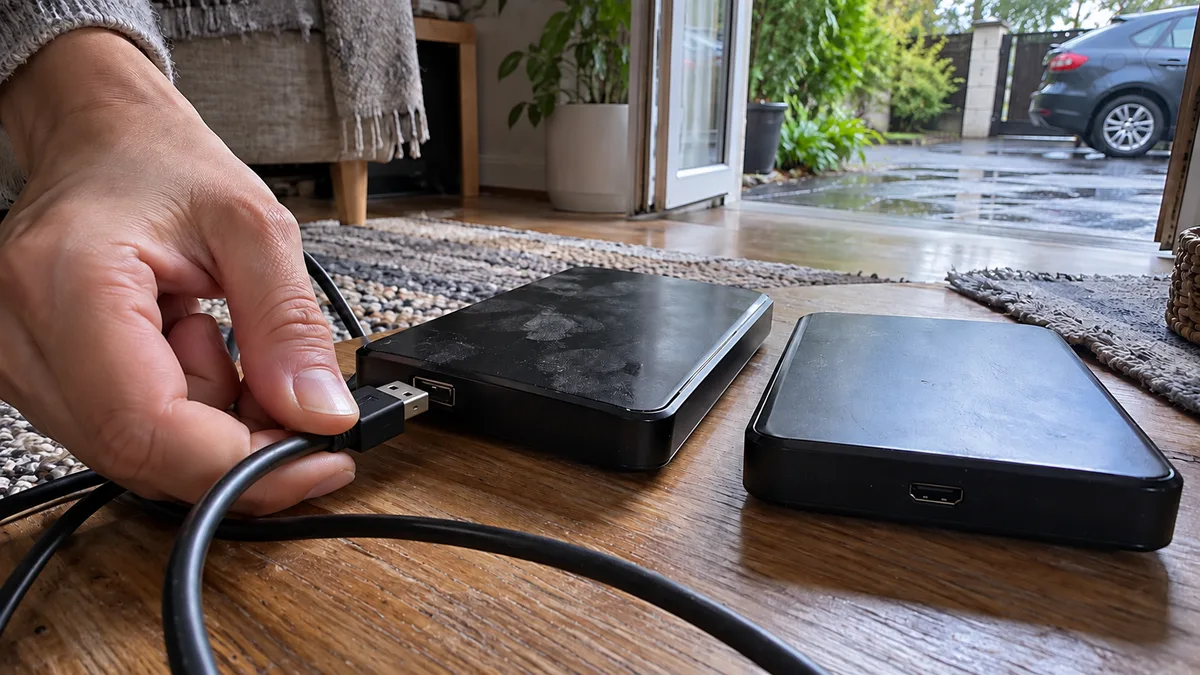
The short answer: Recovery software only makes sense if the Toshiba HDD is quiet, consistently detected with the correct capacity, and safe to image sector by sector. If the drive clicks, fails to spin up, disappears from the system, or freezes while being read, disconnect it—further scanning could worsen the damage and reduce the amount of recoverable data.
Windows offers to format the drive. An external Toshiba appears only occasionally. The drive spins up, clicks several times, and falls silent. All three situations may look like the same problem: the data cannot be opened. In reality, they may require completely different approaches.
Data can be recovered with software when a partition is damaged. No recovery program, however, can repair faulty heads, a motor, power circuitry, or unstable firmware. The most important step is therefore not choosing the „best software for a Toshiba HDD," but deciding whether the drive can still be safely powered on and read.
Toshiba Is Not Just One Type of Drive
Toshiba sells portable external drives as well as internal HDDs for laptops, desktop computers, NAS systems, and servers. The product family indicates the intended use, not the cause of a particular failure.
| Product family or design | Typical use | What matters when it fails |
|---|---|---|
| Canvio Basics, Advance, or Flex | portable external HDD | keep the original cable and complete enclosure; the fault may be in the cable, USB interface, power supply, or drive itself |
| Canvio Desktop | external desktop drive | also provide the original power adapter |
| L200 | internal 2.5-inch HDD | determine whether the laptop, connector, or power supply is causing the issue, but avoid repeatedly starting the drive |
| P300 and X300 | internal desktop HDD | shut down the computer and do not run automatic file system repair |
| N300 | HDD designed for NAS | first determine whether the drive, bay, cabling, or NAS power supply has failed |
| MG Series | enterprise drives | preserve the bay designation and its relationship to the RAID, server, or controller |
The exact design cannot be safely determined from the product name alone. The full model and part number on the label are what matter. With an external Canvio, do not open the enclosure merely to try connecting the drive directly. Designs and revisions may differ, and improper disassembly can cause additional damage.
Likewise, it would be misleading to claim that a particular Toshiba series always suffers from head, firmware, or electronic failures. The symptoms of the individual drive determine the next step.
Mechanical, Electronic, Firmware, and Logical Failures
Inside an HDD, magnetic platters rotate while read/write heads move above their surfaces. The drive also requires a working motor, control electronics, firmware, and a readable partition and file system structure.
A failure can occur at several levels:
- Mechanical failure: a problem with the heads, motor, bearing, or platter surfaces.
- Electronic failure: damage to the drive’s power or control circuitry, or possibly to the external adapter or USB interface.
- Firmware failure: the drive cannot complete initialization, reports incorrect parameters, or is not ready to provide access to user data.
- Logical failure: a damaged partition or file system, deleted files, or accidental formatting.
To the user, any of these may simply appear as „the drive will not open." Without diagnostics, it is therefore impossible to safely recommend either a program or another attempt to power it on.
How to Tell When You Should Not Run Software
| What the Toshiba HDD does | Possible cause | Safe first response |
|---|---|---|
| Clicks, scrapes, beeps, or repeatedly tries to spin up | mechanical failure or unsuccessful initialization | disconnect the power immediately |
| Does not spin up at all | power supply, electronics, motor, or a seized mechanism | do not power it on again |
| Appears and disappears, freezes during detection, or reports the wrong capacity | physical, electronic, or firmware failure | do not run a scan or lengthy test |
| Is quiet and consistently detected with the correct model and capacity, but the partition is missing | possible logical failure | do not write to it; create a sector-by-sector copy first |
| Windows offers to format or initialize it | unrecognized partition structure or file system; a physical failure cannot be ruled out | decline the prompt |
| Some files can be read, but the system freezes on others | bad sectors or unstable reading | stop ordinary file copying |
A formatting prompt does not mean that a blank drive needs to be prepared for use. It only means that Windows did not find a file system it could mount. We describe the procedure in more detail in our article about when a drive asks to be formatted or appears as RAW.
Even the correct capacity in BIOS, UEFI, or Disk Management does not confirm that the platters are free of bad sectors. It only proves that the device completed a certain part of its initialization and communication.
Why Repeated Power Cycles Can Cause Harm
Trying „one more time in case it starts working" repeats the process of spinning up the platters, initializing the mechanism, and reading problematic areas. Clicking often means that the drive cannot complete positioning correctly or read the information required for further operation. The sound alone is not enough to identify the faulty component, but it is a reason to stop trying.
Manually launched recovery software is not the only risk. Once the drive is connected, the operating system may automatically:
- read the partition table and file system;
- generate previews and index files;
- retry reads from damaged areas;
- offer to check, repair, or initialize the drive.
Moving the drive between a laptop, desktop computer, and several USB adapters is therefore not a safe diagnostic step. With an unstable drive, every attempt uses up time during which it may still be capable of reading. If the HDD clicks, follow the safe procedure for a drive making unusual noises.
What Software to Use for a Toshiba HDD
DMDE, R-Studio, UFS Explorer, and PhotoRec are used to locate partitions, file systems, or individual files. They do not repair the motor, heads, platter surfaces, or electronics. They should therefore not begin with a scan of the original drive that takes several hours.
A safer sequence is:
- assess whether the drive is stable and can be read without excessive risk;
- create a sector-by-sector image or clone on another healthy storage device;
- set the original aside and perform all further analysis on the copy;
- save recovered files to a third, healthy storage device.
A disk image is not the same as dragging folders in File Explorer. It copies addressable sectors and records which areas were read successfully. Tools such as GNU ddrescue and HDDSuperClone can handle read errors in a more controlled way than ordinary copying, but even they are not suitable as a DIY first-aid measure for a drive that clicks, disappears, or fails to spin up.
When using ddrescue, the mapfile is important. It records the status of individual areas, allowing the reading process to be interrupted and resumed without repeating the entire operation. We discuss the procedure and its limitations in our article about creating a disk image of a failing drive with ddrescue.
What to Do as Soon as You Discover the Failure
- Stop using the drive and disconnect it safely.
- If it is an internal system drive, shut down the entire computer.
- Decline any offer to format, initialize, or repair it.
- Do not run CHKDSK, an extended SMART test, or a surface scan.
- Do not install recovery software on the affected drive.
- Never save recovered files back to the same drive.
- Do not open, freeze, or strike the drive.
- Do not replace the controller board merely because another drive has a similar model number.
- Write down what happened before the failure and which recovery attempts have already been made.
Simply replacing the circuit board on a modern HDD is not a reliable DIY procedure. The drive may require its original adaptive data stored in the electronics, and a board from an apparently identical unit may not work correctly with its mechanism.
For an external drive, keep the original enclosure, USB cable, and power adapter. Do not retest the accessories through a series of experiments; provide them together with the drive. This helps distinguish a cable, power supply, or USB interface fault from a failure of the storage device itself.
When DIY Recovery May Be Considered
Creating a disk image at home may be considered if all of the following conditions are met:
- the drive makes no unusual sounds;
- it is consistently detected with the correct model and capacity;
- the connection does not drop;
- reading does not cause the computer to freeze;
- the data is not so important that the risk of further deterioration would be unacceptable;
- you have a healthy destination device with sufficient capacity and know which device is the source and which is the destination.
The final point is crucial. Reversing the source and destination drives during cloning can overwrite the data within seconds.
If the drive contains irreplaceable photographs, accounting records, a database, or the only copy of company data, the original should not be used for practice. At ITHOPE, we first assess the symptoms and recommend the next step; the data recovery in Brno page explains the options for delivering the drive in person.
How a Professional Assessment Works
First, the exact model, serial number, capacity, and condition of the device are recorded when it is received. A description of any fall, power surge, outage, previous slowdown, and all recovery attempts already made is also important.
The next step is deciding whether the drive can be safely powered on and read. With an unstable device, the goal is not to browse through folders in File Explorer. The priority is to obtain as many accessible sectors as possible on healthy storage while limiting repeated reads of problematic areas.
Only then are partitions located, the file system reconstructed, and a list of recoverable files compiled from the copy. The outcome cannot be guaranteed before diagnostics: it depends on which parts of the device remain readable and where the metadata and actual contents of the requested files are located.
What to Prepare Before Handing Over the Drive
Provide the complete drive, not just photographs of error messages. For an external model, include the original enclosure, cable, and power adapter, if applicable.
Also prepare:
- a photograph of the complete label showing the exact model designation;
- a description of the last successful use;
- the initial symptoms and any unusual sounds;
- information about a fall, water exposure, power surge, or outage;
- a list of tests and recovery programs already run;
- a list of data priorities by importance;
- information about encryption.
For an encrypted drive, locate the password or recovery key, but do not send it in an unencrypted email. For company data, identify the person authorized to approve the next steps and receive the result.
Frequently Asked Questions
Windows Wants to Format the Toshiba Drive. Should I Agree?
No. Formatting writes to the device and may overwrite structures that are important for recovery. Close the dialog and do not initialize the drive or run CHKDSK.
The Drive Sometimes Appears in BIOS. Is It Just a Damaged Partition?
Unstable detection is more likely to indicate a problem beyond the file system itself. A partition does not affect whether the drive consistently identifies itself with the correct model and capacity. Repeatedly powering it on is not an appropriate test.
The Toshiba Clicked Once and Then Went Silent. Can I Try It Again?
Not merely to check. A single click does not identify the faulty component, but when combined with inaccessible data, it is a reason to disconnect the drive and have it assessed first.
Will CHKDSK Help?
CHKDSK repairs the logical structure of a supported file system and may write changes in the process. It is not a tool for recovering data from a physically damaged drive, and running it before creating a copy can complicate recovery.
Can I Replace the USB Cable?
A faulty cable is possible, but with irreplaceable data, it is unwise to try a series of cables, ports, and computers. If the drive clicks, repeatedly tries to spin up, or disappears, disconnect it. Provide the original cable together with the drive.
Does the Toshiba Brand or Product Family Affect the Choice of Software?
Not in the way suggested by guides promising software for a particular brand. Software is selected according to the file system, the type of damage, and the quality of the sector-by-sector copy. Mechanical, electronic, and firmware failures require a different approach from a deleted partition.
Where to find us
ITHOPE is a company based in Brno, Czechia: we do data recovery from disks, RAID and NAS, PC and laptop service and IT for business, all in our own lab at Viniční 3587/216, 615 00 Brno.
Phone +420 775 556 063 (24/7 line). You can bring the device in person, or send it by courier (Zásilkovna, PPL).