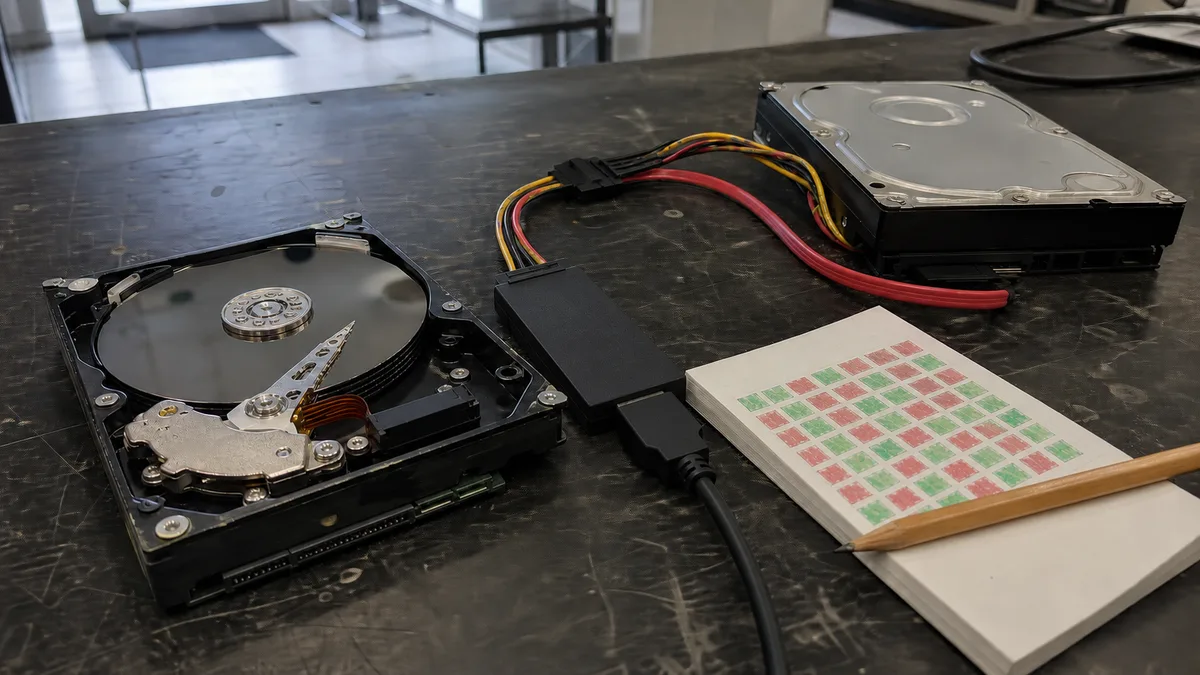
The short answer: Do not copy files from a drive reporting read errors or run ordinary
ddon it. Both read sequentially and get stuck at every error, precisely where the drive is struggling most. GNU ddrescue takes the opposite approach: it first collects everything that can be read quickly in large blocks, skips damaged and slow areas, and returns to them only at the end, one sector at a time. It records its progress in a mapfile, so after an interruption it resumes where it stopped instead of scanning the drive again from the beginning. This applies only to drives with bad sectors. If a drive clicks, disappears from the system, or reports more errors with every pass, ddrescue may finish it off—it belongs in a laboratory equipped with a hardware imager.
Our general procedure for a damaged HDD—power it down, do not format it, and do not attempt repairs—is covered in How to recover data from a damaged HDD. This article is its technical companion for readers with access to Linux: what exactly ddrescue does to the drive, why its reading order can extend the drive’s remaining life, and where the line lies beyond which every additional command does more harm than good. Statements about the program’s behavior have been checked against the GNU ddrescue 1.30 manual dated January 1, 2026.
Why you should neither copy files nor run dd on a damaged drive
Copying through a file manager or with cp leaves the reading order to the file system. The heads jump across the platters to wherever the next file fragment is located, the process stalls at the first unreadable sector, the system retries the read many times, and you have no clear idea how much of the drive has already been recovered. Every attempt makes the heads work hardest at the exact location the drive handles least reliably.
dd behaves differently, but not better. The ddrescue manual puts it plainly: dd reads sequentially, and if errors occur near the beginning of the drive, it may wear the device out without recovering anything. According to the manual, programs that switch to small blocks after an error and remain inside the damaged area are even worse—they spend the most time where the surface, heads, and mechanics are under the greatest stress.
ddrescue shares no code with dd, only its general purpose. Its principle is to recover the good areas first and postpone reading inside damaged or slow regions. Versions before 1.19 used a „divide and conquer" strategy that caused extensive head movement. Newer versions deliberately minimize it because every pass over a damaged area consumes some of the drive’s remaining life. Two other properties are essential to the usability of the result: ddrescue writes nothing into locations corresponding to bad sectors—zeros remain there in a newly created file—and it does not truncate the output. Each subsequent run against the same image only fills gaps and never erases data that has already been recovered.
The five ddrescue phases: what they do and why they run in this order
The current version works in five phases. Older descriptions, including our article about bad sectors, refer to only two as a simplification. Sectors progressively move through the states non-tried → non-trimmed → non-scraped → bad-sector until they are read and marked as finished.
| Phase | What it does | Why it works this way |
|---|---|---|
| 1. Copying (up to 4 passes) | Reads untried areas in large blocks. When it encounters an error or slow read, it skips ahead and reverses direction after each pass. Passes 3 and 4 return to areas skipped because they were slow. | Quickly identify large damaged regions, recover the most promising data first, and establish starting points for the later phases. |
| 2. Trimming | Reads sector by sector inward from the edges of failed blocks until it reaches a bad sector. | The edges of damaged areas have a high chance of containing readable data; the manual advises against disabling this phase. |
| 3. Sweeping | Reads without skipping through areas omitted during copying because of errors. | It has little chance of success with well-defined damaged areas, so it runs only after trimming. -N disables it for a drive with a failed head. |
| 4. Scraping | Scrapes through the remaining areas one sector at a time. | The slowest and most stressful work is left until the end; -n skips it. |
| 5. Retrying | Tries the bad sectors again. -r specifies the number of passes, with the direction alternating between them. | ddrescue cannot tell whether a bad sector is permanently unreadable or might succeed after a few attempts. |
One detail matters when trying to spare the drive: without -r, ddrescue attempts each sector no more than twice—once as part of a large block during copying or sweeping, and once individually during trimming or scraping. Additional attempts occur only during retrying, once per pass. It will hammer the same sector repeatedly only if you explicitly tell it to.
Mapfile: why you must not start over
A mapfile is a text file called a logfile up to version 1.20. It contains a header with the command and time, a status line with the current position, phase, and pass number, and a list of blocks marked as ? for non-tried, * for non-trimmed, / for non-scraped, - for bad-sector, or + for finished. ddrescue saves it continuously—every 30 seconds to 5 minutes depending on its size (--mapfile-interval), when it exits, and when interrupted with Ctrl-C—and keeps a .bak backup beside it.
Without a mapfile, ddrescue cannot continue a recovery; it can only start again. That is the core point of the title: after every interruption, USB dropout, or restart, the drive is read again from the beginning. The heads pass over areas that have already been recovered, and all skipped defects must be located a second time. The manual adds that whenever a physically damaged drive spins up and still returns some data, it may be the last time it does so. With the status line, ddrescue instead resumes inside the interrupted phase—it does not even repeat the first copying pass.
Three rules:
- Store the mapfile on a third medium—not on the source drive being recovered and not on the destination being overwritten. The manual requires an ordinary file in an existing directory. If space runs out, ddrescue offers to save an emergency copy as
ddrescue.mapin the current directory or home directory. - Never use a mapfile from another recovery. ddrescue would assume that parts of the drive had already been recovered.
- A single mapfile can be used by multiple commands targeting different areas of the same drive: the beginning of the drive, selected regions, and finally everything else. Completed areas are never read twice.
Where to copy: an .img file or another drive
An image file is safer in most cases. The destination file system must support a file as large as the entire drive—FAT32 is limited to 4 GiB, while NTFS, exFAT, and ext4 have no practical problem here—and must have enough free space. -p preallocates the file so that the recovery does not run out of space halfway through. Create a working copy from the image: the manual recommends keeping the first copy as the master and performing repairs only on the second copy.
Drive-to-drive copying makes sense when there is nowhere to store an image or when you want to use the recovered drive immediately. The destination must be at least as large as the source, and everything on it will be overwritten. For that reason, ddrescue requires -f when the destination is a device, as protection against typing errors. One lesser-known detail: at locations corresponding to bad sectors, the destination retains whatever was there before—which may be someone else’s data on a used drive. If you need a clean copy, zero the destination first.
Commands step by step
On Debian and Ubuntu, the package is named gddrescue because the name ddrescue was previously taken by another program, Kurt Garloff’s dd_rescue. The executable itself is called ddrescue. If you do not want to install it, it is available on SystemRescue live media.
First verify the source and destination. The drive being recovered must not be mounted—the manual explicitly says not even read-only. /dev/sdX assignments may change after a restart; before starting, --ask displays the model, serial number, and size of both devices.
# Identify SOURCE and DESTINATION by serial number, not by drive letter; LOG-SEC = logical sector
lsblk -o NAME,SIZE,MODEL,SERIAL,LOG-SEC
sudo smartctl -i /dev/sdX   # the same information from SMART identification (recommended by the manual as a check)
The recovery itself uses two passes, exactly as shown in the manual. The SOURCE is the damaged drive /dev/sdX; the DESTINATION is an image on a healthy drive. Reversing the argument order overwrites the healthy drive with data from the damaged one—hence --ask.
# 1st pass: quickly recover everything readable, without scraping (-n), with device confirmation (--ask)
# SOURCE /dev/sdX (damaged drive) -> DESTINATION /mnt/zdravy/disk.img, mapfile on the healthy drive
sudo ddrescue -n --ask /dev/sdX /mnt/zdravy/disk.img /mnt/zdravy/disk.map

# 2nd pass: direct access bypassing the kernel cache (-d), three retrying passes (-r3);
# only areas recorded as unfinished in the mapfile are read
sudo ddrescue -d -r3 /dev/sdX /mnt/zdravy/disk.img /mnt/zdravy/disk.map
-d requires the correct sector size. The default is 512 bytes; for a drive with 4 KiB logical sectors, add -b 4096, or ddrescue may terminate with an unaligned read error. -c changes how many sectors are read at once—the default is 64 KiB. Smaller values can help with slow drives.
# Drive to drive: SOURCE /dev/sdX -> DESTINATION /dev/sdY, which will be completely OVERWRITTEN;
# -f is required when the destination is a device
sudo ddrescue -f -n --ask /dev/sdX /dev/sdY /root/disk.map
sudo ddrescue -f -d -r3 /dev/sdX /dev/sdY /root/disk.map
If the drive freezes at a specific location, the manual advises against remaining there. Restart at a safe distance beyond the problem using -i, then return in reverse with -R. Reverse mode applies to every phase and does not change the block size.
# The drive froze around 12.3 GB: continue beyond that point, then recover the rest in reverse
# using the same SOURCE, DESTINATION, and mapfile
sudo ddrescue -f -i 12350MB /dev/sdX /dev/sdY /root/disk.map
sudo ddrescue -f -R /dev/sdX /dev/sdY /root/disk.map
Safeguards for unattended operation include -T 5m, which stops the run after five minutes without a successful read, and -e +50, which stops after fifty new bad areas. --max-slow-reads together with -a responds to a drop in speed. These values are only examples; set them according to how many errors you are prepared to allow. --log-rates records the speed every second, making weak areas of the drive visible in a graph.
Watch rescued and pct rescued, bad areas, and time since last successful read on the screen. According to the manual, the estimated remaining time is inherently inaccurate: near the end of the first pass it may show seconds, then rise to hours or days. Good areas are recovered quickly; the remainder takes much longer.
Getting data out of the image: mount it read-only
# Full-disk image through a loop device: --read-only prevents writes,
# --partscan creates /dev/loop0p1, p2 …
sudo losetup --find --show --read-only --partscan /mnt/zdravy/disk.img
sudo mount -o ro /dev/loop0p1 /mnt/obraz
An image of a single partition can be mounted directly: mount -o loop,ro oddil.img /mnt/obraz. If the file system will not mount, repair a working copy of the image using e2fsck, ntfsfix, or chkdsk against a copy in Windows—never the original image. Use TestDisk to address partition table problems and PhotoRec when the folder structure has been lost, in both cases working from the image. ddrescuelog -l- -b4096 oddil.map lists the block numbers that could not be read, with the block size chosen according to the file system. On ext4, e2fsck -L can load them as a bad-block list. ddrescueview, a mapfile viewer for Linux and Windows, provides a graphical display of the damaged areas.
When ddrescue cannot help and may cause harm
ddrescue is designed for drives with bad sectors, not failed heads. It cannot disable a damaged head, control power, suppress the drive firmware’s own retries or background maintenance, or bypass the timeouts imposed by an ordinary SATA or USB controller. A hardware imager used by a recovery laboratory—such as a DeepSpar Disk Imager or PC-3000—can do these things: impose millisecond-level sector-read limits, power-cycle the source drive after a freeze without restarting the computer, map the heads and read only the stable ones first, and issue service commands that bypass the firmware. According to Rossmann Group, ddrescue accelerates failure on drives with weakening heads, damaged firmware, or a damaged service area because it forces the deteriorating heads to traverse every track.
| Symptom | ddrescue at home | Laboratory |
|---|---|---|
| SMART reports a few pending or reallocated sectors; the drive reads smoothly with occasional errors | Yes—use the two-pass procedure above, then continue working from the image. | Not necessary while the image is being created successfully. |
| The drive clicks or beeps, spins up and stops, or reports zero capacity | No. Power it down and do not turn it on again; every start moves the heads across the platters. See clicking drives and crashed heads. | Yes—mechanical work, a clean bench, and an imager. |
Speed drops towards zero, bad areas increase with each pass, and time since last successful read grows | Stop. The heads are deteriorating and every minute costs data; do not add more -r passes. | Yes—millisecond-level limits and head mapping. |
| Reallocated and pending counts rise sharply during copying | Stop and leave the drive powered down. The values are explained in our SMART article. | Yes. |
The drive disappears from /dev and must be unplugged and reconnected | The manual provides a procedure for a one-off dropout using -A and -O; repeated disappearance is the limit. | Yes—the imager controls the power supply. |
| An external 2.5-inch WD or Seagate drive with a USB bridge integrated into its PCB | Yes, through a working bridge. Do not remove the drive from its enclosure because the bridge performs encryption. See WD and Seagate. | Yes, including work with the original bridge PCB. |
| An SMR drive with a corrupted translation layer or damaged firmware | No—the fault is not in the sectors. See CMR vs. SMR. | Yes—firmware-level work is required. |
| An unresponsive SSD or one reporting zero capacity | No. ddrescue is interface-independent, but the fault is in the controller. See SSD data recovery. | Yes. |
What not to do
- Do not run chkdsk, fsck, or „repair drive" against the original. The manual is explicit: never repair a file system on a drive with I/O errors, because you will lose more data. Repairs belong on a copy of the image, as explained in our CHKDSK article.
- Do not use the manufacturer’s diagnostic or repair utilities. Write tests, sector „repairs," and SSD erase commands write to the drive.
- Do not repeatedly restart or reconnect the drive. Every spin-up of a damaged drive adds more head movement and, according to the manual, may be the last successful one. Use one run with a mapfile, not ten attempts to see whether it „comes back."
- Do not put the drive in a freezer. This causes condensation on the platters and repairs nothing.
- Do not open the drive. Outside a clean bench, dust will settle on the platters—see platter scoring.
- Do not run recovery software directly against the damaged drive. It may spend hours reading a dying medium and sometimes write the recovered files back to that same drive. Create an image first, then recover data from the image.
- Do not run ddrescue without a mapfile, against a mounted partition, or under Cygwin. The manual warns against all three: the first prevents recovery from being resumed, the second produces an unusable copy, and the third reports misleading permission errors.
Frequently asked questions
Can I run ddrescue on Windows?
Not in practice. The manual recommends a POSIX system and describes Cygwin „Permission denied" errors from which ddrescue cannot determine what failed. Boot a live Linux environment—SystemRescue includes both ddrescue and TestDisk—and connect the damaged drive only after booting into it.
How long does a disk image take?
Healthy areas are read at the drive’s normal speed; the remainder depends on the number of defects. The manual assumes that a difficult recovery may take days. The estimated remaining time is inherently unreliable because the fast first pass is followed by slow, sector-by-sector phases. Every additional retrying pass stresses the drive more than the previous one.
What does it mean if ddrescue finishes with non-zero „bad areas"?
Some sectors remain unreadable. In a new image, those locations contain zeros, and their exact positions are recorded in the mapfile. ddrescuelog can list their block numbers so that you can determine which files are affected. Increasing -r makes sense only if the drive did not deteriorate during copying.
Can I interrupt the recovery and continue the next day?
Yes—that is exactly what the mapfile is for. Ctrl-C updates it, and the same command will resume inside the interrupted phase the next time it runs. After restarting, use --ask to verify that /dev/sdX has not changed, and do not allow any system to „repair" the partially copied destination before the recovery is complete.
Is ddrescue suitable for drives from a RAID or NAS?
Yes—image each member separately, giving each one its own image and mapfile. Reconstruct the array only from the images; never rebuild it using the damaged drives. Our RAID article explains why rebuilding a degraded array can finish it off.
If the first pass reveals clicking, tens of percent of unreadable data, or speed falling towards zero, leave the drive powered down and contact us. Our Brno laboratory can assess it and tell you whether continuing with a hardware imager is worthwhile. See the details about HDD data recovery and our contact information, call +420 775 556 063, or email zachranadat@ithope.cz. Bring any mapfile and image you already have—they can prevent additional reads from the drive.
Sources
- GNU ddrescue Manual 1.30 (January 1, 2026) — https://www.gnu.org/software/ddrescue/manual/ddrescue_manual.html
- Debian, gddrescue package — https://packages.debian.org/stable/gddrescue
- losetup(8) — https://man7.org/linux/man-pages/man8/losetup.8.html
- Microsoft Learn, FAT32 limit — https://learn.microsoft.com/en-us/windows/win32/fileio/filesystem-functionality-comparison
- SystemRescue — https://www.system-rescue.org/
- ddrescueview — https://sourceforge.net/projects/ddrescueview/
- Rossmann Group, What PC-3000 Actually Does — https://rossmanngroup.com/technical-reference/what-pc-3000-actually-does
- Forensics Wiki, DeepSpar Disk Imager — https://forensics.wiki/deepspar_disk_imager/
Where to find us
ITHOPE is a company based in Brno, Czechia: we do data recovery from disks, RAID and NAS, PC and laptop service and IT for business, all in our own lab at Viniční 3587/216, 615 00 Brno.
Phone +420 775 556 063 (24/7 line). You can bring the device in person, or send it by courier (Zásilkovna, PPL).