Skip to content
Systematic Approach

Hardware Diagnostics for PC, Laptop & More

Why does the PC restart? Why is it noisy? Why does it overheat? We'll go through the hardware systematically — visual inspection, component testing, stress tests — and tell you what to fix.

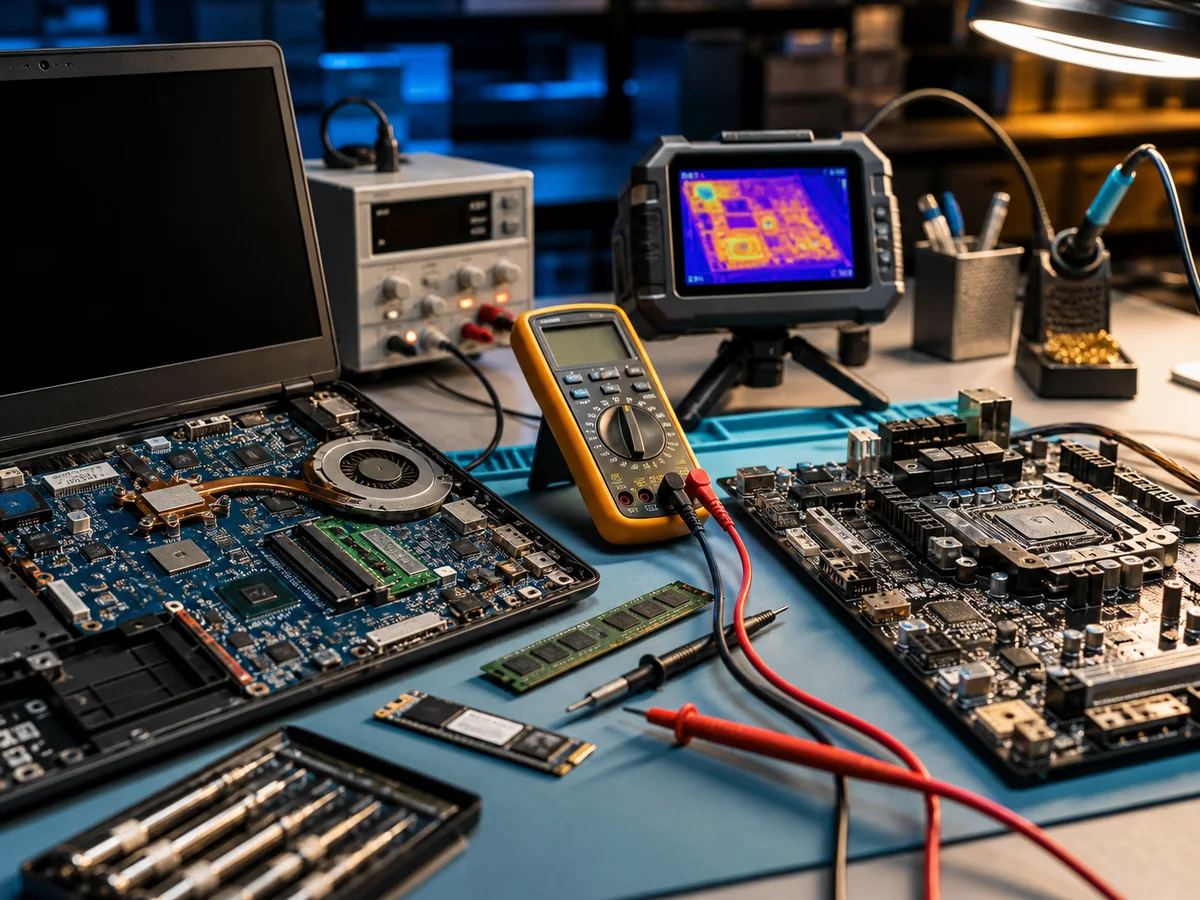
Hardware diagnostics in the repair workshop: an open laptop board, multimeter, thermal camera and components under test
18
years in business
95 %
success rate, faulty HDDs
18 +
media categories
Brno
own laboratory
  • Free diagnostics
    We find the fault at no charge
  • Repair in 2–5 days
    Standard turnaround
  • 12-month warranty
    On work performed
  • In person in Brno
    Viniční 3587/216
  • 18 years of experience
    Since 2008

What Is Hardware

Hardware (HW) is the part of a PC you can physically touch. The most important hardware components include:

  • Motherboard
  • Hard drive (HDD/SSD/NVMe)
  • Processor (CPU)
  • Power supply (PSU)
  • Cooler(s) and fans
  • Memory (RAM)
  • Graphics card (GPU, can be integrated)
  • Monitor, keyboard, mouse

Hardware also covers the sound card, optical drive (DVD/Blu-ray), network card (often integrated), memory card reader, printer, scanner, TV tuner card, etc.

Visual Inspection
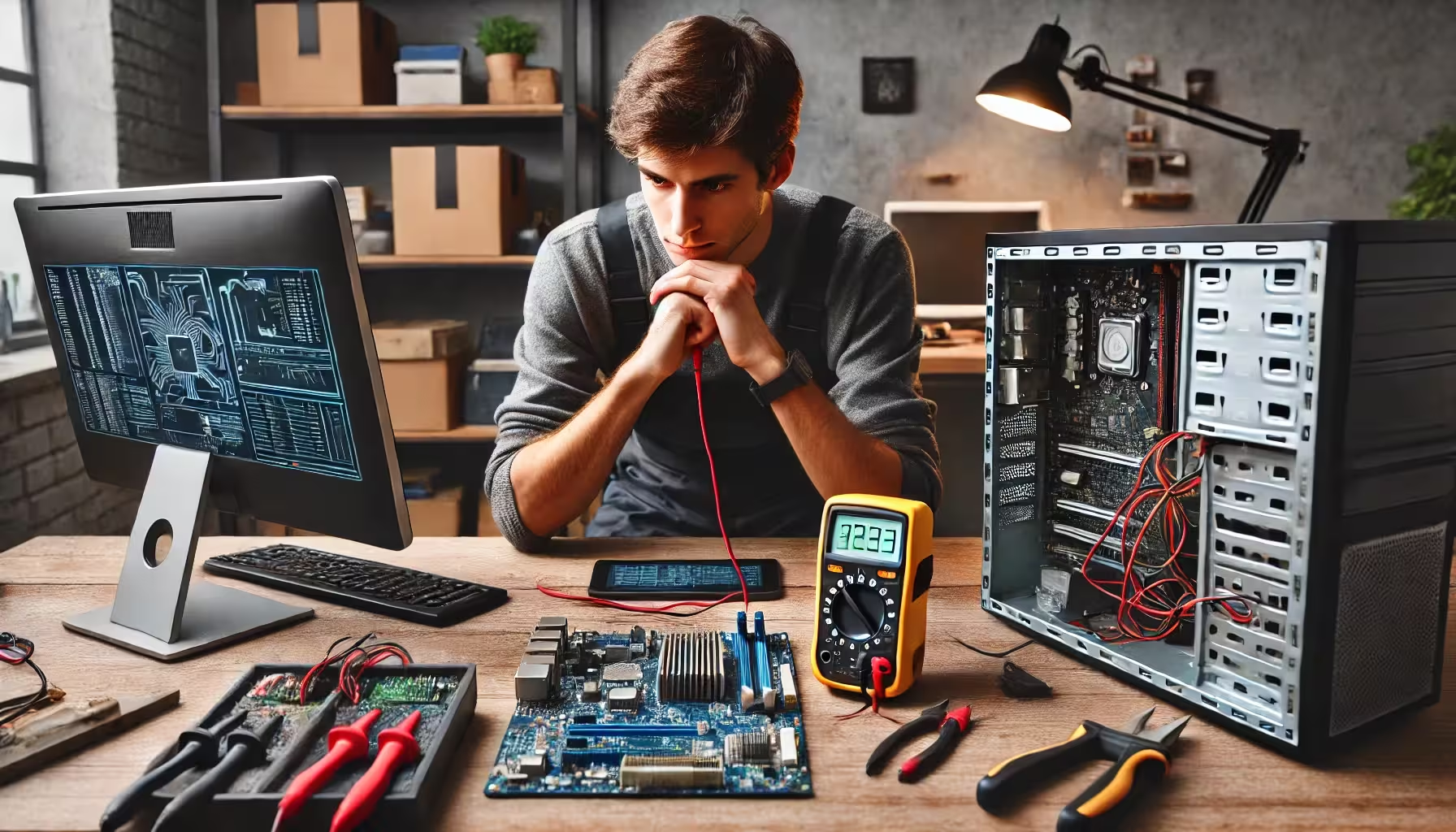
ITHOPE technician diagnosing hardware in a PC and laptop using a multimeter and other diagnostic tools
ITHOPE technician during hardware diagnostics: multimeter, oscilloscope, systematic approach.

Visual inspection is the first and most fundamental step in diagnostics. It involves physically examining components to uncover visible signs of damage.

PC hardware problem diagnostic procedure — step-by-step diagram, from visual inspection to component testing
PC hardware diagnostic procedure — the systematic steps we follow for every case.

Procedure

  1. Power down and disconnect the device. Ensure the computer is turned off and disconnected from all power sources and peripherals.
  2. Open the computer case with a screwdriver. We recommend an anti-static wrist strap to protect components from electrostatic discharge.
  3. Inspect the motherboard — look for visible deformations, burn marks, broken traces, or damaged capacitors.
  4. Check power connectors — all should be firmly seated and undamaged.
  5. Inspect RAM modules — properly seated, with no visible damage.
  6. Check network cards and expansion cards — undamaged and correctly connected.
  7. Fans and coolers — properly attached, not blocked by dust.

Possible Findings and Next Steps

Damaged or broken traces — if you find damaged or broken traces on the motherboard or other components, the affected parts will likely need to be replaced.

Deformation or cracks — deformed or cracked components must be replaced or repaired.

Power Issues

  • Loose or damaged connectors — ensure a proper connection or replace damaged cables
  • Power supply unit (PSU) failure — replace with a new unit

RAM Modules

  • Improperly seated modules — reseat them firmly
  • Visible damage — replace

Network Cards

  • Poor connection — ensure they are firmly seated in PCI slots
  • Damaged cards — replace

Advanced Diagnostics

After the visual inspection comes systematic diagnostics:

  • POST test (Power-On Self-Test) — CPU, RAM, basic connectivity; errors are reported via beep codes
  • Memtest86/Memtest86+ — RAM module test (run for 4–12 hours for a thorough check)
  • CrystalDiskInfo / HD Tune — drive health (SMART, bad sectors, temperature)
  • HWiNFO / AIDA64 — detection of all components, temperatures, voltages, load
  • Prime95 / OCCT — CPU stress test (identifies overheating, crashes)
  • FurMark / Unigine — GPU stress test
  • BIOS logs and UEFI event log — error messages

When to Visit Us

  • Frequent BSODs (Blue Screen of Death) — critical system error
  • Random restarts or freezing
  • High temperatures or loud fan noise
  • PC won’t power on or fails to boot
  • Unidentified hardware — PC doesn’t detect a drive, USB device, or keyboard
  • Suspicious noises — whining, clicking, knocking
  • Slow performance with no obvious cause

Diagnostic Pricing

  • Problem diagnosis (all service steps) — free of charge if the repair is carried out
  • Small electronics (repair not carried out): 200 Kč
  • PC, laptop, hard drive faults (repair not carried out): from 600 Kč
  • Phone: 1 000 Kč

Prices include VAT. For businesses, see the separate business price list.


Having a hardware problem? Contact us · +420 775 556 063

FAQ

Frequently asked questions

How much does diagnosing a computer or laptop cost?
Diagnostics at our premises is free if the repair goes ahead — we look at the device, tell you what is wrong, and propose a repair with a fixed price agreed up front. We only start work once you approve it. If you eventually collect the device without ordering the repair, we charge for diagnostics per our [price list](/en/pc-laptop-service-brno/pricing/): small electronics 188 CZK, PC / laptop / hard-drive faults from 588 CZK, phones 1,000 CZK (all incl. VAT).
How long does a laptop or PC repair take?
Standard servicing (SSD replacement, adding RAM, cleaning fans, reinstalling the system) is done within 1–3 working days. More complex repairs (motherboard replacement, BGA soldering, power-jack repair) take 3–10 days. If you are in a hurry, we can arrange an express turnaround.
Do you reinstall Windows and move the data across?
Yes, this is one of the most common jobs. Before reinstalling we back up your data (documents, photos, e-mail profiles, browser bookmarks), perform a clean install of Windows 10 or 11, install drivers and basic software, and put your data back. The whole job usually takes one working day.
What if my PC won't start and I have important data on it?
First, switch the computer off and do not try to boot it again — if the cause is the drive, every further power-on can damage the data. Bring it to us and we will diagnose whether it is a system issue (servicing is enough) or a hardware drive fault (in which case we continue with data recovery in our lab).
Do you also remove viruses and malware?
Yes. We run a full scan, remove ransomware, adware and trojans, and set up protection for the future (Windows Defender configured correctly, or a third-party antivirus to your preference). If you have had a recent incident, we will also recommend changing passwords and reviewing your bank transactions.
Can you upgrade RAM and the SSD even in newer laptops?
Yes. In most business laptops (ThinkPad, Dell Latitude, HP EliteBook) the memory slot and the M.2 socket are serviceable. In ultrabooks the RAM is sometimes soldered directly to the board — in that case an upgrade is not possible and we will advise what can be done (typically a larger SSD plus a different system configuration).
What about the warranty on the repair?
We provide a 24-month warranty on the service work and 24 months on spare parts. If the same fault reappears, we repair it free of charge. The exception is physical damage (a drop, liquid spill) or a fault in a different part of the device.
Do you repair Apple MacBooks too?
Yes — on MacBooks we mainly handle software issues (macOS reinstall, data migration, cleaning), SSD replacement on older models, dust removal and battery replacement. We do not solder T2/M1/M2 chips — for that you need an authorised Apple service centre.
Call Contact