
Is your external drive unreadable, clicking, dropped, or water-damaged? We do not repair the drive for further use — we recover the data from it, in our own Brno-Židenice lab. External drives make up the largest share of our cases, with a long-term success rate of around 95 %. Initial HDD and SSD diagnostics are free — we find out what can be recovered and quote before any work; you decide after that. Non-standard cases (drive opened by another service, overwriting or formatting, complex analysis) cost 1 210 Kč including VAT (1 000 Kč excluding VAT) for diagnostics, and we tell you in advance. Targeted search for a specific deleted file is paid. Call us 24/7 at +420 775 556 063 or send a request.
Pulling data off a NAS or RAID array? That is a different discipline — never attempt to rebuild a degraded array yourself. See RAID & NAS data recovery (Synology, QNAP) →
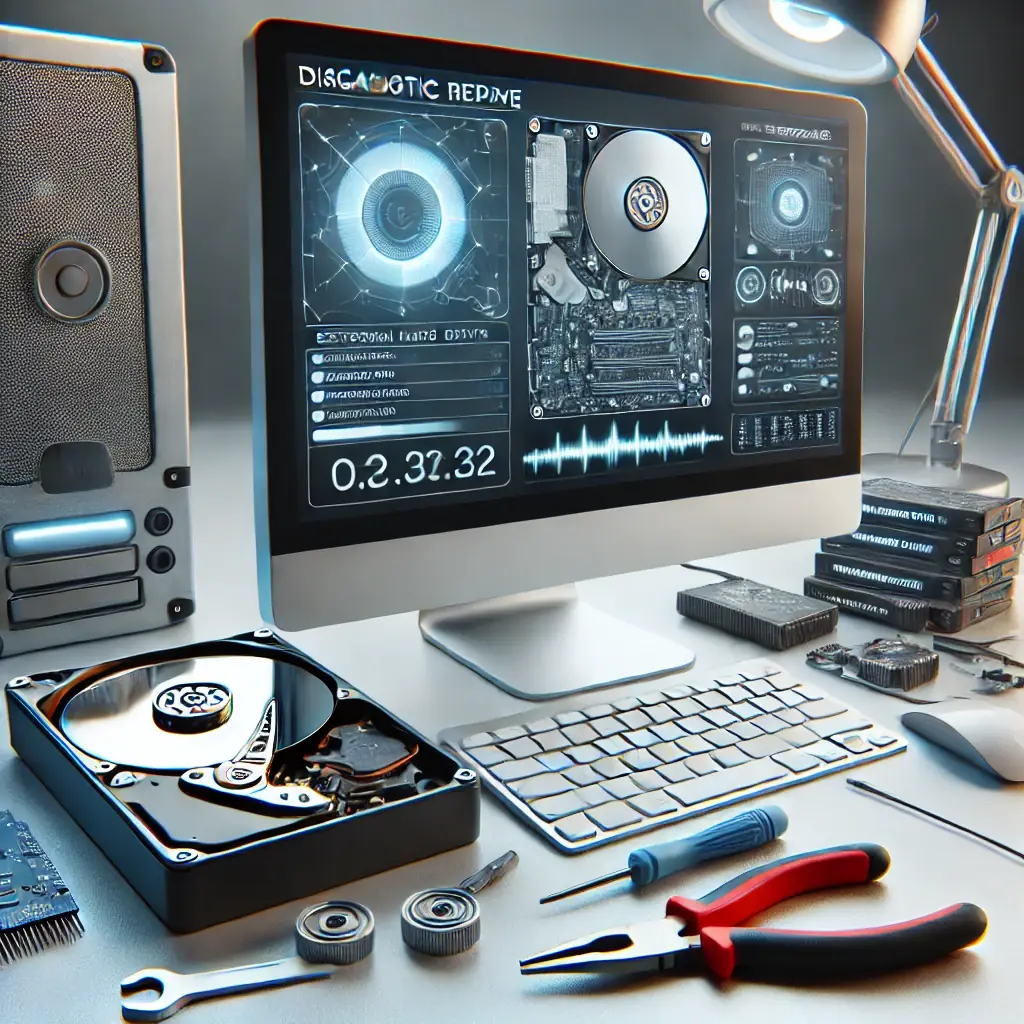
Models we work with
- Western Digital Elements Portable / My Passport / My Book
- Seagate Basic / Expansion Portable / Backup Plus / OneTouch
- Verbatim Store ‘n’ Go / Fingerprint Secure
- Transcend StoreJet (25 series, 35 series)
- LaCie Rugged, Mobile Drive, D2 Professional — dedicated LaCie recovery guide
- ADATA, Toshiba Canvio, Silicon Power
Types of damage and procedure
Hard drive failed with no obvious cause
After connecting, it appears to work normally — the motor spins up, the platters rotate, the drive doesn’t click. Yet you can’t access your data.
- Does the computer show the correct drive capacity and model?
- If not: Electronics failure, damaged service area, platter surfaces, or read/write heads. A more serious problem — diagnostics with us.
- If yes: File-system problem or less severe platter surface damage. Incorrect handling or a computer virus cannot be ruled out.
Mechanical damage caused by a drop or impact
The drive fell off a desk, a colleague ran over it with an office chair, someone knocked it while unplugging. Do not reconnect. See first aid after an accident.
Drive makes clicking / grinding noises
Clicking indicates a mechanical head fault. Grinding/scraping indicates damage to the platters or bearings. In both cases: disconnect and leave undisturbed until you bring it to us.
Hard drive won’t power on
This could be:
- USB bridge (bridge chip in the enclosure) — often the bare SATA drive can be removed and read directly, bypassing the problem
- Drive electronics — PCB replacement, firmware transfer from the original PCB
- Motor or stuck heads — cleanroom work
Short circuit, power surge, lightning strike
Blown TVS diode, shorted capacitors, or in the worst case heads bent by surge current. Typically a PCB swap + firmware transfer.
Fire, flood, water damage
- Burnt PCB: replacement
- Platters covered in soot: ultrasonic cleaning in a cleanroom, test reading
- Submersion in water: disconnect the drive from power immediately, do not under any circumstances power it on again, do not dry it internally or disassemble it — attempting to start it after water ingress will short the electronics or damage the platters. Bring it in as soon as possible in its original state, ideally packaged so that water cannot leak out.
Logical error (deletion, format, ransomware)
Formatting, OS reinstallation, accidental partition operations, ransomware. Often recoverable with software (Recuva, TestDisk, R-Studio) if the drive is healthy. Once the drive has physical problems, software does harm.
Procedure for deleted / formatted files:
- Write nothing to the drive — not even „just that one download". Every write can overwrite sectors that still contain your file data.
- If it’s a system drive: shut down the computer, remove the drive, bring it to us separately.
- For an external drive: disconnect it and store it in a safe place until delivery.
- Do not install „miracle" recovery tools — many write their own installation to the target drive.
Initial HDD and SSD diagnostics are free; no recovery, no fee applies to standard recovery of classic media. In non-standard cases (the drive was opened by another service, overwriting/formatting, complex analysis) diagnostics cost 1 210 Kč including VAT (1 000 Kč excluding VAT) — we tell you in advance. Diagnostics of a mobile phone or tablet cost 1 210 Kč including VAT (1 000 Kč excluding VAT); they are included in the final price of a successful recovery and charged separately if the customer does not go ahead or recovery is not possible. Targeted search for a specifically identified deleted file (e.g. „presentation_final.pptx") costs 1 210 Kč including VAT (1 000 Kč excluding VAT) even if unsuccessful; on success it is deducted from the total job price. See the price list.
Encrypted container (BitLocker, VeraCrypt, FileVault)
- With the key: treated as a standard recovery
- Without the key: structure yes, content no
Diagnostics at our lab
Before attempting any drive repair, we run diagnostics. We use:
- CrystalDiskInfo, HD Tune — for logical diagnostics
- PC-3000, DeepSpar — for hardware diagnostics in cloning mode
- WARNING: If the drive emits high-frequency squealing sounds indicating grinding, we do not perform diagnostics — the drive would suffer further damage. We go straight to the cleanroom.
Software or lab?
It depends on the fault:
- Logical error on a healthy drive (deletion, formatting) — software can help, but only on a drive that physically works. Repair tools such as CHKDSK or „repair disk" often finish off a failing drive, so do not run them without a diagnosis.
- Physical repair — for hardware damage, take it to a professional lab. Bring it in person to Brno or send it via Zásilkovna or PPL. We serve clients from all over the Czech Republic — Ostrava, Prague, Plzeň, Liberec, Pardubice, Ústí nad Labem, České Budějovice, Havířov.
Contact
- Phone / WhatsApp: +420 775 556 063
- Email: zachranadat@ithope.cz
- Office: Viniční 3587/216, 615 00 Brno-Židenice, Mon–Fri 10:00–16:00
Initial HDD and SSD diagnostics are free (during standard working hours). Targeted search for a specific deleted file is paid; see the price list.
See also: Main data recovery hub · How to send a hard drive · Recovery price list