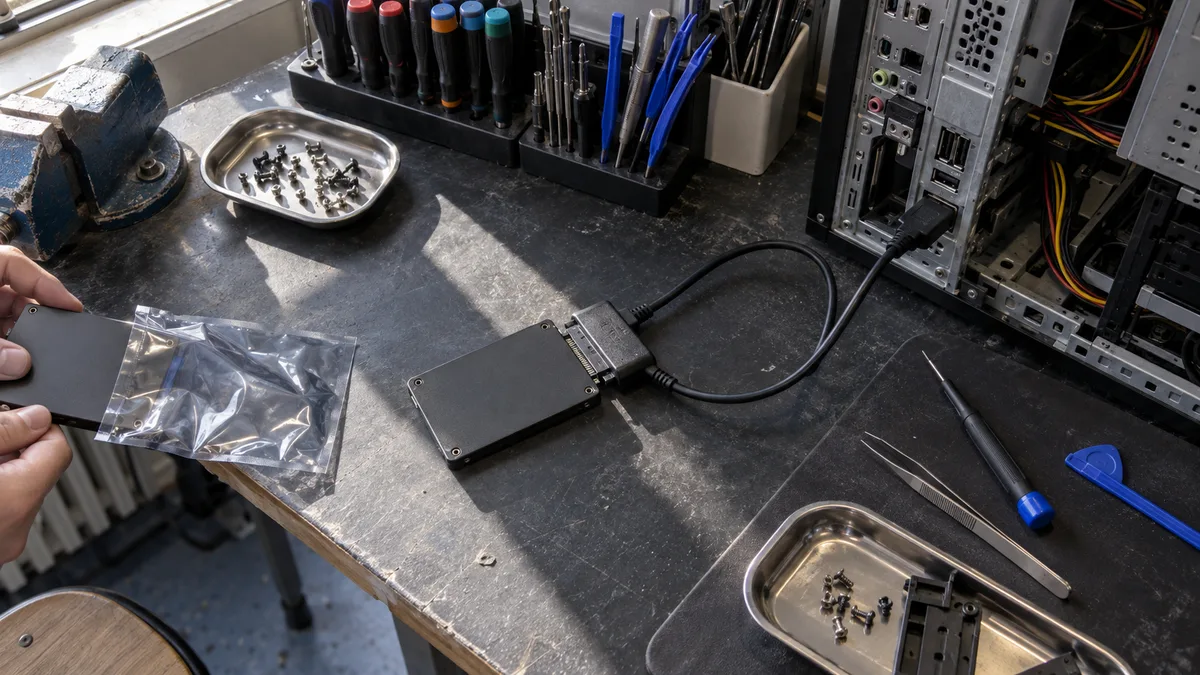
The short answer: Data recovery software can help after deletion, reformatting, or file system corruption, provided the required data still exists. Perform recovery and repair operations on a clone or disk image, never on the original damaged drive. Software cannot repair mechanical or electronic faults; if a drive clicks, disappears, or has bad sectors, every additional scan may reduce the chance of recovery. On an SSD, TRIM can also make deleted data inaccessible even if you have not saved anything new to the drive.
Create a disk image before running recovery software
A disk image is not simply a copy of the visible files. It captures the contents of addressable sectors, including file system information and space marked as free. It may take the form of an image file or a clone on another physical drive. Unreadable areas may be missing from it; no copying program can recreate their contents. The imaging tool must, of course, read the original drive; the search for lost files takes place only after the copy has been created.
Both CGSecurity and R-Tools Technology recommend the „image first, recover second" approach. Protect the source from writes and do not boot an operating system from it. For an uncompressed image, allow enough space for the source drive’s full capacity, plus separate storage for recovered files. Cloning to another drive overwrites the target drive: confusing the source and target is a destructive mistake.
GNU ddrescue is a tool for creating such a copy. It can prioritise readable areas and skip problematic locations instead of endlessly repeating failed read attempts. It does not repair the disk surface, nor is it a safe DIY experiment for a mechanically failing drive. We explain how to create a disk image with ddrescue separately.
Keep the completed copy unchanged. Scan it in read-only mode and attempt repairs only on another working copy. Install the software on a healthy drive, and do not save the results to the original medium or the clone being analysed.
Three questions that determine whether to try recovery at home
- What happened before the data was lost? Deletion or a quick format suggests a logical event. A fall, power surge, or unusual sound points to a possible hardware fault.
- Is the drive stable? It must report the correct capacity and remain readable without interruptions. A RAW status alone does not confirm that the hardware is healthy.
- Do you have a copy, a suitable tool, and an acceptable level of risk? If the data is irreplaceable and exists in only one place, do not begin with an experiment. Check existing backups first.
| Symptom | Can software help? | What to do |
|---|---|---|
| Accidentally deleted files | Possibly, if the contents remain | Stop all writes and create a copy |
| RAW file system or quick format | Sometimes; rule out hardware faults first | Do not format; analyse a clone |
| Clicking, disconnections, read errors | Not as a DIY repair | Stop trying and switch off the drive |
| Files deleted from an SSD with TRIM | The outcome cannot be guaranteed | Minimise use and do not run more scans |
We examine in more detail what to do when a RAW drive asks to be formatted.
What recovery software can actually do
Undelete uses surviving records of deleted files. On NTFS, for example, information about a file’s name and data location may remain even after the file has been marked as deleted. This only works if both the necessary records and the contents have survived; different file systems behave differently when deleting files.
File system reconstruction rebuilds the structure from surviving metadata, backup copies, and relationships between records. It can help after structural damage or certain types of formatting. This is more than simply „restoring a deleted record," and the resulting directory tree may be incomplete. It cannot restore overwritten content.
When metadata is insufficient, files can be located by searching for their characteristic signatures, a method known as carving. This usually does not recover the original filenames or directories and has limitations with fragmented files. The differences are explained in R-Tools Technology’s file recovery basics.
Examples of tools for different tasks
TestDisk by CGSecurity can search for lost partitions and recover deleted files from supported file systems. Some of its functions write changes to disk structures, so it should not be used on the original drive.
PhotoRec, by the same author, searches for content by file signature and can also work with disk images. It is useful when the original structure cannot be relied upon, but it does not guarantee the recovery of every folder.
R-Studio by R-Tools Technology supports image analysis and recovery from damaged file systems. Before choosing it, check whether it supports the relevant format and offers file previews. A recovered filename alone does not confirm that its contents are intact.
Open the image in the software, not the physical original. Find the required files, check their previews, and recover them to another healthy storage device. Before purchasing a paid version, also check the trial version’s limitations; a list of detected files is not proof of successful recovery.
What software cannot repair and when another scan causes harm
The search term „HDD repair software" combines two different goals: accessing data and repairing the device. Software cannot fix damaged heads, platter surfaces, or burnt-out electronics. Remapping a sector to a spare area neither repairs the original location nor recovers its lost contents.
Do not continue if the drive clicks, repeatedly disconnects, or reports read errors. Even a read-only scan is not risk-free for faulty hardware because repeated reads place additional strain on it. The article bad HDD sectors: what to do summarises the next steps, while data recovery from a Toshiba HDD examines the issue for a specific brand.
S.M.A.R.T.: examine the actual values, not a green badge
If a drive remains stably accessible, you can read its existing data with a tool such as smartctl from smartmontools without running a surface test. Its documentation distinguishes between raw values labelled RAW and normalised VALUE figures with a THRESH limit. VALUE is not a health percentage; its interpretation depends on the manufacturer and model.
For typical ATA HDDs, the most important indicators include:
- Reallocated Sector Count: the number of remapped sectors; an increase is a warning sign.
- Current Pending Sector: unstable or unreadable sectors awaiting resolution.
- Offline Uncorrectable and UNC errors: failed reads that error correction could not resolve; UNC may appear in the error log rather than as a single universal numerical field.
Pending sectors, new UNC errors, or a growing number of reallocated sectors are reasons not to run a recovery scan or a lengthy self-test. An old, unchanged reallocation count does not by itself predict when a drive will fail, but a „PASSED" status does not rule out a fault either. A USB adapter may restrict access to S.M.A.R.T. data, and NVMe drives use different indicators.
Why CHKDSK is not the same as data recovery
According to Microsoft’s documentation, chkdsk /f repairs logical file system errors. It makes changes rather than merely inspecting the file system. The chkdsk /r option includes /f, searches for bad sectors, and attempts to recover readable data, extensively reading the volume in the process.
Its goal is file system consistency, not the preservation of every trace needed for recovery. Microsoft explicitly warns that repairs to FAT file systems change the allocation table and may sometimes cause data loss.
For data recovery, this means you should not run these repairs on an original drive suspected of having a hardware fault. They combine writes to file system structures with a heavy read workload without repairing the hardware. CHKDSK may be appropriate maintenance for a healthy, backed-up drive; during recovery, creating a copy and extracting the files take priority.
SSDs and TRIM: deletion can mean more than free space
TRIM allows the operating system to tell an SSD which blocks are no longer needed. The controller may stop returning their original contents even before physical erasure; subsequent internal housekeeping, known as garbage collection, frees the memory blocks. Recovery may therefore fail even when the user has not written any new files. The process is described in Microsoft’s fsutil behavior documentation and by R-Tools Technology.
Disabling TRIM afterwards does not reverse commands that have already been processed. Do not leave the SSD powered on unnecessarily, as garbage collection may continue while the drive is idle. If it is a system drive, stop normal use and shut down the computer.
However, it is not accurate to claim that every deleted file on every SSD is unrecoverable. The outcome depends on the controller, operating system, connection, and whether TRIM was actually processed; USB flash drives and SD cards cannot automatically be assumed to behave in the same way. For further context, see SSD data recovery.
An encrypted volume: a clone alone is not enough
With BitLocker or FileVault, you need valid unlocking credentials or a recovery key, along with sufficiently intact encryption metadata. An ordinary scan of a locked copy will not recover readable documents. The key may not be lost: a backup may exist in an account or with the organisation’s administrator, depending on how encryption was configured.
For encrypted shared folders on Synology and QNAP devices, you must also have the password or the relevant key file. Reconstructing the RAID does not remove the encryption. The specific procedure depends on the system and encryption method, as shown in the SysDev Laboratories documentation.
Hardware-encrypted SSDs—self-encrypting drives using Opal—store the cryptographic key inside the controller and require the device to be unlocked. Standard recovery software cannot bypass this protection. Do not assume that knowing the password will always resolve a simultaneous electronics failure, or that a laboratory can bypass a missing key.
What to do if you have already run a scan
Stop any further attempts and do not save anything to the source. Record which software you used, any formatting or repairs performed, and any changes in the drive’s behaviour; save existing logs to healthy storage. A completed scan does not automatically mean that the data has been destroyed. What matters is whether any writes occurred and whether the hardware deteriorated.
If the medium is stable, continue only from a copy. If it disconnects or makes unusual sounds, do not try again with „different software."
When a laboratory is the right choice
A professional recovery process begins by identifying the type of fault, not by running the deepest possible scan. Depending on the condition of the device, the process may involve controlled reading, creating a copy, reconstructing the structure, and checking the recovered files. Unreadable areas and missing keys may still be impossible to recover.
A laboratory is appropriate when there are signs of hardware failure, the condition is unclear, or the data is irreplaceable. By contrast, a correctly chosen recovery procedure performed on a copy may be enough for a healthy SD card after accidental deletion.
Frequently asked questions
Is there software for repairing an external drive?
Software can help with logical recovery, but a USB connection does not change the rule that you should work from a copy. Software cannot repair a faulty cable, adapter, or drive; the differences are explained in external drive repair and data recovery.
Is free data recovery software enough?
Sometimes. TestDisk and PhotoRec are free tools intended for different tasks. What matters is file system support, the condition of the data, and the correct procedure—not simply whether the software is free or paid.
Should I format a RAW drive before recovery?
Do not format it, even if the operating system prompts you to do so. Formatting changes structures that may be important for recovery; analyse a copy of the original state instead.
The software found my files. Have they been recovered?
Not yet. It may have found only their records or incomplete contents. Save the results to another healthy storage device and verify that important files open correctly and contain the expected data.
At the ITHOPE laboratory in Brno, we assess the condition of the storage medium and the options for creating a copy and recovering the data. You can find the scope of our services on the data recovery page and begin the handover process through the data recovery order form.
Sources
- Microsoft Learn: CHKDSK
- Microsoft Learn: fsutil behavior and TRIM
- GNU: ddrescue manual
- CGSecurity: copying a damaged disk
- CGSecurity: TestDisk
- CGSecurity: PhotoRec
- R-Tools Technology: R-Studio
- R-Tools Technology: File Recovery Basics
- R-Tools Technology: Clone Disks Before File Recovery
- R-Tools Technology: File Recovery Specifics for SSD Devices
- smartmontools: official smartctl documentation
- Microsoft Learn: BitLocker Recovery Overview
- Apple: protecting data with FileVault
- SysDev Laboratories: encrypted NAS folders and eCryptfs
Where to find us
ITHOPE is a company based in Brno, Czechia: we do data recovery from disks, RAID and NAS, PC and laptop service and IT for business, all in our own lab at Viniční 3587/216, 615 00 Brno.
Phone +420 775 556 063 (24/7 line). You can bring the device in person, or send it by courier (Zásilkovna, PPL).