This week, I had a 2.5” laptop drive on my bench in Brno. Its owner had previously left it running chkdsk /r all night. The drive was now clicking more than when it arrived—and thousands of pending sectors had meanwhile become sectors that could no longer be read at all. This article explains why „run ScanDisk and see what happens" is advice that, in 2026, is only suitable for drives containing no valuable data. If you have an unbacked-up drive with bad sectors, it belongs in data recovery—and if it is a conventional hard drive, go straight to HDD data recovery.
What are bad sectors?
A hard drive divides the surface of its platters into sectors (512 B or 4 kB). Each sector contains metadata (ECC codes and an address) as well as data. A bad sector means that something has happened to that area of the platter that prevents the data from being read or safely overwritten:
- Mechanical damage — scratches or scoring left by a previous head crash
- Magnetic degradation — a weak signal or exceeded retention limits
- Electronic error — a read error reported as non-recoverable
- Firmware — the drive is aware of the problem and reports it
Drives have spare sectors—typically several thousand—which they can use to reallocate bad sectors. The process works like this: the drive encounters a sector that cannot be read on the first attempt → retries it repeatedly → if it eventually succeeds, it moves the contents to a spare sector and marks the original as reallocated.
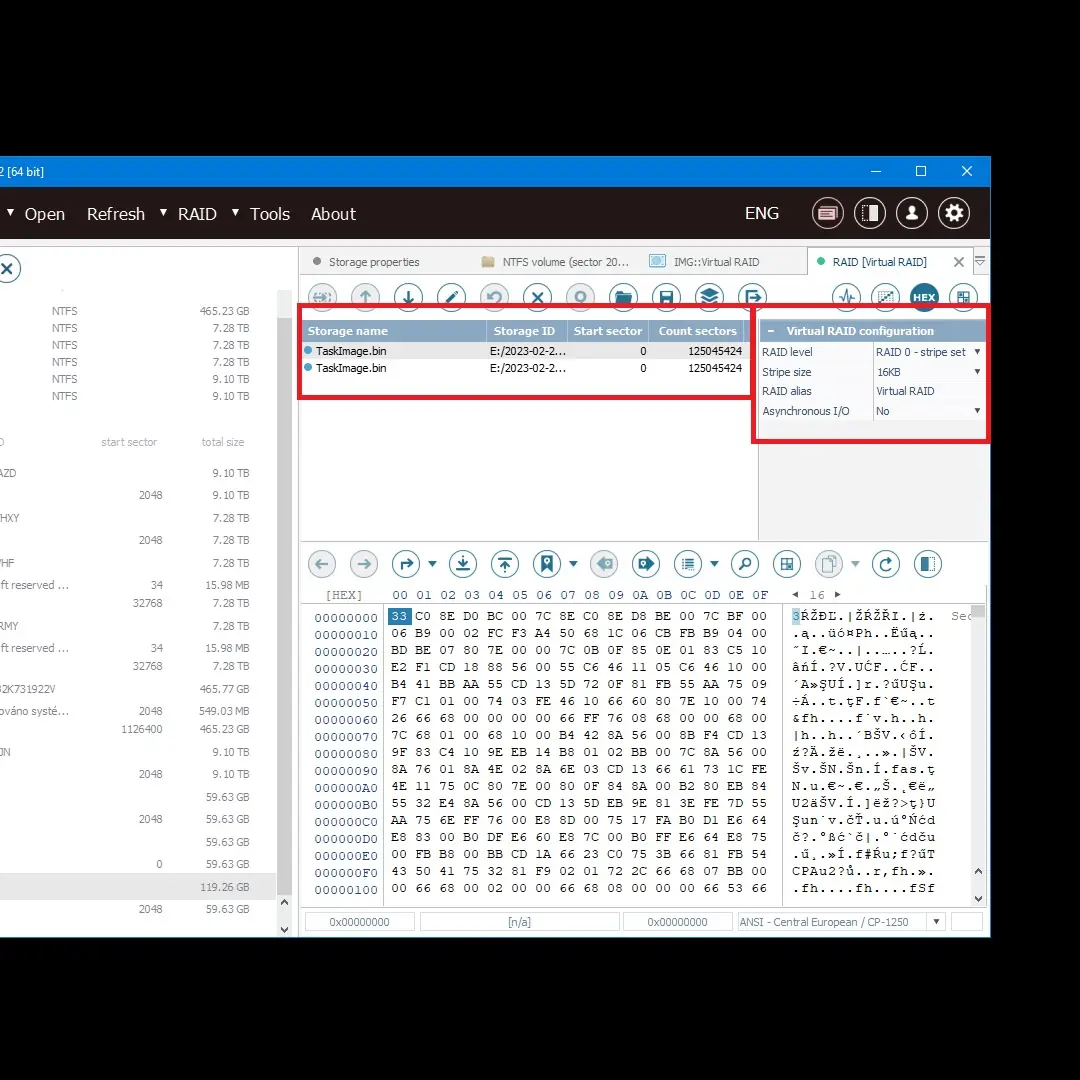
How to tell whether you have bad sectors
SMART attributes (the most reliable indicator)
Install CrystalDiskInfo (free), open the drive details, and look for:
- Reallocated Sectors Count (05) — the number of sectors that have already been remapped. Any value above 0 is a warning.
- Current Pending Sector Count (C5) — sectors that cannot currently be read, but the drive is waiting to see whether a future attempt succeeds. Any value above 0 is a reason to make a backup.
- Uncorrectable Sector Count (C6) — sectors that can neither be read nor remapped. Serious.
- Reported Uncorrectable Errors (BB) — errors that passed through ECC
SSD attributes are different (Wear Leveling Count, Total Host Writes, Percentage Used), and failures also develop differently.
System symptoms
- Copying a file stops at a specific point and reports a „read error"
- Windows reports that the „file system is corrupted" (NTFS journal errors)
- A BSOD with INACCESSIBLE_BOOT_DEVICE appears during startup
- The drive is „slow when I play a specific video"
chkdskfinds an „unrecovered file record"
What NOT to try (or what can make things worse)
1. Repeatedly running chkdsk /r or ScanDisk on a mechanically damaged drive
If a drive clicks, grinds, or shows any mechanical symptom, chkdsk /r can take 6–24 hours, with the heads repeatedly moving across the damaged platter throughout that time. Platter wear increases. Data that might otherwise have been recoverable becomes damaged.
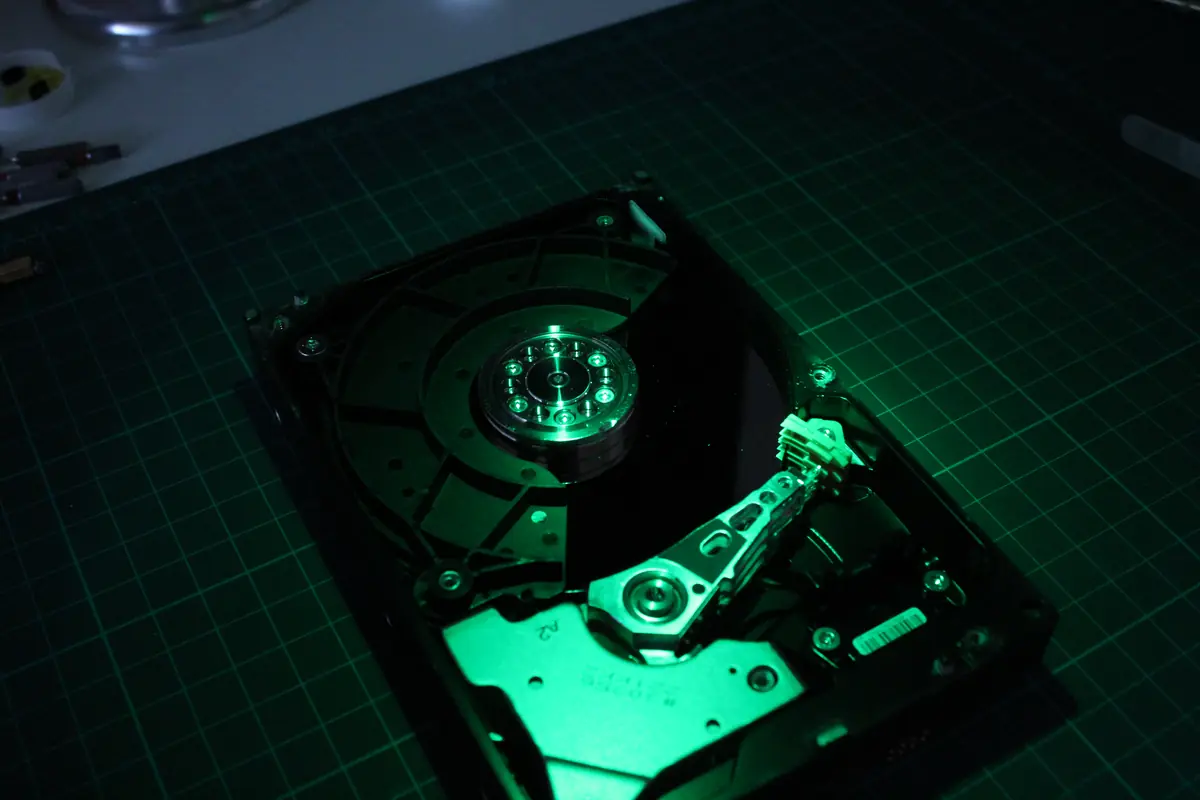
Rule: if a mechanical drive shows physical symptoms, turn it off and do not initiate any further reads.
2. Using HDD Regenerator on a physically damaged drive
HDD Regenerator and similar tools work by overwriting a bad sector with a specific magnetic signal and forcing the drive to reallocate it. This can work for magnetic degradation and logical corruption.
It works when: the drive is physically healthy and only its magnetic recording has slowly degraded, as can happen with old drives that were rarely used.
It causes damage when: the drive has a mechanical fault. The tool will keep driving the head across the damaged surface, further damaging the heads and scratching the platters.
3. Performing a low-level format on a drive containing important data
Modern drives do not allow the operating system to perform a low-level format; that is only done during manufacturing. What is sometimes called an LLF, such as the operation performed by HDD Low Level Format Tool, is actually a zero-fill—it overwrites the entire drive with zeros. Your data will disappear.
Rule: if the drive contains data, do not format or zero-fill it until the data has been backed up.
What you should do
Scenario A — the drive is physically healthy and only has pending sectors
- Back it up — recover the data to another storage device first. Use a cloning tool (
ddrescue, HDDSuperClone, or Macrium Reflect), rather than copying individual files, to minimise the load on the drive. - After backing it up, you can try overwriting the drive with zeros (GParted, DBAN), which will cause the drive to reallocate pending sectors to spare ones.
- Check SMART again. If the Reallocated Count has risen dramatically, the drive is nearing the end of its life → replace it.
- If SMART is clean after the overwrite, the drive may still be used, but not for primary data without a backup.
A practical note about ddrescue: it works in two phases. First, it reads all good blocks in large passes and skips the bad ones. It then returns to the bad areas and repeatedly tries to read them using smaller blocks. Its logfile records its progress, so you can interrupt the clone and resume it the next day.
Scenario B — the drive has a mechanical fault (clicking, grinding, or not detected)
- Turn it off and do not connect it again.
- Thinking of opening it in a clean environment? Do not try this at home. A 0.3 µm dust particle on the platter means more scratches.
- Bring it to us — the initial diagnosis of a standard HDD or SSD is free. For non-standard cases, such as media previously opened by another service centre, overwritten or formatted drives, or cases requiring complex analysis, diagnostics cost 1 210 Kč including VAT (1 000 Kč excluding VAT)—we will tell you in advance. In a clean bench with HEPA particle filtration, the technician will inspect the heads, platters, and firmware, then tell you whether recovery can continue and how much it will cost.
- Bit-level reading (creating an image clone) is performed using specialised hardware such as PC-3000 or DeepSpar. A standard PC would continue damaging the drive.
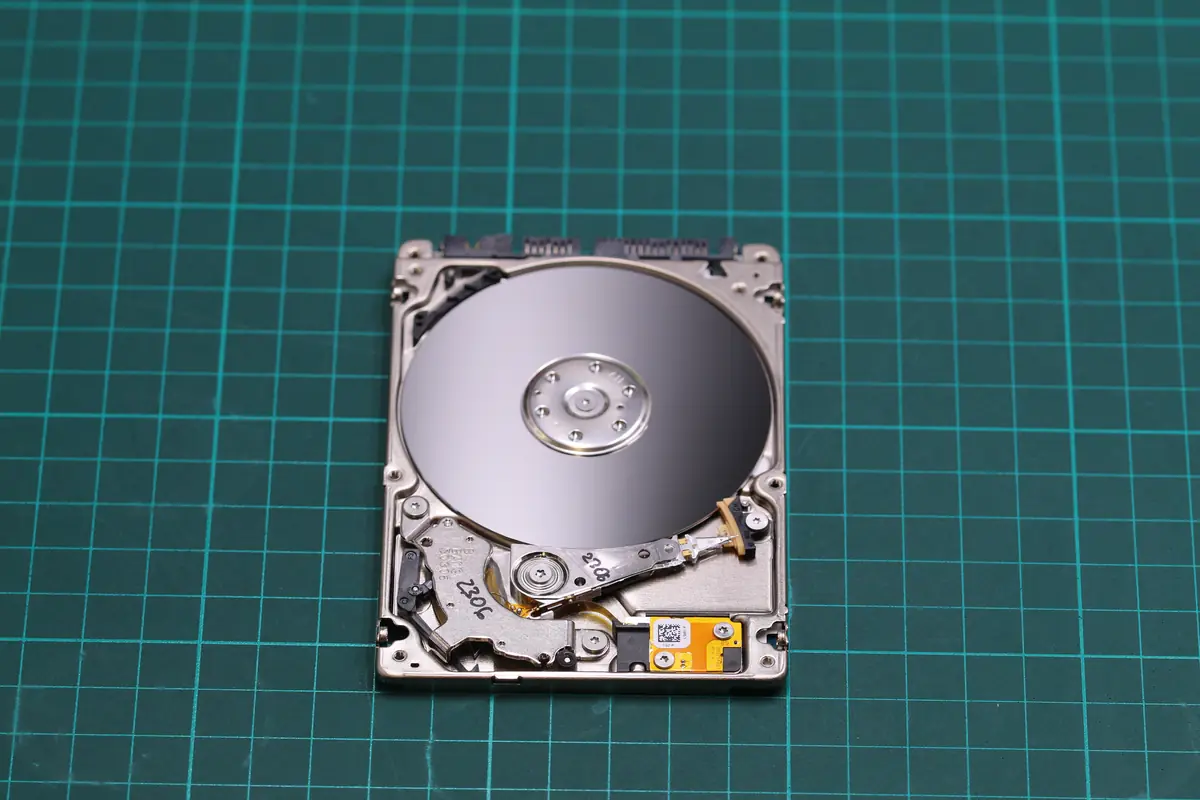
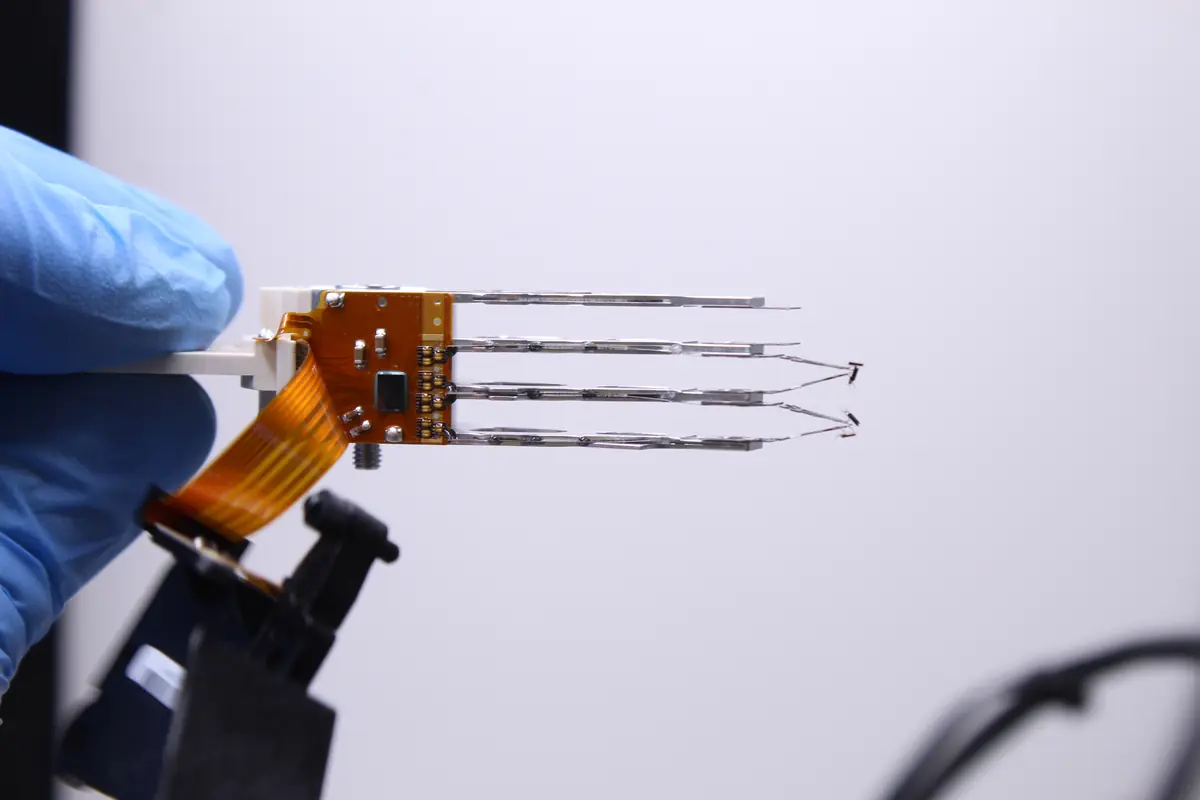
If the head is too weak for cloning or the drive clicks, the drive is opened in a laminar-flow clean bench and the head stack is replaced. This is hardware-level work—the donor drive must have the same model and firmware revision, otherwise the heads will not align with the tracks.
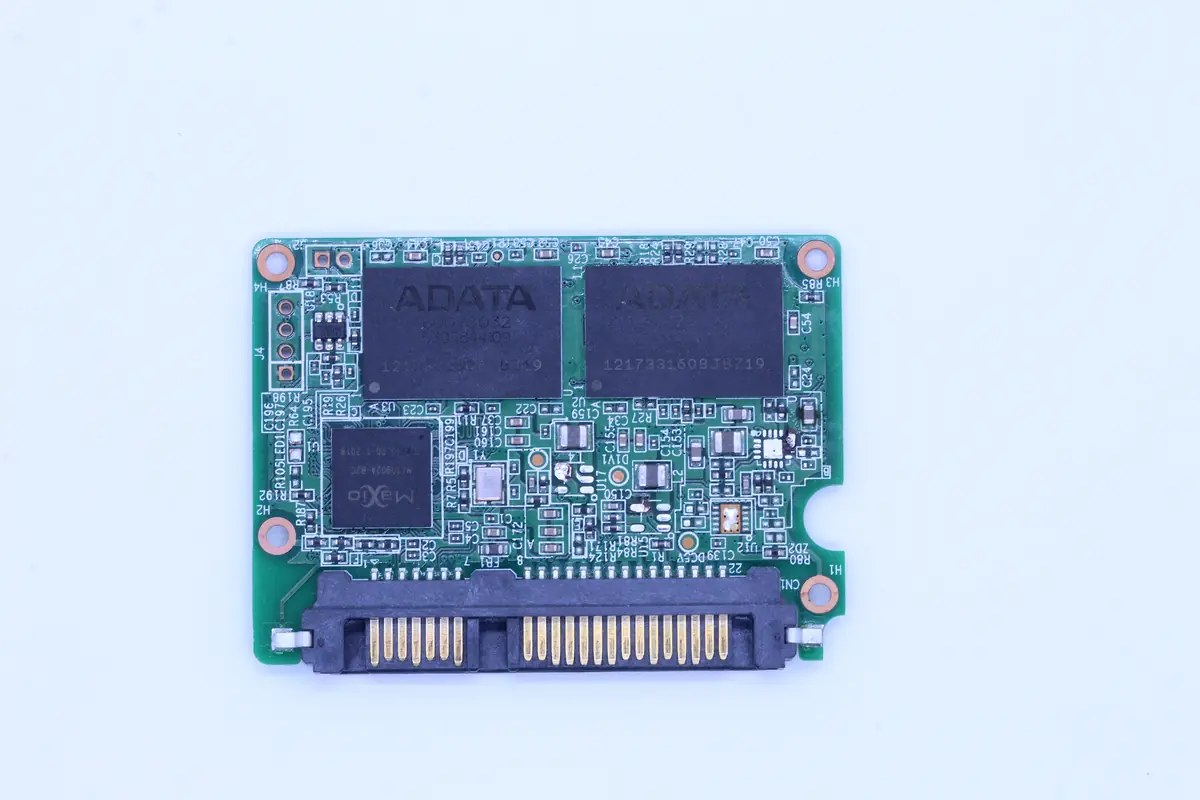
Scenario C — a failing SSD
SSDs do not suffer mechanical failures, but their flash cells can „wear out." Their SMART attributes are different:
- Wear Leveling Count / Media Wearout Indicator — how much service life remains
- Uncorrectable Error Count — unreadable blocks
- Total NAND Writes — total amount of data written
If an SSD has unreadable blocks:
- Do not write anything else to it.
- Clone its image to a healthy drive using tools capable of reading through errors (
ddrescue, HDDSuperClone). - An SSD with exhausted cells may never start again after being powered off. Do not turn it off until you have an image.
Why backups solve all of this
None of the procedures described above are necessary if you have current backups. Bad sector → replace the drive → restore from backup → done.
The 3-2-1 rule: 3 copies of your data, on 2 different types of media, with 1 copy stored off-site. How we back up business data.
If you do not have a backup and are at risk of losing data, stop using the drive and contact us before trying anything yourself. As a general rule, the first recovery attempt is the easiest; every subsequent attempt is more expensive and less likely to succeed.
Frequently asked questions
What should I do if my drive has bad sectors?
Use CrystalDiskInfo to check whether the Pending or Reallocated value is higher than 0. If the drive does not click and connects normally, the first step is to clone it to healthy media using ddrescue. If the drive clicks or does not connect, turn it off and contact a service centre—further reading attempts reduce the likelihood of successful recovery.
Does CHKDSK help with bad sectors?
It helps with logical file-system corruption, such as damage caused by a power failure. It does not help and can often cause further damage when there is a physical fault—chkdsk /r reads the entire surface, so on a drive showing mechanical symptoms, it prolongs the ordeal by 6–24 hours and may damage more tracks. Rule: only run chkdsk on a drive that does not have Reallocated > 0 in SMART and does not click.
When is it too late and no longer worth recovering a drive?
From a technical perspective, it is almost never „too late"—even heavily damaged drives will usually yield at least some data in a cleanroom. From an economic perspective, the limit is reached when the cost of recovery exceeds the value of the data. For an ordinary family photo collection, a standard case will typically cost CZK 20,000–35,000, while cleanroom work and chip-off SSD recovery cost more. Initial HDD and SSD diagnostics are free, after which you can make an informed decision based on the exact condition of the device.
Can I replace the heads myself using a YouTube tutorial?
Technically, yes. Realistically, no—without a laminar-flow clean bench, dust will settle on the platter within a minute and be crushed into it by the heads when the drive spins up again. The second problem is firmware matching: two otherwise identical 2.5” head assemblies may use different adaptive parameters stored in the service area of the original drive. Replacement heads cannot follow the tracks without correctly adjusted adaptives. PC-3000 handles all of this; without it, the chances of success are low.
Do you suspect bad sectors and have important data on the drive? Disk data recovery · Contact us · +420 775 556 063 (24/7)
See also: What to do when a drive clicks · Overview of CMR and SMR drives · How to send a drive by post
Where to find us
ITHOPE is a company based in Brno, Czechia: we do data recovery from disks, RAID and NAS, PC and laptop service and IT for business, all in our own lab at Viniční 3587/216, 615 00 Brno.
Phone +420 775 556 063 (24/7 line). You can bring the device in person, or send it by courier (Zásilkovna, PPL).