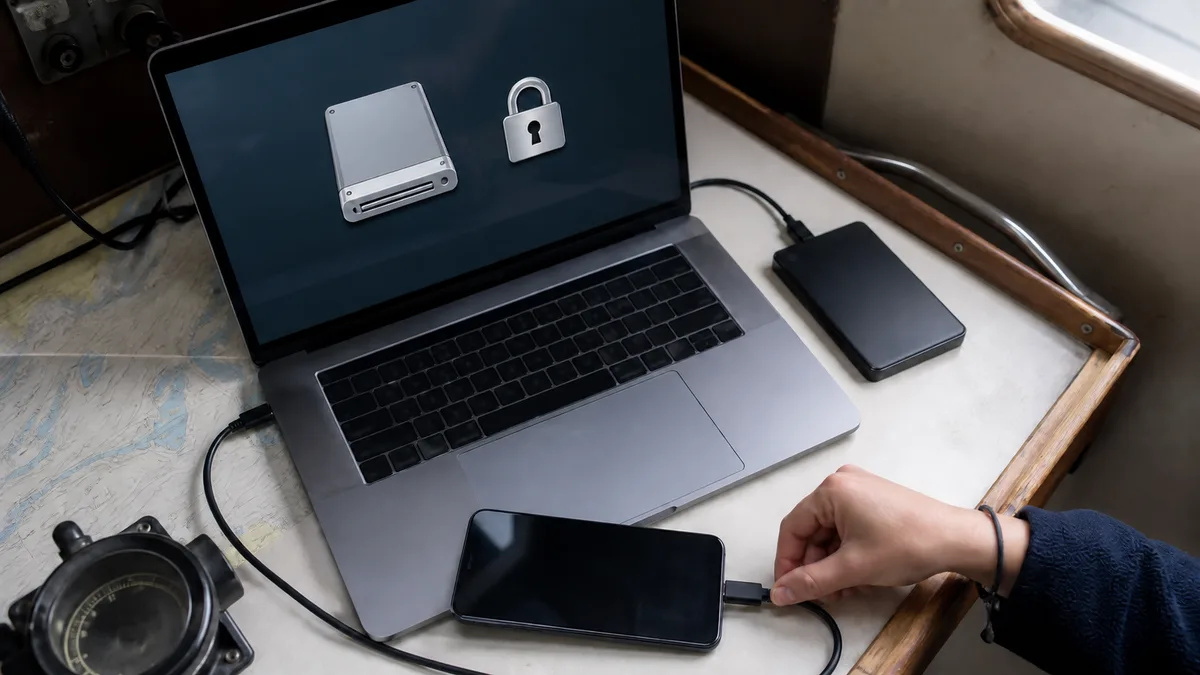
The short answer: On Windows, use the Apple Devices app; on a Mac with macOS Catalina 10.15 or later, use Finder (or iTunes on an older version of macOS). Connect your iPhone with a cable, confirm Trust, select the option to back up to your computer under General, and check „Encrypt local backup." An encrypted backup is the only kind that includes saved passwords, Wi‑Fi settings, browsing history, call history, and Health app data—and Apple cannot recover its password. Write it down immediately and keep it somewhere other than your phone. According to Apple, the backup cannot be restored without the password. You can only reset the password on the device and create a new backup; doing so will not give you access to the old ones.
Most people only think about backing up their phone to a computer when it is too late. There is one unpleasant fact about iPhones that is best stated upfront: we do not recover data from mobile phones. We accept devices for repair without access to their data, and even with a hardware repair, no one can guarantee that the contents will survive. A backup is therefore not merely „just in case"—it is the only safeguard you have for the data on your phone.
When a computer backup makes more sense than iCloud
Both iCloud and a computer provide valid backup options, and having both is best. Here is how they differ:
| iCloud | Computer (Mac or PC) | |
|---|---|---|
| Capacity | up to 12 TB (or up to 14 TB with Apple One Premier) | limited by the computer’s available storage |
| Encryption | always on, automatic | optional, off by default |
| Connection | over Wi‑Fi from anywhere | by cable (or over Wi‑Fi after setting up syncing) |
| When to choose it | everyday use | a high-capacity phone, a small cloud plan, or an archival copy before a repair |
The practical reason for creating a local backup is often simple: the data on a high-capacity iPhone will not fit in the free iCloud storage, and you may not want to pay for a larger plan just for that. The second reason is archival—a copy made before visiting a repair shop, replacing your phone, or installing a major update, which then remains stored on your computer at home.
Step by step: Windows and the Apple Devices app
- Connect the iPhone to your computer with a cable. You may need to tap Trust on the phone and enter the device passcode.
- Open the Apple Devices app.
- Select the iPhone in the sidebar. (If it does not appear, Apple has a separate guide for troubleshooting device connections.)
- Select General in the sidebar.
- Choose „Back up all of the data on your [device] to this computer"—not the iCloud option.
- Check „Encrypt local backup" and create a password.
- Click Back Up Now.
- Once it is complete, open Manage Backups and confirm that the backup was actually created, including its date and time. An older computer without the Apple Devices app uses iTunes instead; the process is the same, but the relevant panel is called Summary.
Step by step: Mac and Finder
On macOS Catalina 10.15 and later, you can back up an iPhone directly from Finder:
- Connect the iPhone to your Mac with a cable. If the Mac asks for permission to connect the accessory, click Allow.
- Open Finder and select your iPhone in the sidebar.
- Click Trust, tap Trust on the iPhone, and enter the passcode.
- Select „Back up all of the data on your iPhone to this Mac."
- Check „Encrypt local backup," enter the password twice, and click Set Password.
- Click Back Up Now. Once the backup has completed successfully, the date and time of the latest backup will appear.
On macOS Mojave and earlier, backups are created in iTunes. iTunes also backs up the device automatically whenever you connect it.
Enable encrypted backups—and keep the password somewhere other than your phone
This is the most important section of the entire article. Backups are not encrypted by default, and an unencrypted backup is incomplete.
According to Apple, an encrypted backup additionally includes:
- your saved passwords,
- Wi‑Fi settings,
- website history,
- health data,
- call history.
Data from the Activity, Health, and Keychain apps is included in a computer backup only when the backup is encrypted. If you do not enable encryption and then lose your phone, you may also lose years of step, sleep, and heart-rate measurements from your Apple Watch. An encrypted backup does not include Face ID or Touch ID data, or the device passcode.
There is another side to this: Apple does not know the password for an encrypted backup and cannot recover it for you. Its official wording is unambiguous—an encrypted backup cannot be restored without its password. In iOS 11 and later, you can reset the password on the phone (Settings → General → Transfer or Reset [Device] → Reset → Reset All Settings) and set a new one. However, Apple adds a warning that people often overlook: creating a new password will not give you access to previous encrypted backups. On a device running iOS 10 or earlier, the password cannot be reset at all.
In practical terms, save the password in a password manager or write it down on paper—do not keep it in the Notes app on the same phone. If you lose the password along with the phone, you lose access to the backup as well.
There is one more way people accidentally lose a backup: after you confirm the password, the backup process starts and immediately overwrites and encrypts previous backups. Do not enable encryption while the only existing copy you want to keep is still in its original location—archive it somewhere else first.
Where the backup is stored and how much space it uses
The size of a backup roughly corresponds to the amount of data on the phone, excluding anything already stored in iCloud. For a full 256GB iPhone, expect hundreds of gigabytes—and ideally keep enough space for two generations of backups rather than just one.
Where to find it:
- Mac: in Finder, choose Go → Go to Folder and enter
~/Library/Application Support/MobileSync/Backup/ - PC: press Windows + R and enter
%USERPROFILE%if you use Apple Devices or the Microsoft Store version of iTunes. For the older, traditional version of iTunes (which you can identify by the Help → Check for Updates menu), enter%AppData%.
You can also manage backups without digging through folders. In Finder or Apple Devices, open the General panel, click Manage Backups, right-click a specific backup, and select Delete, Archive, or Show in Finder / Show in Explorer. Archiving is useful because it prevents the next backup from overwriting that copy.
What a computer backup does not include
A computer backup is not a bit-for-bit image of the phone. According to Apple, it does not include, among other things:
- content from the iTunes Store and App Store, or PDFs downloaded directly to Apple Books,
- content synced from a Mac or PC, such as imported music, videos, books, and photos,
- data already synced to iCloud—including iCloud Photos, iMessage, SMS, and MMS messages when Messages in iCloud is enabled,
- Face ID and Touch ID settings,
- Apple Pay information and settings,
- Apple Mail data,
- offline maps.
This is the most common misunderstanding: if iCloud Photos is enabled, your photos are not included in the local backup. If you then cancel your iCloud plan and rely on the backup stored on your computer, the photos may disappear from both places. Local backups and iCloud are therefore not mutually exclusive—they complement each other.
How often to back up
A sensible minimum is to back up before every repair appointment, phone replacement, and major system update; once a month if you create anything on the phone that is not stored elsewhere; and after every event whose data you would hate to lose, such as a holiday, christening, or video shoot.
Every so often, check whether the backup can actually be used. To restore it, select Restore Backup in Apple Devices or Finder, choose a specific backup, and confirm by clicking Restore. For an encrypted backup, you must enter the password first. This is the step that reveals whether you still remember the password—and it is better to find out now than while holding a broken phone.
Which iPhones this applies to
The process is the same across iPhone generations; only the version of the operating system on the phone differs. According to Apple, iOS 26 is compatible with the iPhone 11 and later, as well as the second- and third-generation iPhone SE. You can find your phone model under Settings → General → About. Apple also lists model numbers, which vary by sales region:
| Model | Model number (other countries and regions) | Backup note |
|---|---|---|
| iPhone 12 | A2403 | iOS 26 supported; encrypted backup required for Health data |
| iPhone 13 | A2633 | iOS 26 supported |
| iPhone 13 mini | A2628 | iOS 26 supported |
| iPhone 13 Pro | A2638 | Large storage capacity—expect a sizable backup |
| iPhone SE (3rd generation) | A2783 | iOS 26 supported |
| iPhone 16 Plus | A3290 | iOS 26 supported |
| iPhone 17e | A3634 | iOS 26 supported |
Apple lists separate model numbers for the United States, Canada and Japan, China, and all other countries and regions—devices sold in the Czech Republic fall into the final category. For guidance on identifying a model reliably from its physical details, see how to identify the exact Apple device model before requesting a repair.
Why we take this seriously: phone data cannot be recovered
We repeat this when accepting devices for repair: we do not recover data from mobile phones. This is not unwillingness—on a modern iPhone, the storage is part of the logic board, and its contents are tied to encryption keys inside the device. There is no procedure comparable to removing a drive from a laptop.
This leads to one practical recommendation: create a backup before bringing in your phone. We accept devices for repair without access to their data, and a hardware repair alone does not guarantee that the contents will remain intact. To learn what should be checked after an accident even if the phone appears to work, read Your iPhone Still Works After a Fall—What to Check. How Apple Device Diagnostics Work explains the diagnostic and repair approval process, while iPhone Battery Replacement in Brno shows what happens to your data during a specific repair. And because a backup on a single computer is still only one copy, it is also worth reading Why an External HDD Should Not Be Your Only Backup.
Need help with an Apple device repair or setting up backups for your business? Get in touch through our contact page or call 774 777 774.
Frequently asked questions
Will you back up my iPhone 13 before accepting it for repair?
Create the backup yourself before handing over the device. We accept devices without access to their data and do not recover data from mobile phones, so a computer or iCloud backup is the only safeguard you have for the data on your phone.
Do I need an encrypted backup if I only care about photos and contacts?
Yes, we recommend it. Without encryption, the backup does not include saved passwords, Wi‑Fi settings, call history, or—most importantly—data from the Health, Activity, and Keychain apps. Enabling it requires only one checkbox, but you must remember the password.
I lost the password for my encrypted backup. Can you recover the data from it?
No—and neither can anyone else. Apple does not know the password and, according to its own documentation, an encrypted backup cannot be restored without it. In iOS 11 and later, you can reset the password on the phone using Reset All Settings and create a new backup, but this will not give you access to any previous backups.
Where can I find the backup folder on Windows?
Press Windows + R and enter %USERPROFILE% if you use Apple Devices or the Microsoft Store version of iTunes. For the older, traditional version of iTunes, enter %AppData%. However, the clearer option is to use Manage Backups directly in the app.
Does a computer backup replace iCloud?
Not entirely. A computer backup does not include data already synced to iCloud—typically photos when iCloud Photos is enabled. The safest option is to have both: iCloud for everyday use and a local copy as an archive.
Can I use an iPhone backup for an iPad?
Apple allows this, but some types of content will not transfer—for example, photos without iCloud Photos, messages and attachments without Messages in iCloud, Voice Memos recordings, and apps that are incompatible with the destination device.
Sources
- Apple: Back up and restore your iPhone, iPad, or iPod touch using a Windows device or iCloud
- Apple: Back up your iPhone or iPad using your Mac
- Apple: About encrypted backups on your iPhone, iPad, or iPod touch
- Apple: If you forgot the password for your encrypted iPhone, iPad, or iPod touch backup
- Apple: Locate and manage backups of your iPhone, iPad, and iPod touch
- Apple: Backup methods for iPhone, iPad, and iPod touch
- Apple: Back up iPhone (iPhone User Guide)
- Apple: iPhone models compatible with iOS 26
- Apple: Identify your iPhone model
Where to find us
ITHOPE is a company based in Brno, Czechia: we do data recovery from disks, RAID and NAS, PC and laptop service and IT for business, all in our own lab at Viniční 3587/216, 615 00 Brno.
Phone +420 775 556 063 (24/7 line). You can bring the device in person, or send it by courier (Zásilkovna, PPL).