A gentleman brought in a router in a plastic bag, saying: „In the kitchen it works, in the bedroom nothing. I swapped it twice, I switched providers, I bought antennas from China. Help me." A classic Monday morning. A family house from the 1990s, concrete walls as thick as defensive ramparts, one router by the desk on the ground floor — and the bedroom one storey up, at the far end. No router costing 800 Kč will physically cover that, no matter how long its antennas are.
This is not an article about how Wi-Fi is magic. It is a guide on how to name your router, secure it, and decide whether one is enough or you need two — written by a technician with 18 years of workshop experience in Brno, who has seen everything from antennas twisted up inside a socket through „password: 12345678" to WPA3 incompatibility with grandma’s tablet.
What you need before you start
- A router with its power supply and the Ethernet cable from your provider (WAN port, usually marked in blue or orange).
- A laptop or phone within range of the router. For the first setup we recommend a cable into the LAN port — your Wi-Fi will keep resetting during configuration.
- Provider details — if it uses PPPoE (T-Mobile, Vodafone DSL), you need a username and password. For ordinary cable / fibre through the router, „dynamic IP" (DHCP) is enough.
- 15 minutes of quiet. Definitely do not do the first setup when you have an online meeting coming up shortly.
The vast majority of budget routers today have a similar interface — TP-Link Archer, ASUS RT, D-Link DIR, Tenda, and the operator-supplied Zyxel and Sercomm units. We demonstrate the procedure below on a TP-Link (the most widespread brand in the Czech Republic), but the principles apply everywhere.
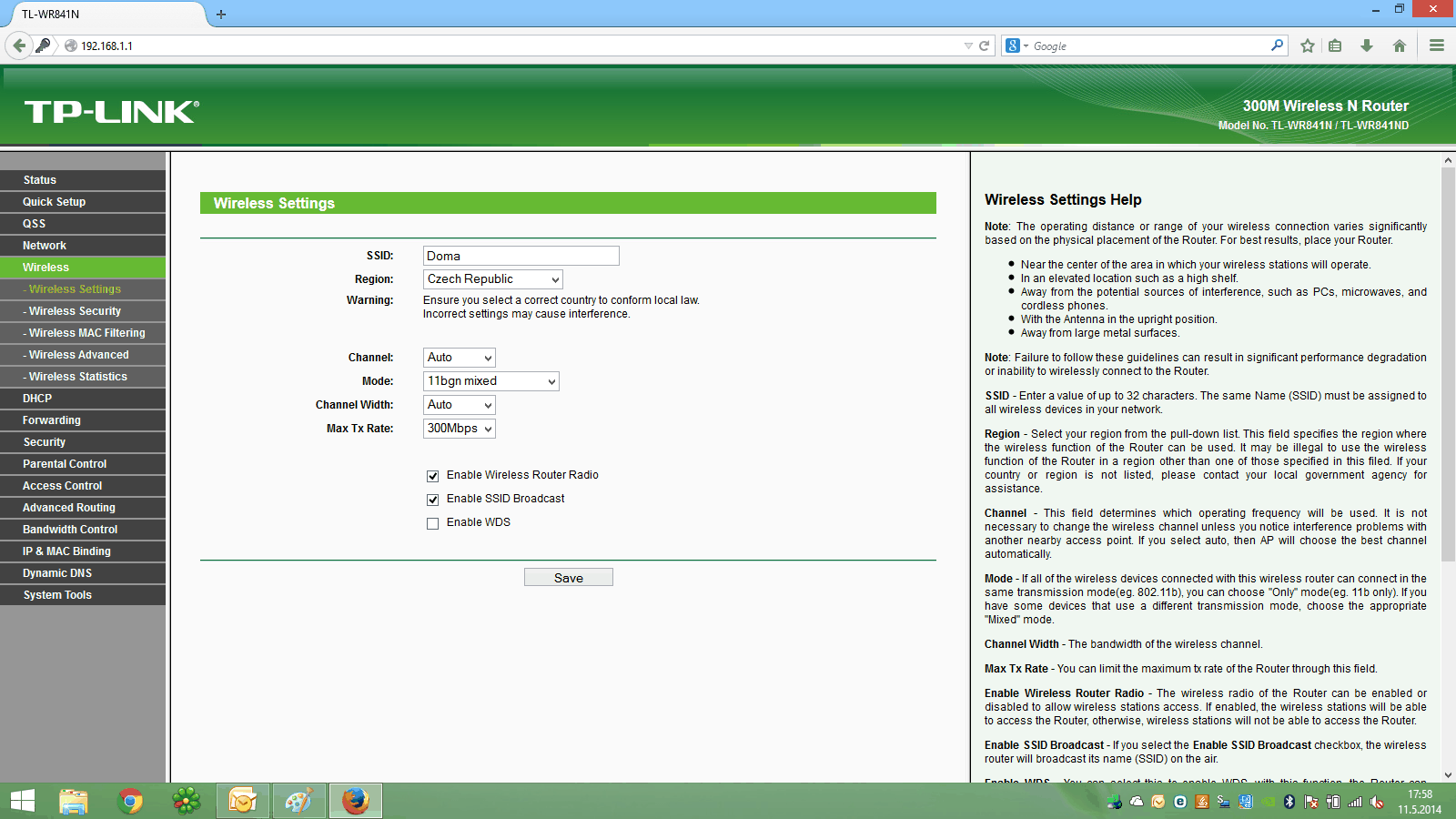
Note on the illustrations: the screenshots below are from a TP-Link admin interface from 2014 (model WR841N) — they show the same principle as today, just visually older. Newer TP-Link units (Archer from ~2020) are nowadays set up via the mobile app TP-Link Tether, or through the TP-Link ID cloud, but the names of the items (SSID, region, encryption) stay the same.
Step 1 — logging into the administration
Plug the router into the socket, wait a minute for it to boot (the LEDs come on and stop flashing). Then on your laptop/mobile open a browser and type into the address bar:
192.168.0.1(TP-Link, D-Link, Tenda)192.168.1.1(ASUS, most operator-supplied units)tplinkwifi.netorrouterlogin.net(alternative for newer TP-Link / Netgear)
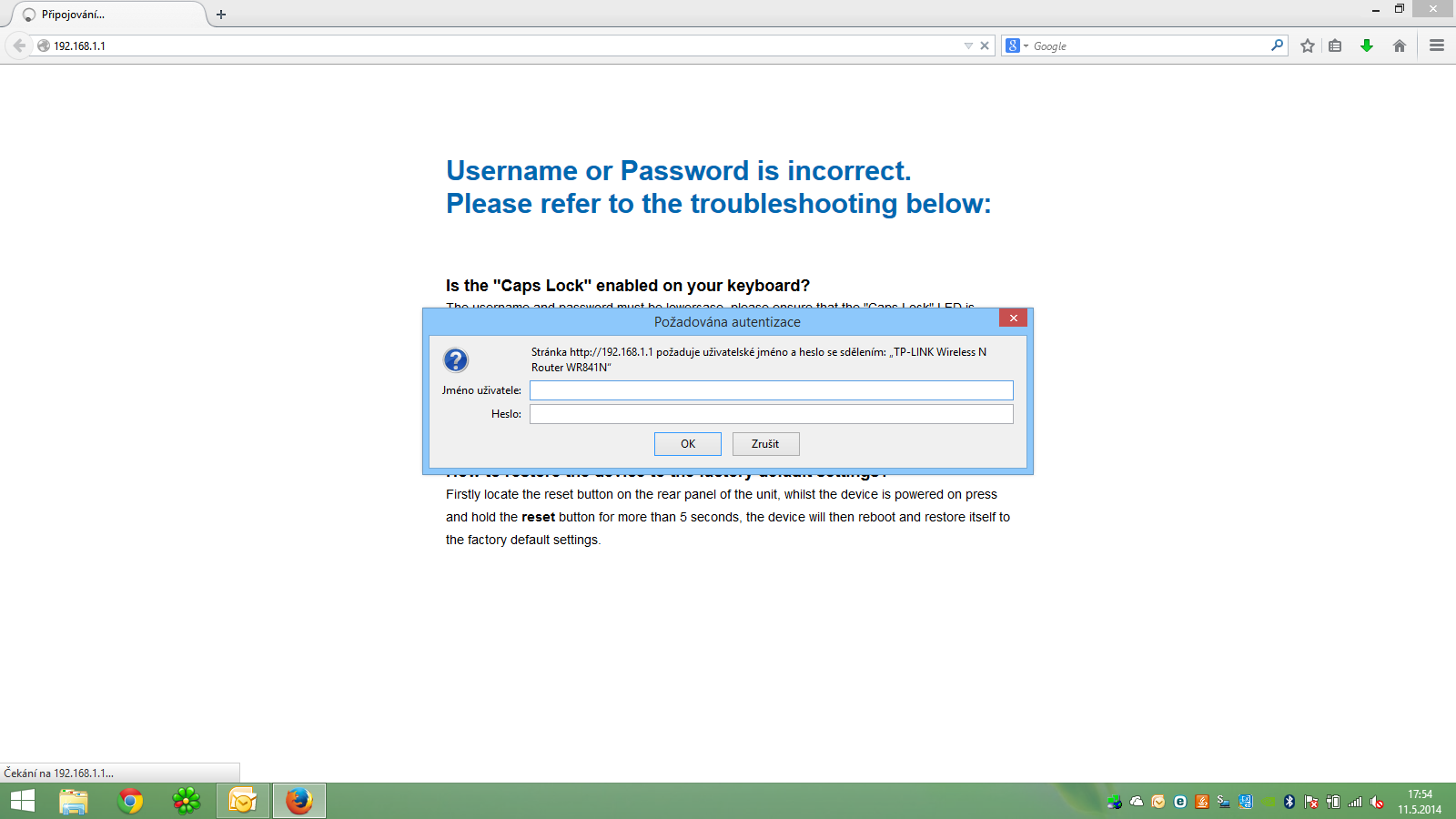
A login window opens. On routers up to roughly 2018 the default account was admin / admin (or admin / blank password). On newer models the first login will prompt you straight away to create your own admin password — do not skip it, there is no other way in.
When you cannot log in
The three most common reasons:
- The router was already configured and you do not remember the password. Solution: a factory reset. Find the recessed
Resetbutton (use the tip of a pen), hold it for 20 seconds, release, and wait two minutes for the router to boot. All settings return to factory defaults. - The wrong IP. On Windows open the command prompt and type
ipconfig, find the Default Gateway line — that is the router’s IP. On Mac / Linux use the commandip routeorroute -n. - The laptop is on a different network. If you are connected to a 4G hotspot from your phone, the browser cannot reach 192.168.0.1. Turn off both Wi-Fi and the hotspot and use the Ethernet cable.
Step 2 — finding your way around the admin interface (LAN, WAN)
After logging in you will see a dashboard with basic information about the router. Two sections you need to know:
- LAN — the internal settings of your home network. The IP range (typically
192.168.0.xor192.168.1.x), the DHCP server (which hands out IP addresses to clients). 99 % of users never change these values. - WAN — the outside, the connection to your internet provider. This is where you fill in the connection type (DHCP / PPPoE / static IP) and where you see the MAC address, which some providers pair to the port.
What specifically to look for in the Status panel (or the dashboard on newer models):
- Firmware Version — remember it, it comes in handy when looking for updates.
- The router’s LAN IP — typically
192.168.0.1or192.168.1.1(= the address you log in to). - WAN IP — if it is filled in and typically looks like a public address (e.g.
89.x.x.xfor UPC/Vodafone), the router is correctly connected to the provider. If you see0.0.0.0or a blank field, the problem is on the line between the router and the provider. - WAN MAC — this is the address the provider sees. If you are replacing the router, write it down from the old one and in the new one either clone it (
MAC Clone) or report it to the provider.
A tip from practice: when, after replacing the router, the internet suddenly does not work even though the router „connected" and all the LEDs are green, the problem is usually exactly this MAC pairing. Budget admin interfaces usually have a MAC clone function — it copies the MAC from the original router and the provider does not even notice. Sometimes it is enough to call the provider’s helpline and give them the new MAC; they sort it out within five minutes.
Step 3 — naming the network (SSID) and choosing the band
In the left-hand menu click on Wireless → Wireless Settings (on newer admin interfaces Wi-Fi on the home dashboard is enough).
- SSID — the name of your network. Here we recommend not using your name + flat number (
Novakovi_3B) — the neighbours can see it. Anything neutral will do:home,Bluechair,bakery. Whatever suits you, just not the defaultTP-Link_A4F2. - Region — choose Czech Republic. It may not seem so, but it affects the legally permitted bands and the maximum transmit power. The wrong region means either a weaker signal or the risk that you are interfering with aircraft radar (no, really, on 5 GHz).
- Channel — the channel you broadcast on. Most people can leave it on
Auto. Setting it manually is only worthwhile in a block of flats where you have around 15 neighbouring networks — then I recommend the appWiFi Analyzer(Android) orairport -son macOS to find the least crowded channel.
2.4 GHz vs. 5 GHz vs. 6 GHz — which to choose
Today’s routers broadcast on two or three bands at once. In the admin interface each band has its own tab. What they mean:
| Band | Range | Speed | Suitable for |
|---|---|---|---|
| 2.4 GHz | Longest (through walls) | Slower (up to ~150 Mbps) | IoT (smart bulbs, scales), older devices |
| 5 GHz | Medium (walls dampen it more) | Faster (up to ~1200 Mbps) | Laptop, phone, Netflix streaming |
| 6 GHz (Wi-Fi 6E/7) | Short | Fastest (up to ~5 Gbps), no interference | Newest MacBooks, gaming PC within a single room |
Recommendation for 90 % of households: use the same SSID and password on both 2.4 and 5 GHz and let the router decide for itself (the Smart Connect or Band Steering function). Your parents’ tablets on the helpline stay on 2.4, your laptop in the living room moves to 5. Maintenance-free.
Step 4 — security (WPA2, WPA3)
Open Wireless Security. Here you choose the encryption type. The menu in a budget router typically looks like this:
- None / Open — no encryption. Never. Even if you only have „just a printer".
- WEP — broken in 2007. If your router only offers WEP, it is time for a new router (seriously, 18-year-old hardware).
- WPA-PSK — weaker, breakable with enough captured traffic. Do not use.
- WPA2-PSK — today’s minimum. AES-CCMP encryption, secure for an ordinary household.
- WPA3-Personal — the ideal choice for a new network. Better protection against dictionary attacks (SAE handshake), forward secrecy.
- WPA2/WPA3 mixed mode — a compromise. WPA3 for new clients, WPA2 fallback for older ones (Windows 7, iPhone 6, Android 9 and older).
In the PSK Password field enter a password of 8 to 63 characters. Practical rules:
- Length before complexity. The password
coffee-pot-blue-2026is safer thanAa1!× 4. A dictionary attack will not guess it, and it is humanly memorable. - Do not reuse a password that you use for e-mail or internet banking. You occasionally give the Wi-Fi password to guests, children and builders — it must have no value.
- Change it at least once every three years, and every time someone you gave it to leaves (the cleaner, an ex-partner, a guest).
Confirm Save → Reboot. The router restarts, your devices have to log in again (with the new password). Done.
When an old device refuses WPA3
The classic scenario: you set up WPA3, your new iPhone connects, but grandma’s tablet from 2017 stares blankly. WPA3 is supported from iOS 13 (iPhone 7+), Android 10, Windows 10 build 1903 and newer. For older clients:
- WPA2/WPA3 mixed mode — if the router can do it. It works for most combinations.
- A second Wi-Fi network on 2.4 GHz with WPA2 — you set aside a band for IoT and older devices and leave the main network on WPA3.
- Guest network — some routers can run a third network for guests, where you can leave WPA2 and restrict access to the LAN.
Done. And what next?
Your Wi-Fi is named and secured. Devices connect. But this is not the end, only half the journey. Before you close the admin interface, go through:
- Change the default administrator password (if the router did not force it at first login).
admin/adminon a router is like a credit card in a drawer by the door. - Turn off WPS (Wi-Fi Protected Setup) — a historically broken protocol. It is enough to tell a guest the password; you do not need WPS.
- Update the firmware —
System Tools→Firmware Upgrade. On TP-Link and ASUS this nowadays mostly happens automatically through the admin or the mobile app (TP-Link Tether, ASUS Router). Without updates a router is full of holes as Swiss cheese within 2 years. - Turn off remote administration over the WAN if you do not need it. 99 % of home users do not need it and it is the main entry vector for botnets.
- Guest network for guests — a separate network where guests cannot see your printer or NAS.
When one router is not enough — mesh
Let us go back to the gentleman from the introduction. His problem could not be solved with better settings. It could only be solved with a second broadcast point in the middle of the house. That is called mesh.
Mesh kits (typically 2 or 3 units in a box) are placed in different rooms, connected either wirelessly or, ideally, by an Ethernet cable (backhaul), and the client moves between them without dropping out — phone in hand, you walk from the living room to the bedroom, and the streaming screen does not stutter for even one frame.
What has proven itself in Brno:
- TP-Link Deco X50 / X55 — a pair for ~2 500 Kč, Wi-Fi 6, a good price/performance compromise, and the Deco app is easy even for the non-technical.
- ASUS ZenWiFi XD5 / XT8 — more advanced, AiMesh-compatible with other ASUS routers, better for advanced users.
- An operator-supplied router + a standalone Eero / Deco — you switch the existing operator box into bridge mode and the mesh handles the whole coverage. The combination we do most often.
What not to do: buy „stronger antennas" from unknown Chinese sellers on Amazon. The maximum transmit power is regulated in the EU (100 mW on 2.4 GHz, 200 mW on 5 GHz), and antennas cannot lawfully increase it. What they do increase is directivity — but aiming antennas in a block of flats is pointless, the walls will break up the signal anyway.
FAQ — the most frequent questions
What is the best default password for Wi-Fi in 2026?
None. We recommend a phrase of 4 unrelated words + a two-digit number, e.g. coffee-pot-blue-26. A length of 20+ characters, a dictionary attack will not guess it, and it is humanly memorable. Never use a password that you also use elsewhere (mail, bank, social networks).
What is the difference between WPA2 and WPA3? WPA3 (from 2018) has better protection against dictionary attacks through a new handshake (SAE / Dragonfly), individual encryption for open networks (OWE) and forward secrecy. For an ordinary household the difference is small in practice, but if you have new equipment there is no reason not to switch on WPA3 or at least WPA2/WPA3 mixed mode.
Should I separate 2.4 and 5 GHz into separate SSIDs?
Usually not. Modern routers (Wi-Fi 5 and newer) have Smart Connect / Band Steering, which steers the client to the better band on its own. Separation only makes sense if you have a lot of IoT devices (smart bulbs, scales) that will not connect on 5 GHz — then create a second network home-IoT on 2.4 GHz only.
Is a router from the provider worthwhile, or should I buy my own? The operator’s router is often sufficient for a flat up to 60 m². For family houses, attic flats with a metal roof, or spaces across more than three rooms, your own router (ideally mesh) is worthwhile. You switch the operator box into bridge mode and your own router handles the Wi-Fi, NAT, DHCP and port forwarding.
How often should I update the firmware? Ideally automatically (TP-Link Tether, ASUS Router Auto Update). If manually, check at least once every 6 months. After any announced vulnerability CVE for your device (follow the manufacturer’s page), do not put off the update — botnets like Mirai and TheMoon live off un-updated routers.
Does Wi-Fi 6E / Wi-Fi 7 work lawfully in the Czech Republic? Yes. The 6 GHz band has been freed up in the Czech Republic since 2021 for Wi-Fi 6E (LPI — low-power indoor). Wi-Fi 7 (standard 802.11be ratified in 2024) runs on 2.4 + 5 + 6 GHz at once. It makes sense if you have a device that supports it (MacBook M3+, Galaxy S24 Ultra, a gaming PC with an Intel BE200 card) and a router from 5 000 Kč up. For an ordinary household, Wi-Fi 6 (5 GHz) will be more than enough for years to come.
When you would rather not tackle it
Most people can manage all of this themselves. But if you are at the „I cannot log into the administration, I do not know the default IP, the router is flashing orange" stage and it is starting to give you a headache — that is what we are here for. At ITHOPE we handle:
- Setting up a new router in the workshop and on site (Brno and the surrounding area)
- Mesh deployment in family houses and offices — signal measurement, design of the number of nodes, wired backhauls
- Security audits of company Wi-Fi — segmentation, guest VLAN, RADIUS for Enterprise networks
- Diagnosing a dropping internet connection — the cable from the provider, MAC pairing, cable replacement, router replacement
Call +420 775 556 063 or write to us at info@ithope.cz. We can usually guide you through it over the phone within 15 minutes; expensive call-outs are not necessary.
Related services: PC and laptop repair · IT for businesses — networks · Data recovery
Author: Tomáš Kopřiva — 18 years in the workshop, has seen everything from WEP to WPA3. Reviewed by: Miroslav Jaroš.
Where to find us
ITHOPE is a company based in Brno, Czechia: we do data recovery from disks, RAID and NAS, PC and laptop service and IT for business, all in our own lab at Viniční 3587/216, 615 00 Brno.
Phone +420 775 556 063 (24/7 line). You can bring the device in person, or send it by courier (Zásilkovna, PPL).