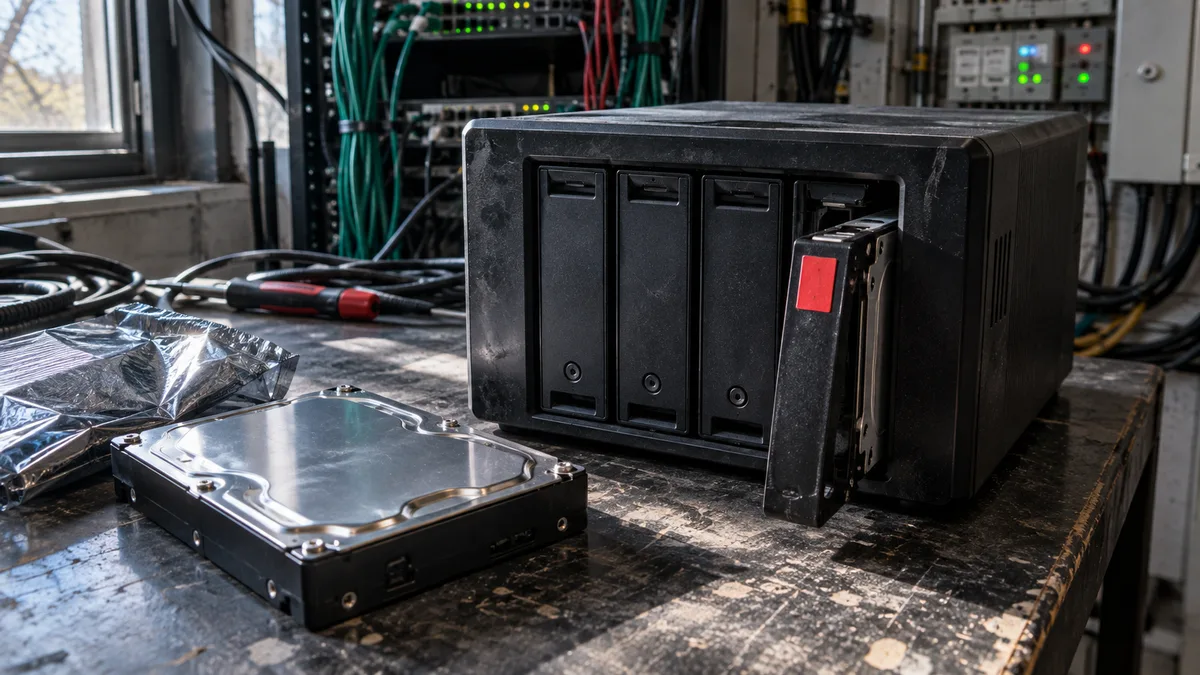
The short answer: You can replace one failed drive in an array with redundancy (SHR, RAID 1, 5, 6, or 10) yourself. However, you must have a verified backup and know exactly which bay contains the failed drive. A compatible NAS-grade CMR drive with the same or greater capacity is the safe choice; the exact requirements depend on the type and configuration of the array. After inserting the drive, start a pool repair in Storage Manager and let the rebuild finish. Do not restart the NAS or touch any other drives while it is running. If the pool is
Crashed, multiple drives are reporting errors, you have no backup, or a previous rebuild has already failed, do not change anything—contact a professional service provider.
Inserting the new drive takes a minute and is the safest part of the replacement. It is usually not the new drive that brings the array down, but a mistake made around it:
- someone removes a healthy drive instead of the failed one;
- the replacement drive uses SMR and cannot keep up midway through the rebuild;
- the rebuild runs against another drive with bad sectors that no one has detected because those sectors have not been read.
This guide assumes a DiskStation or RackStation running DSM 7. The pool is degraded, but the data is still accessible. If DSM reports the volume as Crashed or you cannot access the shared folders, start by reviewing Synology Degraded and Crashed states. Replacing a drive will not repair the array at that point.
What exactly is DSM reporting?
You need two tabs in Storage Manager:
- HDD/SSD shows the health of individual drives. DSM 7 distinguishes between Healthy, Warning, Critical, and Failing states; localized versions of DSM may translate these labels.
- Storage shows the pool status: Healthy, Degraded, or Crashed.
The combination of these two statuses tells you how urgent the situation is:
- Drive Warning, pool Healthy: the drive is showing early signs of trouble, such as an increasing number of bad sectors. The array still has full redundancy. Plan the replacement and verify the backup first.
- Drive Critical or Failing, pool Degraded: the array is operating with some or all of its redundancy lost. Do not delay the replacement.
- Pool Crashed: do not remove or insert anything.
How many failures a degraded array can still tolerate depends on its type:
| Array type | Number of failed drives it can tolerate | What one failed drive means |
|---|---|---|
| Basic, JBOD, RAID 0, single-drive SHR | none | there is no redundant data from which to reconstruct the contents; replacing the drive will not restore the data |
| RAID 1, RAID 5, SHR | one | the array is running without redundancy; an unreadable sector on another drive during the rebuild may corrupt data or cause the pool to enter the Crashed state |
| RAID 6, SHR-2 | two | one level of redundancy remains, but do not delay the replacement |
| RAID 10 | one in each mirrored pair | a second failed drive in the same pair will bring down the array |
The first row often comes as an unpleasant surprise. Basic, JBOD, and RAID 0 have no redundant data from which to reconstruct the contents of a new drive, so this is not a drive replacement scenario but a data recovery case.
DIY or professional service?
| Situation | What to do |
|---|---|
| One drive is Critical or Failing, the pool is Degraded, the volume is accessible, and the backup has been verified | replace the drive yourself by following the procedure below |
| Drive Warning, pool Healthy | schedule the replacement and verify the backup first |
| Pool Crashed, multiple failed drives, or read errors on another drive | do not change anything; shut down the NAS properly and address data recovery |
| You are not certain which physical drive corresponds to the failed position in DSM | do not remove anything while the NAS is running |
| There is no current backup and the data is valuable to the business | copy the data out first and repair the array only afterward |
| A rebuild has already failed | do not make another blind attempt |
Do not start a rebuild without a verified backup
A rebuild, called „pool repair" in DSM, reads the remaining drives intensively and reconstructs their data onto the new drive. If Data Scrubbing is not run regularly on the NAS, this may be the first continuous read of long-unused areas in many months.
A sector that has become unreadable somewhere in an old archive will not report a problem until the system attempts to read it. The rebuild will eventually reach it. With RAID 5 or SHR missing one drive, there is then no second source from which that block can be reconstructed. This is explained in detail in why a rebuild can finish off an array that was working that morning.
Verify the backup by its contents, not by its status icon. A green check mark next to a Hyper Backup task only means that the task finished; it does not mean you can restore your accounting database from it. A versioned Hyper Backup backup is also stored at the destination as a database repository (.hbk), so you cannot verify it simply by opening files at the destination. Perform a test restoration of several files that are essential to the business. Restore them through Hyper Backup, Hyper Backup Explorer, or the destination service’s recovery portal to a separate location, not over the originals. Then open the restored files and check the date of the latest version.
If you have no backup and the degraded volume is accessible, copy data away from the NAS in order of importance. Start with accounting records, databases, and active projects; leave photo archives until last. Every copy operation reads the same weakened drives, so the order determines what you may be able to save.
Stop copying and shut down the NAS properly as soon as any of the following occurs:
- another drive starts clicking;
- a drive disappears from the list and then reappears;
- read errors accumulate in Log Center;
- the volume becomes disconnected.
At that point, this is no longer an array repair but a data recovery case. Repeated rebuild attempts reduce the chance of successful recovery.
Which drive should you buy?
Capacity. The simplest safe rule is to buy a drive with the same or greater capacity than the failed one. However, DSM derives the exact minimum size from the type and configuration of the array: for conventional RAID, the capacity of the smallest member may be sufficient, while SHR has specific rules based on the sizes of the other drives. What matters is whether the Repair wizard accepts the new drive as eligible; do not buy a smaller drive based solely on the nominal capacity printed on the box. A larger drive is fine, but you will not be able to use the additional space immediately. Conventional RAID 1 and RAID 5 capacity is determined by the smallest drive. With SHR-1, the extra space generally becomes available only after at least two drives have been replaced with larger ones; with SHR-2, usually at least four are required. The exact result depends on the drive configuration in the pool, so check your expansion plan for the specific combination in the current Synology guide or the RAID calculator.
Technology: choose CMR for a rebuild. For an array that will be rebuilt, choose a NAS-grade drive using conventional magnetic recording (CMR):
- WD Red Plus (for example, WD40EFPX) and WD Red Pro,
- Seagate IronWolf and IronWolf Pro,
- Toshiba N300.
What not to put in the array. In 2020, Western Digital disclosed that WD Red drives with capacities of 2–6 TB and model numbers ending in EFAX (WD20EFAX, WD30EFAX, WD40EFAX, and WD60EFAX) use SMR. It then placed its CMR models in the WD Red Plus range. The words „WD Red" alone are therefore no guarantee—the exact model number matters, not the label color. Some ordinary desktop drives also use SMR, including the Seagate BarraCuda ST8000DM004 and WD Blue WD60EZAZ.
Why this matters: an SMR drive writes tracks so that they partially overlap, much like roof tiles. New data is first written to a buffer area and later moved into overlapping bands. A rebuild, however, involves sustained sequential writes. The performance of an SMR drive can fluctuate dramatically while it rearranges data internally; depending on the combination of the drive, controller, and timeouts, the repair may slow down or the drive may drop out of the array. This separate article about SMR in a NAS explains how to identify an SMR drive and why it is unsuitable for rebuilds.
Error Recovery Control (ERC, called TLER by WD) also matters when read errors occur: the host can set a time limit for the drive’s internal recovery attempts. Support and default values vary by model, however, so they cannot be reliably inferred from the word „NAS" on the box. The article why a healthy drive may keep dropping out of a NAS explains how lengthy recovery attempts can cause an otherwise readable drive to be removed from the array.
Model compatibility. For models introduced from 2025 onward, the rules vary by product range and DSM version. DSM 7.3 gave DiskStation Plus models greater flexibility for unverified HDDs and 2.5-inch SATA SSDs, while rack-mounted, enterprise, and M.2 configurations remain subject to stricter restrictions. Before buying, select the exact product range in the current Synology drive compatibility policy, then verify the specific NAS model, drive, and DSM version against the compatibility list.
After inserting the new drive, check its power-on hours in the drive health information (S.M.A.R.T.) in DSM. A new drive should not already have thousands of operating hours.
What to record before touching the drives
Write down or photograph:
- the NAS model and DSM version (Control Panel → Info Center);
- the pool type (SHR, RAID 5, and so on) and the status of both the pool and volume;
- the bay number of the failed drive as shown on the HDD/SSD tab;
- the model and serial number of the failed drive and the serial numbers of all the others;
- the health of the other drives, including the number of bad sectors if DSM reports any;
- the date and contents of the most recent verified backup.
Also photograph the front of the NAS with the drives still in place. Do not move drives between bays.
Do not identify the bay by guesswork. Bay numbering varies between models and enclosures. The position shown in DSM and the status LED provide some guidance: on most DiskStation models, the LED for a failed or deactivated drive lights up orange. The hardware guide for your model explains the exact meaning of each indicator. Only the serial number on the label provides certainty, however, and with drives mounted in trays you will not see it until the drive has been removed.
Follow this rule: if you are not completely certain about the position, shut down the NAS properly even if the model supports hot-swapping. With the NAS turned off, you can remove the trays and compare serial numbers without risk, provided you return them to the same bays. If you remove a healthy drive from a degraded RAID 5 while it is running, you will take the pool offline.
Replacement procedure
-
Reduce NAS activity. Pause large file transfers, synchronization, replication, and tasks that write heavily to the NAS. Notify users about the maintenance.
-
Verify the backup. Do not start the rebuild without a readable copy of the important data. If there is no backup and the data is valuable, do not continue.
-
Check the array status. In Storage Manager, verify that exactly one drive has failed, the pool is Degraded rather than Crashed, and all other drives are Healthy.
-
Check the replacement drive. Verify the capacity, CMR technology, interface, and media type: replace an HDD with an HDD, SATA with SATA, and use a 4Kn drive alongside other 4Kn drives. Also check its physical size (3.5 or 2.5 inches, depending on the bay) and compatibility with the model. A RackStation may use SAS instead of SATA; the original pool and the DSM wizard determine what is required.
-
Decide whether to replace it while the NAS is running. Perform a hot-swap only on a model whose technical specifications explicitly support it, and only if you are certain about the bay. Lower-cost J-series models (such as the DS220j or DS223j) have drives installed inside the chassis and do not support hot-swapping. On these models, shut down the NAS through DSM, wait until it has powered off completely, and disconnect the power.
-
Remove only the failed drive. Verify its position once more. Slide the tray out smoothly and do not touch the other bays. Compare the serial number on the label with the one recorded from DSM.
-
Install the new drive. Fit it into the tray using screws or plastic rails, depending on the model, and insert it into the same bay. If the NAS was turned off, reconnect the power and start it.
-
Start the repair in DSM. In Storage Manager → Storage, select Repair for the degraded pool. Depending on the DSM version, the option appears either directly beside the warning or in the menu under the three-dot icon. Select the new drive and check its serial number again before confirming, because DSM will erase the drive when adding it to the array. If you have configured a Hot Spare drive, DSM will start the repair automatically.
-
Let the rebuild finish. Do not shut down or restart the NAS, and do not remove any other drives until DSM reports the pool as Healthy.
What to monitor during the rebuild
The Storage tab shows the rebuild progress as a percentage beside the pool. Rebuild duration cannot be estimated from capacity alone. It depends on the array type, amount of data, drive speed, and NAS workload. With large drives, it may take more than a day. You can adjust the speed in Storage Manager’s global settings under RAID resync speed. A faster rebuild shortens the time during which the array is operating without full redundancy, but user workloads will be slower in the meantime.
Slow progress alone does not indicate a problem. The following are warning signs:
- the percentage does not change for several hours;
- input/output errors accumulate in Log Center;
- a drive disappears and then reappears;
- another drive changes to Warning or Critical;
- drive temperatures rise significantly.
In this situation, do not restart the NAS, do not start the rebuild again, and keep its workload as low as possible.
After completion
- Status: both the pool and volume must be Healthy, and all drives must report good health.
- Data and backups: open the shared folders and several important files, then verify that the backup tasks have resumed.
- Data Scrubbing: run it and set up a regular schedule. This allows hidden bad sectors to be found under controlled conditions rather than during the next rebuild.
- Drive age: drives bought at the same time have the same age and a similar number of operating hours. If one has failed, the others are no longer new. Plan their replacement before they begin reporting problems.
When to leave the replacement to a professional
Contact a professional service provider if:
- you do not have a verified backup;
- DSM reports multiple failed drives or a
Crashedpool; - you do not know the drives’ original order;
- a rebuild has already failed;
- the NAS restarts by itself;
- the new drive is not detected;
- you are unsure about compatibility.
A good service provider should do more than merely replace the drive:
- record the bay positions and serial numbers of all drives;
- check the health of the other drives before starting the rebuild;
- verify the backup;
- select a compatible CMR drive;
- return the array only after the repair has finished and the data has been checked.
If you would rather not replace the drive yourself, we can do it for you and monitor the rebuild. Send us the NAS model, a screenshot of Storage Manager, and the exact drive models through our contact page—do not include passwords or serial numbers in the message subject. If the issue has already become a data recovery case, see data recovery from a Synology NAS. An array in this condition is recovered from copies of the individual drives, not through another rebuild attempt. You can also call +420 775 556 063 or email info@ithope.cz; in the meantime, do not remove or rearrange the drives.
Frequently asked questions
Can I replace the failed drive with a larger one?
Yes, a larger drive is a safe choice. However, you will not be able to use the additional space immediately. In RAID 1 and RAID 5, the smallest drive determines the usable capacity. With SHR-1, at least two drives usually need to be larger; with SHR-2, usually at least four. Check the exact result for your drive configuration in the RAID calculator or Synology documentation.
Does the new drive need to be the same brand as the others?
No. CMR technology, sufficient capacity, and compatibility with the NAS model matter more than matching logos. WD Red Plus, Seagate IronWolf, and Toshiba N300 drives can operate alongside one another in the same array.
How long does a rebuild take?
Anywhere from a few hours to more than a day, depending on capacity, array type, amount of data, and workload. More important than the elapsed time is whether progress continues and whether new errors appear.
What if another drive fails during the rebuild?
With RAID 6 and SHR-2, the array will continue operating. With RAID 5, SHR, and RAID 1, the volume may become inaccessible. Do not restart the NAS, rearrange the drives, or start the repair again. This is no longer a drive replacement scenario but a data recovery case.
Sources
- Synology, repairing a degraded storage pool in DSM 7 — https://kb.synology.com/en-global/DSM/help/DSM/StorageManager/storage_pool_repair?version=7
- Synology, pool expansion and replacement drive size requirements — https://kb.synology.com/en-global/DSM/tutorial/how_to_expand_storage
- Synology, drive compatibility policies for models introduced from 2025 onward and DSM 7.3 — https://kb.synology.com/en-global/DSM/tutorial/Drive_compatibility_policies
- Western Digital, official list of internal SMR models (WD20EFAX, WD30EFAX, WD40EFAX, WD60EFAX, and others) — https://blog.westerndigital.com/wp-content/uploads/2020/04/2020_04_22_WD_SMR_SKUs_1Slide.pdf
- Seagate, BarraCuda data sheet including SMR technology for the ST8000DM004 — https://www.seagate.com/www-content/datasheets/pdfs/3-5-barracudaDS1900-14-2007US-en_US.pdf
- Western Digital, WD Red Plus data sheet including models and CMR technology — https://documents.westerndigital.com/content/dam/doc-library/en_us/assets/public/western-digital/product/internal-drives/wd-red-plus-hdd/data-sheet-western-digital-wd-red-plus-hdd.pdf
Where to find us
ITHOPE is a company based in Brno, Czechia: we do data recovery from disks, RAID and NAS, PC and laptop service and IT for business, all in our own lab at Viniční 3587/216, 615 00 Brno.
Phone +420 775 556 063 (24/7 line). You can bring the device in person, or send it by courier (Zásilkovna, PPL).