Editor’s note (April 2026): This article first appeared in September 2011, when we were trying out a development build of Windows 8 („Developer Preview") — hence the illustrative screenshots below. The procedure in VirtualBox has only shifted cosmetically over fifteen years; the logic of the wizard and the way you attach an ISO remain the same. We have updated the introduction to cover modern alternatives (Windows Sandbox, Hyper-V, WSL2) and described when we still reach for virtualisation in the workshop today.
Why an isolated environment
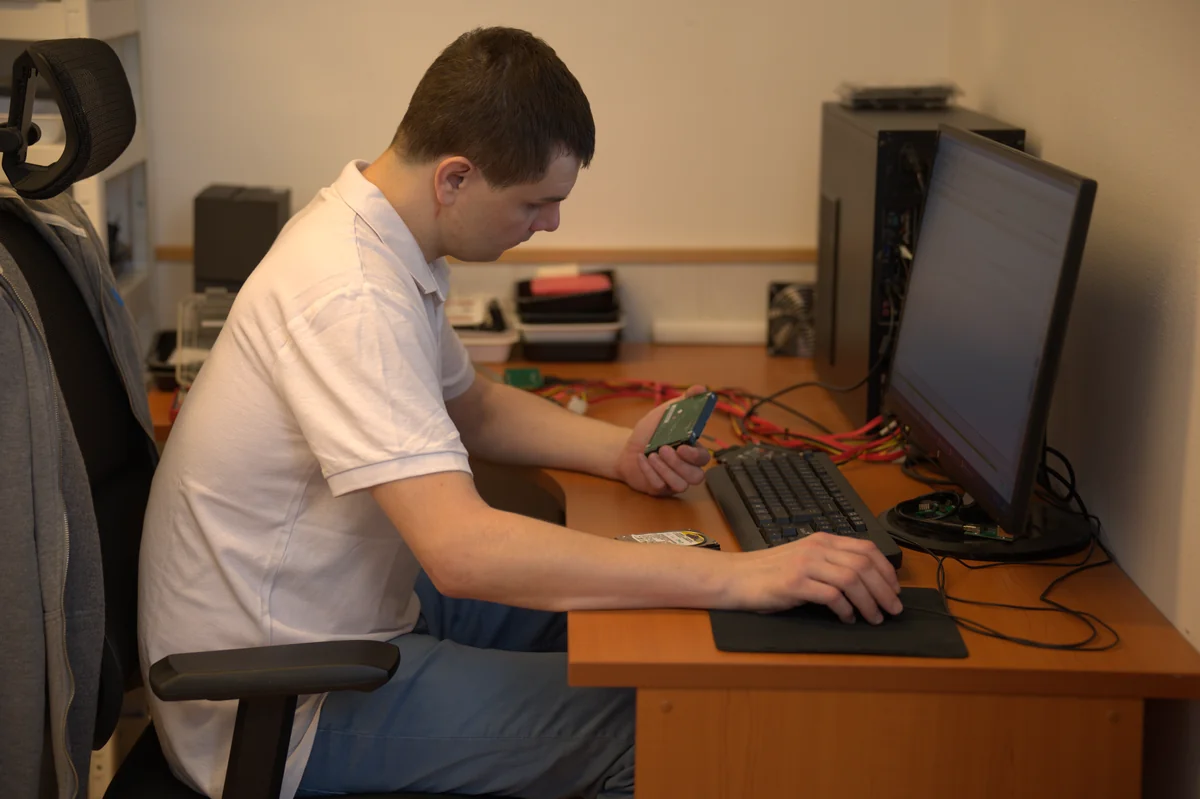
Earlier this year a client from a Brno company came to us with an awkward problem: they run an in-house accounting program from 2009, the vendor folded long ago, and their new laptop with Windows 11 refused to launch the application. Reinstalling Windows 10 just for the sake of one application made no sense. On top of that, the old workstation had started developing bad sectors on its drive — a job for our laboratory.
We built the solution around VirtualBox: a virtual Windows 7 inside Windows 11, an isolated snapshot, a shared folder for data transfer. The accounting program runs, the host stays clean, and the client can wipe the whole virtual machine and start over at any time. This is exactly the kind of scenario where an isolated environment saves days of work.
The same principle applies when you:
- want to try out a new version of Windows or Linux without overwriting your system,
- need to test a suspicious installation file from an unknown sender,
- are developing software and want a clean reference installation to reproduce bugs,
- maintain legacy applications that need an older OS.
Which virtualisation to choose in 2026
Before you download VirtualBox, check whether something simpler is enough for the task at hand. In 2026 there are three other routes on Windows:
Windows Sandbox (quick one-off)
A built-in feature in Windows 11 Pro/Enterprise. You enable it under „Turn Windows features on or off" as Windows Sandbox. It launches a clean copy of the host system, which it discards completely once you close it. Ideal for opening a single suspicious .exe or PDF.
The downside: it cannot handle any OS other than Windows, it does not let you keep snapshots between runs, and it requires the Pro/Enterprise edition.
Hyper-V (the corporate standard)
Microsoft’s hypervisor, again from Windows 11 Pro upwards. Better performance than VirtualBox, integration with Windows Defender Application Guard, support for nested virtualisation. A natural choice for IT departments with a domain environment.
The downside: a slightly steeper learning curve (management via Hyper-V Manager or PowerShell), no presence on the Home edition, and conflicts with VirtualBox on the same machine.
WSL2 (Linux on Windows without a full VM)
Windows Subsystem for Linux 2 — a lightweight way to have Ubuntu/Debian/Fedora right inside Windows without a full desktop environment. Suitable for development and CLI tools, not for testing whole OS installations.
VirtualBox (the universal choice)
And that leaves the reason we are writing about it: VirtualBox 7 by Oracle is free for both personal and corporate use, runs on Windows, macOS and Linux, exports VMs as portable .ova files and does not depend on the edition of the host Windows. When you need a virtual machine that you can send to a colleague or move between a laptop and a desktop PC, VirtualBox is still the king of flexibility.
What we will need
- VirtualBox to download from virtualbox.org (version 7.x, always the latest)
- An installation ISO of your chosen OS — Windows 11 from the Microsoft website, any Linux distribution (Ubuntu LTS, Fedora, Debian)
- Free disk space: 50 GB for Windows 11, 25 GB for a common Linux distribution
- Memory: ideally 16 GB in the host (you assign 4–8 GB to the virtual machine, the host needs at least 8 GB)
- A processor with virtualisation support (Intel VT-x, AMD-V) enabled in the BIOS/UEFI — without it the VM will be miserably slow
- An hour or two of time, depending on the speed of your drive and internet
Tip from the workshop: The most common reason a VM will not start or crashes with the error „VT-x is not available" is virtualisation being disabled in the UEFI. On Lenovo/HP laptops it is often hidden under a different name (Intel Virtualization Technology, SVM Mode). Restart, the F2/F10/Del key, find it, enable it, save.
Creating the virtual machine

Open VirtualBox and click „New". The wizard will guide you through:
- Name and Operating System — give the VM a meaningful name („Win11-Test„, „Ubuntu-LTS-2026"). If you tick Skip Unattended Installation, the installation will run manually (we recommend this for better control).
- Hardware — 4–8 GB of memory for Windows 11, 2–4 GB is enough for Linux. CPU 2–4 cores. Enable EFI (Win 11 requires it), and in VirtualBox 7 also tick TPM 2.0.
- Virtual Hard Disk — the VDI format (native VirtualBox) or VHD (portable to Hyper-V), 50 GB for Win11, 25 GB for Linux, Dynamically allocated (it is allocated gradually as the VM grows).
- Display — Video Memory 128 MB, enable 3D acceleration if the host has a decent GPU.
Before the first launch, under Settings → System → Processor confirm that Nested VT-x/AMD-V is enabled — without it neither WSL2 nor Docker will run inside the VM, should you want to use them there later.
Attaching the installation ISO
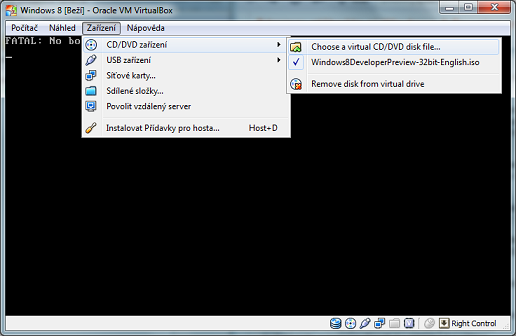
With no ISO image the VM would boot into nothing. In VirtualBox 7, under Settings → Storage find the empty item „Empty" in the IDE controller, click the optical disk icon on the right and choose „Choose a disk file…". Find the downloaded ISO and confirm. Save, launch (Start). If the VM is already running and you want to slip in the ISO afterwards, you can also do it from the Devices → Optical Drives menu — the principle is the same as in the archive screenshot above.
The installation itself
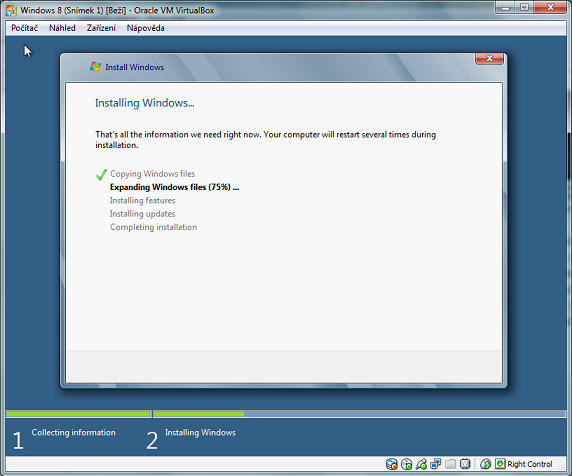
If everything is in order, the Windows or Linux installation environment will appear. The procedure is essentially the same as on a physical PC:
- Language, keyboard, time zone.
- Install now / Install Ubuntu.
- On Windows 11, skip the mandatory Microsoft account — if you need a clean local account, take a look at our guide Installing Windows 11 without the internet.
- Installation type Custom / Erase disk and install (inside the VM there is nothing to fear — the disk is a virtual 50 GB file on the host).
- Wait 20–40 minutes.
After the first restart we recommend two things:
- Install the VirtualBox Guest Additions (menu Devices → Insert Guest Additions CD image) — you get a smooth cursor, a shared clipboard and resolution support.
- Create a snapshot (Machine → Take Snapshot) right after the fresh installation. A week later, when you break the virtual machine with something, you will roll back to a clean state in a second.
What to do when the VM does not work
The three most common faults we run into in the workshop:
- The VM will not start, the message „VT-x not available" — virtualisation disabled in the UEFI. See the tip above.
- The VM starts, but the Win 11 installation reports „This PC can’t run Windows 11" — EFI or TPM 2.0 is missing in the VM’s Settings. Shut it down, add them, start again.
- The VM is extremely slow — too little memory assigned, or it is running on a host drive with bad sectors. If you suspect the drive, take a look at Bad HDD sectors.
When to stop and call the workshop
In its basic form VirtualBox can be handled by any ordinary user. But if you run into one of these points, it makes sense to hand it over to the workshop:
- you are testing suspicious ransomware or an unknown executable and do not want to risk a leak onto the corporate network,
- you need to run a critical legacy application operationally, with its own licensing and hardware dongle requirements (USB pass-through needs tuning),
- the VM is meant to act as a temporary workstation during the repair or migration of a client’s PC,
- you want forensic isolation of a suspicious drive — that is already a job for data recovery in a cleanroom, not for a home VirtualBox.
Frequently asked questions
Does a virtual machine perform as well as a physical PC? Not quite. The hypervisor adds roughly 5–15 % of overhead, but newer versions of VirtualBox (version 7) make use of hardware acceleration, and under a normal office workload you will barely notice the difference. We do not, however, recommend running demanding gaming VMs in VirtualBox.
Can I have both VirtualBox and Hyper-V on one PC at the same time? Since VirtualBox 6.1 and newer Windows 10/11, yes, but with a performance penalty — in that case VirtualBox switches into paravirtualization mode on top of Hyper-V. If you want full performance, pick one hypervisor and turn the other off in „Windows Features".
Where is the virtual disk file stored?
By default in C:\Users\<name>\VirtualBox VMs\<VM name>\. Before your system disk partition fills up, it is wise to change the path under File → Preferences → General → Default Machine Folder.
Is VirtualBox a safe environment for malware analysis? For a routine check of a suspicious file, yes, provided you have shared folders disabled and networking in Host-only or NAT mode. Advanced sandbox escape attacks do exist, though — for genuine forensic analysis we use a separate offline machine, not the host’s VirtualBox.
Related: Installing Windows 11 without the internet · A slow computer — what to do about it · Bad HDD sectors
Need help with virtualisation or migrating an older application? PC Service Brno · +420 775 556 063
Where to find us
ITHOPE is a company based in Brno, Czechia: we do data recovery from disks, RAID and NAS, PC and laptop service and IT for business, all in our own lab at Viniční 3587/216, 615 00 Brno.
Phone +420 775 556 063 (24/7 line). You can bring the device in person, or send it by courier (Zásilkovna, PPL).