
TL;DR — 7 steps: 1) Upgrade to an SSD (the biggest difference on machines with an HDD), 2) add RAM to 16+ GB, 3) clean up startup (Task Manager → Startup apps), 4) remove unused programmes, 5) check disk health via S.M.A.R.T., 6) tame Windows 11 (visual effects, telemetry, background apps), 7) physically clean the fans and renew the thermal paste. If it still won’t run after all that, it’s time for professional diagnostics (service: half an hour of work from 600 Kč, diagnostics 1 000 Kč if the repair is not carried out — see the price list).
You open your browser. Meanwhile you pour yourself a coffee. You come back — and the page is still loading. You click on Word. The blue spinning circle. Looks like it’s time for a new computer, right?
Not so fast. This is an article from technicians who have been opening laptops, digging through startup entries and measuring temperatures in Brno for seventeen years now. Most of the machines customers bring us, convinced „it’s probably time for a new one", we return to life without a purchase — and often for a fraction of the price of a new machine. Our internal statistics show that roughly 70 % of „slow PC" cases can be solved by swapping the disk for an SSD and adding RAM. The rest takes more work. But let’s start with what you can do yourself.
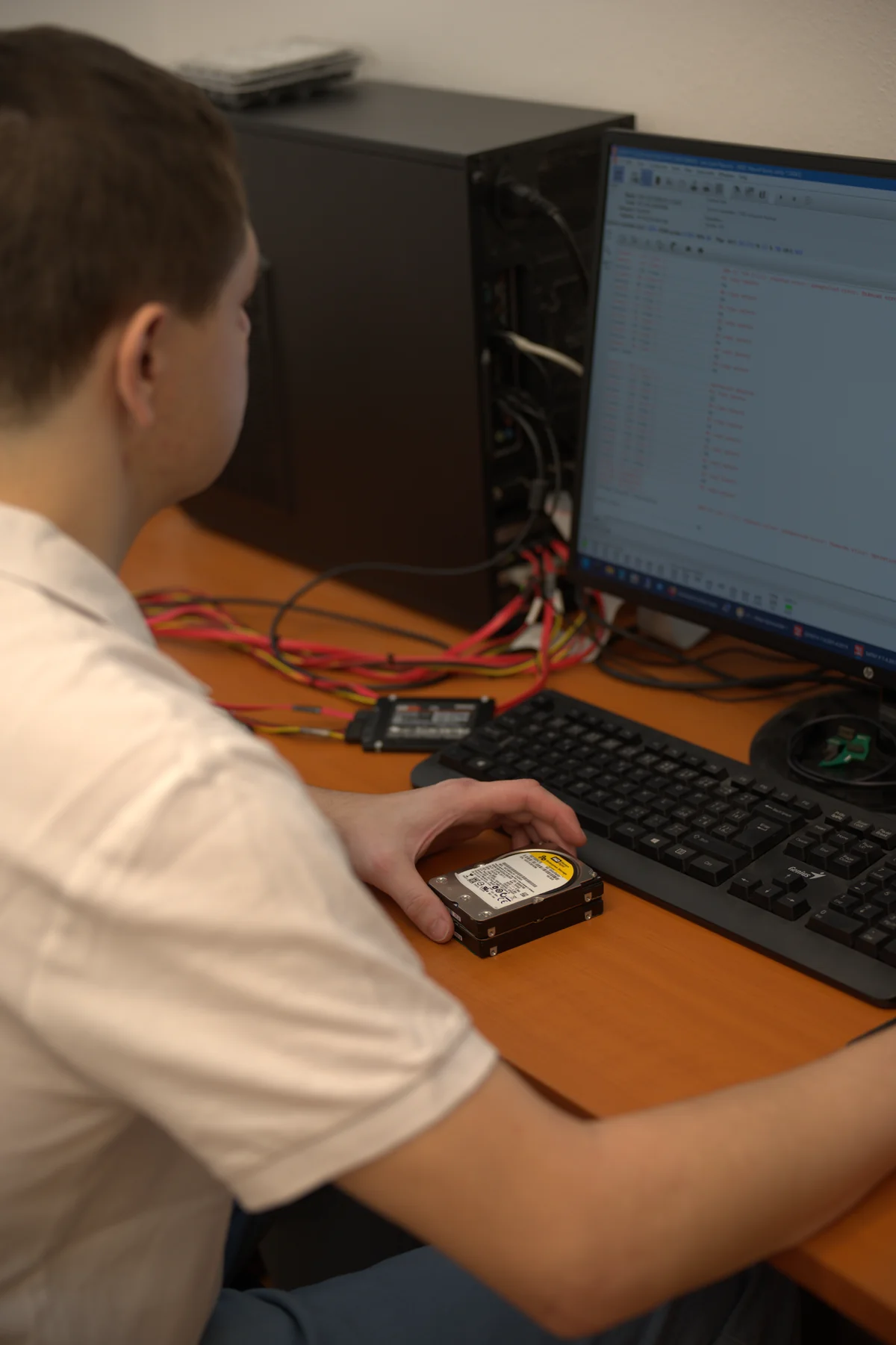
This article is a modernisation of a guide we published back in 2011. Back then it was about msconfig, Windows XP and mechanical disks. In 2026 different things matter — but the philosophy stays the same: first find out what’s slowing it down, then fix that.
A story from the workshop: the laptop that was „dying" — and came back for 1 800 Kč
In early April 2026 a gentleman from Brno brought us a 7-year-old ThinkPad. Booting into Windows 11 took over 2 minutes. Opening Word another 40 seconds. The client was set on buying a new machine and just wanted to pull the data off.
Here’s what we found in 30 minutes of diagnostics:
- A mechanical 1 TB HDD (the original, 2018) — Disk 0 in Task Manager sat at 100 % usage even when idle
- 8 GB of RAM — only 1 of the 2 slots populated, the second empty
- 47 programmes in startup — including three different „PC optimisers", two cloud clients and an old antivirus the customer had forgotten to uninstall after switching to a paid one
- CPU temperature of 78 °C at idle — the heatsink packed with compacted dust, the paste dried out
The rest was mechanics and an hour of time. We swapped the HDD for a 480GB SATA SSD, added a second 8GB DDR4 module (16 GB in total), cleaned up startup, removed and cleaned the heatsink and replaced the thermal paste. Parts plus labour came to roughly 1 800 Kč (SSD ~900 Kč, RAM module ~500 Kč, labour, paste, cloning the system). Boot into Windows: from 2 minutes to 11 seconds. Word opens instantly.
The client took the machine home along with the original disk (kept as an archive) — so if they ever need something from it later, it’s available. But the laptop works like new — and easily has another 2–3 years of life ahead of it. That’s the difference between sensible servicing and selling new hardware.
So let’s go through those 7 steps in the order we recommend tackling them — from the biggest effect to the smallest.
1. Find out whether you have an SSD — if not, start there
The most common cause of a slow computer in 2026 on machines 6+ years old is still a mechanical disk (HDD). If your machine has an HDD, no other optimisation will change the fact that the disk physically can’t load data fast enough for modern Windows 11 and a browser with 20 tabs. A SATA SSD has sequential reads of around 550 MB/s, while a classic 5400rpm laptop HDD sits around 80–120 MB/s — and that’s under ideal conditions. In practice it’s the difference between driving in a traffic jam and driving on the motorway.
How to find out which disk you have
Press Ctrl + Shift + Esc (Task Manager) → the Performance tab → Disk 0. If at the top you see „HDD„ or „Hard disk", you have a mechanical disk. If you see „SSD", you’re fine and can move on to step 2.
What to do about it
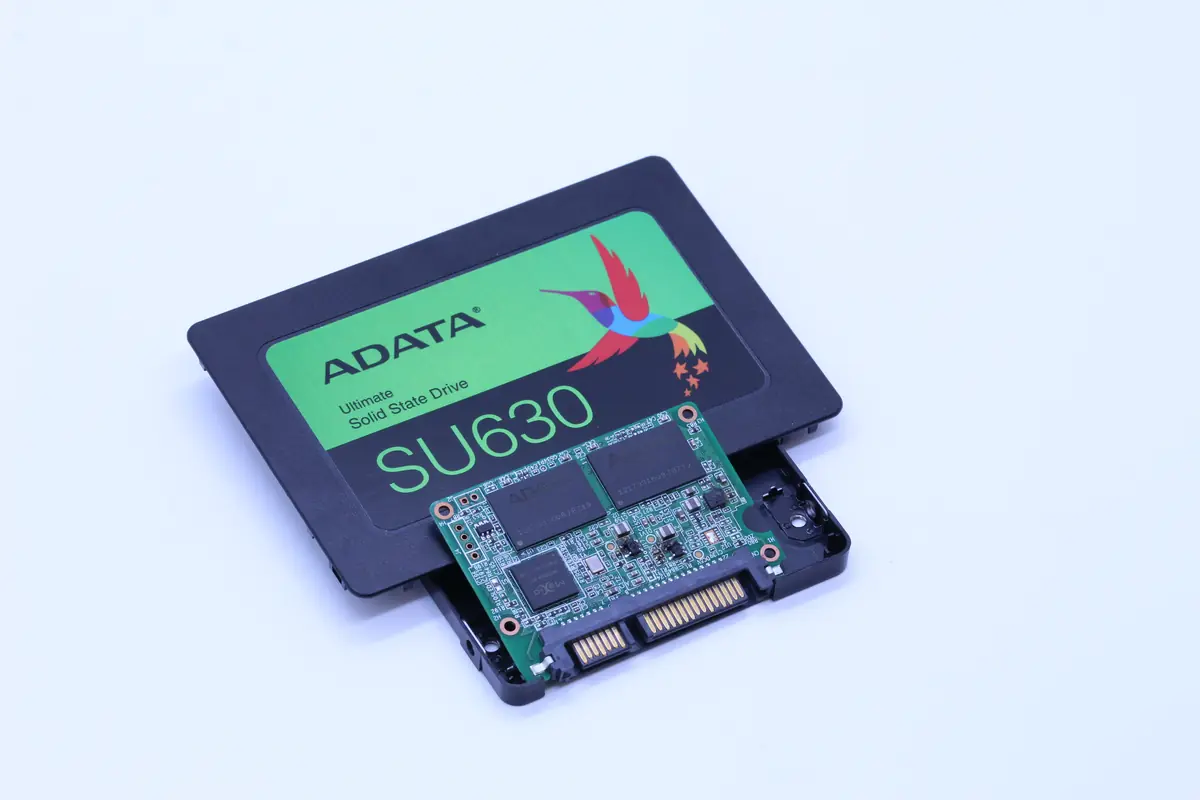
Upgrading to a SATA SSD (2.5”) or NVMe (M.2) speeds the system up by 300–500 %. Cloning from HDD to SSD can be handled by any competent repair shop in a day — you don’t even have to reinstall Windows. On laptops from 2018 and earlier this is usually the biggest speed-up for the smallest budget. The price of a 480GB SATA SSD in April 2026 sits around 800–1 200 Kč.
2. Check the RAM — do you have enough for 2026?
Windows 11 requires a minimum of 4 GB of RAM, but realistically anything under 8 GB isn’t enough. If you do several things at once (browser, email, Word, Teams), a sensible minimum is 16 GB. When the system runs out of RAM, it starts paging to disk — and if that disk is an HDD, the system practically grinds to a halt.
How to check
Ctrl + Shift + Esc → Performance → Memory. The total capacity is in the top right corner.
What to do about it
On business laptops (ThinkPad, Dell Latitude, HP EliteBook) the RAM is usually upgradeable and often only one of the two slots is populated — adding a second module takes 5 minutes. On ultrabooks and some newer MacBooks it’s soldered straight onto the board — it can’t be expanded. If your model is upgradeable, the price of a 16 GB DDR4/DDR5 module is affordable these days (roughly 500–900 Kč for 8GB DDR4).
3. Clean up startup — a slow start is needless in 80 % of cases
A slow Windows start today is in 80 % of cases caused by too many startup programmes. Each such programme grabs a slice of RAM and a slice of CPU at start. On their own they may not be a problem — but in their hundreds together, they are.
How to do it
Ctrl + Shift + Esc→ the Startup apps tab (in older Windows 10: Startup)- For every programme with a high „Startup impact", ask yourself: do I need this right after start-up?
- You don’t need, in 9 cases out of 10: OneDrive (if you don’t see cloud files), Adobe Reader, Spotify, Discord, Steam, manufacturer updaters (HP Support Assistant, Dell Update, Lenovo Vantage)
- Keep: antivirus, hardware-control tools (touchpad driver, audio, graphics), a VPN client if you’re on a corporate network
Disabled startup programmes stay installed — you can launch them manually when you actually need them. Disabling 20 startup entries typically shortens start-up by 15–40 seconds.
4. Uninstall what you haven’t used in years
Every installed programme runs background services, takes up disk space and writes to the registry. The fewer programmes, the less invisible work.
How to do it
Win + I→ Apps → Installed apps- Sort by size or by install date
- Uninstall anything you don’t recognise, don’t use, or installed „by accident" while browsing the web
Deserving special attention: browser toolbars, „PC optimisers" (often they are themselves the cause of a slow machine) and older antivirus programmes you may have forgotten to uninstall when you switched to a different product. Two antiviruses scan each other in real time — and the machine runs at 30 % performance.
5. Check the disk’s health (S.M.A.R.T.)
Even an SSD wears out after years. Disks report their own health status via S.M.A.R.T. — you just need to look at it. A slow computer may have a simple reason: the disk is dying. When the controller has to retry reading a sector because of a weakening head or worn NAND cells, the system reports no error — it just waits. And you feel it as slowness.
How to do it
Install the free CrystalDiskInfo (a free tool by Hiyohiyo Inc.). Once launched you’ll see:
- Good (blue) — the disk is fine
- Caution (yellow) — it’s starting to wear out, back up and plan a replacement
- Bad (red) — replace it today and don’t trust the data on it
On an SSD, watch mainly Total Host Writes and Percentage Used. On an HDD, Reallocated Sectors Count and Current Pending Sector Count. If you see non-zero values (especially ones rising between two checks), the disk is starting to fail.
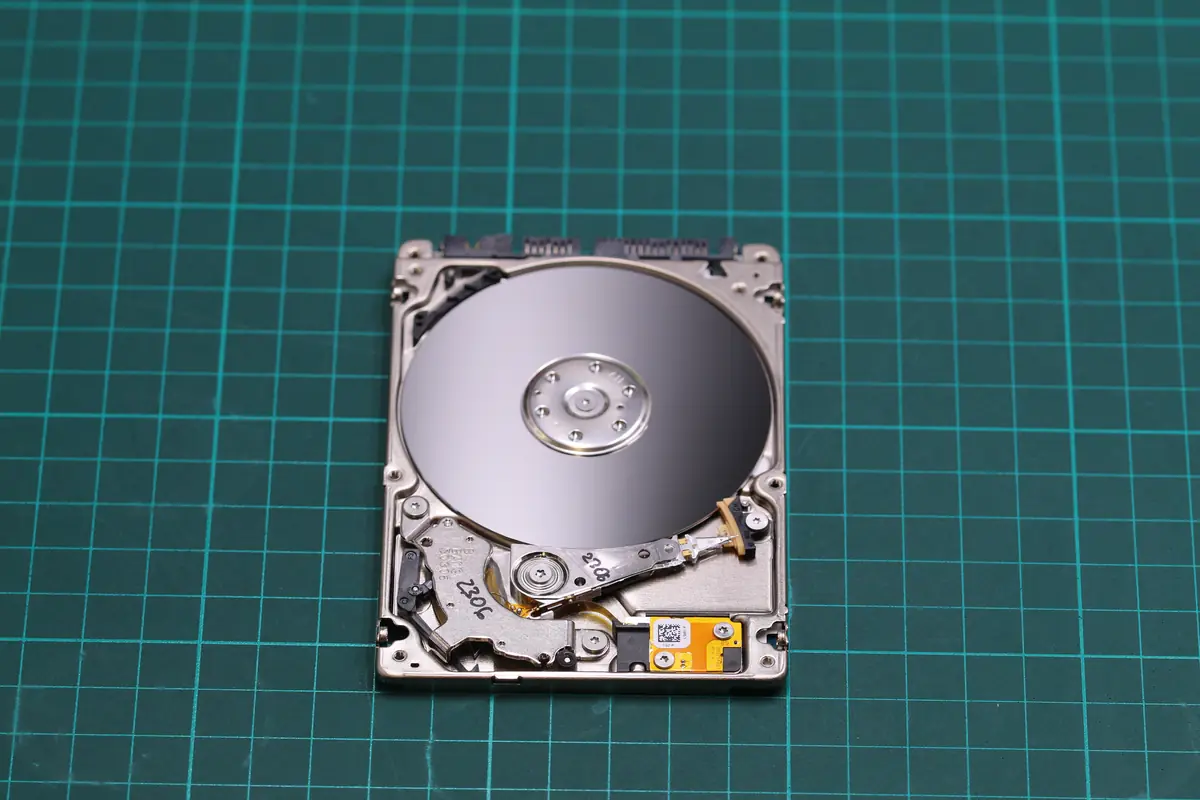
Caution: if a disk shows bad sectors, clicks or restarts cyclically, do not try to „repair" it with old programmes like HDD Regenerator. For logical errors it may help; for physical faults it costs you all your data. What to do when a disk clicks.
6. Windows 11 — turn off what you don’t need
Windows 11 has a range of visual effects and background services that run even when they needn’t. On an older machine it pays to tame them.
Visual effects
Win + R → type sysdm.cpl → Advanced → Performance (Settings…) → Adjust for best performance (or manually untick animations, transparency, shadows). The difference isn’t dramatic, but on an 8-year-old machine with integrated graphics it’s tangible.
Telemetry and cloud features (if you don’t use them)
Win + I→ Privacy & security → turn off items that don’t make sense for you- OneDrive — if you don’t use it, sign out of it (leave it installed but not signed in)
Background apps
Win + I → Apps → Advanced app settings → Background apps. Mail, Weather, News and other „modern" apps love to nibble away at RAM even when you’re not using them.
7. Clean it physically — dust, paste, fan
This gets overlooked and yet it’s crucial. An older laptop after 3–5 years has a fan and heatsink full of dust. The CPU then thermal throttles — automatically lowering its frequency so it doesn’t cook itself. 3.5 GHz suddenly becomes 1.8 GHz, and you wonder why Excel lags.
Symptoms of overheating
- The fan runs flat out even under minimal load
- A game or video stutters at moments when it shouldn’t
- The bottom of the laptop is burning hot
- Performance fluctuates — fast for a while, then slows, then fast again (the classic thermal throttle)
What to do about it
If you’re handy, opening the laptop, blowing out the heatsink with compressed air and replacing the thermal paste on the CPU/GPU takes a few dozen minutes. If you’re not sure, bring it in to a repair shop — on some laptops (HP, Lenovo) the disassembly is trivial, on others (Dell XPS, MacBook, slim ultrabooks) it requires a special procedure and a plastic clip is easily broken.
In our Brno-Židenice workshop we usually manage a complete clean with a paste replacement within 1 working day. The price depends on the complexity of the disassembly — see the price list.
When buying a new machine does make sense
Still slow after all 7 steps? Consider a new machine if:
- You have a CPU from the Intel 6th gen (Skylake, 2015) generation or older / AMD Ryzen 1st gen (2017) or older
- The disk can’t be replaced any more (soldered eMMC on cheap laptops)
- You can’t add RAM and you’re already stuttering just while browsing
- The laptop has a mechanical problem (hinge, keyboard, display) and the repair would be 60 % or more of the price of a new machine
But if it’s a 2018+ machine with a business-class foundation (ThinkPad, Latitude, EliteBook), in the vast majority of cases the 7 steps above will save the machine for another 2–3 years.
When to call in a professional instead
- CPU / motherboard / BGA soldering — don’t hurt yourself on that
- A MacBook with a T2/M1/M2/M3 chip — an authorised Apple service or a specialised partner workshop
- Suspicion of a faulty disk with important data — back up first, then fix (ideally with us, so we can save what still can be saved while the disk is still spinning)
- Suspicion of malware / ransomware — don’t clean it yourself, it’ll come back within a week and may reach your neighbours on the network too
Frequently asked questions
How much does an HDD-to-SSD upgrade cost at a repair shop in Brno? In April 2026 in our Brno-Židenice workshop a complete disk replacement including system cloning (no reinstallation) comes to roughly 1 200–1 800 Kč depending on the laptop model and SSD capacity. Current price list: /servis-pc-notebooku-brno/cenik-sluzeb/.
Is a 7-year-old laptop worth upgrading, or is a new one better? It depends on the foundation. A business-class laptop from 2019 (ThinkPad T-series, Latitude 7000, EliteBook 800) with an 8th-gen i5/i7 will, after an SSD + RAM upgrade, handle another 2–3 years of office work. A comparable new machine costs 25 000+ Kč, the upgrade around 2 000 Kč. Economically the upgrade makes sense almost every time.
Can I replace the SSD myself? On most ThinkPads, Latitudes and EliteBooks yes — unscrewing the bottom cover, moving the disk, cloning the system via an external dock + Macrium Reflect Free. On slim ultrabooks (XPS 13, MacBook, Surface) we’d recommend leaving it to a workshop — the disassembly is delicate and the keyboard or display is easily damaged.
What does it mean when Task Manager reports Disk 0 at 100 % but the CPU only at 5 %? The classic symptom of an HDD bottleneck. The disk can’t keep up, the system waits, and so do you. In 90 % of cases an SSD swap fixes it. In 10 % it’s a dying disk — which is why you always run CrystalDiskInfo first, and only then buy a new disk.
Need help optimising your computer? Service in Brno · Contact us · +420 775 556 063
See also: Reinstalling Windows · Hardware diagnostics · Virus removal · What to do when a disk clicks · How to tell an HDD is dying (S.M.A.R.T.)
Where to find us
ITHOPE is a company based in Brno, Czechia: we do data recovery from disks, RAID and NAS, PC and laptop service and IT for business, all in our own lab at Viniční 3587/216, 615 00 Brno.
Phone +420 775 556 063 (24/7 line). You can bring the device in person, or send it by courier (Zásilkovna, PPL).