The short answer: If your HDD is clicking, fails to start, disappears from the computer, or makes unusual noises, turn it off and stop using it. Do not run CHKDSK, format or initialise it, or repeatedly try to start it. The safest approach is to diagnose the drive, create a sector-by-sector copy, and only then work with the data—exactly how data recovery is performed in a laboratory and, for hard drives specifically, described on the HDD data recovery page.
A damaged drive often tempts you to do one thing: „I’ll try it one more time." Connect it to another computer. Replace the cable. Run a program. Wait to see whether it starts working.
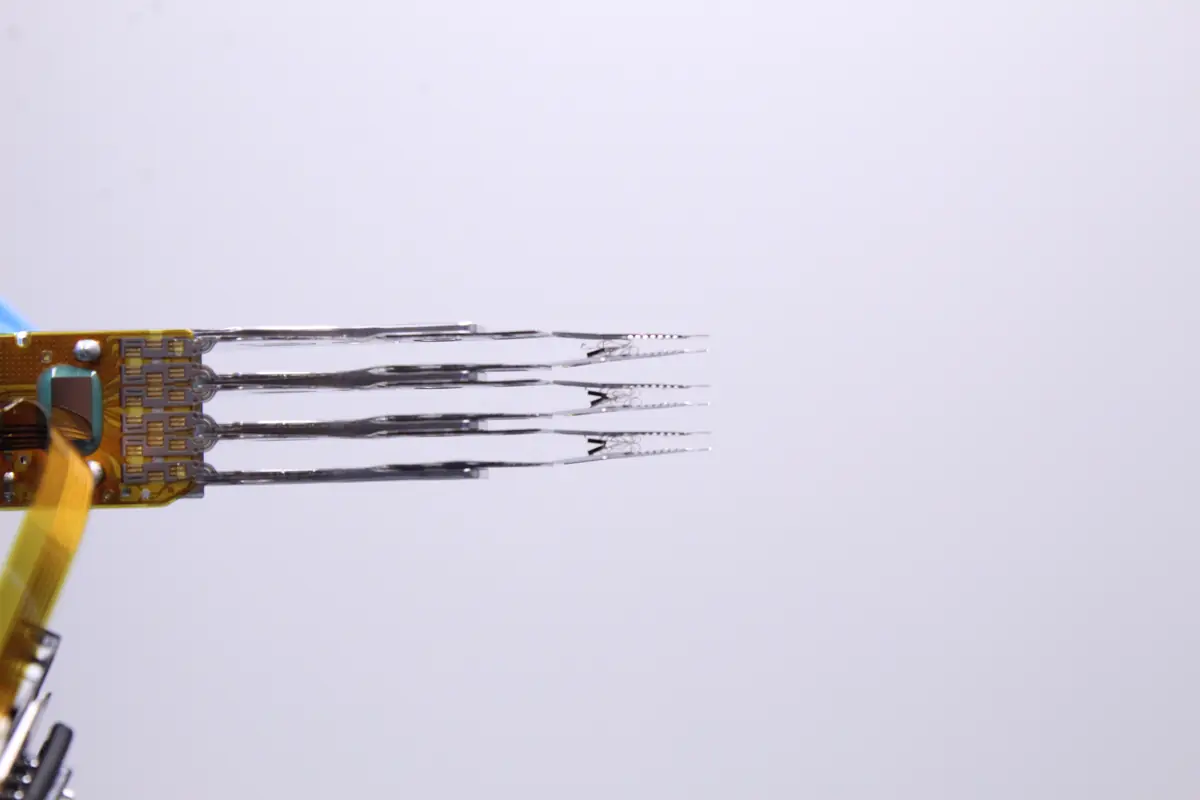
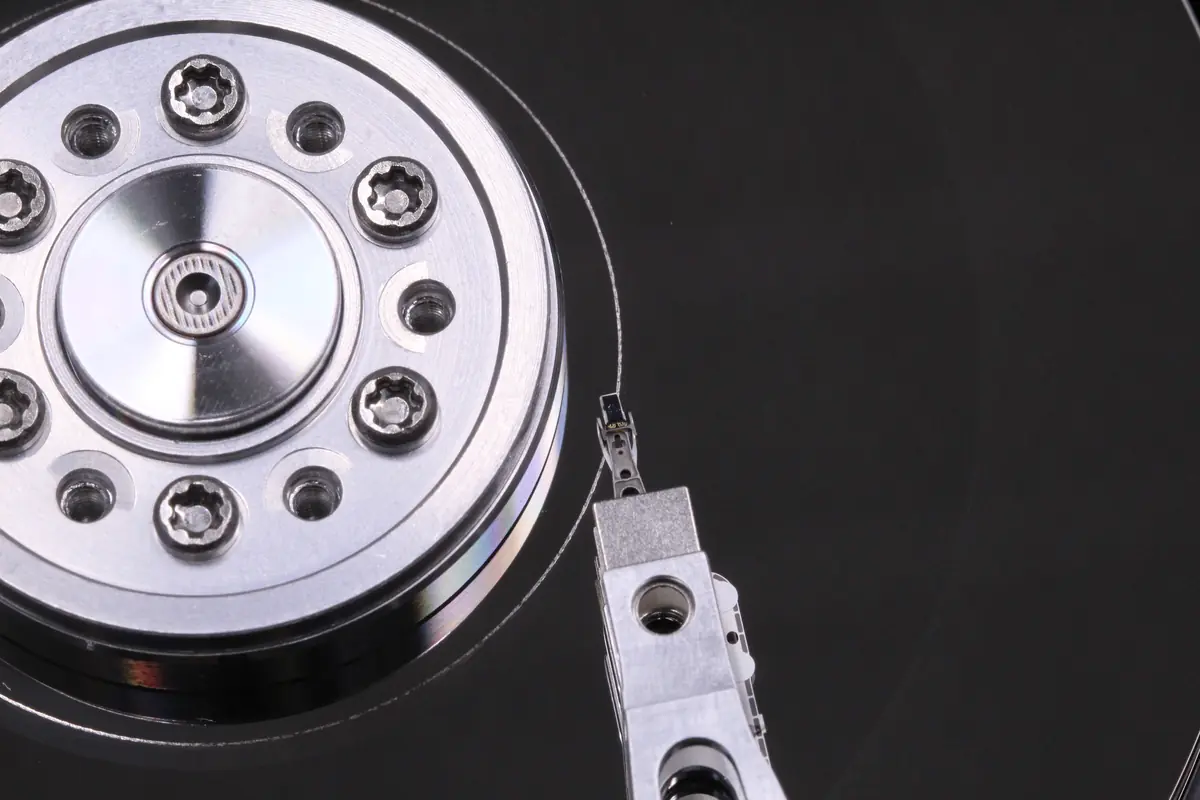
That can sometimes make sense with a healthy drive. With a damaged HDD, however, this is precisely the point at which you may determine whether the data remains readable or the damage needlessly becomes worse. A hard drive is not merely a box with a connector. Inside, platters spin while read/write heads fly above them at a microscopic distance. When the mechanism fails, every additional power cycle can further damage the platter surfaces and heads and reduce the chance of reading the data safely.
How to Tell Whether an HDD Is Actually Damaged
Not every drive problem indicates a mechanical failure. Sometimes the cable, USB enclosure, power supply, or file system is at fault. Some symptoms, however, mean it is safer to turn off the drive and avoid experimenting:
- the drive clicks or knocks rhythmically, or repeatedly spins up and stops,
- the computer freezes or slows down significantly when the drive is connected,
- the drive briefly appears in the system and then disappears,
- Windows asks you to initialise, format, or repair the drive,
- copying repeatedly stalls on the same files,
- the drive sounds different after being dropped, struck, or exposed to a power surge,
- SMART reports bad sectors, reallocated sectors, or read errors.
When important data is involved, the main question is not „how do I repair the drive?" The main question is: how can I safely read as much data as possible without making its condition worse? That is why HDD data recovery begins with assessing the storage medium and creating a copy—not repairing Windows.
What to Do Immediately: A Safe Five-Step Process
1. Turn Off the Drive
For an external drive, disconnect both the USB cable and the power supply. For an internal drive, shut down the computer. If the drive clicks or makes a new mechanical noise, do not turn it on again „just for a moment."
2. Write Down What Happened
A brief note is enough: it fell off a desk, the problem started after a power outage, an update, formatting, an attempted CHKDSK run, or connection to another computer. This information is often more useful for diagnosis than a lengthy technical description.
3. Do Not Agree to Formatting or Initialisation
Windows may say that „you need to format the disk before you can use it," or Disk Management may display an unknown partition. This does not mean the data has disappeared. It means the system does not know how to read the drive. Formatting or initialisation introduces writes that may complicate recovery.
4. Do Not Run Repairs Blindly
CHKDSK, automatic drive repair, manufacturer utilities, and inexpensive recovery programs can be useful for logical errors. On a physically defective drive, however, they increase the number of read and write operations. Software cannot solve a problem caused by failing heads or a damaged surface.
5. Decide Based on the Value of the Data
If the data is replaceable, you can experiment. If the drive contains accounting records, photographs, projects, business documents, or a job archive, pause and seek advice first. One consultation costs less than another hour spent straining a failing drive.
What You Must Not Do
The worst damage is often caused not by the failure itself, but by attempts at DIY recovery.
Do not open the drive at home. The inside of an HDD must not be exposed to ordinary room dust. Even if you only „lift the cover slightly," you will contaminate the space in which the heads fly above the platter.
Do not put the drive in a freezer. This myth has persisted for years. It does not repair a mechanical head failure. Moreover, condensation may form when the drive is removed, causing further damage.
Do not hit or shake the drive. If a head is dragging or the drive will not spin, striking it will not solve the problem. It may tear off the heads or damage the platter surfaces.
Do not run CHKDSK on a drive that clicks or disappears. CHKDSK is not a recovery tool for faulty hardware. It is a file-system repair tool. Running it on a drive that cannot read reliably may make the situation worse.
Do not install recovery software on the same drive. If you are dealing with deleted data or formatting, every write to the original drive reduces the chance of recovery.
When Software Can Help—and When It Cannot
Software has its place. You simply need to know when to use it.
It can typically help when:
- you have deleted files but the drive is otherwise healthy,
- the drive has undergone a quick format,
- a partition has disappeared but the drive reads smoothly,
- the partition table is missing or the file system is damaged,
- the drive makes no unusual noises and its SMART data does not look critical.
Software is not enough when:
- the HDD clicks or knocks,
- the drive keeps disconnecting,
- reading stops at bad sectors,
- the drive has been dropped or struck,
- the computer freezes when the drive is connected,
- the drive reports an increasing number of read errors.
With physical faults, you first need a stable sector-by-sector copy. Only then should you address the file system, folder structure, and individual files. That is the difference between recovering data and subjecting a failing drive to hours of stress with ordinary software.
To learn where the line lies between bad sectors and a more serious fault, continue with our article about bad sectors on a drive.
How HDD Data Recovery Works in a Laboratory
The process varies according to the fault, but the basic principle is similar:
- Intake and description of the situation. What happened, what has already been tried, and which data is most important.
- Diagnosis without unnecessary stress. The electronics, sounds, drive identification, and probable type of fault are checked.
- Determining whether a clean environment is required. With mechanical hard drive failures, the drive is not opened on an ordinary desk but in a suitable environment.
- Stabilisation and reading. The aim is not to repair the drive for continued use. It is to read the data safely, ideally sector by sector.
- Recovering files from the copy. The folder structure, missing files, and verification of the result are addressed only on the copy.
- Returning the data. The recovered data is supplied on another storage medium. The original faulty drive is no longer used as working storage.
This is why „HDD repair" is sometimes an inaccurate term. In data recovery, the objective is not to return the old drive to service. It is to extract its contents before the medium deteriorates beyond recovery.
Symptoms at a Glance: What the Drive’s Sounds or Behaviour Mean
| Symptom | What it often means | What to do |
|---|---|---|
| Rhythmic clicking | The heads cannot align or read the service area | Turn it off and do not power it on again |
| Drive spins up and stops | A problem with the mechanism, electronics, or firmware | Do not continue trying |
| Windows asks to format the drive | The file system or partition cannot be read | Do not format it; create a copy first |
| Copying freezes | Bad sectors or unstable reading | Do not repeatedly try to copy files manually |
| Drive sounds different after being dropped | Possible head or platter damage | Turn it off and have it diagnosed |
| SMART reports errors | The drive is already reallocating or losing sectors | Back up or clone it; do not repair it in place |
How Cost and Diagnosis Affect the Process
The cost of data recovery depends on whether the problem involves a logical error, bad sectors, electronics, the mechanism, damaged platters, or a combination of several faults. The same drive model may require a straightforward recovery in one case and clean-environment work with a donor drive in another.
It therefore makes no sense to promise a price based only on the statement „I have a damaged HDD." A fair process involves diagnosis, an explanation of the fault, an estimate of the likelihood of recovery, and a fixed quotation before recovery begins. For an indication of the potential cost, we also explain what affects the price of data recovery in a separate article.
Frequently Asked Questions
Can I Connect the Damaged HDD One More Time and Quickly Copy Something?
If the drive clicks, disconnects, or sounds different after being dropped, we do not recommend it. It may successfully start once, but another attempt could make its condition worse. For important data, diagnosis should come first.
Should I Try a Different Cable or USB Enclosure?
If the drive makes no unusual sound and the problem appears to involve power or USB connectivity, replacing the cable makes sense. If the drive clicks, knocks, or repeatedly spins up, the cable is unlikely to solve the problem.
What If Windows Offers to Repair the Drive?
Do not accept the repair if the drive contains important data. Automatic repair may write changes to the file system. On a faulty drive, this is not a safe first step.
Can Recuva, TestDisk, or PhotoRec Help?
They may help with deleted files or logical errors. They do not address the cause of a mechanically damaged HDD. If the drive reads unreliably, recovery software merely adds further stress.
Can a Damaged HDD Be Repaired and Used Again?
That is not the objective of data recovery. A defective drive is not considered a reliable storage medium after intervention. The data is transferred to another storage device, and the original drive should be retired.
What Should I Bring or Send?
Bring or send the drive itself, or the entire external device if you are unsure. Include a brief description of the fault and your contact details. If you ship the drive, package it carefully to protect it from shocks.
Do you have a damaged or clicking HDD? Do not continue with blind attempts. Bring or send the drive to ITHOPE in Brno, call +420 775 556 063, email info@ithope.cz, or submit a no-obligation data recovery enquiry. We will first determine the condition of the storage medium, and you can then decide whether recovery is worthwhile.
Where to find us
ITHOPE is a company based in Brno, Czechia: we do data recovery from disks, RAID and NAS, PC and laptop service and IT for business, all in our own lab at Viniční 3587/216, 615 00 Brno.
Phone +420 775 556 063 (24/7 line). You can bring the device in person, or send it by courier (Zásilkovna, PPL).