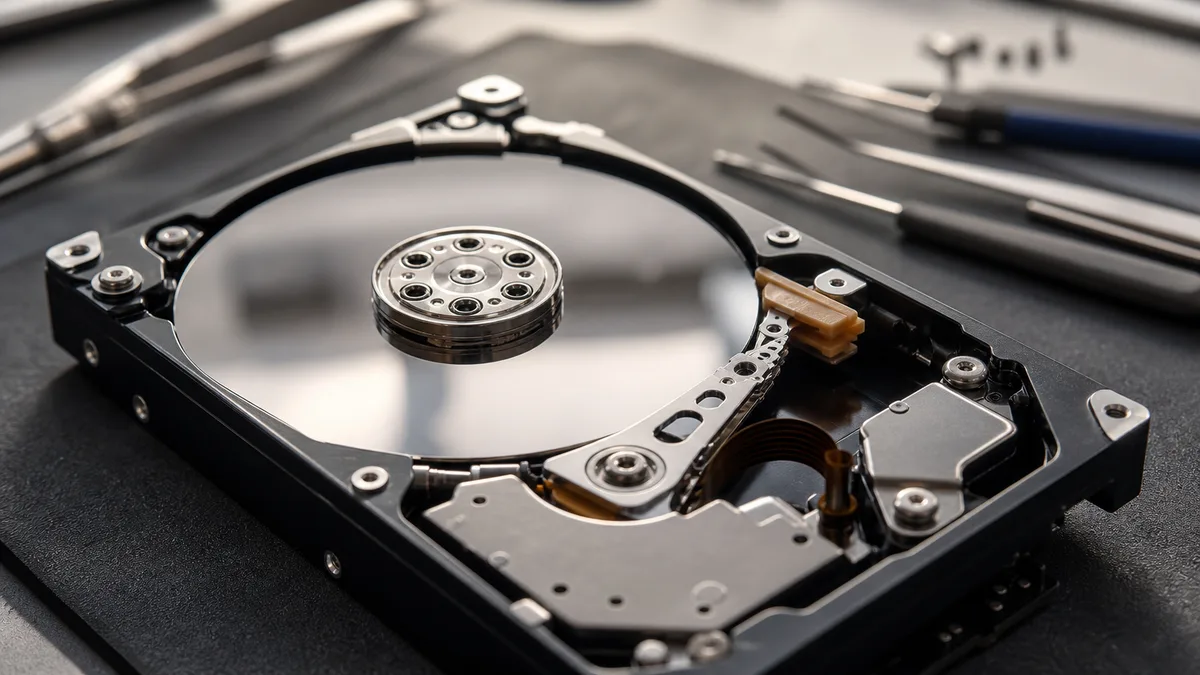
The short answer: You can gauge how serious an HDD fault is by the drive’s behaviour. If it is simply not detected over USB but remains quiet, the cable, power supply, or external enclosure is often at fault—and you can check those at home. If the drive clicks, has been dropped, freezes while reading, or keeps disconnecting, the fault is inside the drive. A drive in this condition is not repaired for continued use; the data is recovered from it. If you do not have a verified backup, switch it off immediately. What matters when deciding what to do next is the value of the data, not the purchase price of the storage device itself.
If the data does not exist anywhere else, this is a job for professional HDD data recovery in a laboratory, not further attempts at home. The service page explains how our data recovery process works, from handing over the drive to receiving a price quotation.
This article is not a guide to taking a drive apart, but a decision-making aid. It will help you identify where the fault lies from the symptoms, when replacing the drive outright is the cheaper option, and when the only correct decision is to disconnect it immediately—because every additional start-up reduces the chance of recovering your data.
HDD repair and data recovery are two different services
The term „HDD repair" can refer to two distinct goals that are easily confused:
- restoring the storage device to working order so that it can continue to be used normally,
- recovering data from a damaged drive, even if the drive itself will never be reliable again.
A mechanically damaged HDD is generally not repaired for continued use. Replacing the heads, repairing the electronics, or freeing a seized motor serves one purpose only: to read the contents once and copy them to healthy storage. A drive that has undergone such work has not been repaired; it has only been made temporarily readable.
For a business, the value of the data therefore matters more than the purchase price of the drive. A new office HDD costs a fraction of laboratory work. Irreplaceable accounting records, project documentation, or the only copy of an operational database, however, may be worth far more than the storage device itself. A separate article explains the technical recovery process in detail: how to recover data from a damaged HDD. Here, the focus is on deciding whether to repair or diagnose the drive, or shut it down immediately.
When to switch an HDD off immediately
Some symptoms mean that every additional minute of operation reduces the chance of recovery. Disconnect the drive from its power supply if:
- it clicks, knocks, or squeals regularly, or repeatedly spins up and stops,
- it was dropped and has not been accessible in the system since,
- the computer freezes when accessing it,
- copying repeatedly stops at the same files and the drive disconnects,
- it reports an error and you do not have the data in another verified copy,
- it has been opened outside a controlled clean environment,
- you can smell burnt electronics,
- Synology DSM or QNAP QTS marks it as faulty and the array does not have safe redundancy.
Clicking usually means that the read/write heads cannot position themselves correctly over the platters. The cause may be damaged heads, the drive’s service area, or the platter surface itself—and every additional spin-up can make the damage worse. The article what to do when a hard drive clicks covers the first steps.
Continuing to read a drive with bad sectors is just as risky. The operating system repeatedly attempts to read an unreadable sector, causing the drive to heat up while the heads keep working over the damaged area and the recovery window grows shorter. The article bad sectors on a hard drive—what you should actually do explains what to do instead.
When not to attempt it yourself and what we will do
In these situations, an attempt at home is more likely to damage the drive than help:
- the drive clicks, knocks, or repeatedly spins up and stops—the heads cannot position themselves correctly over the platters, and each additional spin-up may scratch the surface,
- the drive is not detected after connection or reports a nonsensical capacity—the fault lies in the electronics, firmware, or mechanics, not the cable,
- the drive was dropped or exposed to a power surge—the first attempts to start it may finish off already damaged mechanics or electronics.
Switch the drive off and leave it to our HDD data recovery specialists. Our process has three steps:
- Intake—bring the drive to our laboratory in Brno-Židenice or send it to us; we record the symptoms and anything you have already tried.
- Diagnostics—we determine where the fault lies and what can be recovered. Initial diagnostics for a standard HDD or SSD may be free; non-standard cases, such as a drive opened by another service provider, overwriting or formatting, or a complex analysis, cost 1 210 Kč including VAT (1 000 Kč excluding VAT), and we will notify you in advance.
- Quotation, then recovery—you receive the recovery price before work begins, and we do nothing further to the drive without your approval. Indicative prices by fault type are available in our data recovery price list.
Is it urgent? Call our 24/7 hotline at +420 775 556 063.
What can actually be repaired on an HDD
What „repair" means depends on the cause of the fault. The table shows what is actually done for each type of fault and whether the drive is suitable for continued use afterwards.
| Type of fault | Typical symptom | Actual work performed | Suitable for continued use? |
|---|---|---|---|
| Faulty USB cable or power adapter | The drive does not spin up or keeps disconnecting | Replace the cable or power supply | Yes, after verifying its condition |
| Faulty USB-to-SATA adapter in the enclosure | The drive is not detected over USB | Connect it through a working interface or replace the enclosure | Usually, if the HDD itself is healthy |
| Damaged file system | The drive is detected, but the partition cannot be opened | Create a sector-by-sector image and restore the data structure | Preferably replace the source drive |
| Bad sectors | Slow reads, copying errors, freezing | Controlled reading and image creation | Not for important data |
| Damaged electronics (PCB) | The drive does not respond or spin up | Repair the electronics and transfer adaptive data | Generally only for data recovery |
| Faulty heads | Clicking, incorrectly detected capacity | Replace the heads using a compatible donor | No |
| Seized motor or damaged platters | The drive does not spin up, scrapes, or squeals | Laboratory intervention; outcome depends on surface condition | No |
Simply replacing the circuit board with one from another drive is often not enough. Modern HDDs store individual adaptive data in their electronics—specifically in the ROM on the board—and this data is tied to the particular mechanical assembly. A donor board may have the same designation and shape, but without transferring this data, the drive may not read correctly.
Similarly, „repairing bad sectors" does not repair the platter surface. Some sectors can be remapped to a reserved area, but this does not eliminate the cause of the fault—it merely hides it. Such a drive should not be returned to an accounting computer, a NAS, or a backup role.
When a simple repair makes sense
A repair is worth considering when diagnostics confirm that the HDD itself is healthy and the problem lies elsewhere. Common causes include a faulty cable, power supply, connector, or external enclosure. In such cases, the „repair" is inexpensive, and the drive can return to service after its condition has been verified.
Recovering a damaged partition or file system may also make sense, but only if a sector-by-sector image is created first and all work is performed on the copy rather than the only original. Tools such as GNU ddrescue or HDDSuperClone can read a problematic drive in a more controlled way than ordinary copying in Windows File Explorer. Incorrect use, however, can overwrite the source or read it in the wrong direction—this is not a job for trial and error.
If you have a verified backup of the data, it is more sensible to buy a new drive and restore the data. A faulty WD Red, Seagate IronWolf, or Toshiba N300 in a NAS is normally replaced, not repaired and returned to the array.
When „repair" is not worthwhile but data recovery is
Mechanical intervention makes sense when you need data that does not exist anywhere else. The goal is not to return the old drive to an employee’s desk, but to obtain the most complete copy possible. Typical examples include:
- accounting or payroll data without a current backup,
- project files stored on only one workstation,
- email, project photographs, or manufacturing documentation,
- an external drive used as the sole archive,
- a drive removed from a NAS whose redundancy has also failed,
- a drive from an older machine containing software or configuration that cannot easily be recreated.
The ratio of cost to value is what matters. If the data is replaceable and recreating it would take two hours, laboratory recovery does not make economic sense. If reconstruction would take weeks or is impossible, diagnostics is a sensible first step.
What not to do before handing over the drive
Attempts at home often turn a manageable fault into a more expensive problem. In particular, avoid:
- initialising the drive in Disk Management,
- formatting it or creating a new partition,
- running
chkdsk /forchkdsk /ron the only copy of the data, - repeatedly running a long SMART test,
- rebuilding a RAID array with a suspect drive,
- opening the HDD cover outside a clean environment,
- improvised „fixes" involving a freezer, tapping, or manually spinning the drive,
- swapping PCBs without verifying compatibility and adaptive data,
- installing recovery software on the damaged drive itself.
SMART data can help assess the drive’s condition, but it offers no guarantee. A drive may develop a serious mechanical fault without any prior warning, while a single historical event does not necessarily indicate imminent failure. What matters is the combination of symptoms, reading behaviour, and values such as Reallocated Sector Count, Current Pending Sector Count, and Offline Uncorrectable.
How to decide based on the value of the data
Before ordering diagnostics, answer four questions:
- Is there another copy of the data—and can you actually open it?
- How much work would it take to recreate the data?
- Is it a personal archive, or data required to operate a business?
- Does the drive’s condition deteriorate each time it is powered on?
If the backup works, replace the drive and do not invest in mechanical repair. If there is no backup and the drive makes unusual noises, switch it off. If only the partition has disappeared but the drive behaves consistently, create an image first and address the file system only afterwards.
Take particular care with a NAS. A drive removed from a Synology or QNAP device may not be readable in Windows—it may contain Linux partitions, LVM, software RAID (md), or btrfs. The Windows prompt stating that „the disk must be initialised" therefore does not mean that it is empty; confirming that prompt is one of the fastest ways to overwrite your data.
How much does data recovery from a damaged HDD cost?
We deliberately do not provide a specific price list here, as the cost depends on the type of fault, capacity, number of donors required, and amount of readable data. As a rough guide, logical recovery typically costs several thousand Czech koruna, while mechanical work may cost from the upper thousands into the tens of thousands. Current prices are available in the data recovery price list, while the article how much does hard-drive data recovery cost? explains what determines the price.
For mechanical recovery, the replacement drive is not the only factor that raises the cost. A compatible donor must be selected, the intervention must be performed in a controlled environment, the drive must be stabilised, and its data must then be read in a controlled manner. Damage to the platter surface may require several attempts and multiple head replacements. You should therefore confirm in advance what the price includes—diagnostics, donor parts, the recovery itself, and the destination storage device—and, above all, what you will pay if the requested data cannot be recovered.
How to recognise high-quality diagnostics
A reputable service provider first asks about the symptoms, the history of any drop or impact, previous recovery attempts, and the value of the data. The statement „the drive is not visible in Windows" is not enough to make a decision.
High-quality diagnostics distinguish between:
- a cable, enclosure, or power-supply fault,
- an electronics or firmware problem,
- bad sectors,
- a damaged file system,
- a fault affecting the heads, motor, or platter surface.
During recovery, the data is stored on a different device, and a source drive that has undergone mechanical intervention is not considered repaired for continued use. In cases involving logical faults, the service provider should not write changes to the original without permission. Do not judge the result by the number of files found—the key question is whether the priority documents, databases, archives, or photographs can be opened. Thousands of system thumbnails cannot replace a single essential accounting database.
What to do after successful recovery
First copy the recovered data to at least two independent storage locations, and only then return it to normal use. Do not use the damaged HDD as a backup or even as a „less important" secondary drive. In a NAS, do not return it to the array simply because it has become detectable again after intervention—replace it with a new compatible drive and check the condition of the array’s other members.
For the future, apply the 3-2-1 rule: keep three copies of your data on two types of storage, with one copy located away from your primary premises. A standalone external drive permanently connected to a computer does not provide adequate protection—it cannot protect you against hardware failure, theft, or ransomware. The article using an external HDD for backup and the 3-2-1 rule shows how to implement this in practice.
Frequently asked questions
Can I continue using a repaired HDD?
Yes, after replacing a cable or external enclosure—provided diagnostics confirm that the drive itself is healthy. Do not use the drive for important data after bad sectors have appeared, its electronics have been repaired, or it has undergone mechanical intervention.
Will replacing the electronics with a board from an identical drive help?
Not always. The board contains adaptive data tied to the specific mechanical assembly, so finding a drive with the same capacity and swapping the PCB is not enough. Without transferring this data, the drive may not read correctly.
Should I run CHKDSK before taking the drive to a specialist?
Not on the only drive containing important data. CHKDSK modifies the file-system structure and places further load on a drive with physical faults. It is safer to create a sector-by-sector image first and work on the copy.
What should I do if the drive still works after being dropped?
Copy the highest-priority data only if the drive makes no unusual noises and reads consistently—and stop immediately afterwards. If it clicks, slows down, or disconnects, switch it off and arrange diagnostics.
Is it worth recovering data from an old drive?
The value of the data matters, not the age or price of the drive. If you have a verified backup, replace the drive. If it contains irreplaceable business data, it makes sense to determine the fault type, the likelihood of recovery, and the cost of the work first.
Where to find us
ITHOPE is a company based in Brno, Czechia: we do data recovery from disks, RAID and NAS, PC and laptop service and IT for business, all in our own lab at Viniční 3587/216, 615 00 Brno.
Phone +420 775 556 063 (24/7 line). You can bring the device in person, or send it by courier (Zásilkovna, PPL).