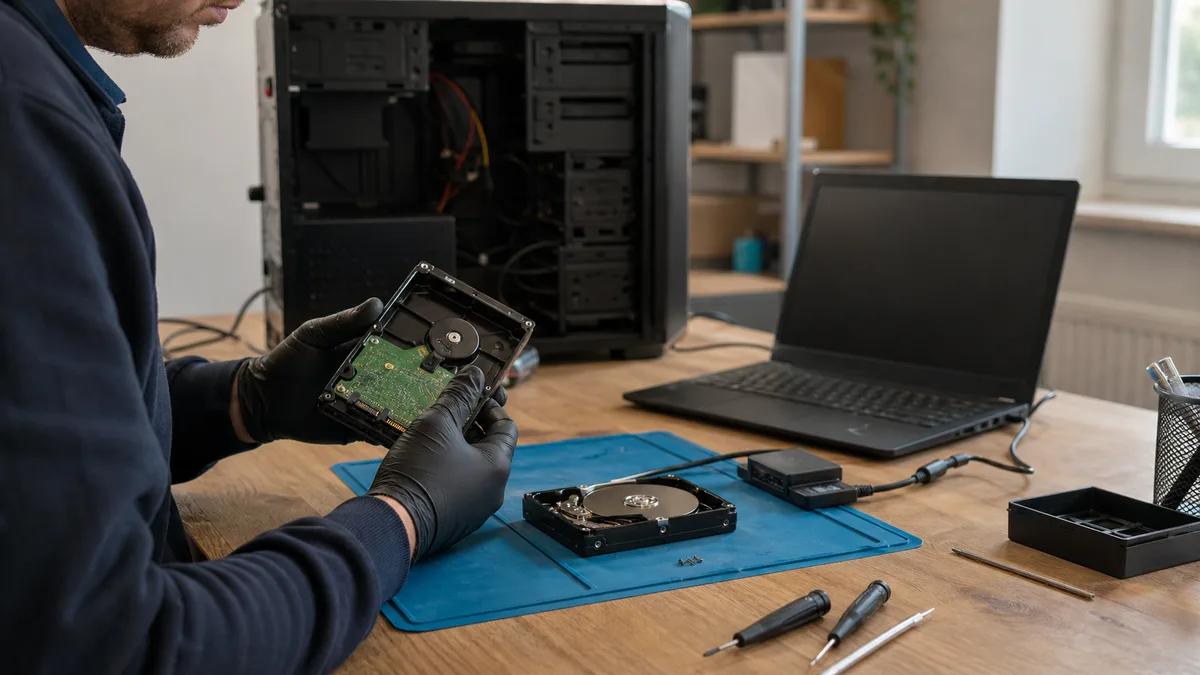
The short answer: HDD data recovery depends on the type of failure, not the tool. Software can sometimes recover deleted files or a damaged partition from an otherwise healthy drive—but the recovered data must always be saved to another drive, never back to the original. If the drive clicks, slows down, reports the wrong capacity, or contains the only copy of your business data, stop experimenting, disconnect the power, and have it diagnosed. Every additional attempt to read it reduces the chances of recovery.
Looking for a professional service? Visit our data recovery page to see how recovery works in our laboratory, or go directly to HDD data recovery for conventional hard drives.
This is not a „run a program and download the files" tutorial. It is a decision-making guide: how to identify the likely fault from the symptoms, what you can still do yourself without undue risk, and when disconnecting the drive and taking it to a specialist is both safer and less expensive. With business data, the costliest mistake is often not the price of recovery but a hasty attempt that overwrites the only copy of a project.
Identify the type of failure before choosing a tool
Data recovery does not begin with installing software. It begins with identifying the fault. A logical failure—such as deletion, formatting, or a damaged partition—requires a different approach from bad sectors, electronics failure, or mechanical damage inside the sealed drive enclosure. Software designed to recover deleted files cannot repair clicking heads. Running it on a dying drive may instead finish what the failure started.
The value of the data matters as well. A copy of downloaded source material calls for a different decision than an accounting database, email stored in a PST file, project documentation, or the only image of a virtual server. Before you even touch the drive, ask yourself:
- Is there another copy of this data?
- How much does each day without it cost the business?
- Do you need the entire system or only a few specific folders?
- Has the drive been dropped, struck, exposed to water, or affected by a power surge?
- Is it making sounds it did not make before?
- Is the volume encrypted with BitLocker?
If the data is irreplaceable, the safest course is to power down the drive and have it diagnosed. A DIY attempt only makes sense when the drive is stable and you can afford to lose the data.
What the symptoms mean—and what to do
| Symptom | Likely failure | What you can safely check | What not to do |
|---|---|---|---|
| Files have disappeared, but the drive remains fast and quiet | Logical failure (deletion) | Whether the drive reports the correct capacity | Do not save anything else to it |
| Windows offers to format the drive, or the partition is shown as RAW | Damaged file system or partition table | The model and capacity in Disk Management | Do not format it or run CHKDSK |
| Copying stops, the system freezes, or read errors occur | Bad sectors or deteriorating platter surface | Read SMART data briefly without running a long test | Do not run a surface test or repeatedly retry copying |
| The drive clicks, spins up, and stops again | Heads, motor, or platter surface | Nothing else—power down the drive | Do not power it on again or open it |
| The drive does not spin up at all | Power supply, electronics, motor, or seized heads | For an external drive, try a different cable and the correct power supply | Do not blindly replace the controller board |
| The drive reports the wrong capacity or stops responding | Firmware or address translator | Record the exact model and serial number | Do not update the firmware or try service commands |
Clicking, bad sectors, crashed heads, and microscopic platter damage are covered in separate articles on our website. Here, only one decision matters: if the drive shows mechanical symptoms or is deteriorating rapidly, further diagnosis in an ordinary computer is no longer safe. When a drive clicks, the cause is almost always mechanical—the heads, motor, or platter surface—and every additional spin-up increases the risk.
When not to try it yourself and what we will do
Based on the table above, the drive should go straight to a laboratory if it:
- clicks, scratches, or repeatedly spins up and stops—the problem involves the heads, motor, or platter surface, and every spin-up increases the risk,
- is not detected at all or reports the wrong capacity—the fault lies in the electronics or firmware, and „repair" tools will only make it worse,
- has been dropped, exposed to water, or affected by a power surge—initial attempts to power it on can cause the most damage in these cases.
Power down the drive and bring or send it to us for HDD data recovery. Our process has three stages:
- Intake—bring the drive to our laboratory in Brno-Židenice or send it to us. We record the symptoms and everything you have already tried.
- Diagnosis—we identify the type of failure and determine what can be recovered. An initial diagnosis of a conventional HDD or SSD may be free. Non-standard cases—such as a drive previously opened by another service provider, overwritten or formatted media, or complex analysis—cost 1 210 Kč including VAT (1 000 Kč excluding VAT), and we will tell you in advance.
- Quotation, then recovery—you receive a recovery quote before any work begins, and we do nothing further to the drive without your approval. Indicative prices by failure type are listed in our data recovery price list.
Is it urgent? Call our 24/7 hotline at +420 775 556 063.
The first ten minutes matter
First, close any applications using the drive. If it is the system drive, shut the computer down normally and stop using it. Forcibly cutting the power can itself result in an incomplete write, so it only makes sense when there are clear mechanical symptoms. For an external HDD, stop any transfers and safely disconnect the device. If the drive clicks, squeals, scratches, or repeatedly spins up and stops, disconnect the power immediately.
Make a note of the circumstances. This can save the technician time and save you money:
- what happened immediately before the failure,
- whether the drive was dropped or connected during a power outage,
- whether anyone ran a file-system repair tool such as CHKDSK or fsck,
- whether a recovery attempt has already been made,
- the exact model of the drive and the computer, NAS, or external enclosure,
- which files have the highest priority.
For an external drive, you may try a different high-quality USB cable and another port once. For 3.5-inch drives, also check that you are using the correct power adapter—they require both 12 V and 5 V, and the wrong adapter may not spin the drive up. Be particularly careful with external WD drives such as My Passport and Elements models: encryption is often handled directly by the enclosure’s USB controller, so removing the bare drive and connecting it over SATA may produce nothing but unreadable data. If a different cable does not change the drive’s behaviour, further reconnection attempts will not help.
Do not put the drive in a freezer, strike it, or open it outside a clean environment. Dust settling on exposed platters will cause further damage when the drive spins up. Opening a high-capacity helium-filled drive—typically around 12 TB or larger—outside a laboratory is effectively a death sentence for the device.
When software is enough—and when it is not
Programs such as R‑Studio, DMDE, and UFS Explorer can help with deleted files, damaged partitions, or lost file-system structures. They cannot repair faulty heads, a failed motor, or damaged platter surfaces.
Only use recovery software if the drive:
- makes no unusual sounds,
- maintains a stable connection,
- reports the correct capacity,
- is not noticeably slow,
- does not show a growing number of read errors.
Always save recovered files to another drive. Installing the software on the original HDD or writing recovered files back to it can overwrite the very data you are trying to recover. Do not run CHKDSK simply because Windows suggests it: CHKDSK repairs file-system consistency by writing changes, which can help restore a working volume but is not an appropriate first step when the drive holds the only copy of your data. With bad sectors, every repeated read attempt also places additional strain on the surface.
Why an unstable drive must be cloned first
Files should not be recovered directly from an unstable original drive. The first step is to create a sector-by-sector copy—a disk image—and recover the data from that copy. The reading process is managed so that easily accessible areas are captured first and problematic areas are left until the end.
GNU ddrescue is a proven tool for controlled cloning. It maintains a map file, allowing the process to be interrupted and resumed without rereading areas that have already been captured. However, it cannot fix a mechanical failure. If the drive deteriorates while being read, a conventional SATA or USB controller cannot safely manage faulty heads or adjust the read parameters.
A specialist laboratory uses a hardware platform such as PC‑3000, works with the drive’s firmware, and can disable a problematic head or read selected areas separately. File-system analysis is then performed on the copy rather than the dying medium. Replacing the controller board is likewise not a matter of trial and error: modern drive electronics contain adaptive data unique to the specific unit, stored in a ROM chip, so even an „identical" board requires that memory to be transferred.
When to stop and take the drive to a specialist
Disconnect the drive and take it to a specialist if any of the following applies:
- it clicks, scratches, squeals, or fails to spin up,
- the computer freezes after the drive is connected,
- its sound changed or it stopped working after being dropped,
- copying is becoming progressively slower,
- SMART reports increasing Current Pending Sector or Offline Uncorrectable values,
- it contains the only copy of important business data,
- it contains accounting records, a database, a virtual machine, or an encrypted volume,
- previous attempts have made the condition worse.
BitLocker requires special consideration. A technician can recover sectors from an encrypted volume but cannot replace a missing key. You will need the password or the 48-digit recovery key to access the data. Without it, even perfectly recovered sectors remain encrypted and unusable. Our article about BitLocker explains where to look for the key.
How much HDD data recovery costs
The price depends on the fault and the work required, not the number of files. We deliberately do not list specific amounts here: they vary by model, drive condition, and parts availability, and they quickly become outdated. You will receive a reliable price in a quotation after diagnosis. There is, however, a clear difference in scale: software recovery from a stable drive costs a fraction of a mechanical intervention involving opening the drive, sourcing donor parts, and performing controlled reads in a laboratory.
The final price is mainly affected by:
- the condition of the platter surface and whether the drive must be opened,
- the availability of a compatible donor drive,
- the drive’s capacity and technology—large and SMR drives take longer to recover,
- encryption,
- the required turnaround time,
- the time needed to assemble and verify the recovered data.
You will find a detailed breakdown in our article on how much hard-drive data recovery costs. Before placing an order, clarify whether diagnosis is charged, whether the price includes parts, and what medium will be used to return your data.
How to recognise a reputable recovery service
A service provider should not promise a result before diagnosing the drive. The condition of the platters and heads, and the readability of critical areas, cannot be reliably determined from a description over the phone. Anyone who guarantees „100% recovery" in advance either does not understand the process or is exaggerating.
A reputable process includes:
- recording the drive by model and serial number,
- diagnosing it without unnecessary writes to the original,
- clearly explaining the type of failure,
- providing a price range before any paid work,
- working from a list of priority data,
- identifying which files are damaged,
- returning the data on another medium,
- agreeing on how the original drive and working copies will be handled.
For business data, also ask how it will be protected: who can access it, where working copies are stored, and when they will be deleted. This is not a formality when accounting records, personnel documents, or customer databases are involved. Do not judge the outcome by the percentage of sectors read. Even a small unreadable area can affect a database or file-system table. What matters is the list of genuinely usable priority files and verification that they can be opened.
What to prepare before handing over the drive
Bring the drive itself. For an external drive, bring the entire enclosure as it may be part of the problem. Include the power adapter if it is not a common standard type. Specify the operating system, file system, and any encryption in use. List your priorities—an accounting database and contracts are usually more important than a complete user-profile recovery, so the technician can first check the areas essential to keeping the business running.
Do not use the original HDD as a working drive after recovery. Check the recovered data, make at least two additional copies—ideally following the 3‑2‑1 rule—and only then return the computer to service.
Frequently asked questions
Can data be recovered from an HDD that Windows cannot see?
Sometimes. The cause may be a damaged partition, a faulty USB bridge, electronics, firmware, or a mechanical failure. The key questions are whether the drive reports the correct capacity and whether it spins up reliably. Do not power on a clicking drive again.
Should I allow Windows to format the drive?
No, not if you want the original data. Formatting changes file-system structures and makes subsequent recovery more difficult. Close the prompt and disconnect the drive.
Will swapping in the electronics from an identical drive help?
Usually not by itself. Many drives contain adaptive data tied to their specific mechanical components, so even a compatible board requires transferring the ROM memory or specialist firmware work.
How long does recovery take?
Logical recovery from a stable drive usually takes a matter of days. Mechanical failures, sourcing a donor drive, or repeated controlled reads of a damaged surface take longer. A more accurate timeframe can only be provided after diagnosis.
Can all data be recovered?
Sometimes, but it cannot be guaranteed. The outcome depends on whether the sectors containing the required files are readable and whether the platters have been damaged or the data overwritten. Priority folders are therefore identified in advance, and the result is verified by opening the key files.
Where to find us
ITHOPE is a company based in Brno, Czechia: we do data recovery from disks, RAID and NAS, PC and laptop service and IT for business, all in our own lab at Viniční 3587/216, 615 00 Brno.
Phone +420 775 556 063 (24/7 line). You can bring the device in person, or send it by courier (Zásilkovna, PPL).