A blue screen reading „Enter the recovery key" and 32 empty boxes. Below it a single line: „BitLocker needs your recovery key to unlock your drive." The laptop won’t go any further. Our clients here in Brno run into this state on average twice a month — always at the worst possible moment, often after a motherboard swap or a BIOS update that „just restarted" and suddenly the laptop is a locked box.
This is not an article about how to defeat BitLocker. AES-XTS cannot be defeated; we would be lying if we claimed otherwise. It is a guide to where to look for the key before you lose your data for good — and what to do when it really is nowhere to be found.

A story from the workshop: Kingston Locker+ and a principle that holds just the same
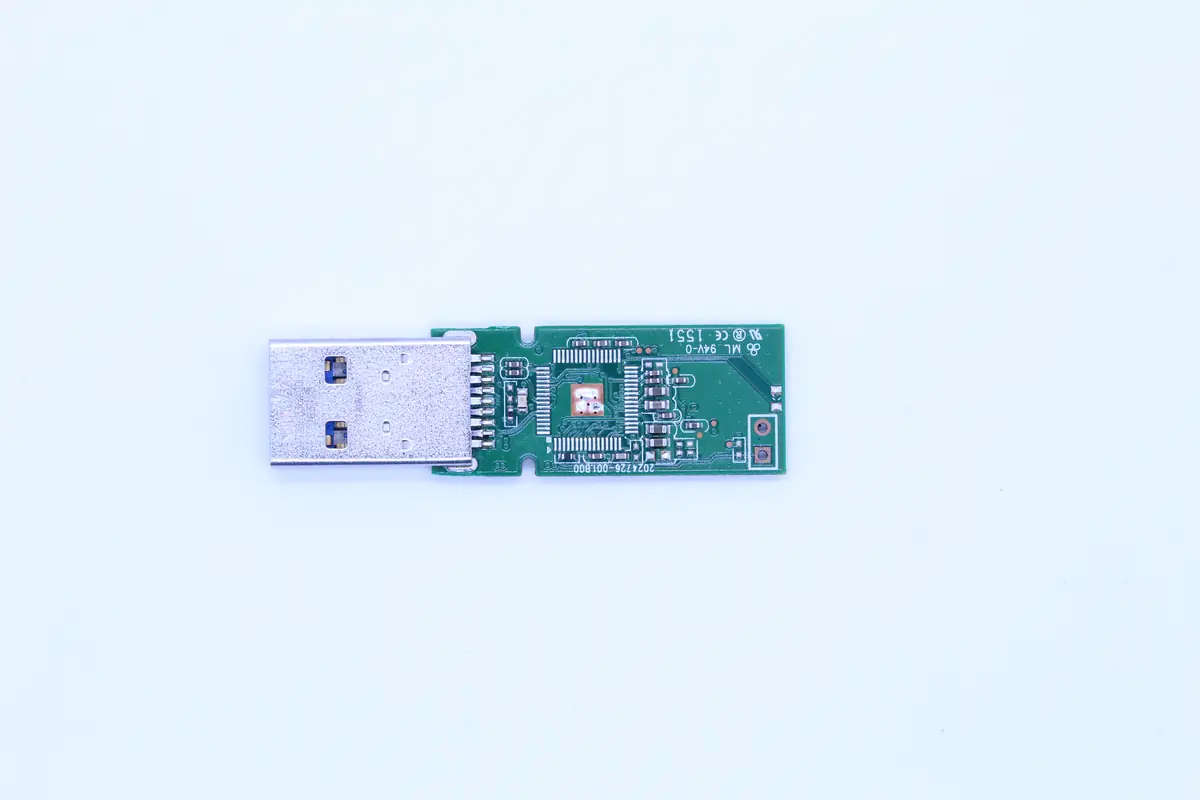
Recently we had a job on a hardware-encrypted USB flash drive — a Kingston DataTraveler Locker+ G3, 32 GB, a sole trader’s accounting records and documents for the tax office. The principle is exactly the same as with BitLocker: the data is encrypted, the key is held by the device (on the Locker it is a chip right on the PCB, with BitLocker typically the TPM module). Without the correct password the contents are just noise.
Fortunately the client remembered the password. After a custom chip-off (the memory chip had degraded and could not be lifted off in the standard way) we pulled ~10 GB of documents with his password. Had he not had the password, that is where we stop. This is why a BitLocker recovery key is not a convenience backstop — it is the only way back once the TPM stops cooperating.
What BitLocker is and how it works
BitLocker is the built-in full-disk encryption in the Windows Pro, Enterprise and Education editions (10, 11, Server). The consumer Home editions have, since Windows 11, a limited „Device Encryption" variant — it works the same way, just without a control panel (the key goes into the Microsoft account automatically).
Under the hood it is AES-XTS in the 128- or 256-bit variant. The volume key (FVEK — Full Volume Encryption Key) is itself encrypted by further keys (VMK — Volume Master Key), and these are tied either to:
- The TPM chip (Trusted Platform Module) — a piece of silicon on the motherboard that releases the key only when the system has booted „cleanly" (the BIOS, bootloader and partitions have not changed).
- TPM + PIN — the TPM releases the key only after the user enters a PIN.
- TPM + USB — a physical USB token as a second factor.
- A password (on data drives or machines without a TPM).
And a 48-digit recovery key — a rescue copy in case one of the locks above fails.
If you want to go deeper, the technical description is on Wikipedia (en) and in Microsoft’s official documentation.
Where do I find the BitLocker recovery key?
This is the most common question people walk into the workshop with — they panic at the blue screen, can’t recall the key, and can’t see it anywhere at home. Go through these stores in this order:
1. Microsoft account (personal Windows 10/11)
The most common hiding place. When you activated BitLocker while signed in to a Microsoft account, the key was saved there automatically.
- Open account.microsoft.com/devices/recoverykey
- Sign in with the same account you were using to sign in to Windows at the time
- You will find a list of devices with their keys — each one is 48 digits split by dashes
Tip from experience: People often have several Microsoft accounts (personal @outlook.com + school @live.cz + work @firma.cz). Go through all of them you have ever used to sign in to Windows. In 70 % of cases the key is in one of them.
2. Active Directory / Microsoft Entra ID (company laptop)
If the laptop is domain-joined (issued by an employer), the key is most likely in central storage:
- AD on-prem — the IT administrator pulls it from the
msFVE-RecoveryInformationattribute via RSAT or PowerShell - Microsoft Entra ID (formerly Azure AD) — available via entra.microsoft.com → Devices → BitLocker keys, or by the user themselves via myaccount.microsoft.com → Devices → View BitLocker Keys
- Microsoft Intune (MDM) — Endpoint Manager admin center → Devices → the specific device → Recovery keys
The chance that the company helpdesk finds the key is around 80 %, provided the laptop was properly enrolled from the start.
3. Local backups: USB / print / file
When activating BitLocker, Windows offers four ways to save the key. People often save all of them and then forget about it:
- Print — paper in a drawer, a binder, on the fridge
- Save to a USB flash drive — check old flash drives in your boxes
- Save to a file — typically
BitLocker Recovery Key XXXXXXXX-XXXX-...txton the desktop, in Documents or OneDrive - Save to the Microsoft account — see point 1
Search the local drive via Search (*.txt + the word „BitLocker„ or „Recovery"), OneDrive, Google Drive and archived e-mails — Windows sometimes e-mails a copy of the key to the MS account on activation.
4. Other less obvious locations
- The Intune Company Portal app on a phone — the administrator sometimes publishes the key there as self-service
- A backup in Azure Information Protection — corporate IBM-style firms
- Acronis / Veeam image backups — if you have an image backup from BEFORE the incident, the key sometimes sits in it as a .txt
What to do when I really don’t have the recovery key?
The short truth: AES-XTS-128/256 cannot be brute-forced. Not by our laboratory, not by the NSA, not by 2 000 GPUs in the cloud. That is the whole point of encryption — if the key could be bypassed, BitLocker would be useless as protection against a thief.
What can realistically be done:
- Find the key elsewhere — return to points 1–4 above with a cool head. Ask HR/IT/a former colleague. Look for old papers. 60 % of „lost" keys turn up within 48 hours.
- Metadata reconstruction — if the drive is physically faulty (but the key IS available), we can recover the data just as with an unencrypted drive. Without the key we can at most reconstruct the structure (the file system, names, sizes) — the contents of the files stay encrypted.
- Try the key later — we read the drive, image it and preserve it. If the client finds the key a month later, we decrypt the image without needing to send the physical drive again.
What cannot be done:
- „Bypass the TPM" — the TPM will not release the key if the measured values have changed (Boot configuration, Secure Boot state, etc.). Returning the BIOS to its original state sometimes helps, but not always.
- „Reset the password" — the BitLocker password is not the Windows password. It cannot be reset from a Live USB, the recovery console or by any other route.
- „Iron out the AES" — see above. No.
We had a job on a Samsung T7 Shield SSD (an external 2 TB drive, encrypted with a Samsung password — conceptually similar to BitLocker). Fortunately the client remembered the password; we only revived the drive electronically and decrypted it with the password. Without the password we would have had to tell him we got close in the end and could go no further. This is reality, not marketing.
How to verify whether I have BitLocker turned on
The GUI route
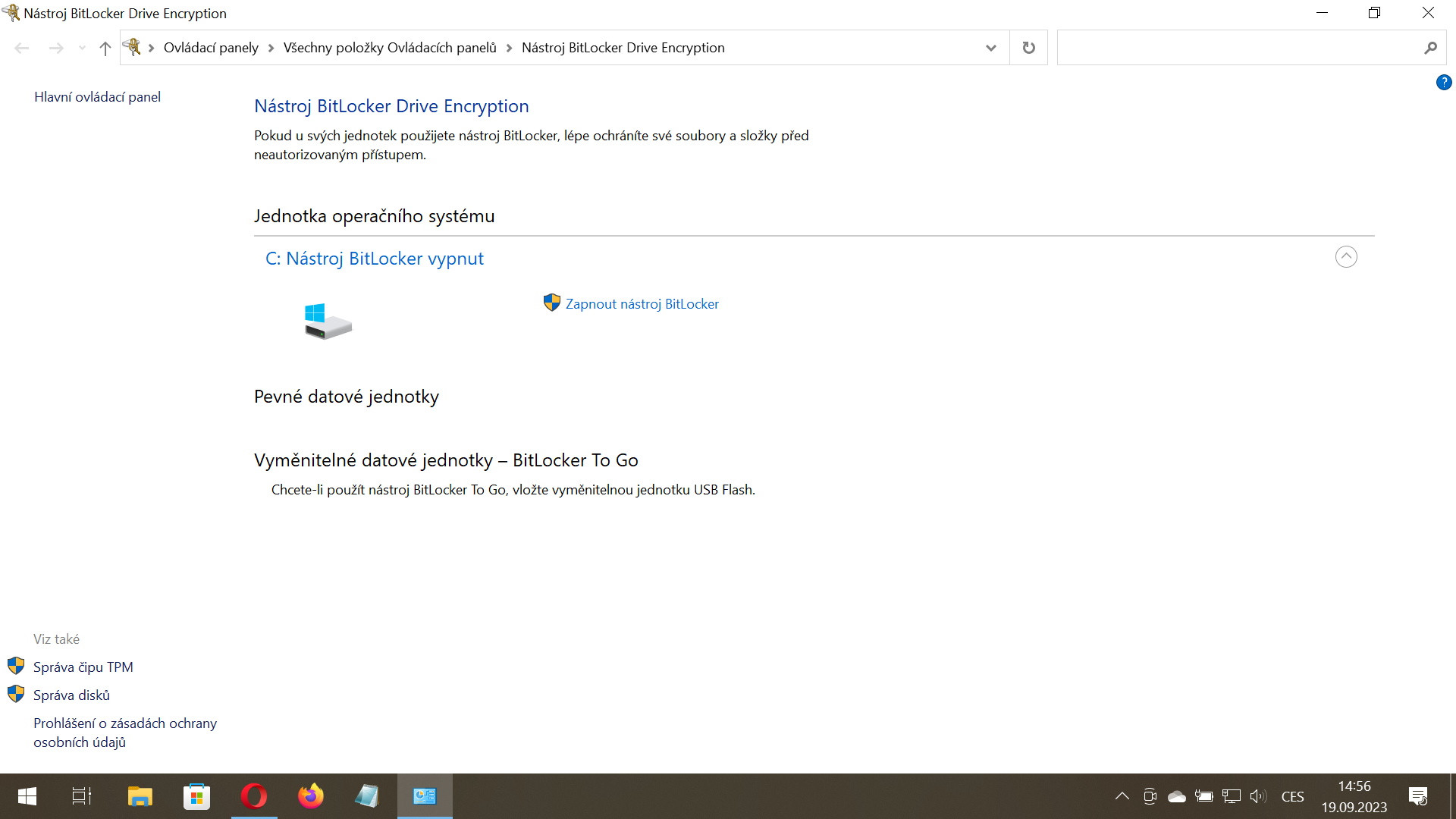
Control Panel → System and Security → BitLocker Drive Encryption. For each drive it will read either „BitLocker on„ (running), „BitLocker off" (disabled), or „BitLocker waiting for activation" (activation in progress).
PowerShell — manage-bde
More reliable than the GUI. Run PowerShell as administrator:
manage-bde -statusFor each volume you will see the Conversion Status (Fully Encrypted / Decrypted), Encryption Method (e.g. XTS-AES 128) and Protection Status (On / Off).
If you need to see the key the simple way:
manage-bde -protectors -get C:It will list the ID of every protector including the Numerical Password (= that 48-digit recovery key). From this screen copy it down and store it off the laptop — paper, a password manager, a second device.
For companies: a bulk inventory
Get-BitLockerVolume | Format-Table MountPoint, ProtectionStatus, EncryptionMethod, KeyProtectorHandy for IT administrators ahead of a fleet-wide upgrade (a Windows 11 migration, replacing hard drives).
Practical recovery-key hygiene
After ten years of dealing with BitLocker recovery keys, we keep seeing the same mistakes. A few rules that work:
- Keep the key off the encrypted drive. The safe key inside the safe is useless. Paper into a safe, a password manager (Bitwarden, 1Password, KeePass), a USB flash drive tucked in a drawer. Anything BitLocker does not lock away with it.
- The Microsoft account as the default. Even if you are anti-cloud, the automatic backup of the key to the MS account is the difference between „I have the key„ and „I lost 5 years of photos". Then secure the MS account with 2FA.
- Verify the key before a motherboard swap / BIOS upgrade. Write it down in advance, keep the paper to hand. After a swap the TPM is modified and the machine will ask. 5 minutes of prevention versus 5 hours of panic.
- For company employees, secure the key in IT. When an administrator who never filed the recovery keys anywhere leaves, you have a time bomb. Audit AD/Intune once a year.
- Test recovery regularly. At least once every six months, decrypt BitLocker on one drive and encrypt it again. You verify that the key works and that you can find it.
FAQ
Does BitLocker work on Windows Home?
Yes, but with limitations — under the name „Device Encryption". It turns on automatically on supported machines (TPM 2.0, Modern Standby), and the key goes into the Microsoft account. There is no control panel; you will find the recovery key only in the MS account or via manage-bde -status in PowerShell.
What happens if I remove an encrypted drive and put it in another PC?
The drive shows up in the new PC as locked. On first access Windows asks for the recovery key (or the password, if it is a data volume without a TPM). With the key the drive works just as it did in the original machine. Without the key you will not reach the data — even removing the drive is not an attack vector, that is the point of BitLocker.
Can I turn BitLocker on after the fact, when I already have data on the drive?
Yes. Activation does not delete data — Windows gradually encrypts it in the background (it takes hours to days on large drives). But always back up before activating — if the power fails or an error occurs during encryption, the risk of loss is not zero.
Is BitLocker secure, or does it have a backdoor?
The AES-XTS implementation in BitLocker is standard, and since Windows 10 22H2 it uses XTS-AES by default, which is the most resilient publicly available block cipher. The only known vulnerability (CVE-2022-41099, the „WinRE" bypass) was in the Windows recovery environment, not in the algorithm itself — Microsoft fixed it. A backdoor for state agencies is not publicly documented and could be detected cryptographically.
What if I have the key but BitLocker won’t accept it?
Three typical reasons:
- The wrong key — you copied it from paper and mistook a character (0/O, 1/I). Use the copy from the Microsoft account; that one is reliable.
- A key for a different volume — you have several encrypted drives and the keys differ. Check the protector ID (the 8 digits after „BitLocker recovery key" — they must match what Windows reports on the screen).
- The drive is physically damaged — the sector with the BitLocker metadata is unreadable. You need imaging before going on. This is already a job for data recovery.
Have you lost a BitLocker key or can’t read the data from an encrypted drive? Call us or come to the Brno laboratory — Recovery enquiry · +420 775 556 063. Over the phone or in diagnostics we will tell you straight away whether the key is needed and what the chances are of getting the data back.
Where to find us
ITHOPE is a company based in Brno, Czechia: we do data recovery from disks, RAID and NAS, PC and laptop service and IT for business, all in our own lab at Viniční 3587/216, 615 00 Brno.
Phone +420 775 556 063 (24/7 line). You can bring the device in person, or send it by courier (Zásilkovna, PPL).