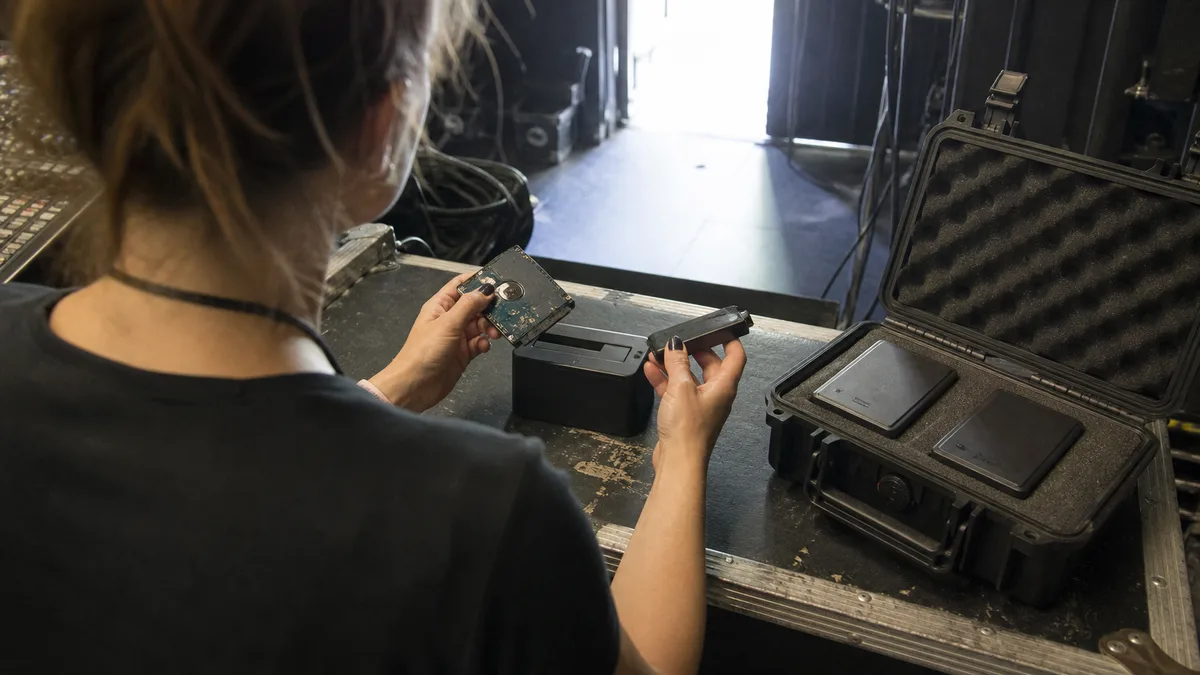
The short answer: On some portable Seagate drives, you can remove the USB bridge and connect the drive via SATA—but this only resolves a fault located upstream of the drive itself: the connector, cable, or enclosure electronics. It will not fix clicking, disappearing midway through a copy, a RAW file system, or an incorrectly reported capacity—the cause may be inside the drive, in which case every additional read attempt reduces the chances of recovery. And on models with Seagate Secure enabled, the drive is inherently unreadable outside its enclosure. Your first step should therefore be to copy the complete model number from the label on the bottom, not to reach for a screwdriver.
What the Advice „Open the Enclosure and Connect It via SATA" Quietly Assumes
That advice did not appear on forums without reason. It originated with 3.5″ external drives containing an ordinary SATA drive and a separate USB circuit board. If the board fails, the drive itself may still be fine and can simply be moved elsewhere. It works. The problem is that this experience is then applied to anything bearing the Seagate name.
The unspoken assumption behind this advice is: the drive itself is healthy, and only the component between it and the computer is faulty. That assumption does not hold for an external drive that has fallen from a desk, clicks, or disconnects midway through copying. Removing the bridge will not repair anything in such a case—it merely spins up the damaged mechanism again and gives it tens of additional minutes in which to damage itself further.
Several different internal designs have also been sold under the same product name over the years. The complete model number and revision matter, not the word Expansion or One Touch printed on the enclosure.
Expansion, Backup Plus and One Touch Are Not the Same Inside
Before taking anything apart, copy the complete model number (beginning with ST…) and serial number from the label on the bottom. The designations vary between generations, but the following table provides a rough guide:
| Series | Typical model prefix | What to check before disassembly |
|---|---|---|
| Expansion Portable (2.5″) | STEA… | Whether the drive spins up at all and how it sounds; it usually contains a 2.5″ SATA drive with an attached bridge |
| Expansion Desktop (3.5″) | STEB… | Check the power adapter first, then the enclosure—on 3.5″ models, this is the most common inexpensive fault |
| Backup Plus / Backup Plus Slim | STDR…, STHN… | The enclosure generation and whether the lock was enabled in Seagate Toolkit |
| One Touch HDD | STKB… | Whether it is a standard variant or a password-protected version |
| One Touch with Password, Backup Plus Ultra Touch | depends on capacity and revision | Whether Seagate Secure was activated—without the password, the contents remain encrypted even after the drive is removed from the enclosure |
Many standard Expansion and Backup Plus models contain a regular 2.5″ SATA drive with a converter board fitted directly to its connector. A classic example is the 5TB ST5000LM000, found in five-terabyte portable models. This is not guaranteed for every unit in the same product family, however—and it certainly does not guarantee that the drive will behave normally once removed.
Not Every Seagate Drive Is Encrypted, but Where Encryption Is Present, DIY Attempts End
Hardware encryption cannot be attributed to all portable Seagate drives across the board. It is documented primarily for security-focused variants—One Touch with Password and Backup Plus Ultra Touch—and only when the user has actually enabled security through Seagate Toolkit. A standard Expansion drive is not usually encrypted.
When encryption is enabled, however, it changes the entire situation—and two commonly confused scenarios must be distinguished.
A lost password does not in itself erase the encryption key. The data remains on the drive, but it is cryptographically locked and cannot be accessed without the password. Whether anything can still be done depends on the specific model, firmware, and the way the key is stored and protected—no outcome can be promised in advance.
Proven deletion of the encryption key is different: a successfully completed Crypto-Erase, PSID revert, or reset that actually removes the key. At that point, the data becomes unreadable noise that nobody can recover, and no laboratory can reverse this condition.
That is why we ask about the password before touching the drive at all, why it makes sense to record it somewhere now while the drive still works, and why you must not use anything resembling a „factory reset" on a secured model.
Why Advice That Applies to WD Elements Does Not Apply to a Portable Seagate
A comparison with Seagate’s main competitor is the quickest way to make sense of the differences:
- WD Elements Desktop (3.5″) — contains a standard SATA drive and a separate bridge. Moving the drive to another enclosure or connecting it directly via SATA genuinely bypasses faulty enclosure electronics.
- WD My Book (3.5″) — looks similar, but some generations and hardware revisions perform encryption directly in the USB bridge even when the user has not set a password; other versions in the same series do not. Where this applies, a drive removed from its enclosure is unreadable without its original board. You cannot distinguish it visually from an Elements, so the exact model and revision must always be checked before removing the drive.
- WD My Passport (2.5″) — the USB interface is often integrated into the drive’s main circuit board. A standard SATA connector is frequently not physically present, leaving nothing to bypass. This is explained in more detail in repairing a Western Digital HDD that is not detected.
Portable Seagate drives fall somewhere between these situations. The SATA drive can usually be separated from the enclosure—but „usually" is precisely why you cannot plan your recovery based on the brand or a photograph of the enclosure.
Then There Is SMR, Which Forum Advice Does Not Account For
Most current 2.5″ Seagate drives found in external enclosures—including the ST2000LM007, ST4000LM024, ST5000LM000, and related models—use shingled magnetic recording (SMR). Tracks overlap like roof shingles, so the drive maintains its own buffer area and a translation table between logical addresses and physical locations. The mapping is therefore not straightforward, and some recently written data may still reside somewhere other than the location indicated by its address.
This has two implications for data recovery. First, random writes can trigger internal data reorganisation on drive-managed SMR devices—a single change may cause the drive to rearrange unrelated data as well, making write behaviour unpredictable. The main reason not to run CHKDSK on such a drive lies elsewhere and applies equally to CMR and SMR: CHKDSK writes file-system changes to a potentially failing original drive. Shingled recording is simply an additional reason to avoid it. Second, after a head replacement, the drive must also be capable of reading its own service structures; otherwise, it cannot produce a consistent image. The difference between shingled and conventional recording is summarised in the CMR and SMR overview.
The mechanical design adds another challenge. Four- and five-terabyte portable Seagate drives are 15 mm thick and contain a tightly packed stack of platters—they are among the most technically demanding 2.5″ drives manufactured.
When Removing the Drive from Its Enclosure Really Helps
Bypassing the bridge makes sense when the drive is demonstrably healthy and the fault lies upstream of it:
- a broken or loose USB connector on the enclosure,
- a faulty cable,
- a failed converter board,
- a faulty power adapter on 3.5″ models (and be careful: a replacement must have the correct voltage and polarity; a random adapter from a drawer can destroy whatever was still working),
- incompatibility with a particular USB controller.
Even in these cases, however, you should not work directly with the original drive. First create a sector-by-sector image on another storage device, then perform everything else—partition searches, file-system reconstruction, and copying—from that image.
There is another trap that can cause people to lose their data accidentally when they had almost succeeded. Some USB bridges report 4,096-byte logical sectors to the computer, while the bare drive connected via SATA reports 512-byte sectors. A partition table written through the bridge is then expressed in different units from those used when it is read over direct SATA. Windows cannot find a valid partition and readily offers to initialise the drive. This does not in itself mean that the data is gone—but neither does it guarantee that the data is intact; diagnostics must determine which is true. Clicking Initialize Disk, Create Volume, or Format turns a minor misunderstanding into real damage.
The reverse is also true: a working SATA connector does not mean the drive is healthy. A reported RAW file system, nonsensical capacity, or a drive that disappears during reading may originate inside the drive—in its service area, heads, or platter surfaces—but the same symptoms can also be caused by the data path: the USB bridge, cable, power supply, or sector-size translation. Another connection attempt will not distinguish between these causes; proper diagnostics will.
When to Disconnect the Drive Immediately
Further DIY attempts make no sense if the drive:
- repeatedly clicks after a fall,
- spins up and then immediately stops,
- makes scraping or squealing sounds,
- reports zero or an incorrect capacity,
- freezes and disconnects while copying,
- has been exposed to liquid or connected during a power surge,
- prompts you to format it after connection.
Not all „clicking" is the same: a portable drive powered solely through USB may repeatedly attempt to spin up if connected to a weak port or through a thin, long cable, producing a similar sound. A simple rule therefore applies—if the drive has not been dropped or exposed to liquid and previously sounded normal, try one known-good cable and another port. Once. Do not even do that after a fall. Repeated power cycles provide no new information; they merely alter the chances of successful recovery. What to do when a drive clicks explains what happens inside the drive.
CHKDSK, Disk Utility, Recuva, and TestDisk do not diagnose a drive’s mechanical condition. CHKDSK also modifies the file-system structure and, on a drive with bad sectors, can remove references to files that might still have been partially reconstructed from a sector-level copy.
If you are unsure which category your drive falls into, leave it powered off and contact us or call 775 556 063. We diagnose and recover external drives in our own laboratory in Brno; we have also explained separately when it makes sense to bring the drive in person and when shipping it is sufficient.
What Professional Diagnostics Can Determine
The purpose of diagnostics is not merely to confirm that „the drive does not work." It must distinguish between a cable or bridge fault, an electronics fault, damaged firmware, faulty read/write heads, and surface damage—because each problem requires a different procedure and carries a different cost.
In the laboratory, the exact drive model and revision, current draw during startup, firmware identification, condition of individual heads, and sector readability are checked. Tools such as PC-3000 and DeepSpar allow reading to be controlled at a level unavailable to an ordinary computer: limiting retries on a problematic sector, reading one head at a time, skipping a damaged area, and returning to it only at the end. The aim of controlled reading is to create the most complete working copy possible, provided the condition of the medium allows it—with extensively damaged drives, producing a usable image may not be possible. The file system is then reconstructed from the working copy, never from the original.
A clean environment is required only when opening the sealed part of the drive, typically for a head replacement. A drive is not opened merely because of a broken USB connector—so the mention of a „clean room" alone says nothing about whether a service provider has chosen the correct procedure.
Include a list of priority data with your enquiry: accounting records, client projects, specific directories, databases, or photographs from a particular period. Success is not finding an arbitrary collection of old files, but recovering what you actually need.
What Determines the Cost of Recovering an External Seagate Drive
The price is determined neither by the brand nor by the capacity printed on the enclosure, but by the type of fault and the number of hours of controlled reading the drive requires. The main factors are:
- the nature of the fault — a logical error, electronics or firmware failure, head replacement, or surface damage; each level involves a fundamentally different amount of work,
- availability of a donor drive for head replacement—the model, revision, and firmware must match, and donors for 15 mm portable models are harder to source than those for standard laptop drives,
- the condition of the platter surfaces — the number of damaged areas directly determines how long cloning will take,
- shingled recording, which prolongs recovery because of the drive’s translation structures.
Indicative price ranges by fault type are available in our article on how much hard-drive data recovery costs. Nobody can provide an exact figure before diagnostics, however—and before approving the work, you should know the fixed price, scope, cost of any donor drive, and the terms that apply if recovery is unsuccessful.
What to Ask Before Handing Your Drive Over
- Will diagnostics be performed first without writing a single byte to the original drive?
- Will the service provider create a sector-level copy and continue working from it?
- Will the drive be handled in the provider’s own laboratory, or will the job be outsourced?
- Will I receive a fixed price before work begins, rather than afterwards?
- What exactly does „no data, no fee" mean in your terms, and which data determines whether the recovery is considered successful?
- Can I review a list of recovered files before paying?
- How are confidentiality, GDPR, and the deletion of working copies after delivery handled?
- Will I get the original drive back?
Ask for the answers in writing. Not because you should expect the worst, but because it is difficult to argue after diagnostics about what was meant by a „successful recovery."
Frequently Asked Questions
Can a Seagate Expansion Drive Be Removed from Its Enclosure and Connected via SATA?
With many versions, yes—but not with every revision. The complete model number on the label must be checked first. After a fall, when the drive clicks, or when reading is unstable, however, this serves no purpose—direct SATA will not remove such a fault; it will only add further read attempts.
Are All External Seagate Drives Hardware-Encrypted?
No. Encryption is documented primarily for security-focused variants such as One Touch with Password and Backup Plus Ultra Touch, after security has been enabled in Seagate Toolkit. A standard Expansion drive cannot automatically be assumed to be encrypted—or automatically assumed to be unencrypted—until you know the exact model.
Why Does the Drive Appear Uninitialised After It Is Removed from the Enclosure?
One possible cause is a difference in logical sector size between the USB bridge and direct SATA—the partition table is then expressed in different units from those used by the system to read it, so no valid partition is found. The same symptom can also be caused by encryption in the bridge, a damaged partition table, or a physical drive fault. These causes cannot be distinguished without knowing the specific bridge and drive model. Do not initialise the drive, confirm volume creation, or format it; have its condition assessed through diagnostics instead.
What Should I Do If Windows Offers to Format the Drive?
Decline, do not initialise the drive, and do not run CHKDSK. Disconnect it and perform any further work on a sector-level copy, not on the only original. Writing is additionally risky on shingled drives compared with conventional ones.
Is It Worth Trying Another USB Cable?
Once, yes—provided the drive has not been dropped or exposed to liquid and is not making unusual sounds. On 3.5″ models, checking the power adapter follows the same logic. As soon as the drive clicks, repeatedly spins up, or disappears midway through reading, stop trying and leave it powered off.
Where to find us
ITHOPE is a company based in Brno, Czechia: we do data recovery from disks, RAID and NAS, PC and laptop service and IT for business, all in our own lab at Viniční 3587/216, 615 00 Brno.
Phone +420 775 556 063 (24/7 line). You can bring the device in person, or send it by courier (Zásilkovna, PPL).