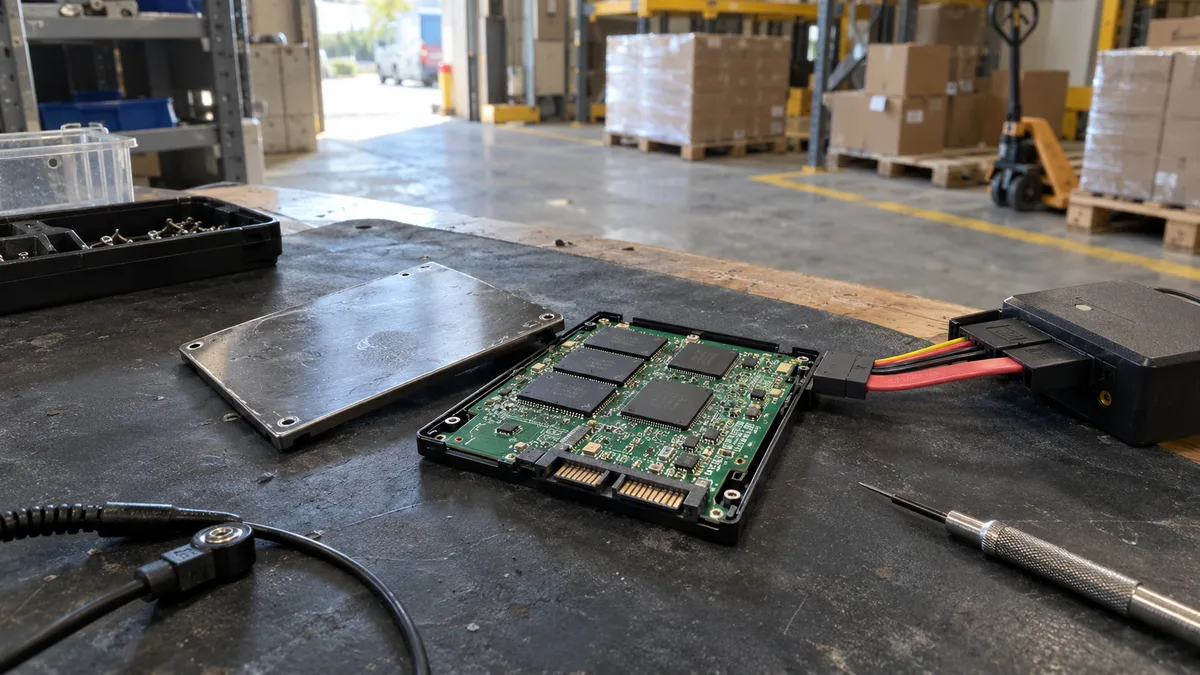
The short answer: A
SATAFIRM S11message means that the Phison controller—typically a PS3111-S11—has failed to load its firmware or translation table and switched to emergency mode. This is why the SSD shows a capacity of 0 MB or just a few megabytes. The data is usually still present in the NAND memory chips. If you need it, turn off the SSD and do not flash its firmware or run MPTool, Secure Erase, or disk initialization. The safe approach is to use the controller’s technological mode and a virtual translator in a laboratory.
How to identify a SATAFIRM S11 failure
Instead of the drive’s actual name, the computer displays SATAFIRM S11 in the BIOS or Device Manager. This fault is known to affect certain revisions of drives such as the Kingston A400, Silicon Power S55, and other lower-cost SATA SSDs. The reported capacity is usually 0 MB or just a few megabytes. No usable volume appears in Windows.
| What you see | What it probably means | Safe next step |
|---|---|---|
The name SATAFIRM S11 | The Phison controller is running in emergency (SAFE) mode | Turn off the computer |
| Capacity of 0 MB or a few MB | The controller failed to load its configuration and translator | Do not initialize the drive |
| The SSD appears in the BIOS but not in File Explorer | The interface responds, but user data is not mapped | Do not format it or run CHKDSK |
| Windows offers to initialize the drive | The system cannot see a valid partition table | Click Cancel |
| The computer freezes while detecting the drive | The controller repeatedly fails during startup | Do not reconnect the SSD |
SATAFIRM S11 is not a drive brand. It is a generic identifier used by controllers in the Phison PS3111-S11 family when they cannot start their own firmware. The same controller can be found in SSDs from different manufacturers, and even the same product line may contain several hardware revisions.
Why the SSD no longer knows its own capacity
An SSD controller does much more than communicate with the computer. It also manages the Flash Translation Layer (FTL): a table that tells the controller which physical NAND page contains each logical sector seen by Windows. Without it, the controller cannot locate, for example, the sector containing an accounting database.
The firmware, NAND configuration, and translation tables are stored in the same chips as your data. If the service area cannot be read, the controller starts only in a minimal mode and reports a generic name and substitute capacity to the computer. The actual user area remains hidden.
The problem is often triggered by a power failure while service data is being written or by NAND wear that causes the error rate in the service area to exceed the capabilities of its error-correction codes. The message alone, however, does not prove exactly what caused the failure.
Repairing the SSD and recovering data are two different goals
Online guides and videos promise that reflashing the firmware will restore the drive’s correct name and capacity. That may work if your goal is to return an empty device to service. For data recovery, it is the worst possible first step.
| Goal | Typical procedure | What happens to the original data |
|---|---|---|
| Use the SSD again | MPTool, new firmware, initialization, new translator | The original mapping is overwritten and the data is generally lost |
| Recover the data | Preserve the original state, load a temporary loader into RAM, build a virtual translator, read the data into an image | Nothing is written to the faulty SSD |
A firmware tool is considered successful when the SSD becomes visible again. Data recovery is successful when the original files can be opened. These are not the same thing.
What not to do if you need the data
- Do not run Phison MPTool, PhisonToolBox, or similar utilities downloaded from online forums. They perform low-level initialization and create new service structures.
- Do not install firmware based on the SSD’s product name. The same product line may include several controller and NAND revisions.
- Do not use ATA Secure Erase. It is not a repair but an erasure operation: according to Phison, Secure Erase removes the LBA mapping table, data, operating system, and partitions (Phison: Secure Erase).
- Do not click Initialize in Disk Management or create a new partition. Do not format the drive or run CHKDSK.
- Do not keep testing the SSD in other computers or USB enclosures. A USB adapter cannot provide access to the controller’s technological mode, and repeated startups will reveal nothing new.
Ordinary cloning does not write to the source drive, but if the SSD reports a capacity of 0 MB or 2 MB, it will copy only the area exposed by the faulty controller. The user area remains inaccessible until the translator is reconstructed. For a general comparison, see Why data recovery from an SSD is harder than from an HDD.
How laboratory data extraction works
The exact procedure depends on the controller revision, firmware, and installed NAND chips. For a supported PS3111-S11 variant, the process generally looks like this:
- A technician identifies the actual controller and NAND chips and checks the electrical condition of the board. The label on the case is not enough.
- The SSD is connected directly to a laboratory interface rather than through USB.
- A temporary loader is uploaded to the controller’s RAM. Nothing is written to the drive, and the loader disappears when the power is turned off.
- A virtual translator is built from the surviving service data, restoring the mapping between physical pages and logical sectors.
- The accessible data is read into a working image. File-system repairs are performed on the copy.
- Priority files—databases, documents, email, and project data—are checked before delivery. A list of filenames alone does not prove that the files can be opened.
This procedure—SAFE mode, loader upload, translator reconstruction, and extraction—is also described by PC-3000 laboratory equipment manufacturer ACE Lab, which states that its tool supports all PS3111-S11 modifications (ACE Lab: PC-3000 SSD Phison).
Not every SSD bearing the Phison name has the same architecture. Our case involving a Phison SSE128GTTCR-S80 with two controllers in an internal RAID 0 illustrates this. It was not a SATAFIRM S11 failure, but it is a good example of why the correct procedure cannot be determined from the logo on the label.
When the data can no longer be recovered
The outcome cannot be predicted from the SATAFIRM S11 message alone. It depends on the condition of the service data and NAND chips, as well as any previous attempts to repair the drive:
- After MPTool or firmware reflashing, the original translator may be irretrievably lost.
- After Secure Erase, the data cannot be recovered, even in a laboratory.
- TRIM and garbage collection: files deleted or released by formatting before the drive failed may already have been physically erased by the controller. This does not apply to data that was still in use when the failure occurred.
- Encryption: BitLocker requires the recovery key. Without it, the recovered sectors will remain unreadable.
- Physically degraded NAND: pages whose error rate exceeds the capabilities of the error-correction codes can no longer be read reliably.
How much does the diagnosis cost?
A standard initial diagnosis of an ordinary SSD may be free. A firmware failure such as SATAFIRM S11 is an unusual case, however, and the diagnosis may cost CZK 1,210 including VAT (CZK 1,000 excluding VAT). You will be told in advance, before we do anything to the drive. The data recovery price list gives indicative recovery costs; the exact price is determined after diagnosis based on the controller type and the amount of work required.
The diagnosis should answer four questions: is the drive genuinely in SATAFIRM S11 mode, which controller and NAND chips does it use, can a virtual translator be built without writing to the SSD, and which data should be prioritized? An offer to „upload the firmware and see what happens" is not suitable for data recovery.
What to do right now
Disconnect the SSD and make a note of what happened before the failure, such as a power outage, system freeze, or update. Photograph the label and the BIOS message, but do not turn the drive on again just to take more pictures. List the data that matters most and check the latest backup on another device. If you use BitLocker, look for the recovery key in your Microsoft account, Entra ID, or Active Directory—not on the faulty SSD.
If you do not have a backup, send us the details through the data recovery contact form. You can deliver the drive to our Brno laboratory in person or by post. An overview of our SSD services is available on the SSD data recovery page. If the failed drive is not a SATA device but an M.2 NVMe SSD, continue with M.2 NVMe SSD not detected in the BIOS or Windows.
FAQ
Can SATAFIRM S11 be repaired without losing the data?
The data can often be accessed using a temporary loader and a virtual translator. This is not an ordinary firmware repair, however, and the outcome depends on the controller revision and the condition of the NAND chips and service data.
Will a firmware update from the SSD manufacturer help?
Do not run it if you need to recover the data. The update assumes that the drive is functioning and may overwrite structures needed to reconstruct the original mapping.
I have already used MPTool. Is there anything else worth trying?
Disconnect the SSD and record the name and version of the tool, the firmware used, and what happened during the operation. The chances of recovery are lower, but only a diagnosis can determine what the tool overwrote. Further flashing will not help.
Is the data still in NAND if the SSD shows 0 MB?
Usually, yes. The incorrect capacity reflects the state of the controller, not the contents of the memory chips. It does not automatically mean, however, that every page can still be read.
Is SATAFIRM S11 the same as an undetected NVMe SSD?
No. SATAFIRM S11 relates to Phison SATA controllers. M.2 describes only the drive’s physical form factor and may carry either SATA or NVMe; NVMe uses a different protocol, different controllers, and different diagnostic procedures.
Where to find us
ITHOPE is a company based in Brno, Czechia: we do data recovery from disks, RAID and NAS, PC and laptop service and IT for business, all in our own lab at Viniční 3587/216, 615 00 Brno.
Phone +420 775 556 063 (24/7 line). You can bring the device in person, or send it by courier (Zásilkovna, PPL).