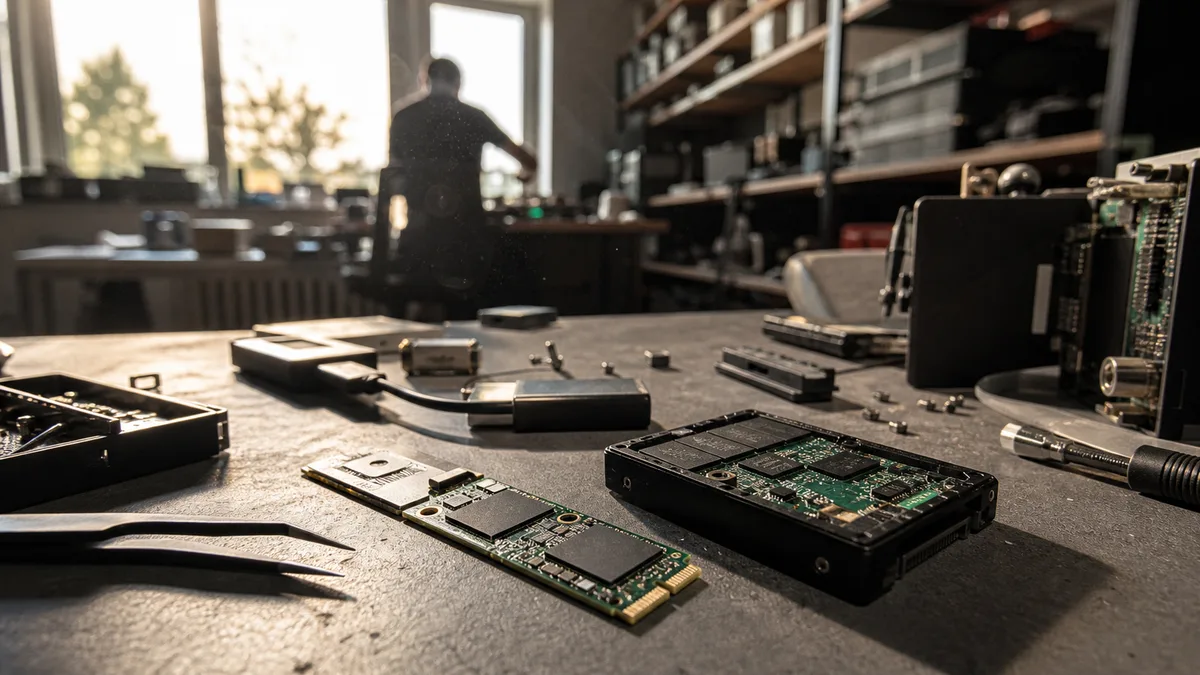
The short answer: If an SSD has vanished from the system or you’ve accidentally deleted important data, power the computer off — an SSD runs its memory housekeeping even without your involvement, and the TRIM command marks deleted blocks as invalid so the internal cleanup can physically erase them before you have a chance to react; the timing is set by the controller and can’t be predicted. Don’t format, don’t initialize, don’t run CHKDSK and don’t update the firmware; every write and every additional start lowers the chances of recovery. Data isn’t read directly off an SSD’s memory chips — without the controller’s translation tables the raw NAND pages are an unassemblable mosaic, which is why an unstable or undetected drive belongs in diagnostics, not under a recovery program.
With a hard drive there was a simple rule: a deleted file is usually still there until you overwrite it. With an SSD that rule doesn’t hold. The drive has its own control logic that moves, rewrites and erases data on its own — regardless of what the operating system thinks about it. This article explains why recovery from an SSD is a different discipline, when it stands a real chance and when it’s genuinely too late.
What to do immediately when an SSD fails
Power the device off. Not sleep, not close the lid — power off.
The reason is specific: a running system writes to the SSD even while you’re not working with it. The file system journal, indexing, telemetry, updates, the page file. On top of that the SSD controller runs garbage collection in the background — cleaning up blocks marked as invalid. Whereas with an HDD time works in your favor, with an SSD even an idle keyboard works against you.
What to stick to:
- Power off the computer — a hard shutdown if the system hangs during a clean one.
- Don’t initialize the drive in Disk Management and dismiss every prompt to format it.
- Don’t run CHKDSK,
fsckor macOS First Aid — they repair by writing. - Don’t install a recovery program onto the same SSD you want to recover from.
- Don’t update the firmware — flashing firmware on a drive with damaged tables can finish off what data is left.
- Don’t perform a Windows factory reset; on a company laptop that’s often the final nail.
- Don’t try repeatedly powering on and off in the hope that „it’ll come up on the umpteenth try."
If the SSD is still readable and it’s just an accidentally deleted folder, time is of the essence — but even then the rule holds that files aren’t recovered back onto the original medium. First a sector-by-sector image elsewhere, then work over the copy.
Why an SSD is a different discipline than an HDD
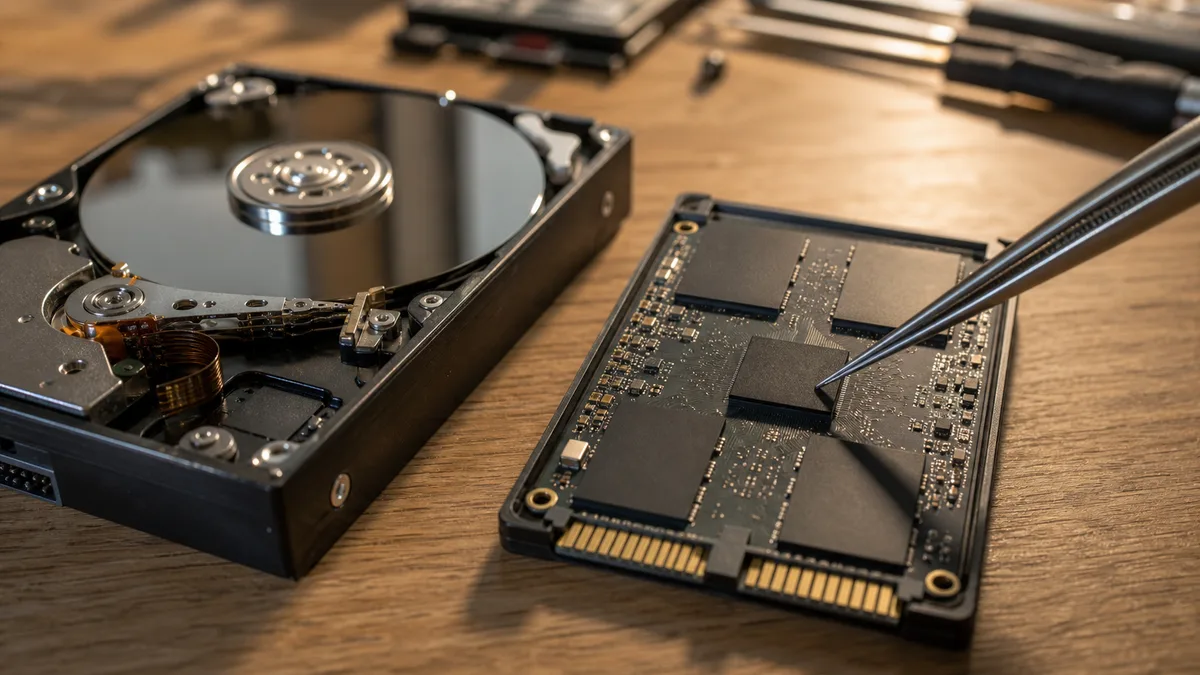
An HDD stores data magnetically on spinning platters, and a sector’s logical address corresponds to its physical place on the platter. When the electronics fail or the read heads get damaged, the sectors on the platters remain — which is why mechanical faults are addressed by swapping the electronics or the heads, and the data can be read out. The article on recovering data from a damaged HDD covers this in more detail.
With an SSD no such link exists. Between the operating system and the memory chips sits the controller, and within it the FTL (Flash Translation Layer) translation layer, which maps logical addresses onto physical NAND pages. The map changes continuously, because the controller has to:
- level out wear (wear leveling) — NAND cells withstand a limited number of erase cycles, so the controller spreads writes across the whole chip;
- clean up blocks — NAND is erased in whole blocks, not in pages, so valid data is moved elsewhere before a block is erased;
- correct errors — ECC redundancy is stored with each page, typically LDPC on more modern TLC and QLC memory;
- interleave data across multiple NAND chips and channels for throughput.
Many controllers also transform data before writing it — scrambling is common (to keep long identical patterns from repeating in the cells) and, on drives that support SED, transparent hardware encryption as well.
The practical consequence: desoldering the memory chips and reading them with a programmer is only the first step. You get a binary mush that has to be reassembled according to the logic of the specific controller and specific firmware version — undoing the interleaving, computing the ECC, reversing the scrambling, reconstructing the FTL map. For widespread platforms (Phison, Silicon Motion, Marvell, SandForce) the procedures are mapped out for many revisions. For proprietary controllers — typically Samsung, Apple, and WD/SanDisk in-house designs — reading from the chips tends to be heavily limited or unfeasible.
What TRIM does and why it changes the rules
When you delete a file on an HDD, the system usually just marks the space as free. The data stays put until you overwrite it — and that’s exactly what classic recovery programs rely on.
With an SSD the operating system sends the drive a TRIM command (on NVMe it’s called Deallocate). This tells the controller that certain logical blocks are no longer needed. The controller ticks them off as invalid and physically erases them at the next internal cleanup. Many SSDs then return zeros when those addresses are queried — provided the drive supports deterministic read after TRIM (ATA DRAT/DZAT, or the declared behavior after Deallocate on NVMe). But it isn’t mandatory: the behavior is optional, and on some drives the original data still comes back for a while.
It’s not a matter of seconds, nor of certainty. It depends on whether TRIM is active at all, on the file system, on how the drive is connected, and on when the controller runs the cleanup. A few rules that follow from this:
- TRIM doesn’t pass through most USB-to-SATA adapters unless the bridge supports the UASP protocol with command pass-through; an external SSD in a cheap enclosure can therefore behave more like an HDD.
- On a hardware RAID array TRIM often doesn’t work at all.
- A sector-by-sector copy fills the whole drive, so afterward the state is substantially different than before.
The takeaway for the user is simple: deleted data on an active SSD can disappear for good before you even manage to download recovery software.
And beware false hope. A recovery program may show you the original file names, the directory structure and the sizes — because the file system metadata sits somewhere other than the content. That doesn’t mean the content is still in NAND memory, though. The typical result after TRIM: files of the right size full of zeros.
When recovery stands a chance and when it’s too late
What decides isn’t the drive’s brand but the type of fault and what happened to the drive after the incident.
| Situation | What it means for recovery |
|---|---|
| The SSD is visible, data was just deleted | TRIM and continued use decide it. Power off immediately, deal with an image. |
| A partition vanished, capacity reported correctly | Most likely a damaged file system or partition table. Don’t initialize, don’t repair. |
| The drive reports as 0 GB, with the wrong capacity or a controller name | Service / safe mode, damaged firmware or tables. Ordinary software won’t help. |
| The SSD isn’t visible in the BIOS/UEFI | Power, electronics, controller, firmware and NAND. Repeated starts make it worse. |
| The laptop boots after a spill but the drive doesn’t | Don’t boot it again. Corrosion and short circuits keep progressing until the board is cleaned. |
| A Secure Erase or factory reset was performed | Usually the end. It was deliberate data removal — on SED, the discarding of the encryption key. |
| The drive kept being used after deletion | New writes and internal cleanup sharply reduce the chances. |
| The data was overwritten by new files | The original content can’t be reconstructed from an overwritten cell. |
A paradox that surprises people: with a failed controller the odds tend to be better than with a deleted file on a working drive. The data in the NAND chips often exists; the drive simply can’t offer a standard route to it. Whereas after TRIM and cleanup it’s physically gone.
SATA, NVMe and chips soldered to the board
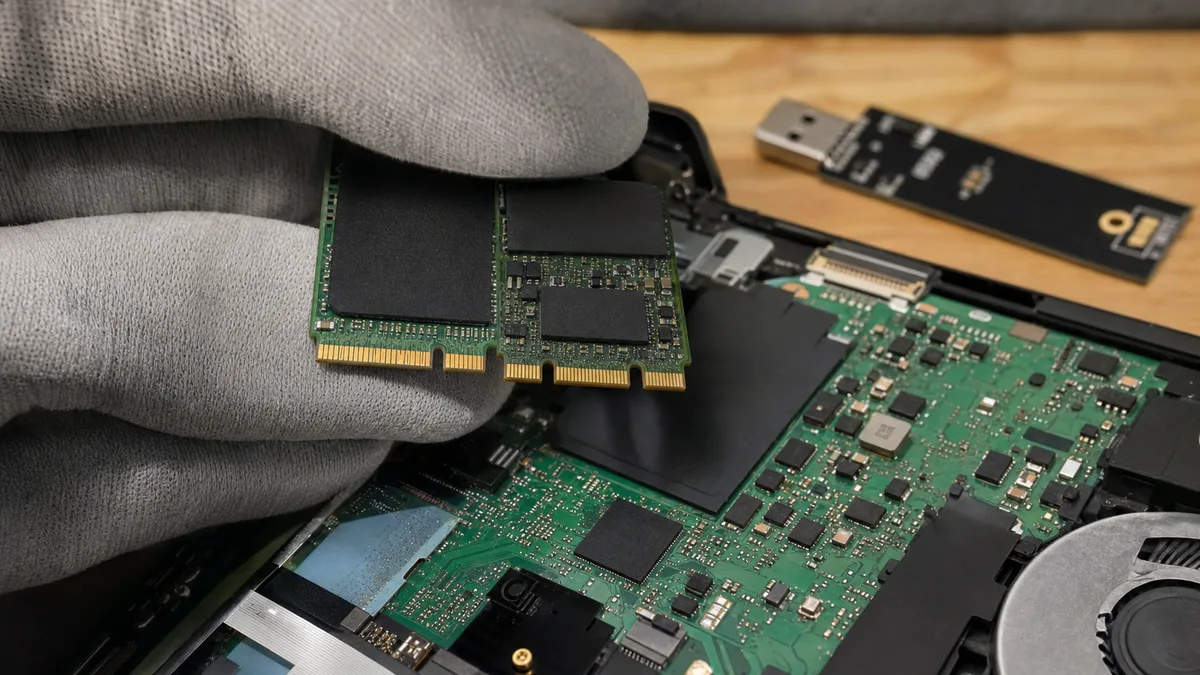
The device’s construction decides what’s even technically on the table.
A classic 2.5” SATA SSD can be removed and connected to diagnostic equipment like any other drive. With M.2 you already need to look carefully: the same connector can carry either a SATA or an NVMe module, and these are two entirely different protocols. A cheap USB adapter intended for a SATA M.2 drive won’t communicate with NVMe at all — and it’s easy for the user to conclude the SSD is dead when it’s actually fine.
With eMMC and UFS storage in cheaper laptops, tablets and mini PCs, the memory is soldered directly to the motherboard. The drive can’t be removed; you first have to diagnose the power rails and the board, and only then deal with the storage itself. On Apple devices with integrated storage and a Secure Enclave chip, the link between the memory and the board is cryptographic — swapping the motherboard will get the computer running, but it won’t make the data on the original chips accessible.
You run into a similar principle with external drives too: on a number of portable Western Digital units the encryption is tied to the controller in the enclosure. The „pull out the platters/chips and read them elsewhere" approach doesn’t work there. The article on what to do when an external drive won’t load covers the background.
Why „I’ll buy the same SSD and resolder the controller" doesn’t work
With an HDD, in some cases you work with compatible donor electronics and transfer the unique service data from the original ROM. With an SSD the situation is different for three reasons.
The same commercial name doesn’t mean the same hardware. Manufacturers routinely change PCB revisions, firmware versions, the NAND type and even the controller itself over a production run without changing the product name. Two units bought half a year apart may be different drives on the inside.
The controller isn’t a dumb bridge. It holds the FTL map, the bad-block table, wear statistics and, on SED, key material as well. That data is unique to the specific unit. A foreign controller doesn’t know it and can’t compute the map.
The intervention costs more than it yields. An amateur reflow of a BGA package tears off the solder pads or damages the PCB — and what was solvable turns into what isn’t.
When DMDE, R-Studio or UFS Explorer make sense
Software like DMDE, R-Studio, UFS Explorer or TestDisk has its place — with a logical fault on a reliably readable drive. That means: the SSD is detected reliably, reports the correct capacity, doesn’t vanish during reading and shows no dropouts.
Even then, don’t start by scanning the original. The correct procedure is to create a sector-by-sector image onto another medium and do all the analysis over the copy. The target medium must have enough space and absolutely must not be the same SSD.
Don’t use consumer software if:
- the drive vanishes during reading or the system hangs when it’s connected;
- the reported capacity doesn’t match reality;
- the SSD doesn’t show up in the BIOS/UEFI;
- it’s the only copy of accounting, projects or customer data;
- you need to preserve the evidentiary value of the data;
- the laptop uses BitLocker and you don’t have the recovery key.
The last point is worth stressing. No recovery, however good, will save an encrypted volume without the key — all you’ll pull off the drive is encrypted ballast. Where to look for the recovery key is described in the article on BitLocker and the recovery key.
What professional diagnostics establish
Diagnostics shouldn’t end with the sentence „the drive is faulty." They should tell you what type of fault was found and what that means for the next steps.
On a readable SSD, what’s checked is communication stability, device identification, reported capacity, file system state and whether an image can be safely created. On an unreadable one, the power, electronics, the controller’s service state, firmware version and the options for access via specialized equipment are examined.
Depending on the findings, the options then include:
- securing the drive against further writes;
- access via the controller’s service mode and work with the firmware;
- controlled reading of an unstable SSD with limited load;
- repair of the power sections and electronics;
- direct reading of the NAND chips, if the platform allows it;
- reconstruction of the interleaving, ECC and translation tables;
- file system recovery and a check that the resulting files are usable.
The output shouldn’t just be a count of items found. With company data it’s essential to verify that the key databases, accounting files, documents and project data open — not that „something was found."
What determines the price
The price isn’t derived from the capacity on the label. What decides is the type of fault and the amount of work needed to obtain usable files. A logical recovery from a stably readable medium is cheaper; work with damaged firmware, electronics, a proprietary controller or direct NAND reading is more expensive. Donor components, microsoldering, long controlled reads and reconstruction from multiple chips can enter into the price.
Before you order, have them explain:
- whether the diagnostics are paid;
- whether you’ll get a price quote before recovery begins;
- what the provider considers a successful recovery;
- whether the list and state of the important files can be verified in advance;
- whether the price includes the target drive;
- what you’ll pay if the requested data can’t be obtained.
The general pricing factors and the difference between diagnostics and recovery are covered in the article how much data recovery from a drive costs.
How to recognize a quality service for company data
Ask about the specific procedure, not about a percentage „success rate." Without diagnostics no one can honestly promise the data will be recovered — anyone who promises that over the phone is promising something they can’t know.
The provider should be able to tell you whether they’re dealing with a logical fault, firmware, electronics or NAND. And to explain how they protect the original medium and where they store the working copies.
For company jobs, address these on top of that:
- confidentiality and the extent of the technicians’ access to the data;
- encrypted transfer or handover of the result;
- how long the working copies are kept and their secure deletion after handover;
- a receipt record for the device taken in;
- the priority of specific folders and files;
- the option to issue documentation for an insurer or an internal incident.
Beware an offer that automatically assumes a complete repair of the drive. The goal of data recovery isn’t to return the SSD to service. The goal is to safely retrieve the data and store it on another, reliable medium.
What to prepare before handing it over
Write down exactly what happened and what steps have already been taken. The technician needs to know whether the data vanished after an update, a system crash, formatting, a spill or repeated repair attempts — and in what order.
Also prepare:
- the whole laptop, if the storage is soldered or integrated;
- the power adapter for an unusual device;
- the user account password, if it’s necessary for checking the data;
- the BitLocker recovery key or other encryption details;
- a list of the most important folders and file types;
- information on whether the data may contain personal or confidential details.
Set the priorities in advance. An accounting database of a few gigabytes usually has more value to a company than hundreds of gigabytes of installers and videos that can be downloaded again.
How to avoid it next time
Don’t put a recovered SSD back into service as your only storage. Data recovery isn’t confirmation that the drive is reliable again — it’s a one-off result under specific conditions.
Back up company laptops automatically to separate storage. At least one copy must be protected from deletion, ransomware and user error. Cloud sync on its own isn’t a backup: when you delete or encrypt a file locally, the sync dutifully carries that change over. The practical setup of multiple copies is covered in the article on an external HDD as your only backup and the 3-2-1 rule.
After recovery, verify three things: where the BitLocker recovery keys are stored, who’s responsible for checking the backups and what the procedure is when a device fails. Ideally before you need them.
FAQ
Can deleted data be recovered from an SSD?
Sometimes yes, but TRIM and subsequent use of the drive decide it. If the controller has already internally erased or overwritten the marked blocks, an ordinary scan won’t bring the original content back — it’ll return files of the right size full of zeros.
Does it help to remove the SSD and connect it over USB?
Only for some logical faults, and you have to use an adapter matching the interface — SATA or NVMe. With an unstable or undetected SSD, every additional power-on is a risk, and over a USB adapter you also lose part of your diagnostic options.
Does it make sense to swap the electronics for the same SSD model?
Usually not. The same commercial name doesn’t guarantee the same internal components, and the data layout map is tied to the original controller and firmware of the specific unit.
Can data be recovered from an SSD encrypted with BitLocker?
Yes, provided sufficiently complete data can be obtained and you have the correct recovery key or other necessary access credentials. No recovery service can substitute for a missing cryptographic key.
When is it usually too late?
Typically after data has been overwritten, after a Secure Erase, after the encryption key has been discarded, or after the internal erasure of blocks following TRIM has completed. Without diagnostics, though, the state can’t be reliably determined just from the fact that an ordinary program found nothing.
Where to find us
ITHOPE is a company based in Brno, Czechia: we do data recovery from disks, RAID and NAS, PC and laptop service and IT for business, all in our own lab at Viniční 3587/216, 615 00 Brno.
Phone +420 775 556 063 (24/7 line). You can bring the device in person, or send it by courier (Zásilkovna, PPL).