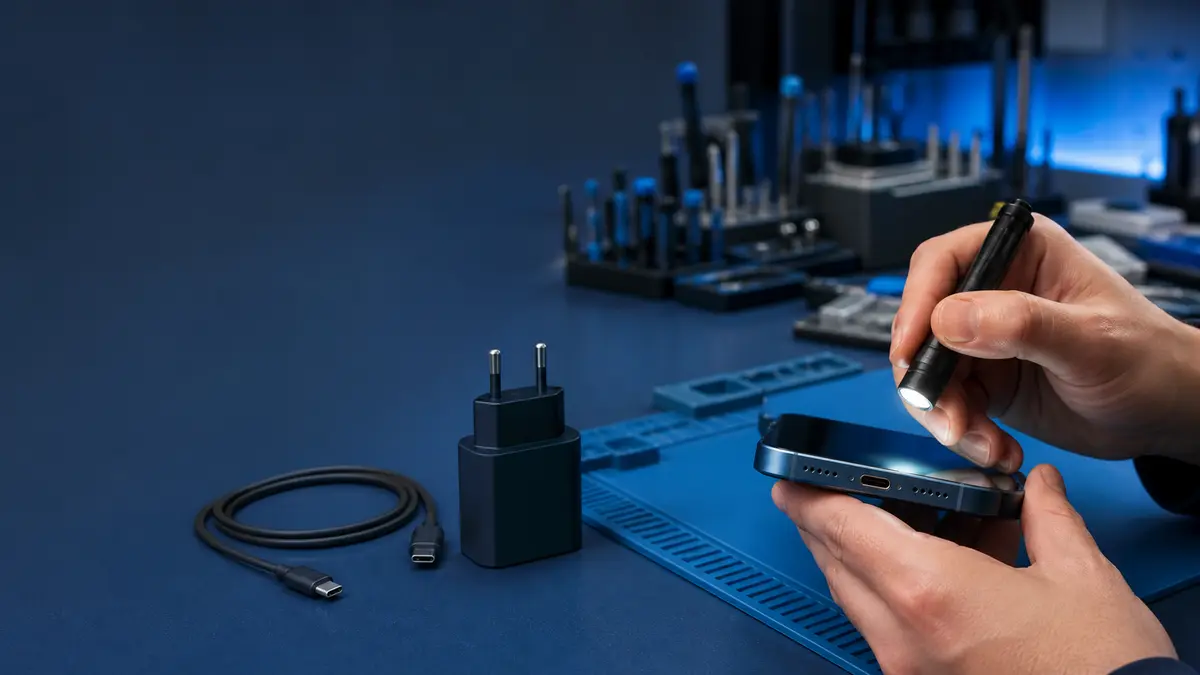
The short answer: Always change just one thing at a time: the wall outlet, adapter, cable, and then the charging port. If the phone charges wirelessly but not by cable, the problem is likely somewhere along the wired charging path—but that still does not necessarily mean the port is faulty. Suspect the battery instead if the percentage jumps, the iPhone shuts down or restarts under load, or its casing begins to deform.
Start with a test that requires no disassembly
Randomly swapping between three chargers and two cables usually proves nothing. Perform a short comparison test, changing only one variable at a time:
- Plug the adapter directly into another wall outlet you know works, rather than an extension lead.
- Keeping the same adapter, try another compatible cable that you know charges a different device.
- Then keep the cable and replace the adapter with a compatible one.
- On a model that supports wireless charging, check whether it starts charging on a known working pad without a thick case.
- If the phone has discharged completely, leave it connected for at least half an hour. A black screen during the first few minutes does not necessarily mean the logic board is dead.
A cable can be broken internally while looking flawless from the outside. USB‑C cables are not all the same either: a cable may transfer data reliably but have a damaged power conductor or connector. The test result is meaningful only if the replacement cable and adapter have been confirmed to work with another device.
When the port is the likely cause
A clogged port often feels like a loose connector. Compressed pocket lint can form a firm layer at the bottom, preventing the plug from seating fully. Typical symptoms include:
- the connector no longer stays in position as it used to,
- charging starts only when you push or tilt the cable,
- one cable keeps disconnecting while wireless charging works,
- a computer cannot detect the phone over the cable, although wireless features work normally.
Inspect the port under good lighting. Turn the phone off first. If there is only a loose, dry speck inside, you can remove it very carefully with a dry, non-conductive tool. Do not use a needle, paper clip, liquid, or compressed air at close range. Metal can short-circuit or damage the contacts, while liquid can carry debris deeper into the port.
Stop cleaning as soon as you see a bent contact, corrosion, movement of the entire connector, or evidence of liquid exposure. At that point, the phone needs diagnosis rather than maintenance. Port designs vary between generations, and replacing the port is not the same standalone procedure on every model.
A liquid-detection warning is not an invitation to use a hair dryer
An iPhone may disable wired charging when it detects moisture in the connector. Disconnect the cable, leave the phone in a dry, well-ventilated place with the connector facing down, and give it time. Apple specifically advises against putting the phone in rice, applying an external heat source, or inserting foreign objects into the port.
An emergency override of the warning is available, but it should be used only when turning the phone on is more important than the risk of damage. In normal circumstances, waiting is safer. If the warning repeatedly appears with a completely dry phone and several different cables, the connector may be dirty or damaged.
Signs of a worn or faulty battery
Slow charging alone does not prove that the battery is at fault. iOS limits charging current when the temperature is high, Optimized Battery Charging is active, or a low-power adapter is being used. A battery fault is more likely when several other symptoms occur together:
- the iPhone shuts down while the battery still shows tens of percent remaining,
- the percentage changes abruptly after a restart,
- the device restarts while using the camera, navigation, or another demanding feature,
- Battery Health recommends service,
- the phone discharges quickly even when idle,
- the display or back cover is lifting.
The last symptom is a safety issue. Do not charge a swollen battery, press the phone back into shape, or carry it tightly packed in a bag. If Battery Health has merely fallen below 80% but the device is not deformed, the decision guide in our article on whether to replace the battery or buy a new iPhone may help.
What it means when wireless charging works
Working wireless charging confirms that the phone can receive power by another route. However, it does not automatically mean that the port needs replacing. The cable or adapter may still be faulty, or debris or a poor contact may be present in the connector. Only a power-draw measurement and port inspection can distinguish an inexpensive cause from the need to replace an assembly or repair the logic board.
The opposite shortcut is equally unreliable. If neither wireless nor wired charging works, the cause could be a fully discharged or faulty battery, damage from a fall or liquid, or a fault in the power circuit. Replacing the battery without diagnosis is an expensive guess.
When to stop testing the phone at home
Take the phone to a repair shop without further testing if it becomes unusually hot, emits an odor, deforms, has been exposed to liquid, has a mechanically damaged port, or disconnects while charging with every verified cable. The same applies if the camera or cellular reception deteriorated after a fall—a single impact can damage more than the connector.
At ITHOPE, we individually assess out-of-warranty hardware repairs for the iPhone 12 and newer. We are not an Apple Authorized Service Provider, and we refer warranty claims to the authorized service network. For out-of-warranty phones, we first determine whether the fault lies in the cable, port, battery, or power electronics. We provide a price only after confirming the fault and model. Submit a diagnostic request through our Apple service page; we do not promise repairs while you wait or provide conclusions without inspecting the device.
What a repair shop should measure before ordering a part
Proper diagnosis should not end with „we cleaned the port, so let us see what happens." A technician should compare the phone’s behavior using a verified power source and cable, inspect the connector’s mechanical condition, and monitor the phone’s power draw in different states. Only the combined charging-current profile, system responses, and battery condition can show whether power is being lost at the cable, port, battery, or power electronics.
The alignment of the frame is also important after a fall. The connector may appear intact while mechanical stress has damaged its mounting or connection. After liquid exposure, the phone should be checked for corrosion; replacing only the visibly affected component without inspecting the surrounding area can leave the underlying cause inside.
Before approving the repair, ask for written details of:
- the confirmed fault and the part to be replaced,
- whether the quote includes labor, seals, and final testing,
- the part’s origin and the expected entry in Parts and Service History,
- what will happen if damage to the logic board or frame is discovered after opening the phone,
- the warranty covering the part and labor.
This allows you to compare two quotes by the expected outcome rather than price alone. We explain a similar distinction between genuine and unverified parts in our article about iPhone screen replacement.
After the repair, charging should be tested with several cables, both while idle and under normal load. The connector should stay securely seated without sideways pressure, the battery percentage should actually increase, and the port should not become excessively hot. If a supported battery was replaced, Parts and Service History and Battery Health should also be checked. This final test should be part of the agreed repair work; it should not be passed on to the customer with the words, „come back if there is a problem."
On a USB‑C model, it is also worth testing the data connection to a computer separately. The connector may accept power while having damaged data-transfer contacts, so the charging icon alone does not confirm that the port is fully functional.
We accept phones without the passcode
Before handing over the phone, back it up if it still works and note the exact model and which cables you tested. Do not provide the device passcode or passwords for your Apple Account, banking, or business applications. We perform hardware tests without accessing your content; we complete checks requiring the phone to be unlocked together with you when you collect it.
If repairing a supported part requires Repair Assistant, the customer will run it on their own phone with an up-to-date version of iOS, a Wi‑Fi connection, and more than 20% battery charge. We do not offer mobile phone data recovery. If the phone cannot be turned on and contains the only copy of important data, do not order a standard repair expecting the data to be recovered.
Frequently asked questions
Can a cable be faulty even if it shows no visible damage?
Yes. A conductor or contact may be damaged internally. Compare it with a known working cable while using the same adapter, outlet, and phone.
If the connector works only at an angle, is cleaning enough?
Sometimes, if compressed debris is preventing it from seating fully. However, if the port itself moves, the contacts are bent, or there is corrosion inside, further cleaning at home may make the damage worse.
Does working wireless charging mean the Lightning or USB‑C port is faulty?
No. It only narrows the fault down to the wired charging path. You still need to rule out the cable, adapter, and debris before assessing the port itself and the electronics.
Sources
- Apple: If your iPhone or iPod touch won’t charge
- Apple: Liquid-detection alert on an iPhone connector
- Apple: Use Repair Assistant to finish an iPhone or iPad repair
Where to find us
ITHOPE is a company based in Brno, Czechia: we do data recovery from disks, RAID and NAS, PC and laptop service and IT for business, all in our own lab at Viniční 3587/216, 615 00 Brno.
Phone +420 775 556 063 (24/7 line). You can bring the device in person, or send it by courier (Zásilkovna, PPL).