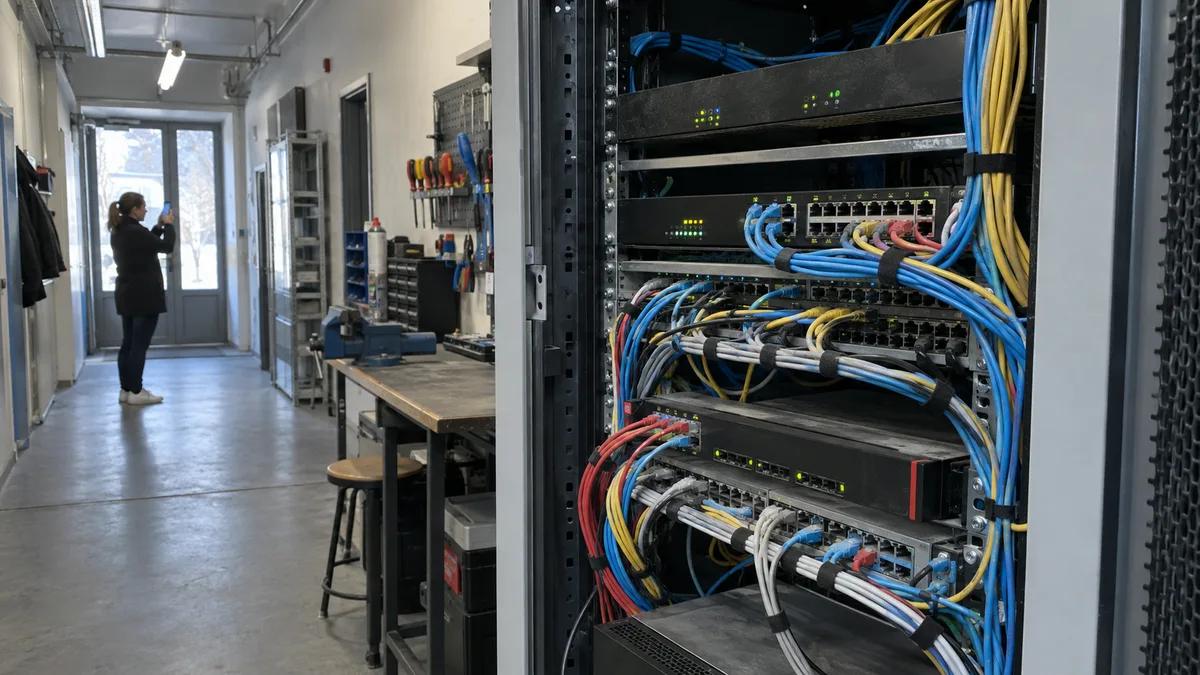
Quick answer: If your office internet is down, first determine the scope of the outage: one device, part of the building or the entire company; Wi-Fi, wired connections or both; all services or just one. Photograph the indicator lights and connections, run the same test on a second device and do not restart the firewall, server or NAS unless you understand the configuration.
First, determine the scope of the outage
Do not start by restarting everything with indicator lights. The scope of the problem will quickly show whether you should look for a fault in a single computer, the cabling, Wi-Fi, a shared network service, the firewall or the provider’s connection.
Find out four things:
- Is one computer affected, several devices or the entire company?
- Does the problem affect Wi-Fi, wired connections or both?
- Is the entire internet unavailable, or just a specific service?
- Was the outage preceded by a power failure, update, work in the network cabinet, cable replacement or configuration change?
| Test result | Where to look for the cause |
|---|---|
| One computer is not working, but the others are | The computer, network adapter, cable or local settings |
| One office or floor is not working | A switch, cabling, wall socket or specific access point |
| Wi-Fi is not working, but wired connections are | The access point, wireless network, authentication, VLAN or radio interference |
| Wired connections are not working, but Wi-Fi is | The cable, wall socket, switch port or Ethernet adapter |
| Neither Wi-Fi nor wired connections work anywhere in the company | The firewall, router, DHCP, DNS, connection or provider equipment |
| Only one application is not working | The service itself, account, licence, DNS or remote server |
If the problem repeatedly affects only one room or part of the building, blindly replacing the router again may solve nothing. A computer network and cabling audit can distinguish a fault in active network equipment from a defective socket, cable or network cabinet connection.
Emergency checklist for the first few minutes
- Record when the outage began and the last time the connection was confirmed to be working.
- Determine how many devices and parts of the company are affected.
- Compare Wi-Fi and wired connections.
- Test at least two unrelated internet services.
- Run the same test on a second device.
- Photograph the indicator lights, cables and complete setup before changing anything.
- Find out what changed before the outage.
- Check the provider’s status using mobile data.
- Tell the technician which services must not be disconnected.
- Do not change several things at once.
The last point is important. If you replace a cable, move a device to another port, change its settings and restart the firewall all at once, you will not know what caused the problem or what temporarily resolved it.
Does Wi-Fi work, do wired connections work, or does neither work?
A „Connected" Wi-Fi status confirms a connection to an access point, not a working path to the internet. Similarly, an illuminated Ethernet port indicator usually confirms a physical link between two devices, but it does not rule out a problem with DNS, the firewall or the internet connection.
At the same location, compare:
- a laptop connected to the company Wi-Fi;
- a computer or laptop connected with a verified cable;
- or the same laptop connected first via Wi-Fi and then by cable.
If the wired connection works but Wi-Fi does not, the provider is probably not your first suspect. Check whether all wireless networks are unavailable or only the employee or guest network. These networks may use different VLANs, firewall rules and authentication methods.
If Wi-Fi outages recur, adding another range extender may not help. The cause could be interference, a congested channel, poor access point placement, faulty client roaming or an error in network segmentation. We explain the practical differences in our article on business Wi-Fi, WPA3, 802.1X and guest networks.
Is the internet down, or is it just one service?
Open two unrelated services, such as a regular website and webmail. If the result is unclear, use a private browser window so that a cached page or old login session does not affect the test.
Interpret the results as follows:
- No internet service opens: check the assigned network address, default gateway, DNS, firewall and internet connection.
- Websites work, but one application does not: record the exact error message and check the service status, account and licence.
- Website names do not work, but connections by IP address do: DNS may be the problem, although testing a single IP address is not conclusive proof.
- The internet works, but an internal server or printer does not: look for a problem in the local network, VLAN, VPN or the device itself.
- The service works over mobile data, but not from the company network: check the company DNS, filtering, firewall and the provider’s route.
Check the provider’s status page using mobile data, not the affected connection. An outage of a single cloud application is no reason to restart the entire company firewall.
What you can find out in Windows
On the affected computer, first check whether the network adapter is enabled and whether the system has received an IP address, default gateway and DNS servers.
An address in the 169.254.x.x range in Windows usually means the computer did not obtain an address from a DHCP server. The cause may be the cable, Wi-Fi, switch port, VLAN or an unavailable DHCP server; the address alone does not tell you which possibility is correct.
It is useful to distinguish between three tests:
- A connection to the default gateway tests the path from the computer to the local network.
- DNS name resolution shows whether the computer can obtain the IP address of the target service.
- Opening multiple internet services checks whether normal traffic works, rather than just a single protocol.
A failed ping command does not prove that there is an outage. Some devices and services block responses to this type of traffic even when they are otherwise available.
Do not use the Windows network reset as your first step. It removes and reinstalls network adapters and may disrupt VPN client or virtual switch settings. Record the original configuration first and rule out simpler causes.
What the indicator lights and cables tell you
Before disconnecting anything, photograph the front and back of the equipment. The technician needs to see the status of the indicator lights before any intervention and the original cable connections.
Check only the components that you can identify safely:
- device power;
- the WAN or internet connection indicator;
- link/activity indicators on the switch;
- the provider’s optical network unit;
- loose power or Ethernet cables;
- visible damage to a cable or socket.
Optical network units may use labels such as PON and LOS. A red LOS indicator usually signals a loss of the optical signal, but its exact meaning always depends on the provider’s specific equipment. Do not unplug the optical connector, bend the incoming fibre or look into the connector.
The colour of a single indicator is not a complete diagnosis. An illuminated port may confirm a connection between the firewall and switch even while the internet connection beyond the firewall is down. An unlit port may indicate a powered-off device, defective cable or administratively disabled port.
How to test a second device correctly
Connect the second device to the same part of the network and in the same way as the original one. Otherwise, you could unknowingly compare the employee Wi-Fi with the guest network or two different VLANs.
Follow these steps:
- Disable mobile data on the phone and connect it to the company Wi-Fi being tested.
- Open two unrelated services.
- To test the wired connection, use a known-working laptop and a verified patch cable.
- Test the same socket or port used by the original device.
- Record every change and its result.
If the second device works in the same location, the problem is probably with the first computer, its adapter or its settings. If the second device does not work either, suspicion shifts to the cabling, switch, access point or shared network services.
When not to restart the firewall, server or NAS
Do not restart the firewall simply because internet traffic passes through it. In a company, it may also provide DHCP, DNS, VPN, VLAN segmentation, traffic filtering, telephony and links between branches. A restart can turn a partial problem into a company-wide outage.
Do not restart the device without its administrator if:
- you do not know whether its current configuration has been saved;
- it provides remote access or a VPN between branches;
- it supports tills, production equipment, cameras or telephony;
- it reports an error after a power outage;
- you need to preserve diagnostic logs;
- you notice suspicious logins, file encryption or other signs of a security incident.
A server or NAS is not normally part of restarting an internet connection. Shutting it down may interrupt databases, synchronisation, backups or disk array recovery.
Do not connect the company switch directly to the provider’s equipment to bypass the firewall. You could disable security rules, alter address allocation and expose devices to a network for which they are not prepared.
If you do not know the dependencies within your company network, we can handle both diagnostics and the subsequent management of your company IT. Tell the technician in advance about the impact of the outage, the network setup and any devices that must not be restarted.
What to send the technician
Copy and complete this brief:
COMPANY AND LOCATION:
ON-SITE CONTACT:

OUTAGE STARTED:
LAST CONFIRMED WORKING:

SCOPE:
[ ] one computer
[ ] several devices
[ ] one office or floor
[ ] entire company

CONNECTION:
[ ] Wi-Fi is not working
[ ] wired connection is not working
[ ] neither is working

SERVICES:
[ ] no website opens
[ ] only a specific service is not working:
[ ] internal servers or printers are not working
[ ] the service works over mobile data

WHAT CHANGED BEFOREHAND:
EXACT ERROR MESSAGE:
INDICATOR LIGHT STATUS:
TESTS PERFORMED AND RESULTS:
PHOTOGRAPHS OF EQUIPMENT AND CONNECTIONS:
PROVIDER AND CONNECTION IDENTIFIER:
WHAT MUST NOT BE DISCONNECTED OR RESTARTED:
IMPACT ON OPERATIONS:
Do not send passwords, backup codes, private keys or the complete firewall configuration in an ordinary email.
How to continue working temporarily
The safest fallback is a preconfigured and tested backup connection. A mobile hotspot can be used for a limited number of selected devices and essential work, not as an improvised gateway for the entire company.
Do not connect a server, NAS, switch or other network equipment to the hotspot without an assessment. Bear in mind that the company VPN, internal printers, services restricted to the company’s public IP address and systems accessible only from the corporate network may not work.
Once the connection has been restored, check at least:
- internet access from both Wi-Fi and the wired network;
- DNS and access to commonly used services;
- the VPN and connections between branches;
- internal servers, printers and telephony;
- automatic backups and synchronisation;
- the restoration time and probable cause of the outage.
Recurring outages should be addressed as part of a broader small-business IT audit. Restoring service with a restart each time is not enough; you need to identify the faulty component, dependencies and a suitable backup connection.
Frequently asked questions
Should we restart the router first?
Not automatically. First determine the scope of the outage, photograph the indicator lights and record the connections. A controlled restart may sometimes help with a simple device supplied by the provider, but a company firewall may support other critical services, and restarting it may erase diagnostic information.
Wi-Fi says „Connected", but websites will not open. What does that mean?
The device is connected to an access point, but not necessarily to the internet. Test another website, a second device and a wired connection. The cause may be DNS, the firewall, a missing route from the relevant VLAN or the internet connection itself.
How can we identify a provider outage?
A provider outage becomes more likely if the same problem affects multiple devices behind the firewall, neither Wi-Fi nor wired connections work and the WAN interface or optical network unit reports a loss of connection. Check the provider’s status page and customer support line using mobile data. Without checking the local network, however, you cannot confirm a provider fault solely because websites do not open.
Can we work through a phone hotspot?
Yes, but only on selected devices and for essential tasks. Do not use a phone as an improvised gateway for the entire company network. Check its security, data usage and the availability of the VPN or internal systems.
What information will speed up diagnosis?
The exact time of the outage, its scope, the difference between Wi-Fi and wired connections, specific error messages, photographs of indicator lights, recent changes and the results of testing a second device. Do not send the technician passwords or backup access codes.
Where to find us
ITHOPE is a company based in Brno, Czechia: we do data recovery from disks, RAID and NAS, PC and laptop service and IT for business, all in our own lab at Viniční 3587/216, 615 00 Brno.
Phone +420 775 556 063 (24/7 line). You can bring the device in person, or send it by courier (Zásilkovna, PPL).