The quick answer: A weak WiFi signal and dropouts are most often caused by poor router placement, thick walls, interference from neighbouring networks, outdated firmware, an overloaded router, or trying to cover too large a space with a single device. At home, changing the channel and location often helps. In a business, the stable solution is usually a wired access point and a properly designed network.
WiFi problems are tricky because they manifest differently each time. Sometimes you have a full signal, but the internet is slow. Other times, a laptop works at a desk, but a video call drops in the meeting room. The phone shows connected, but the page won’t load.
Before buying a new router or extender, it pays to find out where the problem actually originates. WiFi is just the final wireless segment. The cause could be router placement, interference, cabling, the internet feed, an overloaded device, or poor overall network design.
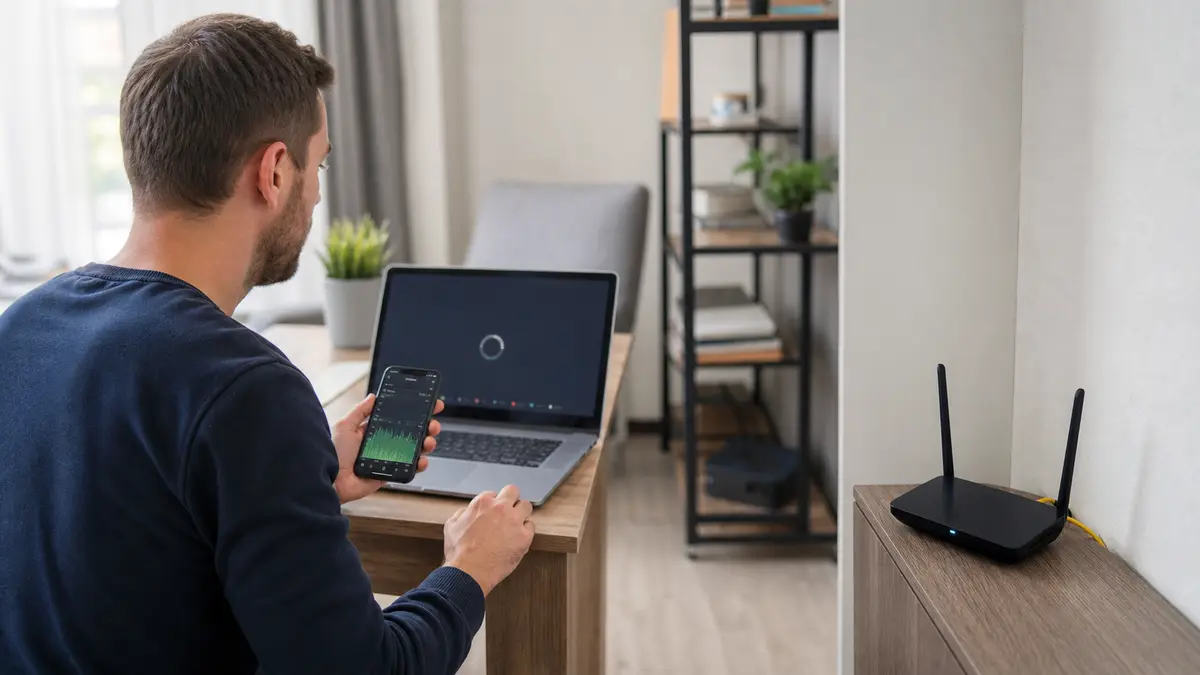
Why WiFi misbehaves: 10 most common causes
1. The router is in a bad location
A router hidden behind a TV, in a shoe cabinet, in a utility room, or on the floor will have poor coverage. WiFi signals are dampened by walls, metal, furniture, mirrors, and electrical wiring. The ideal location is a more open spot closer to the centre of the area and at roughly table height or above.
2. Thick walls and construction materials
Precast concrete, reinforced concrete, thick load-bearing walls, glass with metal films, or underfloor heating can significantly weaken the signal. One router might suffice in a flat, but often not in a multi-storey house.
3. Interference on a crowded channel
In an apartment building, your router competes with dozens of surrounding networks. The 2.4 GHz band has few non-overlapping channels, so interference is common. The result: slow WiFi, fluctuating latency, and dropouts during video calls.
4. An old router or firmware
A router five or more years old may not handle today’s number of devices, newer WiFi standards, or security requirements. Unupdated firmware further increases the risk of bugs and vulnerabilities.
5. One router for too large a space
A powerful router is not a magic tower. In a larger flat, family house, or office, the signal degrades at the edges. Devices then cling to a weak connection, and speed plummets.
6. The router is overloaded by the number of devices
Laptops, phones, TVs, printers, cameras, smart home devices, and guests. A cheap provider-supplied router can behave unstably with a larger number of clients, even if the internet connection itself is fast.
7. The problem isn’t WiFi, but the internet feed
If the provider’s line is already slow, a better router won’t help. That’s why you must measure the speed directly via cable and compare it with WiFi.
8. Access points aren’t connected by cable
A mesh system or extender without a wired connection must use part of its capacity to communicate back to the router. Every wireless hop reduces throughput and increases the risk of dropouts.
9. Old WiFi standards and old devices
Older clients and routers can drag the network down. WiFi 5 is a reasonable minimum today; WiFi 6 mainly helps where there are more devices and greater stability demands.
10. Poor behaviour between 2.4 GHz and 5 GHz
Some devices stay on the slow 2.4 GHz band even when close to the router and capable of using the faster 5 GHz network. Other times, the router aggressively shifts clients between bands, and the connection fluctuates.
Quick diagnostics: what to try right away
Before you start buying hardware, go through these steps:
- Restart the router. Disconnect the power for 30 seconds and let the device re-establish its connections.
- Measure the speed via cable. Connect a laptop via Ethernet directly to the router. If the cable is fast and WiFi is slow, the problem is in the wireless section.
- Relocate the router. Place it higher up, further from metal, and out of the corner of the room.
- Check the channel. In the router’s administration interface or a WiFi analyser, find the channel with the least interference. For 2.4 GHz, primarily use channels 1, 6, or 11.
- Separate 2.4 and 5 GHz. For testing, create separate network names (SSIDs) and connect the laptop to the 5 GHz one.
- Update the firmware. Stability and security fixes often solve problems that look like a „bad signal".
If you are specifically dealing with a home router setup, the guide how to set up a TP-Link WiFi router will also help.
Extender, mesh, or access point?
When settings alone aren’t enough, the hardware choice comes next. Each solution has its place:
| Solution | When it makes sense | Weakness |
|---|---|---|
| WiFi extender | One weak corner in a small flat | Reduces speed and must be placed where it still receives a good signal |
| Mesh WiFi | A family house or flat where you don’t want to pull cables | Without a wired backhaul, every hop reduces capacity |
| Wired access point | Businesses, larger homes, stable video calls, and more devices | Requires running a cable to the AP |
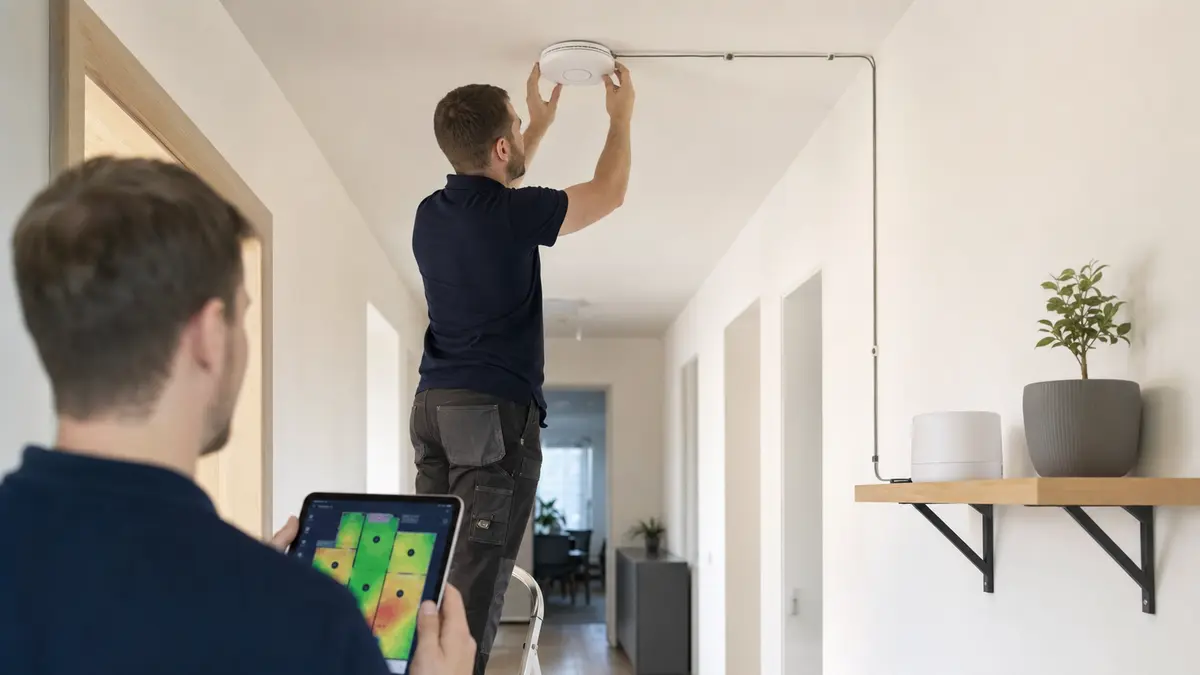
A general rule: an extender is an emergency solution, mesh is a domestic compromise, and a wired AP is the professional foundation. If a business is building a network for work, video calls, warehouses, terminals, or guests, it makes sense to address it as part of corporate network management.
WiFi at home vs. in a business
At home, improving router placement or replacing an old model is often enough. In a business, the main differences lie in the number of devices, security, and accountability for outages.
Business WiFi requires:
- multiple access points with managed roaming,
- a separate guest network,
- VLANs for corporate devices, cameras, terminals, or IoT,
- load and outage monitoring,
- rules for passwords and remote management,
- a cabling infrastructure that doesn’t bottleneck the APs.
A consumer router might work in a small office for a while, but it will start failing under load. If people’s work runs over WiFi, it’s not just about comfort. Every outage is lost time.
When to call a specialist
It makes sense to call a network specialist when:
- WiFi keeps dropping even after changing the channel, location, and updating,
- you have multiple floors, thick walls, or a sprawling office,
- you need to connect dozens of devices,
- VPNs, video calls, or till/terminal systems are dropping,
- you want to separate guests from the corporate network,
- you don’t know if the problem is with the WiFi, cabling, or internet feed.
For households, the follow-up is home computer network. For businesses, it’s better to handle design and operation via IT network for businesses, where we look at WiFi, cabling, switches, and security all together.
Frequent questions about WiFi problems
Why do I have a full signal but slow internet?
The signal bars mainly show the connection strength to the router. They don’t tell you if the channel is congested, the router is overloaded, the provider’s feed is slow, or if the device is using an unsuitable band.
Will a WiFi extender help?
Sometimes yes, but only if you place it where it still receives a strong signal. If the signal is weak at the extender’s location, it will just repeat a poor connection.
Is 2.4 GHz or 5 GHz better?
2.4 GHz has a longer range and penetrates walls better, but it is slower and more prone to interference. 5 GHz is faster and cleaner but has a shorter range. Ideally, use both bands according to the device type.
How many devices can a standard router handle?
It depends on the model. Cheap provider routers can struggle with just dozens of active devices. Business APs and managed networks handle higher loads more stably.
Mesh WiFi or wired AP?
For a home without cabling, mesh can be a good choice. For a business, stable video calls, or a higher number of devices, a wired access point is better.
Are you struggling with WiFi problems and don’t want to keep guessing the cause? We will check the signal, interference, router, cabling, and network settings, and propose a solution that will work in the long term.
Corporate Network Management · Home Computer Network · WiFi Router Setup
Need help at home? Request PC and network service. For a business network, send an IT enquiry.
Where to find us
ITHOPE is a company based in Brno, Czechia: we do data recovery from disks, RAID and NAS, PC and laptop service and IT for business, all in our own lab at Viniční 3587/216, 615 00 Brno.
Phone +420 775 556 063 (24/7 line). You can bring the device in person, or send it by courier (Zásilkovna, PPL).