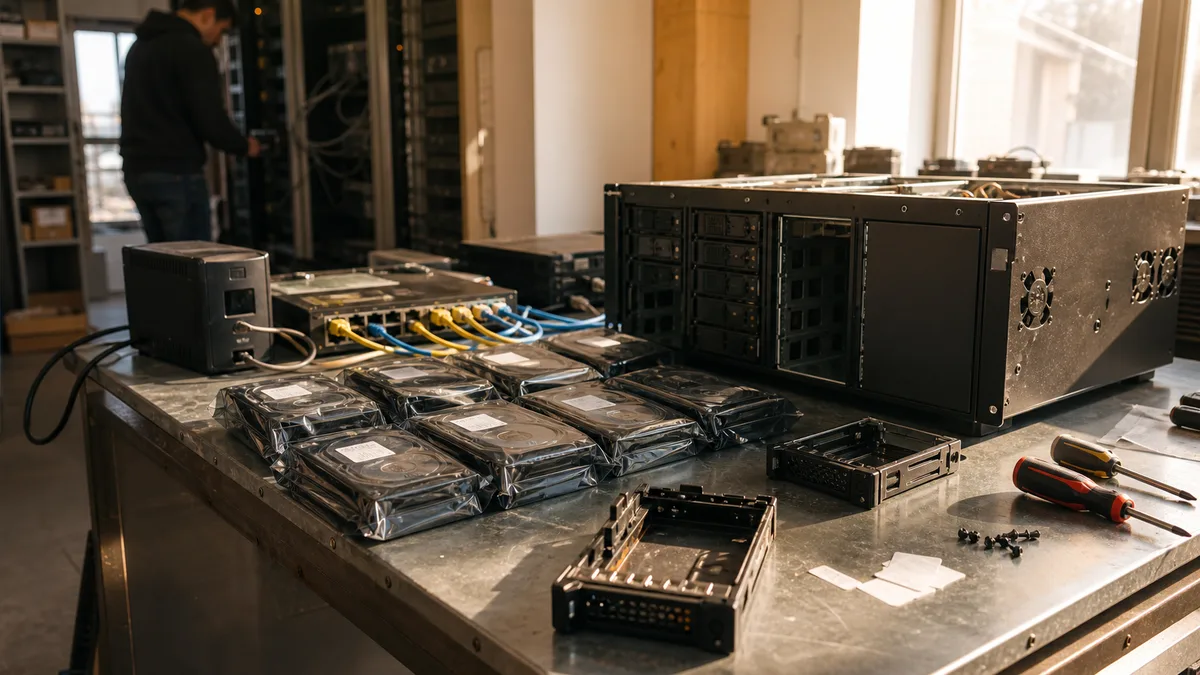
The short answer: For a two-drive business NAS, choose RAID 1 or SHR-1; for four or more large drives, prefer RAID 6 or SHR-2 — the second parity pays off wherever downtime is more expensive than a single disk. RAID 10 belongs to databases and virtual machines; RAID 0 should never be used for a single copy of business data. And none of these levels is a backup: RAID solves for drive failure, not deletions, ransomware, or administrator error.
The choice of RAID in a company is usually decided in ten minutes when ordering a NAS, and then the company lives with that choice for five years. This text is a decision-making guide: what each level really does, how much disk space remains, and where common mistakes are made.
What RAID Resolves — and What Not to Expect
RAID combines multiple disks into a single storage volume. Depending on the chosen level, you get higher speed, more usable capacity, or the ability to keep working after a disk failure.
For a business, that last property is what matters — availability. When one of the two disks in a RAID 1 fails, the NAS continues to provide shared folders. You replace the faulty disk, and the array rebuilds. Nobody has to stop working.
But that is the end of the list. RAID will not bring back yesterday’s version of a document and will not save files encrypted by ransomware. It does not solve:
- deletion or overwriting of files,
- ransomware launched from an employee’s computer,
- administrator error,
- file system corruption,
- theft, fire, or power surge,
- array collapse after improper interventions in the NAS,
- loss of the encryption key.
RAID is a safeguard against one specific event: the platter, head, or electronics of a single disk breaking. For everything else, you need something else.
Comparison of RAID 0, 1, 5, 6, 10 and SHR
In classic RAID, capacity is calculated based on the smallest disk in the array. If we denote the number of disks as N and the capacity of the smallest disk as S, the approximate results are:
| Level | Minimum Disks | Usable Capacity | Fault Tolerance | Typical Use |
|---|---|---|---|---|
| RAID 0 | 2 | N × S | none | temporary data, scratch space |
| RAID 1 | 2 | 1 × S | 1 disk per mirrored pair | smaller two-drive NAS |
| RAID 5 | 3 | (N − 1) × S | 1 disk | file sharing when capacity is the priority |
| RAID 6 | 4 | (N − 2) × S | 2 disks | business data and long rebuilds of large disks |
| RAID 10 | 4, even number | (N ÷ 2) × S | at least 1 disk | databases, virtual machines, intensive writes |
| SHR-1 | 2 for redundancy | calculated by DSM | 1 disk | flexible Synology NAS |
| SHR-2 | 4 | calculated by DSM | 2 disks | Synology NAS with higher availability requirements |
Four identical 8 TB disks offer approximately 32 TB in RAID 0, 24 TB in RAID 5, and 16 TB in RAID 6 or RAID 10. With the same disks, SHR-1 works out similarly to RAID 5, and SHR-2 similarly to RAID 6.
This is raw capacity. You will see less in the system — due to the discrepancy between decimal TB and binary units, metadata, the file system, and space reserved for snapshots.
What Each Level Means in Operation
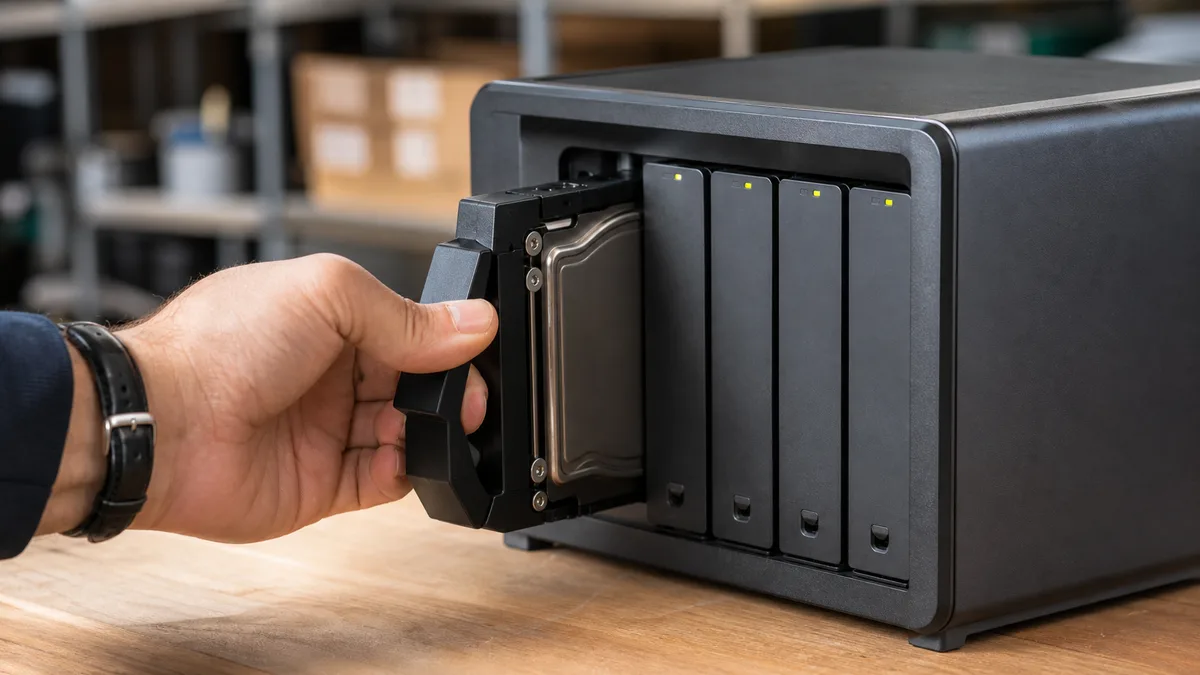
RAID 0 stripes data across disks. It gives you the total combined capacity and the highest throughput, but a single disk failure usually destroys the entire array — data is sliced across all members. For a single copy of accounting records, projects, or business documents, it is unusable.
RAID 1 writes identical data to both disks. It’s straightforward, recovery is simple, and for a two-bay NAS it makes sense. However, for two 8 TB disks, you end up with approximately 8 TB of space and protection only against the failure of one disk — not against content changes.
RAID 5 stores data plus distributed parity. From four identical disks, you use the capacity of three. The catch comes after a failure: the array runs without any redundancy, and during the rebuild, the NAS must read all remaining members from start to finish. A bad sector that hadn’t previously appeared or a second weakening disk can crash the rebuild. The larger the disks, the longer it takes and the greater the exposure — why this hurts particularly with today’s 8–20 TB disks is examined in the article Why a Rebuild Kills RAID Arrays.
RAID 6 uses double parity. It sacrifices the capacity of two disks, but can handle the failure of two members — including when a second disk fails during the recovery of the first. For a business NAS with four, six, or eight large HDDs, it is generally a more sensible choice than RAID 5, if a restore from backup would mean downtime on the order of days.
RAID 10 builds mirrored pairs and stripes data across them. It offers good random write performance and significantly easier recovery than parity arrays, because a rebuild is a simple mirror of one disk, not a calculation from the entire array. It can even survive multiple failures — but only as long as both disks from the same mirror pair do not fail. If they do, the array ends regardless of other disks still being operational.
When Synology SHR Makes Sense
SHR is not a separate level of resilience. It is automated RAID management in Synology DSM: SHR-1 protects against the failure of one disk (just like RAID 5), and SHR-2 against two (just like RAID 6).
The advantage appears when combining different capacities. Classic RAID 5 with a set of 4 + 4 + 8 + 8 TB disks will use only the size of the smallest member from each disk, i.e., 4 TB — giving approximately 12 TB, with 8 TB on the larger disks left unused. SHR-1 divides the array into layers: it builds a parity layer from 4 TB partitions across all four disks and mirrors the remaining 4 TB partitions on the two larger disks. The result is approximately 16 TB.
Choose SHR when you plan to gradually expand your NAS by replacing disks with larger ones and you intend to stay with Synology. Classic RAID is easier for an administrator who wants precise control over the array structure or plans to migrate elsewhere — don’t assume that QNAP or another platform can easily import an existing SHR pool.
How to Choose RAID Based on Business Operations
Don’t decide based on the number of terabytes. First answer two questions: how long can the company survive without its files, and how much data can it afford to lose since the last backup? Only then does choosing a level make sense.
| Situation | Practical Choice |
|---|---|
| Two-disk NAS for documents | RAID 1 or SHR-1 plus a separate backup |
| Four-disk NAS, emphasis on capacity | RAID 5 or SHR-1, if a restore from backup is acceptable |
| Four-disk NAS, expensive downtime | RAID 6 or SHR-2 |
| Six- to eight-bay shared storage | typically RAID 6 or SHR-2 |
| Virtual machines, databases, intensive writes | RAID 10, possibly SSD-based depending on load |
| Editing workstation with temporary copies | RAID 0 only if the originals exist elsewhere |
For a four-bay NAS, also compare RAID 6 against RAID 5 with a hot spare. Both variants consume the capacity of two disks, so the „cost" is the same. The difference is in the timing: RAID 6 protects against a second failure continuously, while a hot spare only starts helping once the NAS detects the fault and initiates a rebuild — precisely at the moment when the array is most vulnerable.
Choose NAS and Disks as a Complete Package
The Synology DS923+ and QNAP TS-464 are typical four-bay NAS devices capable of running RAID 5, 6, and 10. But the number of bays tells you nothing about suitability for a business. Check the network interface, memory, snapshot support, remote backup capabilities, disk compatibility, and how quickly you can get a replacement unit if the NAS itself fails.
NAS arrays require drives designed for that purpose — typically WD Red Plus/Pro, Seagate IronWolf/Pro, or Toshiba N300 series; the differences between them are discussed in our comparison of WD Red, IronWolf, and Toshiba N300. On the other hand, a WD Purple is designed primarily for continuous sequential write from camera streams, so it is not automatically the best disk for a file server.
The disk must be on the specific NAS compatibility list — and verify the recording technology. SMR disks rewrite data in overlapping tracks and during sustained continuous writes or a rebuild can fall to a fraction of their speed, which in a parity array extends the duration of the riskiest phase. For RAID, CMR is a more predictable choice; details can be found in our CMR vs. SMR overview.
Why RAID Is Not a Backup
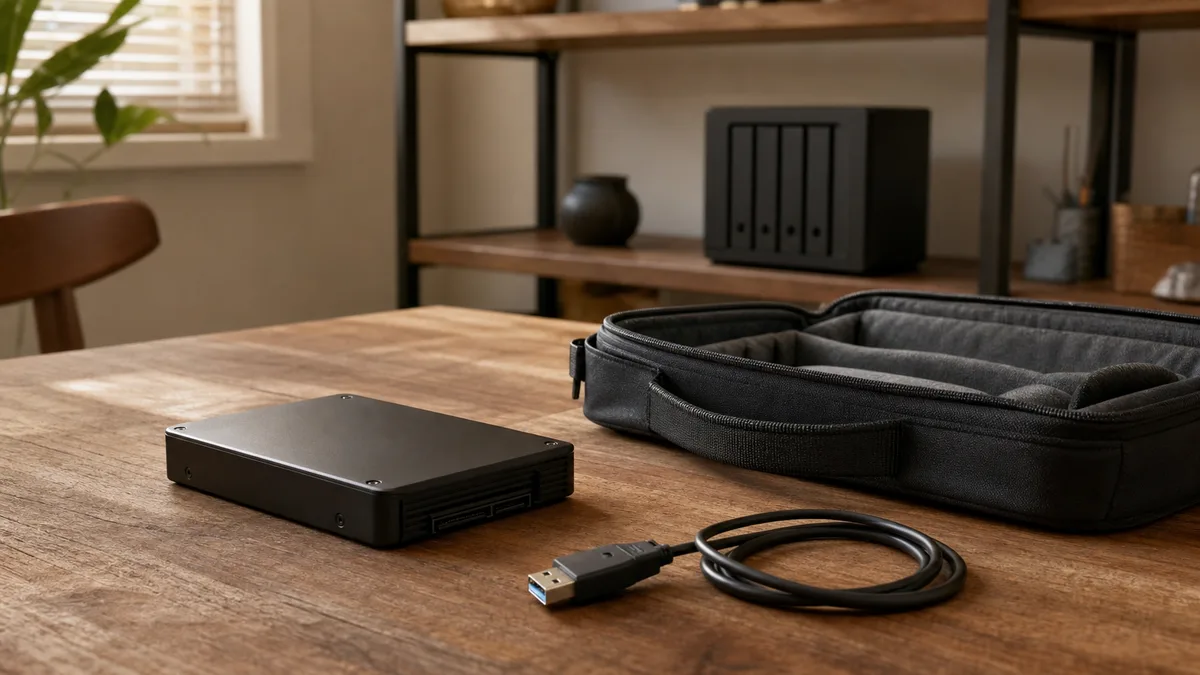
Any change made on a RAID is instantly propagated to all its disks. When an employee deletes a directory or ransomware encrypts a connected shared folder, mirroring and parity diligently record that change — and they do so reliably, because that is exactly what they are designed for. What such an incident looks like from the inside is shown in the article Ransomware on NAS.
The practical business minimum looks like this:
- Working data resides on a NAS in RAID 1, 6, 10, or SHR.
- The NAS performs versioned backups to a different device — for example, using Synology Hyper Backup or QNAP HBS 3.
- One copy is isolated from standard user accounts and stored off-site — the 3-2-1 principle.
- Restoring a selected folder is tested regularly. An untested backup is just a hope.
A snapshot on the same NAS will help against human error and a portion of ransomware incidents, but it is not a backup — it shares power, hardware, and administration with the original. Cloud synchronization without versioning is also insufficient: it transfers both deletions and encrypted files, just a few minutes later.
How to Recognize Well-Designed Storage
Quality isn’t indicated by a green „Healthy" icon. An administrator should be able to provide evidence of:
- the required capacity projection for several years ahead,
- the chosen fault tolerance and the reason behind it,
- a separate backup and the retention period for versions,
- a performed recovery test and the name of the responsible person,
- failure notifications that someone actually reads,
- regular SMART tests and data scrubbing,
- a UPS with managed NAS shutdown,
- encryption keys stored outside the device,
- a procedure for disk replacement and planned downtime.
In Synology DSM, you will find this in Storage Manager; in QNAP, in Storage & Snapshots. On a standard Linux RAID, simply read the status:
cat /proc/mdstat
sudo mdadm --detail /dev/md0
sudo smartctl -a /dev/sda
/dev/md0 and /dev/sda are examples; device names will differ. These commands only read data. Do not run commands for assemble, create, repair, zeroing the superblock, or forcefully adding a disk to an array without verified knowledge of the structure — it is precisely these commands that turn a degraded array into lost data.
If the NAS is already reporting Degraded, Crashed, Read-Only, or multiple failed disks, it is not the time for experimentation. Separate procedures for these situations are covered in Synology Storage Pool Degraded and QNAP RAID Group Degraded.
What to Include in the Cost
The cost of storage is not just the NAS plus a set of disks. It includes a UPS, a secondary backup target, potential cloud storage, notification setup, updates, and the time for a recovery test.
A cheap two-bay NAS may suit a small office but offers no room for growth — you’ll replace the whole unit in two years. RAID 6 consumes more capacity, but significantly reduces the risk of downtime from a second failure. The right choice is calculated based on the cost of downtime and recovery, not the price of a single terabyte.
Frequently Asked Questions
For four disks, is RAID 5 or RAID 6 better?
RAID 5 provides the capacity of three disks and survives one failure. RAID 6 provides the capacity of two but survives two. If prolonged downtime would hurt more than the cost of one disk, RAID 6 usually makes more sense.
How much space will I get from four 8 TB disks?
Approximately 24 TB in RAID 5 and 16 TB in RAID 6 or RAID 10. The displayed capacity will be lower due to unit conversion, metadata, and the file system.
Is SHR safer than RAID 5?
No. SHR-1 tolerates one failure, exactly like RAID 5. Its advantage is more flexible use of disks of different capacities, not higher resilience. For two failures, you need SHR-2.
Do all disks have to be identical?
Not necessarily, but in classic RAID, capacity and often performance are leveled to the smallest and slowest member. For predictable operation, use compatible NAS drives of the same capacity and recording technology; SHR can make better use of different sizes.
Is it enough to back up a NAS to an external drive connected via USB?
It is better than no second copy, but a permanently connected disk can be hit by ransomware, a power surge, or a thief just like the NAS itself. At least one versioned copy should be isolated and preferably off-site.
Where to find us
ITHOPE is a company based in Brno, Czechia: we do data recovery from disks, RAID and NAS, PC and laptop service and IT for business, all in our own lab at Viniční 3587/216, 615 00 Brno.
Phone +420 775 556 063 (24/7 line). You can bring the device in person, or send it by courier (Zásilkovna, PPL).