Answer upfront: A NAS is a standalone computer on the network that combines physical disks into a RAID array, creates a storage pool on top of that, then a volume with a file system inside the pool, and finally shared folders for users within that volume. RAID keeps things running when one disk fails — but it doesn’t protect against deletion, ransomware, admin error, or failure of the whole enclosure. The only thing that protects against those is a separate backup you test regularly.
Companies buy a NAS as a „box for data„ and are then surprised that two 8TB disks don’t deliver 16 TB, that „degraded" isn’t an alert to ignore, and that after a ransomware attack, backups stored in the next folder are encrypted too. This text is not a model review. It’s a top-to-bottom dissection of the device: what each layer does, what happens when it fails, and how to tell if your vendor designed the NAS correctly.
How a NAS works: five layers stacked together
A NAS has a processor, RAM, its own operating system (Synology DSM, QNAP QTS/QuTS hero, TrueNAS), and one or more disks. But between the physical platter and the shared folder icon in Windows, there are five layers, and each can fail differently:
HDD / SSD  ── physical layer, mechanics and electronics
   ↓
RAID group or SHR  ── redundancy, mirroring, parity
   ↓
Storage pool  ── the space the NAS operating system works with
   ↓
Volume: Btrfs, ext4, ZFS  ── file system, snapshots
   ↓
Shared folders: Accounting, Projects, Backups  ── what the user sees
   ↓
Access: SMB, vendor apps, VPN
The difference in consequences is critical. A faulty disk merely switches the array to a degraded state — data remains accessible, just without protection. A corrupted volume means inaccessible files and a case for data recovery. Poorly set permissions trigger no warning — accounting data will simply be visible to people who shouldn’t have access, and no one will notice for years.
That’s exactly why it pays to know which layer is reporting the problem. A „volume crashed„ message and a „disk 2 failed" message look similarly urgent, but each requires a completely different procedure.
What are you actually buying: a box, disks, or a service?
An empty enclosure without disks is not business storage. Two-bay models like the Synology DS225+ or QNAP TS-264 handle basic sharing in a small office; four-bay models (Synology DS925+, QNAP TS-464) give you room to grow and support parity RAID. But the cost of the enclosure itself is only part of the budget — disks, a UPS, a second storage target for backup, installation, and ongoing management are paid for separately and often cost more together than the box itself.
A complete solution for a business should at minimum include:
- capacity planning with a buffer for several years ahead,
- disks from the manufacturer’s compatibility list and a chosen RAID type,
- separate accounts, groups, and permissions (not a single „company" account),
- automatic backups and a verified restore procedure,
- alerts for a faulty disk, high temperature, and pool fill level,
- documentation of access, networking, and configuration,
- an update plan and a failure-response plan.
If an offer just says „NAS 16 TB," ask whether that’s the sum of the disk capacities or the actual usable space after RAID. The difference is often half.
Disks: why two 8TB disks don’t give you 16 TB
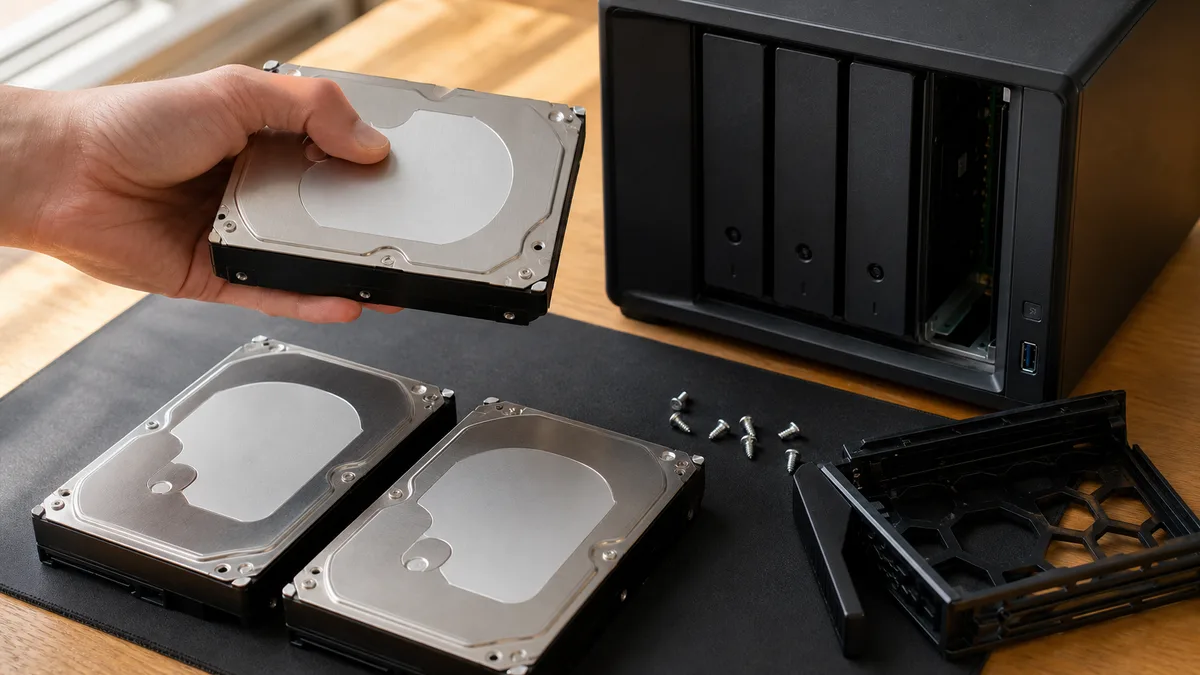
Every disk has its own electronics, firmware, and — in the case of mechanical drives — moving parts. The NAS only directs where data gets written. Depending on the array type, it mirrors it, stripes it across drives, or calculates parity for it.
Two 8TB disks in RAID 1 give you the capacity of one drive because the other holds a mirror. And even that single „8TB" will show up in Windows as roughly 7.3 TB — the manufacturer counts terabytes as 10¹² bytes, while the operating system counts in 2⁴⁰ (TiB). The rest is taken up by file system metadata.
NAS units need disks designed for 24/7 operation in an array:
- WD Red Plus and WD Red Pro — CMR recording, vibration protection for multi-bay enclosures,
- Seagate IronWolf and IronWolf Pro,
- Toshiba N300,
- for Synology, also their own HAT3300 and HAT5300 series.
A critical trap lies within the WD Red lineup. The basic WD Red (WD…EFAX) used SMR — shingled magnetic recording, where tracks overlap and rewriting data requires reading and rewriting an entire band. You won’t see this in normal operation, but during a RAID array rebuild, when the disk receives hours of continuous random writes, throughput plummets, the controller may mark the disk as unresponsive, and kick it out of the array — in the middle of a rebuild, when you have no redundancy left. That’s precisely why WD renamed the series, and Red Plus and Red Pro now exclusively use CMR. We break down the difference between both technologies in our CMR vs. SMR overview and compare specific series in the article WD Red vs. Seagate IronWolf vs. Toshiba N300.
WD Purple, in contrast, is built for sequential writes from camera streams. It’s not better for a general-purpose business NAS with documents just because it can handle 24/7 operation.
And the „NAS disk" label guarantees nothing by itself. It simply means firmware tuned for an array — shorter timeouts when reading a bad sector (TLER/ERC) so the RAID controller doesn’t needlessly drop the disk, plus resistance to vibration from neighboring drives. Any disk can fail, and SMART usually reports it before you notice — we’ve described how to read SMART and spot a dying disk separately.
RAID determines what happens after a disk failure
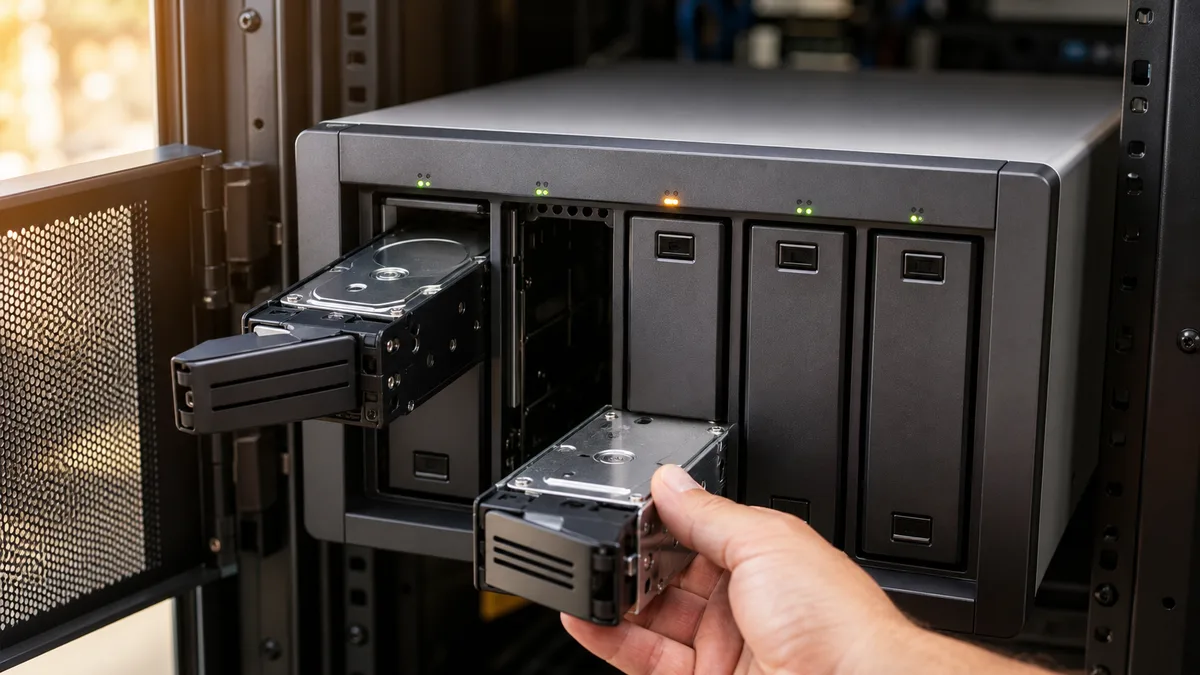
RAID isn’t a single technology, but several ways to turn disks into a logical unit:
| Variant | Minimum disks | Usable capacity | What it survives |
|---|---|---|---|
| RAID 0 | 2 | sum of disks | nothing — failure of one disk kills the whole array |
| RAID 1 | 2 | capacity of the smallest disk | failure of one disk |
| RAID 5 | 3 | sum minus one disk | failure of one disk |
| RAID 6 | 4 | sum minus two disks | failure of two disks |
| RAID 10 | 4 | roughly half the total | one disk always, two only if they aren’t in the same mirror |
| SHR | depends on config | depends on disks and protection | one disk, or two with SHR-2 |
Synology SHR is an abstraction layer on top of Linux mdadm and LVM. It makes better use of mixed-sized disks — classic RAID 5 with four disks of 4/4/8/8 TB sizes everything to the smallest drive, whereas SHR adds an extra protected slice from the larger ones. It is not, however, a backup or protection against file deletion.
For a two-bay office, RAID 1 or SHR is common. With four bays, it’s a choice of priority: RAID 5 gives you the most space, RAID 6 survives a second failure, and RAID 10 offers more predictable write performance.
And here’s the detail that costs businesses their data: the riskiest moment in a RAID 5 life is the rebuild after swapping a disk. The array reads every remaining disk from start to finish, for hours on end, to recompute parity — and that’s exactly when a disk of the same age and same production batch is likely to reveal a bad sector that no one had previously read. RAID 5 can’t withstand a second error, and the array collapses during the rebuild. We explore why a rebuild kills RAID arrays in detail — and it’s the main argument for RAID 6 or for verifying your backup before replacing a disk.
A „degraded" state therefore means: the array is running, but it no longer has protection. It’s not a prompt to click the first Recover button that DSM or QTS offers. We have a safe procedure separately for Synology storage pool degraded / volume crashed and for QNAP RAID group degraded / volume read-only.
Storage pool and volume: the two layers most often confused
A RAID group links the disks. The storage pool turns them into a space the NAS operating system can work with. The volume is a specific chunk of that space formatted with a file system. That’s why a pool can be healthy while a volume is broken — and vice versa.
Synology DSM follows the sequence disk → storage pool → volume → shared folder. On supported models, it offers Btrfs with snapshots, checksums, and copy-on-write; elsewhere, ext4. Checksums are a practical difference — Btrfs can detect silent data changes on the disk; ext4 cannot.
QNAP QTS distinguishes three volume types:
| Volume type | Advantage | Risk or limitation |
|---|---|---|
| Static | lowest overhead, simplest structure | no pool features, limited flexibility |
| Thick | space allocated upfront, guaranteed capacity | reserves space even when you don’t use it |
| Thin | space is allocated based on actual writes | you can promise more space than physically exists |
Thin provisioning makes sense where someone genuinely monitors capacity. In a small business without oversight, it creates a false sense of free space: the volume reports 2 TB free, but the physical pool is full. Once the pool runs out, multiple volumes can switch to read-only at once — including the one holding backups.
A shared folder is not a disk
The user never sees the RAID or the volume. In Windows, they open:
\\nas-company\Accounting
\\nas-company\Projects
\\nas-company\PC-Backups
The transfer is handled by the SMB protocol. The NAS authenticates the user and uses their group membership to decide what they can read and modify.
A sensible configuration doesn’t use a shared „company" account with a shared password on a sticky note under the keyboard. Individual accounts, groups (accountants, management, service), permissions assigned to groups — when an employee leaves, you simply deactivate one account and you’re done.
Watch out for two layers of permissions: shared folder rights and file ACLs. On Synology, both must be satisfied, so the typical result of poor configuration is either a needlessly open folder or a user who can see the folder but can’t save a file.
And one rule without exception: a NAS must never be placed directly on the internet via SMB or a forwarded port. Ransomware campaigns targeting NAS devices have repeatedly exploited directly exposed devices and known vulnerabilities in their web services. Solve remote access via VPN or a managed vendor service, always with multi-factor authentication. We describe what ransomware does on a NAS and how to get data out of it separately — it reads worse than setting up a VPN.
Performance: when the disk is the bottleneck and when it’s the network
A single mechanical disk handles sequential reads faster than a gigabit network can carry. Practical 1GbE throughput sits around 110 MB/s, a ceiling set by the link, not the drive. With 2.5GbE, using suitable disks, cabling, and a switch, you can expect roughly double to triple that — but the actual figure depends on the entire chain.
Speed can’t be guessed from the connector. Things that can slow it down include:
- thousands of small files instead of one large one (overhead per file),
- concurrent work from multiple users (random access instead of sequential),
- volume encryption or compression on a weaker processor,
- a snapshot, backup job, or antivirus scan already running,
- insufficient RAM,
- a switch or computer with a 1GbE card at the other end,
- Wi-Fi — poor signal and dropouts will cripple even a well-built NAS.
An SSD cache is not a universal cure. It helps with databases and random reads, but for office documents and backups, moving from 1GbE to 2.5GbE tends to be more noticeable and cheaper. Before you buy one, measure the actual workload your NAS handles.
Seven questions for your NAS vendor
Don’t judge a solution by terabyte count alone. Request a written answer to these:
- How much space is usable after creating the RAID and after accounting for reserve and snapshots?
- Where is the NAS backed up, and is that backup separate from the NAS administrator account?
- When did someone last test restoring a specific file — and how long did it take?
- Who receives alerts for a faulty disk, high temperature, or a full pool? Do they go to an actively monitored address?
- How does the business reach its data if the vendor stops responding or goes out of business?
- Where is the documentation for accounts, networking, encryption keys, and configuration?
- Is a UPS and safe shutdown during an extended power outage included?
A snapshot is a quick safety net against deletion or overwriting a file, but it lives on the same pool as the data — if the pool goes, the snapshot goes with it. Ransomware that gains administrator rights on the NAS can delete snapshots and attached backups. That’s why a NAS needs an off-device copy based on the 3-2-1 rule: three copies, two different media, one off-site — and that last one ideally configured so a standard account or compromised computer has no write access to it.
What you can safely verify from the command line
Both Synology and QNAP run Linux components under the graphical interface. An experienced admin can check the state via SSH with these read-only commands:
cat /proc/mdstat
lsblk -o NAME,SIZE,TYPE,FSTYPE,MOUNTPOINTS
df -hT
sudo mdadm --detail /dev/md0
sudo smartctl -a /dev/sda
The output shows assembled RAID arrays, block devices and file systems, fill levels, and SMART data. Device names vary by model and configuration.
None of these commands fix anything — and that’s intentional. mdadm --create, forced --assemble, initializing a disk in the setup wizard, or blindly running fsck usually makes the situation worse: they overwrite array metadata and turn a case that could be solved by reading into a RAID array data recovery case in a lab. If your NAS reports degraded, read-only, or crashed, first document the state (screenshots, printouts) and verify your backup. Only then decide what to do next.
FAQ
Is a NAS the same thing as a backup?
No. A NAS can be a backup target, but if the only copy of data sits on it, it’s still just one storage device — one box, one power supply, one outlet, one administrator account. You need a second, separate copy and a regular restore test.
How many disks does a small business need?
The minimum for file sharing is two disks in RAID 1 or SHR. Four bays give you room to grow and enable RAID 5, RAID 6, or RAID 10 — and for parity arrays, the fourth bay is primarily insurance for a rebuild.
Can you mix different-sized disks in one NAS?
With Synology SHR, often yes, and more capacity is utilized compared to classic RAID, where the smallest disk typically determines the usable space. Always check the rules for your specific model and calculate capacity before buying, not after.
Does RAID protect against ransomware?
No. RAID mirrors and parity-stripes encrypted files just as dutifully and instantly. Snapshots can help, but the deciding factor is a separate backup to which a standard user or compromised computer has no direct write access.
What should a „turnkey" NAS include?
Capacity planning, compatible disks, RAID and volumes, accounts and permissions, secured remote access, monitoring with alerts, a UPS, off-device backup, a tested restore process, and documentation that allows anyone else to take over management.
Where to find us
ITHOPE is a company based in Brno, Czechia: we do data recovery from disks, RAID and NAS, PC and laptop service and IT for business, all in our own lab at Viniční 3587/216, 615 00 Brno.
Phone +420 775 556 063 (24/7 line). You can bring the device in person, or send it by courier (Zásilkovna, PPL).