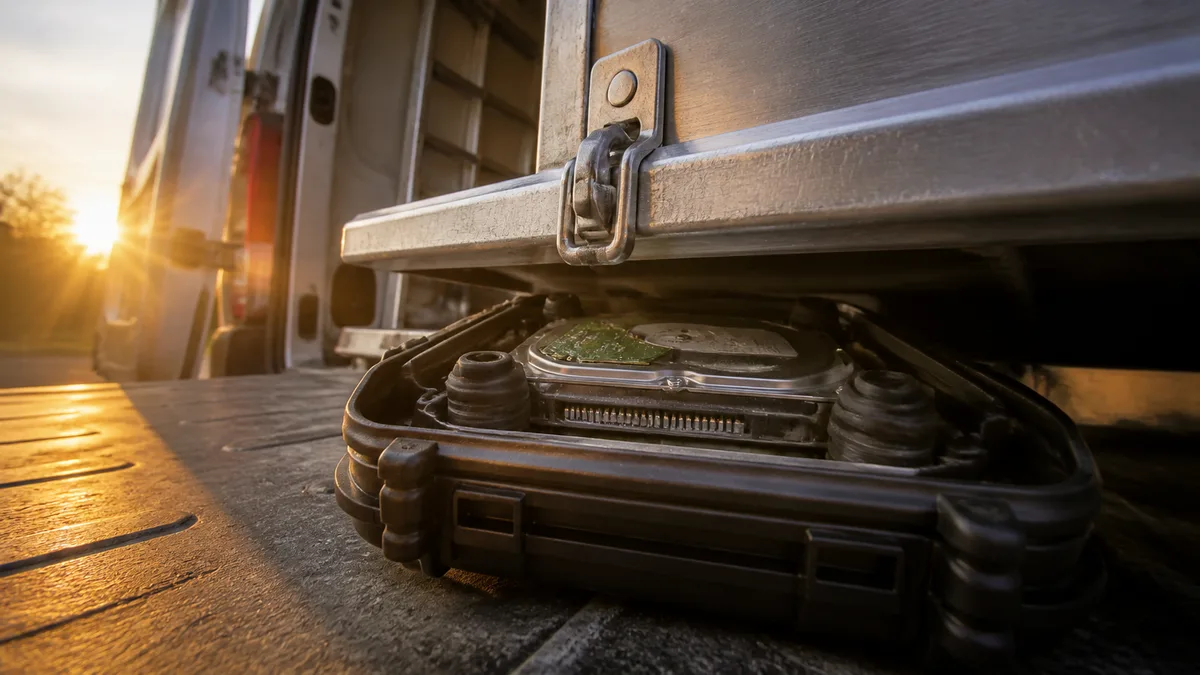
The short answer: We do not have a branch in Zlín, and we will not pretend otherwise—the laboratory is in Brno-Židenice, and we serve the Zlín Region by courier: you submit an enquiry, receive a shipping label by email, and collection through Zásilkovna is free. Diagnostics for HDDs, SSDs, RAID arrays, and NAS devices are free, you receive a fixed price before any work begins, and if the data cannot be recovered, you pay nothing apart from shipping. The sole exception is a targeted search for one specifically named file, charged at a pre-agreed flat rate of CZK 1,000 even if the file is not found. We are less than 100 kilometres from Zlín, so personally delivering a drive containing the only existing copy of company data is a realistic—and safer—alternative to using a carrier.
We Do Not Have a Laboratory in Zlín. Ask Others Whether They Do
Search for „HDD data recovery Zlín" and you will find plenty of companies with Zlín right in the page title. Their adverts will not tell you how many actually have a clean environment and head-replacement equipment in Zlín, and how many merely operate a collection point or use a contracted partner. There is nothing wrong with that—as long as the company does not hide it.
Ask two questions: where exactly will the drive end up, and who exactly will open it? Here is our answer upfront: our laboratory is in Brno-Židenice. We have no premises in Zlín, Otrokovice, or Vsetín, and your drive will be transported to us.
That does not make a Zlín computer repair shop a bad address—just an extra stop. It can replace a power supply or keyboard and reinstall Windows. But when presented with a drive with crashed heads, the shop may accept it, try a few things, and then send it elsewhere. The cost of that stop is not measured in crowns but in motor spin-ups: every attempt to „see whether it starts this time" sends the heads across the platters again on a mechanically damaged drive.
What Happens Inside a Clicking Drive
A brief technical detour is necessary, because the advice below would otherwise make little sense.
A head does not fly blindly above the platter. Servo tracks are written onto the platters during manufacturing—like milestones that allow the head to keep calculating its position. If it can no longer read them because it is damaged, bent, or has a faulty preamplifier, the electronics return it to the parking ramp and try again. And again. That repeated clicking is not the sound of data being read; it is the sound of failed recalibration.
The flying height of a head in a modern drive is measured in nanometres. A speck of dust is roughly a thousand times larger, as is a fingerprint. That is why a drive must only be opened in a clean environment—and why „I tried opening it but closed it again straight away" completely changes the odds of recovery. The requirements are even stricter for high-capacity nearline drives, such as WD Ultrastar and Seagate Exos models of roughly ten terabytes and above: they are helium-filled and hermetically sealed, so opening them also alters the environment in which they were designed to operate.
If the heads remain on the platter and stick to it, the next power-up makes the motor drag them across the magnetic layer. Nobody can recover data from a surface that has been scraped away—the data is no longer there. For a detailed breakdown of what different sounds can mean, see what to do when a drive clicks.
Symptom, Cause, and What to Do
| What you observe | What is causing it | What to do immediately |
|---|---|---|
| Clicking, squealing, or repeated spin-up attempts | the heads cannot find the servo track, and the drive keeps recalibrating | Disconnect the power. Do not try again. |
| The drive does not spin up, and the BIOS cannot see it | a seized motor, failed electronics—typically after a power surge—or stuck heads | Do not power it on or buy a replacement PCB from a marketplace |
| The BIOS reports a nonsensical capacity or only the manufacturer’s name | damaged firmware modules in the service area on the platters | Software cannot fix this; it requires firmware work |
| The system reports the drive as RAW and offers to format it | a damaged file system table; the data is usually still present | Do not click Format; disconnect the drive |
| Copying freezes on one file | bad sectors; the drive keeps retrying the read indefinitely | Stop copying and have a sector-by-sector image created |
| SMART reports increasing reallocated and pending sector counts (05, C5) | the surface is deteriorating, but the drive still works for now | Back it up immediately while it is still running |
The last row is the only situation in which the decision is still yours. In every other case, the drive has already made the decision; your only contribution is to avoid making matters worse.
If you are unsure about any of these steps—or the drive sounds different today than it did yesterday—leave it to us. Our data recovery service begins with free diagnostics and a fixed quote before any work starts, so you can calmly decline after speaking with us.
Three Things You Cannot Undo
Running CHKDSK on the original drive. It writes directly to file system structures and can delete anything it considers invalid or move it into the FOUND.000 folder, replacing filenames with numbers. On a drive with bad sectors, it may also run for hours, placing the drive under continuous strain throughout.
Running recovery software directly on the original drive. Scanning alone usually does not overwrite anything—PhotoRec only reads the source medium. The danger lies in what commonly happens around it: the program is installed on the same volume being scanned, and recovered files are saved back to the source drive. The other problem is the workload. A scanner reads the entire surface at full speed, which can finish off failing mechanics. Work from an image, not the original, and always save the results elsewhere.
Replacing the PCB with a second-hand one. This used to work, but it generally does not today. The PCB contains memory holding adaptive data unique to that particular drive, including read-channel calibration and preamplifier parameters. Simply swapping the PCB on a modern drive therefore usually fails: the adaptive data from the original ROM must be transferred or reconstructed. The exact procedure varies by model—some drives use a separate memory chip, while others store the ROM contents inside the controller. Either way, the job does not end with a screwdriver.
Drive from a NAS or RAID: Do Not Start a Rebuild
Company data is now more likely to live on a NAS under a desk than on a single drive inside a computer. When an array reports a degraded state, the instinctive response is to replace the failed drive and let it rebuild. But a rebuild reads every remaining drive from beginning to end. It is the heaviest workload the array will experience in its lifetime—and exactly when the second drive often fails. Unless the data exists elsewhere, postpone the rebuild and have images of the drives created first. The reasons are explained in why rebuilding can destroy a RAID array.
Another trap is using SMR drives in an array. When WD acknowledged in 2020 that its 2–6 TB WD Red EFAX models used DM-SMR, the problem became clear: during sustained writing such as a rebuild, the drive exhausts its fast cache area, performance collapses, and the controller drops it from the array after a timeout. The array then appears to have failed even though the drives are still operational. NAS devices should use drives listed as CMR.
Whether you send the entire NAS or only its drives, label the bay order and include every member of the array, including the drive that failed first. Without the original order and the parity drive, reconstructing the volume is considerably harder and more expensive.
How to Pack a Drive So It Survives the Journey to Brno
In many modern drives, the heads are parked on a ramp after shutdown; in general, a powered-off drive tolerates transport better than one that is running. It should therefore be shipped powered off and left untested during the journey. The rest comes down to packaging physics.
- Use an antistatic bag, or at least aluminium foil. It costs very little, and a static discharge from your hand can easily destroy the drive’s electronics.
- Use at least five centimetres of soft padding on every side. Bubble wrap, foam, or polystyrene will work. Do not use newspaper; it compresses during transport.
- Use a sturdy cardboard box, never a padded envelope. An envelope provides no protection against an impact on its edge—which is precisely how parcels can land on a conveyor.
- Perform a shake test. If anything moves or clicks inside the packed box, the packaging is inadequate. Unpack it and add more padding.
- Do not add anything unnecessary. Rice, silica gel, and freezing will not help; a freezer instead adds condensation and corrosion where none existed before.
- Include a note inside: your contact details, what happened and when, what you have already tried, and whether another laboratory has handled the drive. Undisclosed previous attempts cost us time and may cost you your data.
For an external drive, send the complete device, including its original cable and power adapter. In many models, the USB bridge forms part of the hardware encryption system, and without it the platters may remain locked even to us. If the drive was removed from a computer, the drive itself is sufficient.
Three Ways to Send a Drive from Zlín to Us
- Free collection through Zásilkovna. Complete the enquiry form, select collection, and you will receive a shipping label by email. Attach it to the parcel and drop it off at the nearest branch.
- Your own parcel service or courier. This makes sense for a complete NAS, several drives from an array, or when you prefer to supervise the shipping arrangements yourself.
- Deliver it personally to Brno. The journey is less than 100 kilometres and takes roughly one hour and fifteen minutes via the D55 and D1: Viniční 3587/216, Brno-Židenice, Monday to Friday, 10:00–16:00, by prior telephone arrangement. From Zlín, it is a half-day errand rather than an expedition—and for a drive containing the only existing copy of your accounting records, it is the cheapest insurance you can buy. For guidance on when the journey is worthwhile and when it is unnecessary, see data recovery in Brno.
You cannot insure the data. Since August 2024, Zásilkovna has offered its Kompenzace hodnoty zásilky service with a limit of CZK 10,000; without it, compensation is calculated in hundreds of crowns. No carrier, however, compensates you for the value of the data—only the hardware. Terms also change, so check them when shipping. This, rather than speed, is the main argument for driving the device to us yourself.
How Much It Costs and What Is Free
Diagnostics for HDDs, SSDs, RAID arrays, NAS devices, and flash media are free. Afterwards, you receive a fixed price before any work begins—not a range and not an hourly rate. If the data cannot be recovered, you pay nothing apart from shipping.
The sole exception is a targeted search for one specifically named file. This is charged at a pre-agreed flat rate of CZK 1,000, even if the file is not found. Technically, searching for one file involves the same work as recovering the entire drive, only with a smaller reward.
The type of damage, not the drive’s capacity, determines the price. Logical damage is the least expensive. A drive with bad sectors requires slow, sector-by-sector imaging over several passes: damaged areas are skipped and revisited only at the end. Replacing heads in a clean environment also requires a donor drive from a matching family and revision. Finding one can take weeks and is the most common reason a recovery case stalls. See our data recovery price list for a breakdown.
Nobody can promise a completion date before inspecting the drive. A logical recovery may take a few days, while mechanical damage combined with a deteriorating surface can take weeks. Reading damaged platters cannot be rushed—only repeated.
Frequently Asked Questions
I will deliver it personally. Do I need an appointment? Yes. Call 775 556 063 in advance—data recovery operates NONSTOP. The laboratory is not a retail shop, and we do not want you to travel from Zlín only to find a locked door.
Can you guarantee that I will get my data back? No, and no reputable specialist will promise that before inspecting the drive. The price is fixed, not the outcome: you know the price before work begins, and if the data cannot be recovered, the recovery fee is zero.
The drive is asking for a BitLocker recovery key. Is it worth sending? Not without the key or password. An encrypted volume cannot be decrypted without it, even if the drive’s mechanics are in perfect condition. On many newer Windows 11 laptops, encryption is enabled automatically when you sign in with a Microsoft account, and the key is saved to that account. In a company, it may be stored in Active Directory or Entra ID. Find it before you start packing.
Can I send only the drive removed from its external enclosure? Not for an external drive. Send the complete device, including the cable and power adapter. On some models, the encryption key is tied to the bridge inside the enclosure, and without it we cannot decrypt the platters.
What if someone has already tried to recover it? Mention it in the accompanying note. It will not increase the price or change how we speak to you. It will improve the chances that the second attempt does not fail at the same point as the first.
What to Do in the Next Ten Minutes
- Disconnect the drive from power and leave it alone—do not perform one last check to see whether it might work.
- Write down what happened, when it happened, and what you have already tried.
- Find out whether another copy of the data exists. Even an old backup changes your position.
- Submit an enquiry and select collection, or call us and deliver the drive personally.
From Zlín, both a motorway and a form lead to us. The only thing you cannot recover is the opportunity lost while the drive was powered on another five times.