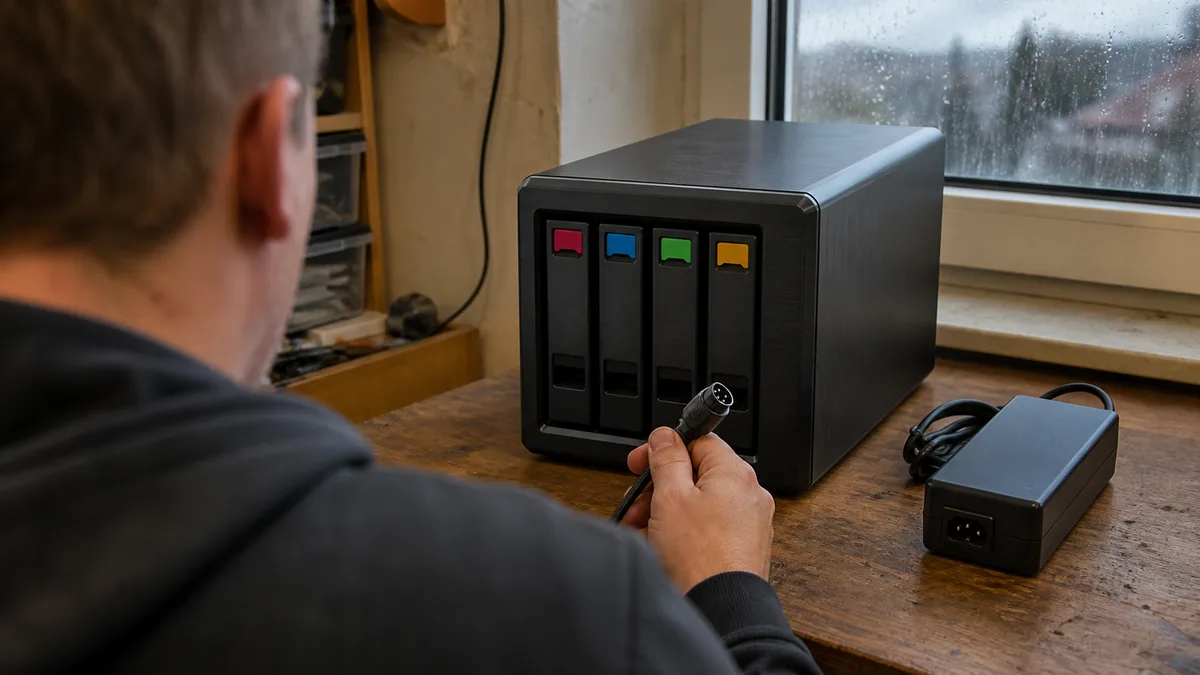
The short answer: If the NAS will not start, keeps restarting, its drives are clicking, or there are signs of an electrical fault, disconnect it from the power supply and leave it switched off. If it is running and the interface responds, shut it down normally through DSM or QTS—do not unplug it. In either case, do not keep trying to start it, remove the drives, connect another adapter, or confirm Repair, Recover, or initialization in DSM or QTS. What you do in the first hour may determine whether the data can be restored cheaply from a backup, recovered at considerable cost by a specialist, or recovered at all.
After a storm, pressing the power button feels automatic. Nothing happens. So you press it again—and that is often the moment when a problem costing a few thousand crowns turns into one costing tens of thousands.
The reason is simple: until you know what has failed, every startup attempt is a blind experiment performed on your only copy of the data. A power supply destabilized by a surge may deliver voltage outside the permitted range and damage the drive electronics. A drive with a damaged bearing or stuck heads gets another opportunity to scratch the platter every time it spins up. And a degraded array attempting a rebuild will read every sector on every remaining drive over the course of several hours—precisely when those drives are most vulnerable.
This article is about the first hour. It is not about repairing the NAS—it is about keeping your recovery options open.
What to do in the first few minutes
If the NAS will not start, keeps restarting, its drives are clicking, or you smell something burning, disconnect it from the power supply and leave it switched off. If, on the other hand, it is running normally but is simply not visible on the network, do not unplug it—a hard power cut to a running device is an unclean shutdown and can itself damage data. In that situation, shut it down normally through DSM or QTS, or leave it running until you determine what is happening. In either case, leave the drives in their bays. Do not test them individually in a computer or another NAS.
Then document everything before anything is moved:
- photograph the front panel and its indicator lights, as well as the rear panel and cabling,
- photograph the drive positions—or write them down: bay 1, 2, 3, 4 and each drive’s serial number,
- record what happened during the last attempt: did the fans start spinning? Was there a beep? Did the drives click? Was there a smell?
That photograph of the drive positions is the cheapest insurance in the entire process. Drive order is essential information when reconstructing the array, and nobody else will be able to provide it.
Then make one decision before attempting anything technical: is the data worth more than the box? If it is, the goal of the first hour is not to repair the NAS. The goal is to avoid making things worse and determine whether a backup exists from which operations can be restored elsewhere.
Quick reference: situation, action, and trap
| Situation | What to do | What not to do |
|---|---|---|
| NAS does not respond at all | Disconnect the power and test the outlet and UPS with another appliance | Do not try different adapters that „fit" |
| Indicator lights flash and go out | Leave it switched off and record the indicator behavior | Do not keep restarting it „to see if it catches" |
| It runs but is not on the network | Check DHCP in the router, the cable, and the switch port | Do not unplug it, press RESET, or restore factory settings |
| A drive clicks or repeatedly spins up | Switch it off and disconnect it immediately | Do not run a SMART test, array check, or rebuild |
| DSM/QTS reports a degraded array | Stop working and verify the backup | Do not click Repair, Recover, or Initialize |
| Burning smell or scorched connector | Disconnect the circuit and call an electrician | Do not open the power supply or reconnect it |
After a storm, also check the modem, router, switch, and UPS. Quite often, the NAS itself is fine and simply received a different IP address after the router restarted—or it is connected through a switch that absorbed the surge instead. Power surges can also travel through data cables, so a damaged Ethernet port is hardly unusual.
If outlets are scorched, connectors have melted, or several devices have stopped working at the same time, this is no longer a NAS diagnostic issue. Do not switch the circuit back on until an electrician has inspected it.
What the indicator lights, sounds, and smell can tell you
The panel is completely dark. The fault could be in the external adapter, internal power supply, or power circuitry on the motherboard—or it could simply be an interrupted power feed. A dark panel tells you nothing about the condition of the drives. That is precisely why removing them immediately makes no sense.
It lights up briefly and then goes dark. This typically indicates that the power supply’s protection has activated, there is a short circuit, or the power supply cannot provide the current required to start the drives. Spinning up a mechanical drive is the most power-intensive moment of its operation. A power supply weakened by a surge may not cope, even if it otherwise appears to „start." Repeated startup attempts are not diagnostics here—they repeatedly stress whatever is still working.
The fans run and the indicator lights are on, but DSM or QTS cannot be found. First, separate a storage problem from a network problem. Check the router’s list of DHCP clients or use Synology Assistant or QNAP Qfinder Pro. Try another cable and a different switch port.
However, use these tools only to locate the device. Do not confirm system installation, migration, initialization, or volume repair. The tools may readily offer these options without warning that they could overwrite the array metadata.
Warning signs that mean you should stop experimenting:
- a sharp smell of burnt plastic or electronics,
- a discolored or melted power connector,
- a clicking drive (covered in detail in our article on what to do when a drive clicks),
- drives repeatedly spinning up and stopping,
- an unusually hot adapter,
- immediate shutdown after pressing the power button.
Do not make the opposite assumption: the absence of a smell does not rule out a fault. An adapter damaged by a surge may look completely normal while delivering voltage outside the permitted range or ripple that the drive electronics cannot tolerate.
Why you should not connect a different power supply
A connector that fits tells you nothing. A replacement adapter must match four parameters simultaneously: output voltage, polarity, connector pinout, and a current rating at least equal to that of the original.
Desktop NAS devices from Synology and QNAP commonly use 12 V or 19 V external adapters—and the connectors used for both voltages may look identical. A laptop adapter that „happens to fit„ can therefore feed nineteen volts into a twelve-volt board. Neither the NAS motherboard nor the drive electronics are likely to survive, instantly turning a diagnosis of „a faulty power supply costing two thousand crowns" into „a faulty motherboard and possibly damaged drives."
If you have a demonstrably compatible original adapter for that specific model—for example, from another identical NAS—one controlled test may distinguish a power supply fault from a device fault. But do not attempt this if the NAS smells burnt, the drives are making noises, or the data is irreplaceable. In that situation, the information gained is worth less than the risk.
Do not open the internal power supply in rack-mounted or larger models yourself. Its capacitors may remain charged long after the device has been unplugged.
Do not remove, reorder, or connect the drives to Windows
The drive order and metadata are what allow the array to be reconstructed. Synology uses Linux MD RAID on the drives, with LVM above it and ext4 or Btrfs on top. SHR is an additional layer that combines drives of different sizes into several RAID layers. QNAP uses a similar architecture. Each layer has its own metadata, and any ill-considered write operation may overwrite it. We explain how these components fit together in how a NAS works internally and LVM explained clearly.
Three specific traps:
Connecting an array drive to Windows. Windows cannot read Linux partitions and will offer to initialize the drive. Clicking „OK" overwrites the partition table. The data will not usually disappear completely, but this creates an unnecessary complication during reconstruction—and the prompt will appear precisely when you are nervous and clicking quickly.
Moving the set of drives to another NAS. The same number of bays does not mean the same configuration. The destination device may offer migration even if it has recognized the array only partially, and confirming migration or a rebuild can overwrite metadata required for recovery.
Swapping the electronics board (PCB) between two „identical" drives. In modern NAS drives—WD Red, Seagate IronWolf, and Toshiba N300—the board memory stores calibration data specific to that individual drive, including adaptive head parameters and the bad-sector map. Simply replacing the board therefore usually does not work; the process requires transferring the memory chip from the original PCB. Without that, you have only complicated the diagnosis. We compare which of these drives are suitable for a NAS in WD Red vs. Seagate IronWolf vs. Toshiba N300.
What you can safely check yourself
Anything that does not write to the drives is safe:
- test the outlet, UPS, and power cable with another appliance,
- check the router, DHCP, and switch,
- try another Ethernet cable and port,
- record the indicator lights, beeps, and other sounds,
- find the exact NAS model and the adapter specified by the manufacturer, usually listed on a label underneath,
- verify the availability and date of the latest independent backup.
If the DSM or QTS interface opens, check the storage and backup status first. Do not run an extended SMART test, file-system check, or rebuild simply because the button is available. These operations read or write across the entire surface of the drives and, in a weakened array, are the most common reason the second drive fails after the first one. We explain why in why a rebuild kills a RAID array.
Specific messages—Storage Pool Degraded, Volume Crashed, RAID Group Degraded, and Volume Read-Only—require their own procedures: Synology and QNAP. One rule always applies: do not confirm a repair without a verified backup.
Restore from backup or recover the original NAS?
If you have a current, verified backup, it is usually cheaper and safer to retire the faulty NAS, build new storage, and restore the data there. The key word is verified: a green indicator for a backup job proves that the job finished, not that the data can be restored. Open several specific files from the backup—an accounting database, a current project, or a shared spreadsheet—and check that they genuinely open.
Contact a specialist without making any further attempts if:
- the latest usable backup is missing or too old,
- the NAS holds the only copy of accounting records, projects, or customer data,
- any drive is clicking or does not spin up,
- the device smells burnt,
- the array is degraded and another drive is reporting errors,
- DSM or QTS offers initialization, migration, or repair,
- the volume or shared folders were encrypted.
For an encrypted volume, prepare the password or recovery key—on Synology, this is the .key file you received when enabling encryption. Without the key, the contents will remain unreadable even after a technically successful recovery—and nobody can reconstruct the key for you.
If you do not feel confident taking this step, or the NAS is the only place where your company data exists, leave it to us. We routinely recover data from both Synology and QNAP systems, and we will diagnose the fault before you touch anything yourself.
What the recovery service should do—and what you are paying for
A proper diagnosis first separates three issues: a power supply fault, a fault in the NAS enclosure, and a drive fault. A service provider that begins by rebuilding the original array is doing exactly what we warned against two paragraphs earlier.
The standard procedure for important data is as follows: each drive is first read into an image or cloned onto healthy media. Only then are the RAID, SHR, LVM, and file system reconstructed from those copies. This protects the original drives from further writes and reads—and if reconstruction does not work on the first attempt, the technician returns to the original image, not the original drive.
The brand does not determine the price. Whether the device is a Synology, QNAP, or an unbranded box is irrelevant—the type of fault and the amount of work determine the cost. Replacing the correct external adapter costs hundreds to a few thousand crowns. Recovering and reconstructing a multidrive array is in an entirely different price bracket, while a physical fault in one or more drives makes the process still more expensive and time-consuming. We explain the factors affecting the price in The Cost of Hard Drive Data Recovery.
Before handing over the device, obtain written confirmation of:
- the diagnostic fee and what you will pay if the data cannot be recovered,
- the estimated recovery price before work begins,
- whether the technicians will work on drive copies or the originals,
- how confidential data will be protected,
- which medium will be used to return the data,
- whether the price includes replacement parts and the destination drive.
What to prepare to speed up the diagnosis
Prepare the exact NAS model, the number and models of the drives, their original bay order, the array type, approximate capacity, and the last known status in DSM or QTS. Also provide photographs of the indicator lights and a description of every startup attempt—including those that went badly. An undisclosed rebuild attempt is information the technicians will lack precisely when they need it most.
Also explain which data you need first. Extracting an accounting database and current projects can take substantially less time than recovering the entire volume, and it may be enough to let you resume operations.
Do not throw away the damaged adapter, UPS, or cables. They can help identify the cause and may serve as evidence for an insurance claim.
How to avoid the same outcome next time
After recovery, do not return the data to the same setup that failed. First have the electrical circuit and UPS inspected, and check the condition of every drive. A drive that has dropped out once does not belong back in a production array—even if SMART reports it as healthy.
Choose a UPS based on the actual power consumption of the NAS and all equipment that must survive the outage. Look at the rating in watts, not only VA. The relationship between the two varies among cheaper units, and choosing solely by VA can easily leave you with a UPS unable to power the NAS. Synology DSM and QNAP QTS can communicate with compatible UPS units over USB or the network and perform a controlled shutdown during an outage. Without that integration, the UPS merely delays a hard shutdown by a few minutes.
And the uncomfortable truth still applies: a UPS is not a backup, and it will not protect against a direct lightning strike. A qualified electrician should assess the building’s lightning protection and the surge protection in its distribution board—in Brno and elsewhere, this is a job for an electrical inspection technician, not IT support.
Keep at least one independent copy of the data outside the NAS. RAID protects against drive failure, not a power surge, theft, accidental deletion, or ransomware—all four can modify the array, and RAID will obediently replicate the change. Our article on external HDDs and the 3-2-1 rule explains how to build a backup capable of surviving these events.
Frequently asked questions
Should I disconnect the NAS immediately after a power outage?
Yes, if it will not start, keeps restarting, its drives are clicking, or you smell something burning. If the interface is accessible and the volume is operating normally, shut it down properly through DSM or QTS. If there is visible electrical damage, do not handle the device until the power supply is safe.
Can I try another adapter with the same connector?
Only if it is demonstrably compatible—the same voltage, polarity, and pinout, with a current rating no lower than the original. Desktop NAS devices use both 12 V and 19 V supplies, and their connectors may overlap, so a matching plug size proves nothing. For multipin connectors, use the original adapter or a model specified by the manufacturer.
Will moving the drives to the same Synology or QNAP model help?
A controlled migration can sometimes bypass a faulty enclosure, but doing this without diagnostics and a verified backup is risky. The destination device may offer initialization or configuration changes, and confirming them can overwrite the array metadata. Keep the drives in the same order and consult a specialist before moving them.
Should I run Repair or Recover in DSM or QTS?
Not automatically. A rebuild reads the entire surface of all remaining drives while also writing to the array. If one of the surviving drives is unstable or the configuration was recognized incorrectly, this will make the situation worse. Verify the backup and the condition of each drive first.
How much does NAS recovery cost, and how long does it take?
Replacing the correct adapter costs hundreds to a few thousand crowns and can be resolved within hours or days. Reconstructing a multidrive array is an entirely different type of job—in both cost and time—and physically damaged drives extend the process further. The service provider should only quote a specific price after diagnosis, not over the phone.
Can I simply restart the NAS if it starts working again?
If it starts, the volume is healthy, and no errors are reported, yes—but immediately check the array status, the SMART data for each drive, and especially whether the latest backups genuinely completed. A power surge can damage electronics in ways that do not become apparent for weeks. A device that has survived a storm should be monitored closely for several days.
Where to find us
ITHOPE is a company based in Brno, Czechia: we do data recovery from disks, RAID and NAS, PC and laptop service and IT for business, all in our own lab at Viniční 3587/216, 615 00 Brno.
Phone +420 775 556 063 (24/7 line). You can bring the device in person, or send it by courier (Zásilkovna, PPL).