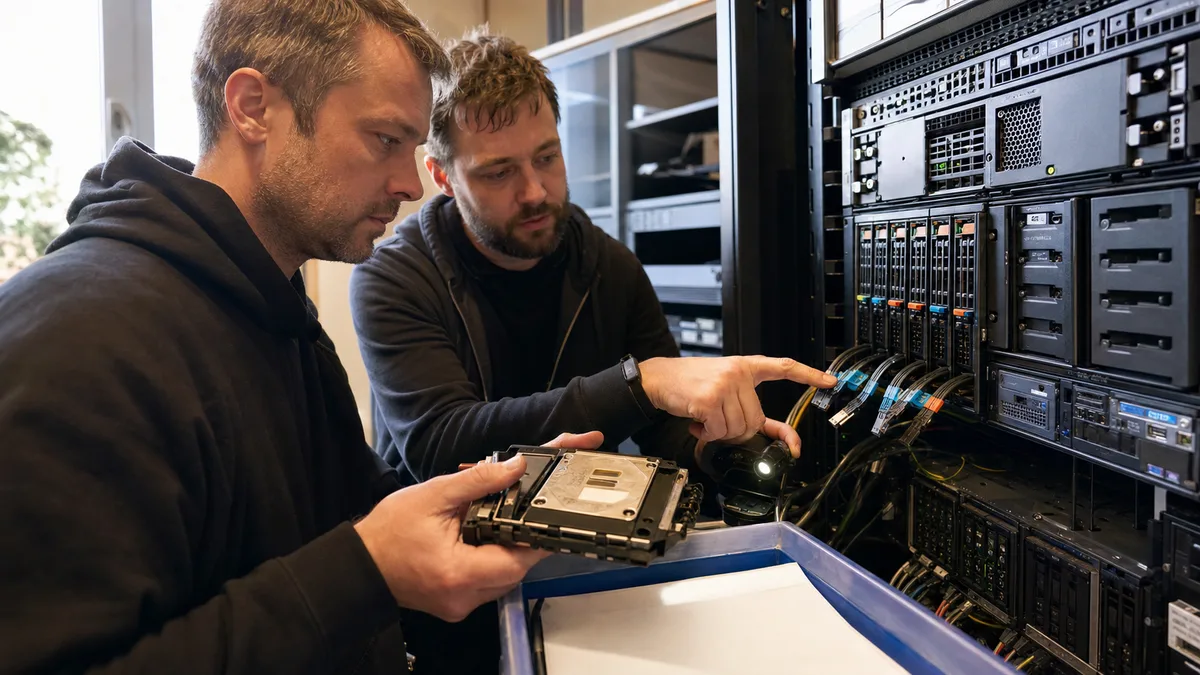
Quick answer: When recovering data from LVM, what matters isn’t speed but the order of steps. First stop all writes and identify which layer is at fault — a missing physical disk, a damaged PV header, corrupted VG metadata, a thin pool, or simply a filesystem that won’t mount? If the disk is throwing I/O errors, work exclusively on a sector-by-sector copy:
vgcfgrestorecan restore the LVM mapping, but it won’t bring back the contents of a missing disk, nor will it repair thin pool metadata.
For a lot of administrators, LVM is a black box that quietly does the right thing for years — and the day it stops, you get acquainted with it under pressure. This article is, first, a plain-English explanation of what’s actually happening under /dev/mapper/, and second, a decision guide for the moment your server reports Couldn't find device with uuid and you don’t know whether to reach for vgcfgrestore or the power switch.
LVM Is Reporting an Error: What to Do First
The server won’t boot, a data volume is missing, or vgs shows partial. Before you start fixing anything:
- Stop writes to the affected disks. Unmount whatever can be unmounted, and don’t let any service keep hammering a volume that’s behaving strangely.
- Don’t restart the server repeatedly „just to see." With a failing drive, every spin-up is a gamble; on a virtual machine, a restart can trigger other automation you don’t want running.
- Don’t run
pvcreate,vgcfgrestore,lvconvert --repair,fsck -y, orxfs_repairuntil you have a copy of the media. All four write to disk. - Save the diagnostic output and system logs — but store them outside the affected storage.
- Once I/O errors show up, the time for experimenting with LVM is over and it’s time for a sector-by-sector copy. LVM only gets sorted out on that copy.
On a virtual server, stop automatic snapshots and replication — anything that changes the disk image on its own. On a physical server, note down the disks’ serial numbers, ports, and their order on the controller while it’s still readable.
LVM is neither a filesystem nor a backup. It’s a translation layer between physical storage and logical block volumes. Fixing it blindly, without knowing the original layout, is like rewriting the contents of a book from a damaged index.
How LVM Works, Without the Unnecessary Theory
A typical Linux server layout looks like this:
HDD / SSD / RAID / virtual disk
                │
        PV – Physical Volume
                │
        VG – Volume Group
          ┌─────┴─────┐
          │           │
       LV data     LV system
          │           │
      ext4/XFS     ext4/XFS
          │
files| Layer | What it represents | Typical example |
|---|---|---|
| Physical device | Disk, RAID, or virtual disk | /dev/sdb, /dev/md0, /dev/mapper/mpatha |
| PV | Device designated for LVM | /dev/sdb2 |
| VG | Shared pool made up of one or more PVs | vg_server |
| LV | Logical block volume created within a VG | vg_server/data |
| Filesystem | File structure inside the LV | ext4, XFS, btrfs |
Two things follow from this, and both matter enormously in a crisis. A single LV can span multiple disks — so losing just one PV typically damages several logical volumes at once, not just „the one on that bad disk." And conversely: a missing LV doesn’t necessarily mean the data is destroyed. LVM often simply can’t find the device because of a renaming, a filter in lvm.conf, multipath, or the device list managed through lvmdevices.
LVM on its own provides no protection against disk failure — unless you’re using a redundant type, i.e., LVM RAID. If what sits underneath LVM is classic Linux MD RAID or a hardware controller, that lower layer needs to be assembled correctly first; only then does it make sense to deal with PVs and VGs. We explain why rebuilding a degraded array requires a copy first in the article why a rebuild kills RAID arrays, and the full procedure for a server in the piece on server data recovery.
What People Mean by „LVM Falling Apart"
The same symptom can have several different causes — and each one calls for a different approach:
| Symptom | Likely area of the problem |
|---|---|
| VG doesn’t show up at all | Missing PV, damaged LVM header, device filter |
VG is partial | One or more PVs are unavailable |
| LV exists but won’t activate | Missing extents, corrupted thin pool, or a UUID conflict |
| LV activates but won’t mount | Filesystem issue, not necessarily LVM |
| Thin pool reports a metadata error | Corrupted thin-provisioning metadata |
Snapshot shows Invalid status | The classic snapshot’s reserved COW space filled up |
| Disks missing after migration | Paths, multipath, or the allowed-device list changed |
| Duplicate PVs after cloning | The original and the clone, sharing the same LVM UUID, are both present in the system at once |
The key distinction is the boundary between three kinds of metadata, because that’s exactly where most fatal mistakes happen:
- VG metadata describe the PVs, LVs, and their mapping.
- Thin pool metadata track which blocks belong to which thin volume.
- ext4, XFS, or btrfs metadata describe the files and directories.
vgcfgrestore only touches the first layer. It won’t fix a thin pool, and it certainly won’t fix a filesystem. Anyone who misses this „fixes" LVM and then wonders why the volume still won’t mount.
Safe Diagnostics: What to Print Out
The following commands only read the current state. Save the output outside the affected storage:
lsblk -o NAME,SIZE,TYPE,FSTYPE,UUID,MODEL,SERIAL
blkid
pvs -o pv_name,pv_uuid,vg_name,pv_size,pv_free,pv_attr,devices
vgs -o vg_name,vg_uuid,vg_attr,vg_size,vg_free,pv_count
lvs -a -o lv_name,vg_name,lv_uuid,lv_attr,segtype,devices,data_percent,metadata_percent
dmesg -T
Look for, in particular:
- the UUID that appears in the error message — and which device it does (or doesn’t) match,
unknown deviceor apartialattribute on the VG,- I/O errors, SATA/SAS device resets, and bad-block reports in
dmesg, - the
Data%andMeta%values on the thin pool, - the LV type:
linear,striped,raid,thin,thin-pool, orsnapshot.
That last point determines your odds. A missing PV under a linear LV means a hole in the data, but the rest of the volume may still be readable. Under a striped LV, every file is spread across the stripe set — a missing PV means every larger file is missing regularly recurring blocks.
Also check /etc/lvm/backup/ and /etc/lvm/archive/. These hold text backups of the VG configuration that LVM writes automatically on every change. They don’t contain user data or thin pool metadata — just the map.
And watch out for one thing: if a disk has physical errors, every additional scan can increase the number of unreadable sectors. In that case, read it in a controlled way — for example with GNU ddrescue, which works from a mapping file and can resume an interrupted read. The target must be a different, sufficiently large disk or image. The context around physically damaged media is covered in how to get data off a damaged hard drive.
Decision Process by Type of Fault
Are there I/O errors on the disk?
├─ yes → sector-by-sector copy → work only with the copy
└─ no
   ├─ entire PV missing → check the device, RAID, multipath, and UUID
   ├─ PV visible, VG not → check the LVM header and metadata archive
   ├─ VG is partial → find out which extents were on the missing PV
   ├─ thin pool won't activate → handle thin pool metadata separately
   └─ LV works → check the filesystem without writing
The Device Disappeared, But the Disk Is Fine
The most common „LVM falling apart" — which isn’t actually falling apart at all. After a system update, a VM migration, or a change on the SAN, LVM looks for the right UUID at a path where it no longer exists. Check multipath, filtering in lvm.conf, the device list managed through lvmdevices (the default since LVM2 version 2.03.17), and whether the hypervisor even attached all the virtual disks.
Writing a „repaired" LVM structure here is both unnecessary and dangerous. The data hasn’t gone anywhere — the system just isn’t scanning the right device.
The LVM Header Is Damaged
If a correct archived configuration exists, you can restore the original PV UUID and then the VG metadata on a working copy:
pvcreate --uuid <ORIGINAL_PV_UUID> \
  --restorefile <CORRECT_VG_ARCHIVE> <COPY_DEVICE>

vgcfgrestore --file <CORRECT_VG_ARCHIVE> <VG_NAME>
Both of these write to disk. The wrong device, the wrong UUID, or an archive from a different point in time can overwrite exactly what you need for recovery. Don’t run them on your only original.
And most importantly: restoring the header does not bring back the contents of a lost disk. Creating a PV with the same UUID on an empty disk restores the label and the map, not the data extents. A map without the territory.
The VG Is Only Partially Available
Activating in partial mode makes available those LVs whose required extents survived. For an LV spread across a missing PV, some blocks will be unreadable — the result is corrupted files and further filesystem errors.
If partial activation is necessary for extraction, do it on copies, and mount the volume read-only with journal replay suppressed: for ext4 via ro,noload, for XFS via ro,norecovery. Plain mount -o ro alone doesn’t stop journal writes on some filesystems.
A Snapshot Is Not a Backup
A classic LVM snapshot stores the original version of blocks that change after it’s created — the so-called copy-on-write mechanism. Once the reserved COW space runs out, the snapshot becomes invalid. This doesn’t destroy the original LV by itself, but you can no longer use the snapshot as a recovery point.
Thin snapshots work differently: they share blocks within the thin pool and depend on both its data and metadata capacity. A thin pool’s metadata LV tends to be an order of magnitude smaller than the data portion — and its corruption or exhaustion can hit a huge volume of data all at once. That’s the unpleasant imbalance that makes it worth watching Meta% just as closely as Data%.
Checking thin pool metadata is done with thin_check and thin_dump from the device-mapper tools package. The command:
lvconvert --repair <VG>/<THIN_POOL>builds a repaired copy of the metadata and, on success, deploys it in place of the original. This is a write operation. It belongs on a copy of the storage, not on your one production instance. And even a successfully restored pool doesn’t guarantee that the filesystems inside the thin volumes are consistent.
One more trap: vgcfgbackup doesn’t back up thin pool metadata. That means the file from /etc/lvm/archive/ alone isn’t enough for thin provisioning — you have the VG map, but not the map of blocks inside the pool.
When Not to Attempt Recovery Yourself
Bringing in professional help makes sense if:
- a disk is reporting I/O errors or dropping out,
- the VG spans multiple PVs and one is missing,
- there’s a broken RAID underneath LVM,
- you don’t know which metadata archive matches the last working configuration,
- it’s a thin pool with corrupted metadata,
- someone has already run
pvcreate,vgcfgrestore,lvconvert --repair, or a filesystem repair, - the data is worth more than the downtime and trial-and-error attempts.
The price isn’t set by the LV’s capacity, but by which layer failed, how many pieces of media are involved, their physical condition, and how much mapping needs to be reconstructed. A sensible quote separates diagnostics, work with damaged media, LVM reconstruction, and target storage for the recovered data. You’ll find a general breakdown of pricing in the article how much data recovery from a drive costs.
The hallmark of a good provider: they make copies first, can explain the RAID → LVM → thin pool → filesystem order, and write exclusively to working images. Before recovery, get confirmation on how your data will be handled, whether an NDA is possible, how the data will be delivered, and whether you’ll receive a list of files actually verified — not just an invoice for an „attempt."
How to Reduce the Risk of Another Breakdown
- Back up
/etc/lvm/backup/,/etc/lvm/archive/, and the output ofpvs,vgs, andlvssomewhere off the server. A text file a few kilobytes in size can be the difference between a reconstruction taking an hour or a week. - Monitor VG capacity as well as the thin pool’s
Data%andMeta%values — a full thin pool isn’t a warning, it’s an outage. - Don’t treat a snapshot as a substitute for a backup. A snapshot lives in the same VG and goes down with it.
- Test file recovery on a different server, not the original one.
- Keep a record of your storage layers: controller, RAID, LUKS encryption, PV, VG, LV, and filesystem. Once things are on fire, you won’t remember it.
- Store recovery keys and encryption configuration separately from the server — with an encrypted volume and no key, even perfectly restored LVM won’t help.
- For virtual servers, back up the virtual disk configuration too, not just the operating system’s contents.
Frequently Asked Questions
Can LVM be recovered without a file from /etc/lvm/backup/?
Sometimes, yes. Copies of the VG metadata are also stored in the metadata area of the available PVs and can be read out using LVM tools. Without the correct map, though, reconstruction is considerably riskier — especially with multiple disks and striped LVs, where order and offsets matter.
Does pvcreate erase data?
Normal use writes new LVM headers and metadata, meaning it overwrites the volume’s labeling. The recovery variant, with the exact UUID and the correct --restorefile, is meant specifically for reconstructing a PV, but with the wrong configuration it can damage the recovery. Don’t run it on your only original.
Can I use fsck if the LV won’t mount?
First verify that the LV is complete and correctly mapped. fsck repairs the filesystem, not LVM. Run against an incomplete LV, it can strip out references to data that’s merely temporarily unavailable — turning a temporary problem into a permanent one.
What does Volume group is missing PV mean?
The VG expects a physical volume with a specific UUID that LVM can’t see. The cause is usually a faulty disk, a broken RAID, an unattached virtual disk, a multipath change, or a damaged PV header. Before you write anything, figure out which of these five it is.
Will an LVM snapshot save my data?
A snapshot restores an earlier state of the blocks, as long as it remains valid and the underlying storage keeps working. It doesn’t protect against disk loss, damage to the whole VG, or a thin pool failure — which is why it’s no substitute for a separate backup.
Where to find us
ITHOPE is a company based in Brno, Czechia: we do data recovery from disks, RAID and NAS, PC and laptop service and IT for business, all in our own lab at Viniční 3587/216, 615 00 Brno.
Phone +420 775 556 063 (24/7 line). You can bring the device in person, or send it by courier (Zásilkovna, PPL).