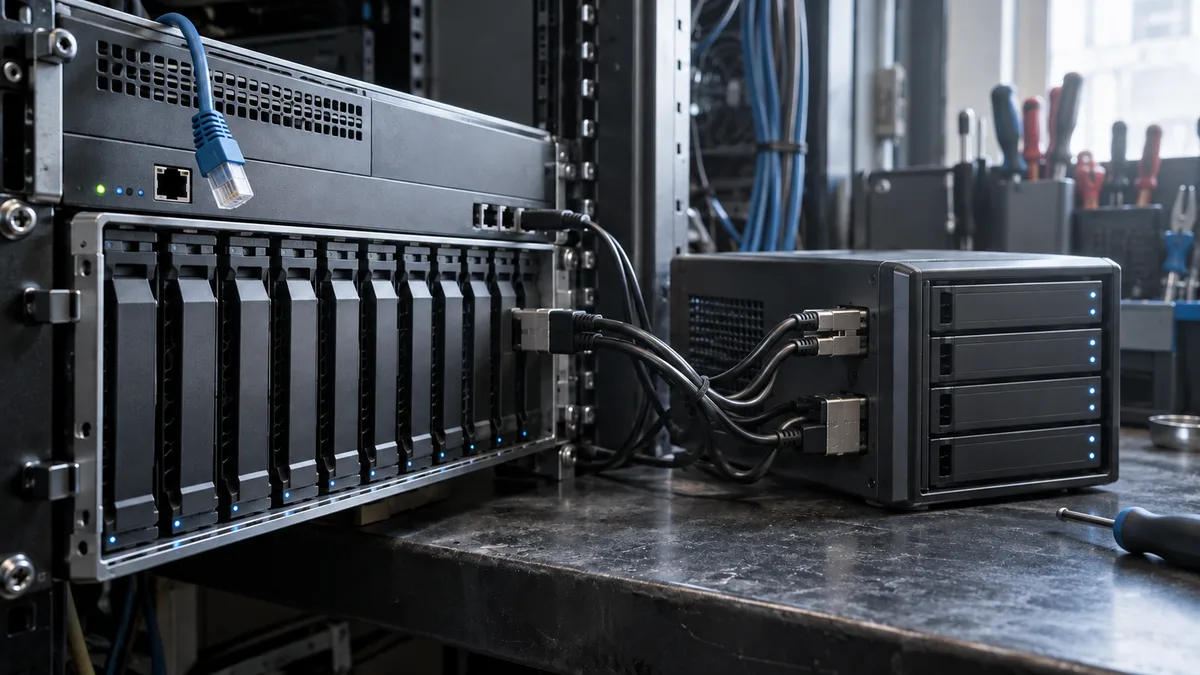
Quick answer: When a Veeam restore fails, immediately prevent further writes to the affected chain and preserve the entire backup folder: the full backup, all increments and the metadata. Then import the backup and perform the restore in a separate environment prepared by an administrator, never directly over production systems.
The chain is a whole, not a single file
A common mistake when a restore fails is to focus on the most recent backup file. In Veeam, however, the newest file in the repository may not contain a usable restore point on its own: it depends on the rest of the chain. A VBK is a full backup, a VIB is a forward increment, a VRB contains changes used in reverse incremental backups, and a VBM holds metadata. The dependencies and the role of the newest file differ between backup methods. The chain’s exact structure also depends on the method used by the job (Veeam: Backup Chain).
This leads to the first practical rule: if a restore reports a missing or unreadable file, the problem may lie in any earlier link that the selected restore point depends on. Diagnostics therefore need to cover the entire folder, rather than individual files.
What to decide before the job runs again
Before running anything, the administrator must arrange to preserve the affected folder and prevent automatic rotation. Specifically, the next scheduled run must not apply retention, add increments or transform the affected backup set before it has been preserved. Such a run could overwrite metadata and make the situation considerably worse.
The distinction matters: this concerns one affected job, not every backup. Stopping all working jobs is unnecessary and needlessly extends the period during which data is unprotected. Another job that writes to a different repository and does not share the faulty chain can continue running. Stop or pause only the job whose files are involved in the restore.
What to record and what to preserve
Before handling any files, document the current state:
- the backup job name and its configuration version,
- the Veeam Backup & Replication version,
- the timestamp of the target restore point,
- the exact restore error message, including the name of the file where it failed.
Then preserve the entire chain: the full VBK backup, all required increments and the metadata file. If you move the files elsewhere, move the metadata, full backup and required increments together. Transferring only part of the chain leaves it incomplete (Veeam KB1729).
There are two things you must explicitly avoid: forcing new increments onto a questionable chain, and deleting the VBK on the assumption that you can „just create a new full backup." A new full backup cannot recover old restore points from the damaged chain, and the deleted VBK may have been the only way to access them.
File deleted, overwritten or damaged and no other copy? Stop writing to the media.
What not to try any more:
- do not save or install anything on the drive or card where the file was — not even recovery software,
- do not format the media or run CHKDSK or repairs on it,
- if the drive also reports errors or clicks, do not keep powering it on.
How it works with us and what it costs: data recovery.
Describe which file and which media it is about; we tell you the price of diagnostics and recovery in advance. NONSTOP line 775 556 063.
Failing media: why you should stop scanning it
If the repository disk disappears intermittently, reports read errors or makes unusual noises, stop further testing on the original. Likewise, do not run file system repairs on the only copy of the backups. This situation requires a different approach from importing an incomplete folder stored on healthy media.
If the source storage is healthy, the administrator can prepare a separate copy. If there are signs of failing media, a specialist should decide how to retrieve the data. A standard single-pass copy is not a universally safe approach and may encounter unreadable areas. Keep the file inventory and the exact errors from attempts already made, but do not repeat those attempts automatically.
Importing into a separate environment, step by step
Import a healthy copy of the chain into an environment that the administrator has prepared separately from production: a Veeam Backup & Replication instance that supports the backup, sufficient storage space and no links to production jobs. Veeam treats importing existing backup files and restoring data from them as two distinct operations (Veeam: Importing Backups). Follow these steps:
- Prepare the separate environment and place a copy of the entire chain (VBK, VIB/VRB, VBM) in a folder accessible to it.
- In the console, open the Home tab and select Import Backup. Under Location, select the server holding the copy, then use Browse to select the VBM file. If the VBM is unavailable, the documentation allows you to select the VBK instead, although importing will take longer. The required increments must be in the same folder as the full backup. The server holding the copy must be added to the separate environment’s backup infrastructure. This console workflow supports imports from Windows and Linux servers, as well as HPE StoreOnce and Dell Data Domain deduplicating storage appliances. For other storage types, Veeam directs users to the Import-VBRBackup PowerShell cmdlet.
- Confirm the import. If successful, the backup appears under Home → Backups → Imported, using the original job name with the suffix
_imported. The listed restore points help you choose what to test; their presence does not prove that every point can be restored. - Compare the listed points with your inventory and the required timestamp. Record any error messages. A specific point’s recoverability can only be verified by restoring it and checking the result. An import that reports errors does not confirm that the chain is complete.
The safe approach if import fails: do not return to the original on failing media, and do not try importing „whatever else is there" directly from production. Compare the copy with the inventory and check the full backup, required increments, permissions and version compatibility. A missing VBM alone does not rule out a manual import using the VBK. According to the vendor, if the backup was created in a newer Veeam version than the one installed in the separate environment, the import will succeed, but restoration will be unavailable. The environment must run the same or a newer version. Try again only after identifying the cause, while continuing to work separately from the production originals.
Then restore from the imported backup in the separate environment to a test machine or an isolated location. If the backup is password-encrypted, give the password to the administrator of the separate environment through a secure channel, separately from the files themselves. Never send both together in the same transfer, email, chat or form.
What the test proves—and what it does not
A successful restore followed by a content check confirms that the specific point tested is usable for the files or applications you verified. Importing alone confirms only that the backup has been added to the console. It does not automatically mean that every point in the chain is sound or that future job runs will succeed. Nor can recoverability be guaranteed for an incomplete chain: a point that requires a missing link may fail even if it appears in the console. However, without knowing the backup method and whether other full backups exist, you cannot declare every point in the set lost.
Also bear in mind that this procedure responds to a restore that has already failed. It does not replace regular restore testing. Restore testing is a preventive process that identifies problems before recovery is actually needed. Here, the situation is reversed: restoration has already failed, and the aim is to preserve as much as possible of what remains.
Decision table
| Situation | What to do | What to avoid |
|---|---|---|
| Restore has failed, but the job keeps running | Pause only the affected job and preserve the folder | Stopping all healthy backups |
| The chain is on suspect media | Stop repeated tests and have a specialist retrieve the data | Repeatedly scanning or „repairing" the original |
| Only the VBM metadata is missing | Preserve the other files and assess a manual import using the VBK | Deleting the VBK and creating a new full backup |
| Import succeeds in the test environment | Restore to an isolated machine and verify the restore point | Restoring directly over production servers |
| The chain is incomplete | Recover what you can and report the limitations | Promising recovery of points that depend on a missing link |
| The chain is encrypted | Share the password through a separate secure channel | Sending the password together with the files |
Handover checklist and result verification
Before handing the case over to another administrator or specialist, prepare:
- a record of the job, version, restore point and error from the start of the incident,
- the entire preserved chain folder, including metadata,
- a copy on healthy storage, with a note stating where the original is and its condition,
- confirmation that production jobs are running normally and only the affected job is paused,
- a record of the import into the separate environment and the restore result.
To verify the outcome, check that the restored application or machine actually starts, and confirm the data’s point in time: its contents must match the moment you intended to restore from. Simply recording „restore completed" without checking the contents tells you little. Finally, establish the limitations: which points could not be restored and what that means for the affected system going forward. Do not require restarts indiscriminately on systems running production services. Any such recommendation must account for the server’s current workload and the services it provides.
Frequently asked questions
Is the most recent backup file enough for a restore?
No. The newest file alone may not contain a usable restore point. What matters is the entire chain: the full backup, increments and metadata together.
Can I run a new full backup after a restore fails instead of investigating?
You can run a new full backup to protect data going forward, but it will not recover points from the damaged chain. Do not delete the VBK or force new increments onto the existing chain until you have preserved it safely.
Why handle import and restore in a separate environment?
Veeam treats importing files and restoring data as separate operations. Importing into an isolated environment lets you check the chain and restore data with less risk to production data. The administrator must still verify the restore destination and the test machine’s isolation.
What if the problem is a failing disk holding the backup repository?
Stop repeated reads and repairs on the original. A specialist should choose how to retrieve the data onto healthy storage based on the fault. We do not recommend a generic command for copying a failing disk yourself.
How can I safely share the password for an encrypted backup?
Share the password through a separate secure channel, never together with the backup files and never through chat, email or a form. As a general rule, secret credentials should never be sent through unprotected channels.
Need to preserve business data?
If the original media has failed or you no longer have a usable copy, describe the situation using the data recovery form. Include the device, symptoms, what happened before the failure and which data you need. Do not submit passwords, keys or sensitive files through the form. We will agree on the scope of the assessment and any costs in advance, based on your specific case. The current price list distinguishes between media types and levels of complexity. For more on the available options, see the data recovery overview.
Sources and review date
The technical sources were checked on 7 October 2026.
Where to find us
ITHOPE is a company based in Brno, Czechia: we do data recovery from disks, RAID and NAS, PC and laptop service and IT for business, all in our own lab at Viniční 3587/216, 615 00 Brno.
Phone +420 775 556 063 (24/7 line). You can bring the device in person, or send it by courier (Zásilkovna, PPL).