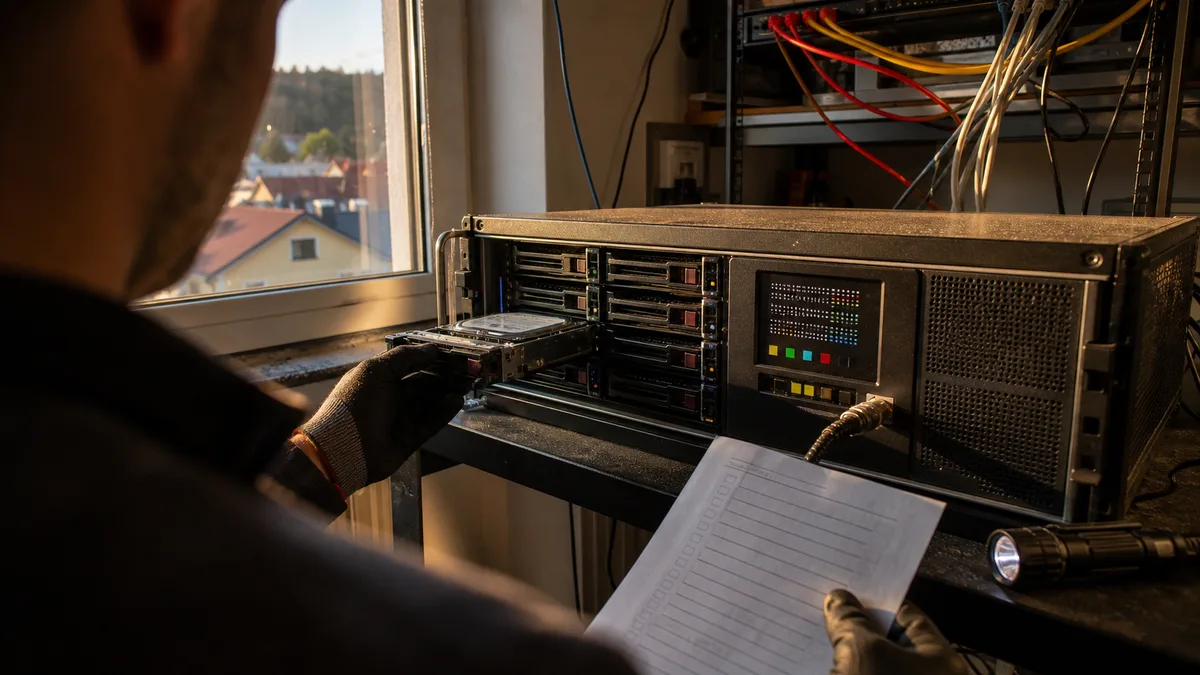
Quick answer: By default, ext4 doesn’t checksum the contents of data blocks. When the storage returns readable but incorrect data, ext4 has nothing to compare it against — the file opens, copies, and backs up just fine, except the original data is no longer inside it. Btrfs and ZFS do checksum data and will catch the corruption during a scrub; but they can only repair it where a second, correct copy exists — that is, in a redundant array. Neither one replaces a separate backup.
Ext4 isn’t a bad filesystem. It’s fast, mature, and recovers reliably after a power failure. For a business NAS, though, it has one specific weakness that only becomes obvious once it’s too late: it can’t tell you that a file’s contents have changed. This article is about how silent corruption happens, why ext4 can’t see it, and what that means in practice for buying and configuring a NAS.
What silent data corruption means
Between the magnetic surface of the platter and the application that opens a file sits a whole chain of intermediaries: the drive’s firmware, its cache, the SATA or SAS cabling, the NAS controller, the RAID layer, RAM, and finally the filesystem itself. An error can originate anywhere along that chain.
Some failures are loud and visible. A drive reports an unreadable sector, drops out of the array, or SMART shows Reallocated or Pending sectors. Those you can work with — the system knows something failed.
Worse is when the entire chain treats a corrupted block as perfectly valid. No warning light comes on anywhere. In practice, it looks like this:
- a ZIP or 7z archive reports a CRC error and part of its contents won’t extract,
- a photo shows a shifted color band across the middle,
- an older PDF opens with a „corrupted structure" error,
- a virtual machine’s disk stops booting,
- a database reads a page and finds its own checksum doesn’t match,
- a backup program without verification overwrites a still-good copy with a corrupted one.
That last point is the nastiest. At that moment, backup rotation is actively working against you — the silent error gets backed up just as dutifully as correct data, and after a few cycles there’s nothing good left to reach for.
The term „bit rot„ is commonly used for this, but it’s misleading. It suggests gradual media aging, whereas the cause is just as often faulty RAM, a firmware bug, a power issue, or a bad write that happened months earlier. Large-scale studies on production arrays documented this phenomenon long ago — the most cited are the CERN study and the NetApp/University of Wisconsin research based on statistics from millions of drives. The exact figures vary by hardware type, though, and don’t translate to a small business NAS as a „probability of losing data."
What matters instead is this: SMART won’t catch this type of error. SMART describes the device’s condition and events the drive itself recorded — not whether the contents of your contract file are correct. We cover how to read SMART data and what it actually tells you in how to tell an HDD is dying.
Why the ext4 journal isn’t enough
The ext4 journal solves a completely different problem than people expect of it. It makes sure that an interrupted write doesn’t leave half-applied metadata changes behind — so a directory doesn’t end up with an entry for a file whose blocks were never actually allocated. That’s structural consistency, not content correctness.
Modern ext4 can checksum both metadata and the journal (the metadata_csum feature, enabled by default in mkfs on today’s distributions). That means the system will recognize a corrupted inode or a broken directory block. It does not mean end-to-end checksumming of user data — ext4 doesn’t maintain that. When the storage returns different but still readable content for a given block, ext4 has no reference to verify it against. It has no way of knowing something is wrong, so it stays silent.
fsck doesn’t close this gap either. It checks structure: directories, allocation bitmaps, inodes, link counts. It doesn’t care whether a file should contain an invoice for CZK 120,000, or whether a single bit got flipped somewhere inside it.
On top of that, you can’t just run it whenever you like. The check requires an unmounted volume:
umount /dev/your_volume
e2fsck -f /dev/your_volume
That means downtime, plus the need to target exactly the right device. On a NAS with Linux RAID, LVM, or a vendor’s proprietary layer, don’t run this command without understanding the actual architecture — the device layering underneath rarely matches what the web interface shows you.
What Btrfs and ZFS do differently
Btrfs stores data and metadata checksums in separate trees, apart from the blocks they describe. ZFS embeds the checksum of every block in its parent pointer, so a read verifies the entire chain from the tree’s root down to the data. The implementation details differ, but the outcome is the same: if the computed checksum doesn’t match the stored value, the system knows it can’t trust the block it just read, and it reports an error instead of handing the corrupted data to the application.
Two things need separating here that marketing materials tend to blur together. Detection works even on a single drive. Repair doesn’t. The system needs somewhere to pull a correct copy from — a second mirror, another array member, RAIDZ parity. On a single-disk volume, Btrfs will name the corrupted file precisely and refuse to hand it over, but it can’t conjure the original content out of nothing. Still, that’s better than ext4, which hands you the corrupted file as if nothing were wrong.
| Feature | ext4 | Btrfs | ZFS |
|---|---|---|---|
| Metadata checksums | Yes (metadata_csum) | Yes | Yes |
| File content checksums | Not by default | Yes | Yes |
| Online scrub while running | Not to this extent | Yes | Yes |
| Self-healing from a redundant copy | No, at the FS level | Yes, with redundancy | Yes, with redundancy |
| Built-in snapshots | No | Yes | Yes |
| Where you’ll find it in off-the-shelf NAS | QNAP QTS and others | Synology DSM, Linux | QuTS hero, TrueNAS |
Scrub: the check that actually has to run
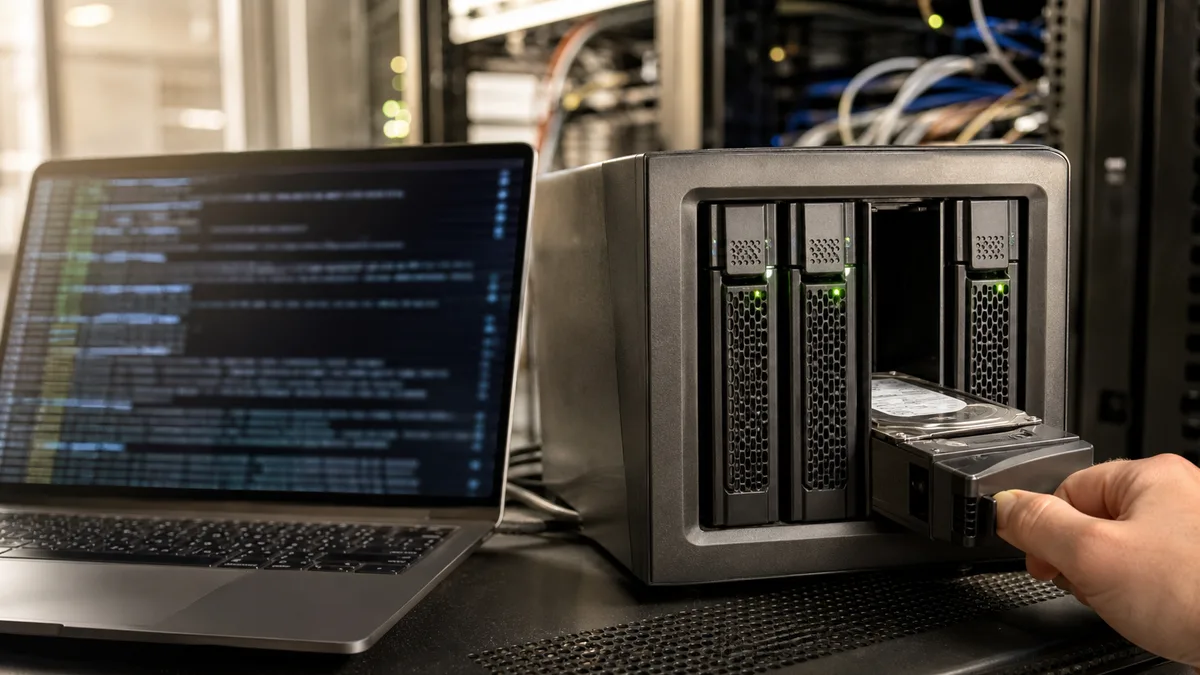
Checksums alone don’t monitor anything by themselves. Only a block that someone actually reads gets verified. A file nobody has touched in three years could be corrupted and the system wouldn’t know — not until someone reads the whole thing. That’s exactly what a scrub does: it walks through the stored data, recalculates the checksums, and compares them. When it finds a mismatch and a correct redundant copy exists, it overwrites the bad block with the correct content and logs it.
On Linux with Btrfs:
btrfs scrub start -Bd /data
btrfs scrub status /data
btrfs device stats /data
With ZFS:
zpool status -v tank
zpool scrub tank
zpool status tank
Both /data and tank are just examples — on production storage, check the actual mountpoint and pool name first. In Synology DSM, the same thing is tucked away in Storage Manager under Data Scrubbing, and it can be scheduled.
A reasonable default is a monthly scrub. The actual schedule, though, depends on capacity, drive speed, and workload. Expect a full array to take anywhere from hours to days, loading every drive with continuous reads the whole time.
And one strong warning: don’t run a scrub while the array is in Degraded, Volume Crashed, or Read-Only mode. Continuous reads across every drive are exactly the load that finishes off an already weakened array — the same mechanism that means a rebuild often kills a RAID array. We cover the recovery procedure separately for an already-damaged Synology in Storage Pool Degraded state and a QNAP with RAID Group Degraded.
How Synology, QNAP, and TrueNAS differ
Synology. Btrfs support is mainly found in the business-oriented Plus series — the DS224+ or DS923+, for example. Always check availability against the specific model and DSM version, though; it’s not a blanket feature of the whole brand. One important technical detail: Synology doesn’t combine drives using native Btrfs RAID. Its Btrfs sits on top of Linux software RAID (md) and LVM. To make that combination work, Synology added a path that lets Btrfs pull a second copy from the RAID layer underneath it whenever a checksum mismatch occurs. That only works when checksums are enabled on the specific shared folder and the array is redundant — both need to be checked, not assumed.
QNAP. The TS-464 family and plenty of other QTS models run on ext4. There, you simply don’t have file content protection. QNAP offers ZFS in its separate QuTS hero system, for example on the TVS-h674 series. So buying „a four-bay QNAP" isn’t enough — what matters is the model, the operating system installed on it, and how the pool gets created. Migrating between QTS and QuTS hero isn’t a toggle switch; it means moving the data over.
TrueNAS SCALE. Built on OpenZFS, it gives you the most control over designing mirrors, RAIDZ, snapshots, and replication. The price is that you need to actually understand it. For a small business, it makes sense where there’s a provider who designs the solution, documents it, and monitors its health — not as a box someone clicks through once and closes.
What this protection costs
Checksums themselves are free — they’re built into the filesystem. What you pay for is what’s needed for repair: redundant capacity, enough bays, RAM, a backup power supply, and a second location for backups.
With a two-disk mirror, you get roughly half the raw capacity. RAIDZ1 or a single-parity array costs you the capacity of one drive; RAIDZ2 or a dual-parity array costs two. For business documents, a four-bay NAS is usually the more sensible choice over the cheapest two-bay model — it allows for a more resilient configuration and later expansion, and the price difference for the chassis itself is small next to the value of the data. Budget separately for the drives, external backup storage, and the migration work.
For ZFS, ECC memory is advisable, especially for important business data. The internet legend that ZFS without ECC destroys your data isn’t true — but simple logic still applies: the checksum is computed in RAM, so an error in RAM gets written into the pool as „correct." ECC reduces that risk. And unless you have a specific reason and have actually calculated the memory requirements, leave ZFS deduplication turned off; its memory overhead is the most common reason a small pool becomes unusably slow.
Which drives and configurations make sense
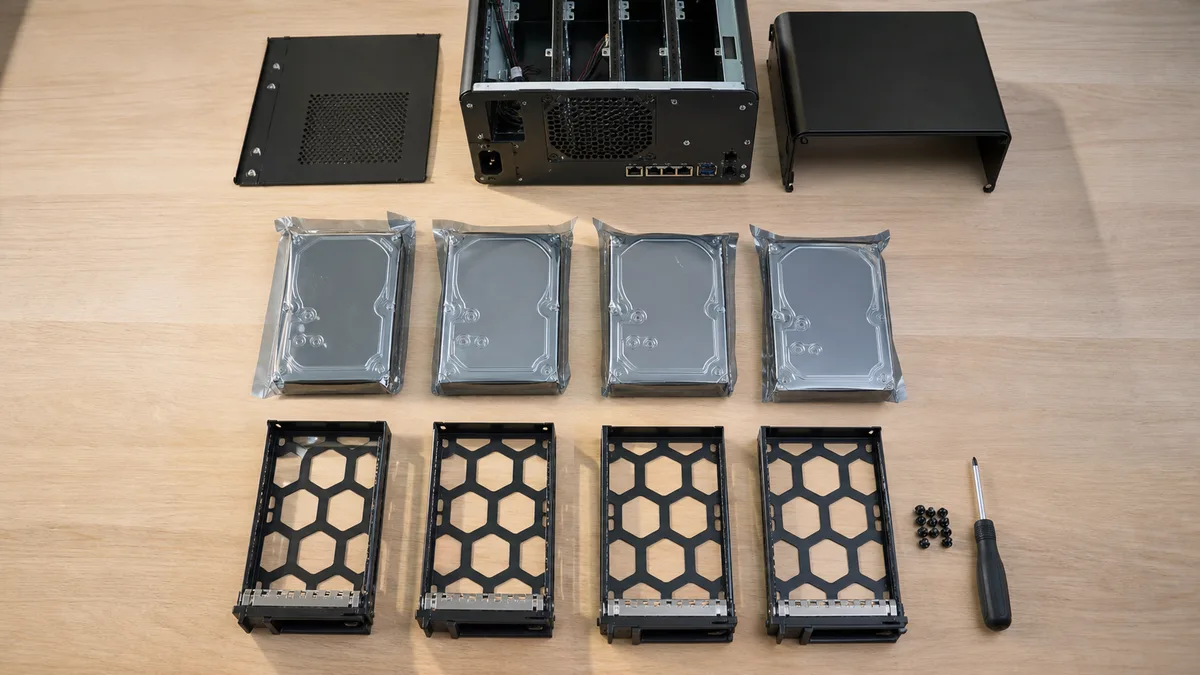
Choose drives designed for continuous operation in an array — WD Red Plus or Red Pro, Seagate IronWolf and IronWolf Pro, Toshiba N300. For each specific model, check the recording technology; lower-capacity versions have in the past shipped as SMR drives, which behave problematically during a RAID rebuild. We cover the difference between CMR and SMR, along with a comparison of the individual lines, in CMR vs. SMR and WD Red vs. Seagate IronWolf vs. Toshiba N300.
WD Purple doesn’t belong in a NAS used for documents, even though it’s the same size and cheaper. It’s built for camera systems, and its firmware is optimized for continuous video writing, where losing the odd frame is tolerated. It’s not a substitute for databases and virtual machines.
What we check when designing a setup:
- whether the system uses data checksums at all,
- whether protection is actually enabled for the specific shared folders, not just theoretically at the volume level,
- what level of redundancy enables self-healing, not just survival of a single drive failure,
- whether a scrub is actually scheduled and actually completes,
- where alerts go, and whether anyone reads them,
- whether the NAS is on a UPS and can shut down cleanly,
- whether a separate backup exists and a restore test has been done.
For important data on native Btrfs, RAID1 or RAID10 is the choice. The Btrfs RAID5/6 profiles have a long-known write hole problem and are flagged as not recommended for production in the upstream documentation — that rules them out as a default choice for a business NAS.
RAID, snapshots, and backups solve different failures
This is where mistakes most often happen in reasoning, not in configuration:
- RAID keeps things running when a certain number of drives fail.
- Checksums detect that content has changed.
- A snapshot lets you roll back to an earlier version.
- A backup saves your data when the entire NAS disappears or gets compromised.
None of these layers replaces the others. A snapshot on the same NAS isn’t a backup — it disappears along with the pool, the device, and a compromised admin account. Even Btrfs and ZFS won’t protect you from ransomware if an attacker gains the rights to delete snapshots and replicas; we describe what that looks like in the article on ransomware on a NAS. Alongside local snapshots, you therefore need a separate copy: a second NAS, object storage with appropriate retention, or offline media — and the principles of 3-2-1 backup apply to a business running a NAS too. Restores get tested, not assumed to work.
How to recognize a well-designed NAS
A provider shouldn’t just hand you a box with a blinking RAID light. The handover should include:
- a description of the drives, pool, volumes, and shared folders,
- exactly where checksums are enabled,
- a schedule for scrubs, SMART tests, and backups,
- alerts configured to reach a specific responsible person,
- a log from a restore test of several files,
- documentation of access credentials, with the option to hand it over to another administrator,
- a plan of action for a failed drive and for a degraded array.
Before you buy, ITHOPE can assess your data volume, required recovery time, drive compatibility, and the level of redundancy you need. The result should be a documented solution where you know what it protects, what it doesn’t, and what it costs to run.
QUICK ANSWER
For a NAS holding important business data, Btrfs has one decisive advantage over ext4: file content checksums and a scrub that catches silent corruption before it has a chance to spread into your backups. ZFS provides the same protection plus significantly stronger storage management, but it wants more capable hardware and more experienced administration. Detection works even on a single drive; repair only with redundancy. Neither system replaces a separate backup.
FAQ
Can ext4 detect a corrupted file?
Only when the error shows up as an unreadable block, or when the application itself notices it through its own checking mechanism — an archiver via CRC, say, or a database via a page checksum. By default, ext4 doesn’t verify the content of data blocks against a stored checksum.
Will Btrfs repair corrupted data on a single drive?
It will detect it and refuse to hand it over, but without a second correct copy, there’s nothing to restore from. Self-healing data requires redundant storage — a mirror or a parity array.
Is ZFS always better than Btrfs?
No. ZFS has more sophisticated pool management, integrity control, and replication, but it demands more from design, RAM, and administration. For a smaller business, a supported Synology running Btrfs is often more practical, provided scrub, alerts, and backups are set up correctly.
How often should you run a NAS scrub?
Once a month is a reasonable default. Adjust the schedule based on storage size, workload, and the manufacturer’s recommendations. Don’t run a scrub on a degraded array without diagnosing it first.
Do Btrfs or ZFS protect against ransomware?
Checksums don’t — from the filesystem’s point of view, an encrypted file is a correctly written file. A snapshot can help you roll back to before the attack, but only if the attacker can’t delete it. You need separate access credentials, appropriate retention, and a backup outside the main NAS.
Where to find us
ITHOPE is a company based in Brno, Czechia: we do data recovery from disks, RAID and NAS, PC and laptop service and IT for business, all in our own lab at Viniční 3587/216, 615 00 Brno.
Phone +420 775 556 063 (24/7 line). You can bring the device in person, or send it by courier (Zásilkovna, PPL).