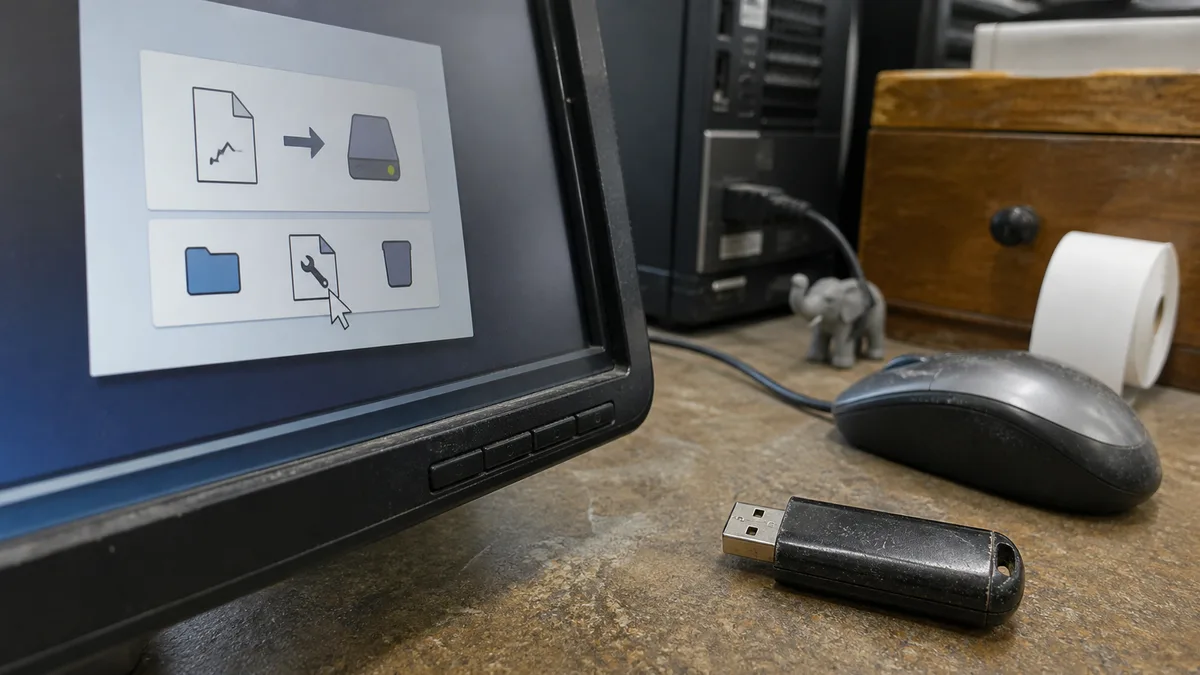
The short answer: Before trying to repair the file, ask yourself one question—where is the file stored? If it is on a USB flash drive, SD card, or external drive that disconnects, slows down, or reports errors, stop using it: every further attempt to open the file and every „repair" performed on such a device involves writes. A sector-by-sector copy of the device must be created first; only then should the file be recovered from that copy. If the file is stored on a healthy drive, it makes sense to try the built-in Open and Repair feature (in the Open dialog, under the arrow next to the Open button), followed in Excel by the Repair and Extract Data options. Only attempt advanced tricks such as „renaming .docx to .zip" on a copy, never on the only existing file.
A corrupted document is deceptive because it looks like a minor issue. One quotation, one report, one budget—and the rest of the computer works normally. That is precisely why people start attempting repairs at the very moment they should stop. The procedures below apply to Word and Excel for Microsoft 365 as well as the standalone 2024, 2021, 2019, and 2016 versions; any differences in behavior are noted.
First, distinguish between two completely different situations
A corrupted-file message does not identify the cause. Yet there are two very different possibilities:
- Only the file is damaged. A write operation did not finish, the application crashed, third-party software wrote invalid data to the file, or a network transfer was interrupted. The drive is healthy and other files open normally.
- The storage device containing the file is failing. A USB flash drive keeps disconnecting, an external drive clicks, or a card disappears from its reader. The file is merely the first place where the problem became visible.
You can usually tell the difference from the surrounding symptoms: if multiple files on the same device behave strangely, copying from it freezes, or the system reports an input/output or cyclic redundancy check error, this is not an Office problem. CRC errors (cyclic redundancy check) explains what such a message means and why repeated attempts can cause further damage. Microsoft itself notes that corruption commonly occurs when a file is stored on a USB device that is disconnected—and recommends using the Safely Remove Hardware icon. This is exactly where a corrupted file and a failing storage device intersect.
What each type of message suggests
The exact wording varies by Office version and installation language, so it is more useful to classify the problem by what the application does than by one particular sentence:
| What Office does | What probably happened | First step |
|---|---|---|
| The file cannot be opened normally and the application offers to repair it | The document package is corrupted—.docx and .xlsx files are compressed archives containing multiple parts | Use Open and Repair from the Open dialog |
| Word reports unreadable content and asks whether it should recover the document contents | Part of the internal structure is damaged, but the rest can probably be recovered | Confirm only for a file you trust—and work on a copy |
| Excel automatically switches to file recovery mode | Excel detected corruption while opening the file | Let it run; if the mode does not start, launch Open and Repair manually |
| Word claims that „the document is locked for editing by another user" even though nobody else is working on it | An owner file with the ~$ prefix was left in the folder after the application closed incorrectly | Close Office and delete the owner file—never the original |
| The error appears with multiple files from the same device | The storage device is faulty, not the document | Stop using the device and create a sector-by-sector copy |
One rule applies regardless of the message: make a copy of the file before running anything and repair the copy. Repair features write data, so a second attempt may otherwise begin from a worse state than the first.
When not to try this yourself: if the corruption appears in multiple documents from the same drive, USB flash drive, or card, or if the device disappears or slows down, do not run document repairs and disconnect the device—the fault is in the hardware, and every further attempt reads damaged areas. We first create a sector-by-sector copy of the device, search for and repair files on the copy, and tell you the price before starting any paid work. Learn more on our data recovery page, or send an enquiry through the form.
Built-in repair: Open and Repair
Word, Excel, and PowerPoint all include this feature, and it is the first thing to try. According to Microsoft, the procedure is:
- In the application, select Open and navigate to the folder containing the document.
- Select the corrupted file—but do not click Open.
- Click the arrow next to the Open button.
- Select Open and Repair.
Excel then presents another choice. Microsoft describes the options as follows: „To recover as much of the workbook data as possible, pick Repair." and „If Repair isn’t able to recover your data, pick Extract Data to extract values and formulas from the workbook." The order matters because Repair attempts to preserve structure and formatting, while Extract Data sacrifices everything except the cell contents. Excel may also launch File Recovery mode automatically when it detects corruption while opening a file; if it does not, the manual procedure above is the correct next step.
When Open and Repair is not enough: Excel
Microsoft recommends several additional procedures for a corrupted workbook. It is worth trying them in this order:
- Revert to the last saved version—open the workbook without the unsaved changes. This helps if the corruption occurred only during the most recent editing session.
- Set calculation to manual (Calculation Options → Manual) and reopen the workbook. Sometimes the problem lies in recalculation rather than the data.
- Retrieve values using an external reference—in a new workbook, a formula such as
=File name!A1may access cells in a file that cannot itself be opened. - Save in SYLK (Symbolic Link) format using Save As. Note the limitation Microsoft states explicitly: „When you use the SYLK file format, only the active sheet in the workbook is saved."
- Recover source data from a chart using a macro if a chart remains in the workbook.
None of these methods repairs the original file. They all serve one purpose: extracting the content and saving it in a new, healthy workbook.
When Open and Repair is not enough: Word
Microsoft has a separate, now archived procedure for damaged documents (the page is available only in English). The following methods are particularly worth trying:
- Open the document in Draft view without updating links.
- Insert the document into a new blank file using Insert → Object → Text from File.
- Start Word without add-ins using
winword.exe /a. A third-party add-in is a more common cause than many people expect. - Replace the template (rename
Normal.dotm) or save the document in another format and then convert it back—for example, save it as RTF and then as DOCX again. - Use the „Recover Text from Any File" converter to extract plain text. Microsoft itself notes that the converter has limitations and that document formatting will be lost—with a severely corrupted file, it is often possible to recover the text but not the layout.
AutoRecover can help, but it is not a backup
The interval and storage location are configured under File → Options → Save. In Word, the relevant fields are Save AutoRecover information every and AutoRecover file location; Excel uses Save AutoRecover information every, for which Microsoft lists a default interval of 10 minutes. After an application crash or power outage, Word displays the Document Recovery pane with a list of files it found the next time it starts.
In its Office for Mac documentation, Microsoft states explicitly: „Do not use AutoRecover as a substitute for regularly saving your files by using AutoSave … or by clicking Save." The same applies to Windows, for two reasons. AutoRecover covers work in progress since the last save, not the file’s history—you cannot use it to retrieve a version from last week. AutoRecover data is also usually stored on the same drive as the original, so a failing device can take both at once.
Word AutoRecover files in Windows use the .asd extension. If the option to create a backup copy is enabled, Word also creates a .wbk file named „Backup of" followed by the document name. Microsoft 365 users who store files on OneDrive have access to AutoSave and version history—and Microsoft itself recommends this as the safest way to work. I overwrote a file: how to recover the previous version explains where to look for an older file version and why overwriting behaves differently from deletion.
~$ and .tmp auxiliary files
Files that seem out of place occasionally appear in the document folder; the most common one has a name beginning with a tilde and dollar sign. Microsoft describes it as an owner file: Word creates it when a previously saved document is opened, and it contains the login name of the person who opened the document. The name begins with a tilde ~, followed by $ and the remainder of the document name—opening Document.doc, for example, creates ~$cument.doc. If Word closes incorrectly, the owner file remains and the document then appears to be open by someone else. Once all Office applications have been closed, the file can be deleted; it is not your document. Files with a .tmp extension or a random extensionless name are often remnants of the saving process—occasionally they contain unfinished work, but you cannot rely on that. One crucial warning: do not bulk-delete ~$ or .tmp files from a device that is behaving abnormally. Every write to a failing drive is a step in the wrong direction.
The .zip extension trick—only on a copy and only if you understand why
.docx and .xlsx files are not single continuous blocks. Microsoft explains this clearly: an Open XML file is stored in a ZIP archive for packaging and compression, and its structure can be inspected with any ZIP viewer. Inside is a package consisting of multiple parts; the main content of a Word document is stored in word/document.xml, while an Excel workbook’s content parts are located in the xl/ folder. This is the basis of a trick frequently shared on forums: rename the extension to .zip, open the package, and inspect its contents. This can help when only one part of the package is corrupted and the text remains readable—it may then be possible to extract it from document.xml. When this approach is pointless or potentially harmful:
- If the archive itself is corrupted, it will not open at all, and renaming it changes nothing.
- The contents of
document.xmlare marked-up text, not a document—you will not recover formatting, images, tables, or comments without additional work. - Never do this to the original. Renaming and extracting are file-system operations, and on a failing device they cause additional writes.
- This method does not work at all with the old binary
.docand.xlsformats—they are not packages. Treat it as a last attempt performed on a copy, not as a standard repair method.
When the drive is at fault, not the file
This is where our work begins and a how-to guide ends. Signs that the storage device is the real problem include:
- corruption occurring repeatedly and in different files,
- copying from the device freezing at roughly the same point each time,
- the system reporting an input/output or cyclic redundancy check error, or offering to format the device,
- a flash drive or card disappearing in the middle of a save operation,
- a drive clicking, beeping, repeatedly spinning up, or opening files far more slowly than before.
At that point, there is only one correct course of action: disconnect the device and leave it alone. Do not run CHKDSK—CHKDSK on an external drive explains why it can do more harm than good, particularly with external media. Do not accept an offer to format the device; the drive asks to be formatted (RAW) explains what to do instead. Even stricter rules apply to flash drives and memory cards because they provide no advance mechanical warning—see data recovery from a USB flash drive and data recovery from an SD card. If the device still works but behaves strangely, how to tell whether an HDD or SSD is failing can help you decide what to do.
In the laboratory, we do not work on the original. We first create a sector-by-sector image on another device. Document searches, file-system reconstruction, and content extraction from corrupted packages are performed only on that image.
What not to do
- Do not keep opening a corrupted file from a device that is behaving strangely.
- Do not run repair features on the only existing file—always use a copy—and do not save the repaired result over the original.
- Do not install „recovery software" on the failing device or let such software work directly on it.
- Do not reformat a memory card or flash drive even if the system offers to do so.
When to contact us
Leave the device disconnected and get in touch if:
- the same type of corruption appears in multiple files,
- the flash drive, memory card, or external drive disappears, slows down, or makes unusual sounds,
- it is the only existing copy of the file,
- Open and Repair produces no result and you need the document’s contents.
We perform diagnostics and recovery in our own laboratory in Brno. Contact us through the contact page or call 775 556 063. You can find an overview on our data recovery page, and we separately explain when it makes sense to bring the device in person. How much data recovery from a drive costs summarizes the factors that determine the price for each type of fault—but nobody can quote an exact amount before diagnostics. When submitting an enquiry, state which files are the priority: a particular quotation, accounting workbook, project, or folder. To prevent the problem from happening again, using an external HDD as your only backup explains why a single external drive is not a backup.
Frequently asked questions
Word says it found unreadable content in the document. Can I confirm recovery?
Yes, provided you trust the file and are working on a copy. The application asks because it is about to reconstruct the contents, and with a file from an unknown source, this is also a security decision. Keep the untouched original separate.
Where exactly is the Open and Repair feature?
In the Open dialog, select the file, click the arrow next to the Open button, and choose Open and Repair. This applies to Word, Excel, and PowerPoint; Excel then also lets you choose between Repair and Extract Data.
Excel could not complete the repair. Can I at least recover the numbers from an .xlsx file?
Often, yes. Try Extract Data, revert to the last saved version, set calculation to manual, save in SYLK format, or retrieve values through an external reference from a new workbook. The goal is not to repair the original file but to transfer its contents into a healthy one.
Can an .docx file really be renamed to .zip?
Yes—Microsoft itself states that Open XML files are stored in ZIP archives and that their structure can be inspected using a ZIP viewer. However, this helps only in some cases and must be attempted solely on a copy of the file. It does not work with the old .doc and .xls formats. And if the file is stored on a failing device, do not try it at all—the storage device must be dealt with first.
What is a file whose name begins with ~$?
It is an owner file that Word creates for an open document and uses to store the login name of the person who opened it. It remains behind if the application closes incorrectly, which can make the document appear to be open elsewhere. Once Office has been closed, the file can be deleted; it is not your document.
My files keep becoming corrupted. Is Office causing it?
Repeated corruption across different files is a typical symptom of a failing storage device or an intermittent connection, not an application error. Stop writing to the device and have it checked before you also lose files that can still be opened today.
Sources
- Microsoft Support: Open a document after a file corruption error
- Microsoft Support: Repair a corrupted workbook
- Microsoft Support: Repairing a corrupted workbook (advanced procedures, SYLK, and external references)
- Microsoft Support: Recover your Word files and documents
- Microsoft Support: Change save frequency and where Word AutoRecover files are stored
- Microsoft Support: Recover files in Office for Mac
- Microsoft Support: „The document is locked for editing by another user" error (the
~$owner file) - Microsoft Learn: How to troubleshoot damaged documents in Word
- Microsoft Learn: How to recover unsaved Word documents (.asd and .wbk)
- Microsoft Learn: About the Open XML SDK for Office (ZIP package)
- Microsoft Learn: Structure of a WordprocessingML document (
document.xml)
Where to find us
ITHOPE is a company based in Brno, Czechia: we do data recovery from disks, RAID and NAS, PC and laptop service and IT for business, all in our own lab at Viniční 3587/216, 615 00 Brno.
Phone +420 775 556 063 (24/7 line). You can bring the device in person, or send it by courier (Zásilkovna, PPL).