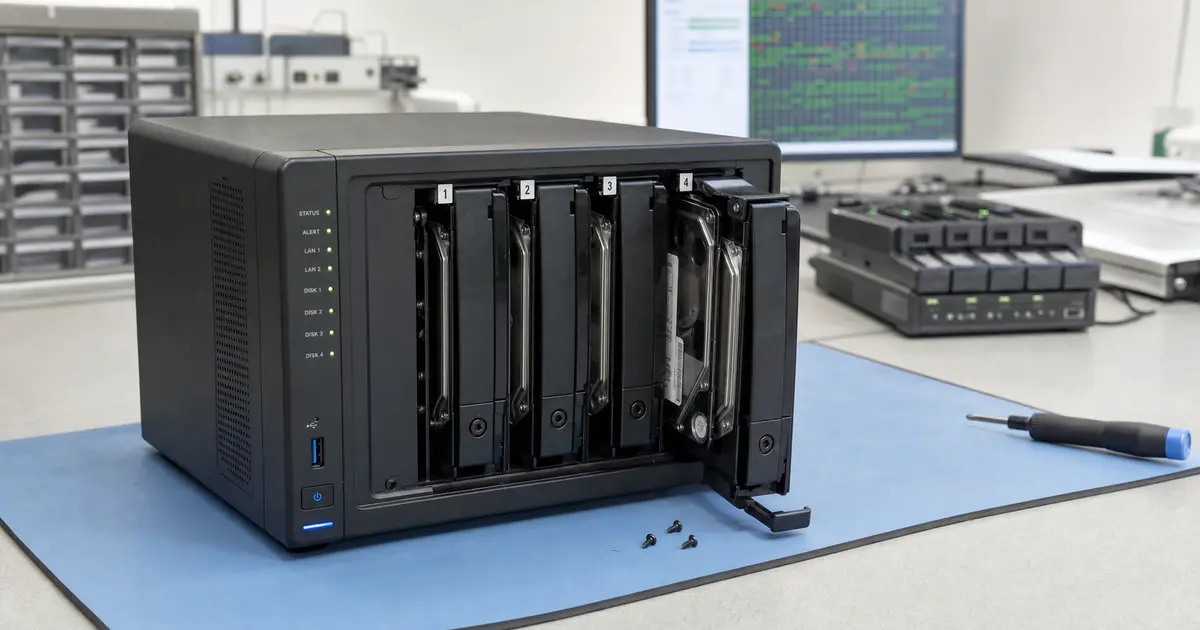
The short answer: If Synology DSM reports Storage Pool Degraded, Volume Crashed, Storage Pool Crashed, or System Partition Failed, stop all write operations and document the current state first. The priority is not to click Repair immediately, but to determine whether you are dealing with a routine single-drive replacement or the beginning of a cascading failure. If you do not have a verified backup, the drives are clicking, DSM reports errors on multiple drives, or the volume has entered the Crashed state, it is safer to shut down the NAS and have the drives assessed outside DSM.
This article is not another general page about Synology NAS data recovery. It focuses on the specific moment when you open Storage Manager and see a warning. What you do at that point can determine whether the issue requires a routine repair or an expensive reconstruction of the array.
Quick guide to DSM messages
| DSM message | What it typically means | What not to do | Safer next step |
|---|---|---|---|
| Storage Pool Degraded | One drive in SHR, RAID 1, or RAID 5 has failed. With SHR-2/RAID 6, more than one drive may have failed, depending on the configuration. The data may still be accessible. | Do not start Repair blindly if the remaining drives have not been checked and the backup has not been verified. | Stop the workload, check SMART data and logs, copy only the most important data, or shut down the NAS if another drive may be failing. |
| Volume Crashed | The storage pool may still exist, but the volume or file system was not mounted correctly. This often happens after a power failure, a btrfs/ext4 crash, or metadata errors. | Do not remove the volume, attempt a reset, or run file-system repairs without a backup. | Document the error, do not change the configuration, and arrange an offline analysis. |
| Storage Pool Crashed | DSM cannot assemble the pool, often because multiple drives have failed or the RAID/LVM metadata is damaged. | Do not create a new pool or repeatedly force the array to assemble by trial and error. | Shut down the NAS, label the drive slots, and submit the drives for diagnosis. |
| System Partition Failed | The DSM system partition mirrored across the drives is damaged. The data may still be present on the data partitions. | Do not reinstall DSM without a clear data recovery plan. | Check whether the problem is limited to the system or also affects the storage pool. |
When Repair is routine—and when it is not
Synology documentation describes Repair as the standard procedure for a degraded storage pool: select the pool in the Degraded state, insert a suitable drive, and let DSM begin the repair. This is the correct administrative procedure provided that you have a backup and the remaining drives are healthy.
The problem is that Repair is not just a simple click. A rebuild reads a large amount of data from every remaining drive and writes it to the new drive. With older drives, high-capacity arrays, or systems whose logs already contain I/O errors, this workload can expose another failing drive. The result may be worse than the original degraded state.
Repair makes sense when all the following conditions are met:
- you have a verified backup of everything important,
- exactly one drive has clearly failed, while the remaining drives have no SMART warnings or I/O errors in the logs,
- the new drive is empty, suitable, and at least the same size,
- the issue is not Volume Crashed, Storage Pool Crashed, or repeated drive dropouts.
Repair is risky when:
- the data exists only on this NAS,
- DSM reports errors on multiple drives,
- a drive is clicking, repeatedly disappearing, or showing increasing pending/reallocated sector counts,
- the pool or volume is Crashed,
- someone has already attempted a reset, reinstalled DSM, replaced multiple drives, or changed the slot order.
Storage Pool Degraded: what to do in the first few minutes
When a pool is Degraded, the strongest temptation is to „replace the drive quickly and repair it." Before doing that, however, you need to determine whether the array is still stable.
- Stop all write operations. Disable backup jobs, synchronisation, Docker containers, databases, camera recording, and indexing.
- Document the current state. Save screenshots of Storage Manager, the drive list, SMART warnings, and the exact error message.
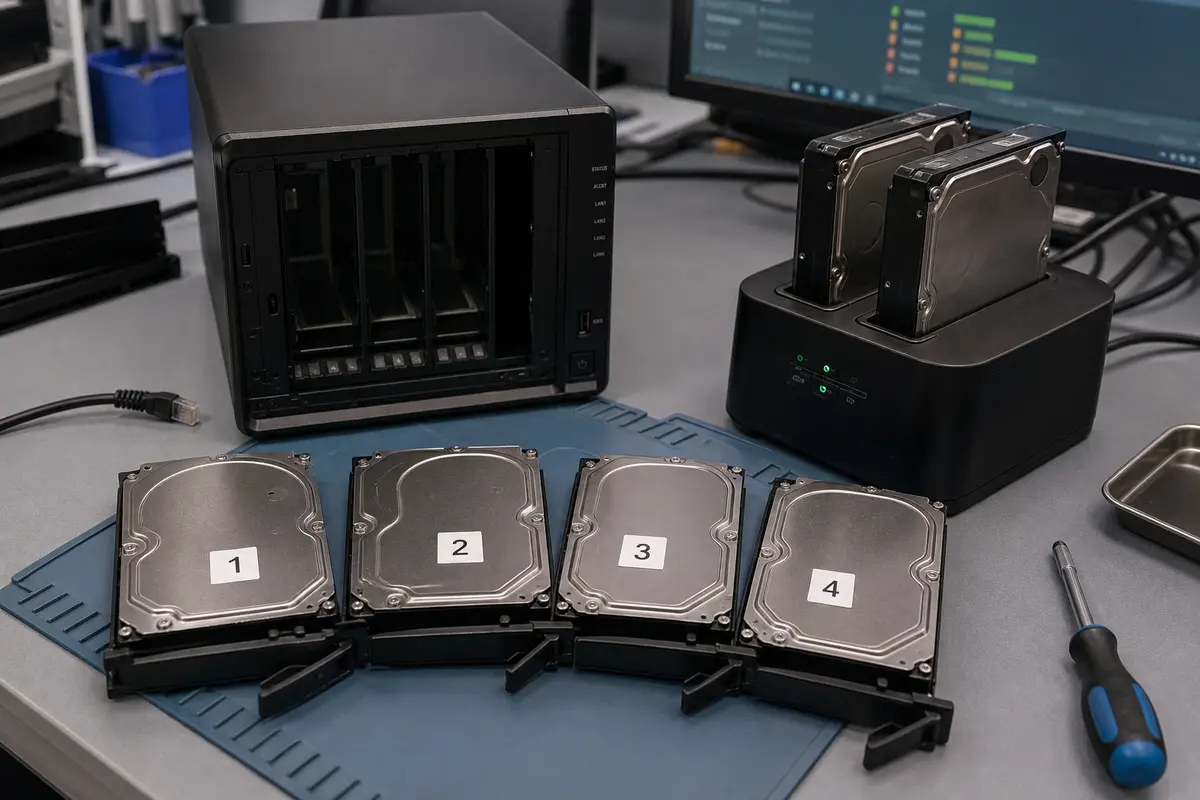
- Do not change the drive order. If you remove the drives for transport, label the bays: Drive 1, Drive 2, Drive 3.
- Consider copying critical files. If the data is accessible and the drive does not sound mechanically damaged, copy only the most important files. Do not run a large, complete backup that will stress the array for many hours if errors are already visible.
- Shut down the NAS if another drive may be failing. With critical data, it is often better to preserve the current state than to let DSM attempt an online „repair."
When not to attempt this yourself: if SMART reports errors on another drive, Repair has failed, or the state has changed to Crashed, do not insert a new drive or start another repair—shut down the NAS. We clone the drives, reconstruct SHR and btrfs from the copies, and tell you what data is available and how much the work will cost before any paid recovery begins. Learn more on our RAID and NAS data recovery page, or send an enquiry through the form.
Volume Crashed is not the same as a failed drive
The Volume Crashed message can be deceptive. Sometimes the storage pool remains physically readable, but the logical layer above it has failed: btrfs, ext4, LVM, or snapshot metadata. This is a different problem from simply replacing a failed drive.
Repairing the RAID array often does not help in this situation because the problem is not limited to a missing drive. With btrfs, tree metadata, transactions, and snapshots also matter. An unskilled repair attempt may overwrite the very structures needed to reconstruct the volume later.
A practical rule: if DSM shows Crashed for the volume or pool and the data is not safely backed up, do not remove the volume, create a new pool, or reinstall DSM „to see if it comes back."
SHR and SHR-2: more than just Synology branding
SHR is convenient in normal operation because it allows drives of different capacities to be combined. For data recovery, however, it is more complex than a simple linear disk. Under the hood, it combines several Linux layers: mdadm, LVM, and the file system.
A dangerous situation often arises with SHR-2: two drives are already showing errors, but the array is still running somehow. At that point, „replace one drive and see what happens" is not a good strategy. The rebuild would read from every remaining drive and could cause the drive holding the last copy of part of the parity data to fail. If the NAS contains company accounts, photos, projects, or databases without a backup, drive cloning and offline reconstruction should take priority.
What you should never do
- Do not click Create, Remove, Initialize, or reinstall DSM if your objective is data recovery.
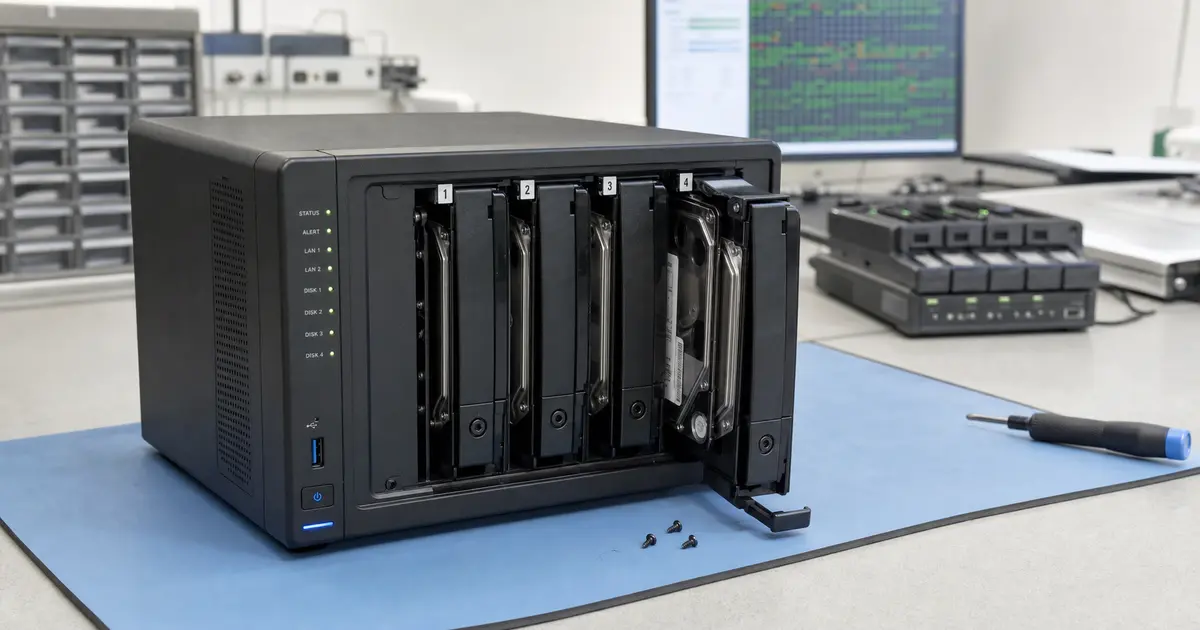
- Do not move drives between bays without accurately recording their original order.
- Do not run commands such as
mdadm --assemble --forceunless you understand the event counts, superblocks, and correct drive order. - Do not connect the drives individually to Windows or approve any request to initialise or format them.
- Do not attempt to „repair btrfs" on the original drives before creating bit-for-bit copies.
- Do not ignore clicking sounds, repeated drive disconnections, or increasing pending sector counts.
How ITHOPE handles recovery
For a failed Synology system, we follow a process that prevents further writes to the original drives:
- Drive diagnostics. We identify mechanically damaged drives, drives with bad sectors, and drives that remain readable.
- Bit-for-bit copies. Each drive is cloned to separate working media. Unstable HDDs are handled sector by sector with controlled timeouts.
- Array reconstruction. We reconstruct mdadm/SHR from the copies, followed by LVM and then the file system.
- Logical recovery. For Volume Crashed cases, we analyse btrfs/ext4 metadata, snapshots, and the directory structure.
- Data delivery. The client receives the recoverable data on new media, not on the original failed array.
The article Why a rebuild kills a RAID array explains the general principles of working with RAID arrays in more detail. You can also see our RAID and NAS recovery service.
FAQ
Synology reports Storage Pool Degraded. Should I replace the drive immediately?
Only if you have a backup and the remaining drives are healthy. If you do not have a backup or the logs contain I/O errors, stop the workload and arrange a diagnosis first. A rebuild is a high-load operation, not a backup.
Repair cannot be selected. Does that mean the data is lost?
Not necessarily. Synology states that Repair may be unavailable, for example, because the replacement drive is unsuitable or has not been initialised. In practice, however, damaged metadata or a deeper pool problem may also be responsible. Do not try to work around the issue by creating a new pool.
Volume Crashed, but the drives appear healthy. How is that possible?
The fault may be in the file system or volume metadata rather than the drive’s physical electronics. The data may still exist physically, but DSM cannot mount it safely.
Can I move the drives to another Synology?
Migration to a compatible Synology sometimes works for healthy arrays. With a failed array, however, it is risky because the new NAS may attempt to mount or repair the pool automatically. For critical data, offline drive copies are safer.
When should I shut down the NAS?
Immediately if a drive is clicking, multiple drives show errors, the storage pool is Crashed, the volume is Crashed without a backup, or a Repair attempt has failed. If the array is Degraded and the data remains accessible, you may copy a few of the most important files first—but only if doing so will not place the array under heavy load for many hours.
Sources and verification
As of 10 July 2026, we had reviewed Synology’s official documentation on repairing a degraded storage pool, handling a crashed volume, and situations where Repair cannot be selected. The manufacturer describes administrative procedures for routine maintenance. The ITHOPE recommendations in this article address situations where the data is not backed up, the array is unstable, or there are already signs of a multi-layer failure.
- Synology: Repair a Storage Pool
- Synology: What can I do if one of my volumes crashed?
- Synology: The Repair option cannot be selected
Does your Synology report Storage Pool Degraded, Volume Crashed, or System Partition Failed? Send us a screenshot of the error through our no-obligation data recovery enquiry, call +420 775 556 063, or email info@ithope.cz. We will first explain what is safe to do next.
See also: Synology NAS data recovery · QNAP NAS · RAID array data recovery · RAID and NAS recovery
Where to find us
ITHOPE is a company based in Brno, Czechia: we do data recovery from disks, RAID and NAS, PC and laptop service and IT for business, all in our own lab at Viniční 3587/216, 615 00 Brno.
Phone +420 775 556 063 (24/7 line). You can bring the device in person, or send it by courier (Zásilkovna, PPL).